Launch a campaign and fix what blocks it
Launch a campaign, read its pre-launch checklist and fix every message that blocks a launch: list, steps, LinkedIn account, mailbox or plan.
Updated October 27, 2026
On this page
Open the campaign and click Launch campaign, then Launch. If something is missing, the campaign isn't launched and you get the list of what to fix: each item is explained below.
Launch a campaign
Open the campaign from Campaigns.
If an amber banner shows N things to fix before launching, fix them first (see below).
Click Launch campaign at the top right.
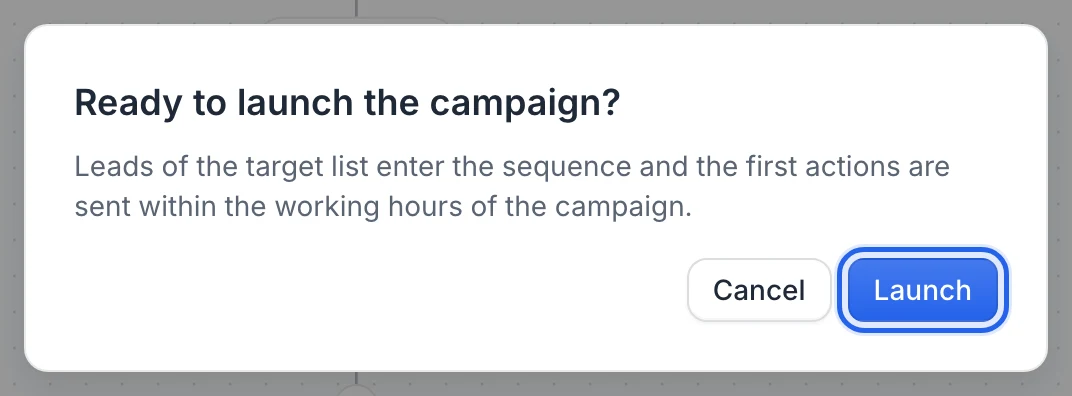
In Ready to launch the campaign?, check the Fix these first: box if it appears, then click Launch.
You see Campaign launched with the number of leads added: "The first actions will be sent within the working hours." The status changes to Running.
You can also launch a draft from the Campaigns list with its switch ("Launch the campaign"). There's no confirmation there: if the campaign isn't ready, a message "… isn't ready to launch" lists the problems, with an Open button.
Campaigns prepared with the AI agent are launched from the conversation: the agent asks for your approval, then launches them. See Go from target to LinkedIn campaign with the AI agent.
Note: Pending changes to the sequence are saved before the launch, and the checks run on the saved sequence.
What happens after the launch
- Every lead of the target list enters the sequence, a few seconds apart.
- The first actions go out within the campaign's working hours, daily limits and Leads started per day: by default, as many new leads a day as its slowest first step can keep up with (for example 20 a day when connection requests follow profile visits). Launched outside the working hours (in the evening or on a weekend), the first actions are scheduled for the next opening, and a banner on the campaign says Outside sending hours with the time actions resume. See Working hours, daily limits and sender accounts.
- Leads added to the target list later join the running campaign automatically, within about 10 minutes.
- Leads whose email address previously unsubscribed from your emails or bounced are stopped right away, with the status Unsubscribed.
Follow the progress in the Leads and Queue tabs. See Manage campaign leads and Queue.
If the campaign isn't launched
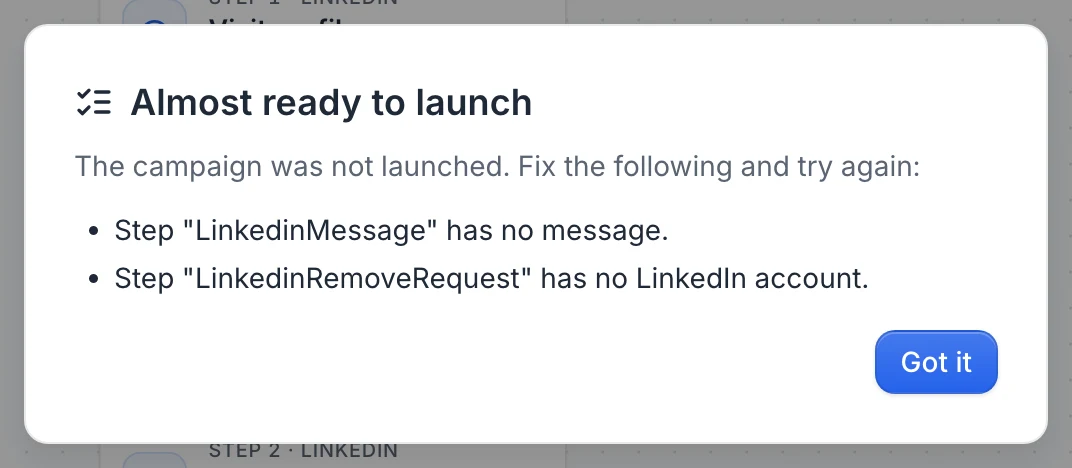
The Almost ready to launch dialog says "The campaign was not launched. Fix the following and try again:" with one line per problem. Click Got it, fix them, and launch again. The same list shows in the amber banner of the campaign page while you edit.
In the sequence, steps that need something show a warning on their card, such as Choose a LinkedIn account or Write the message, and what's missing at the top of their settings. The chip at the top left of the canvas (for example 2 steps need your attention) opens them one after the other.
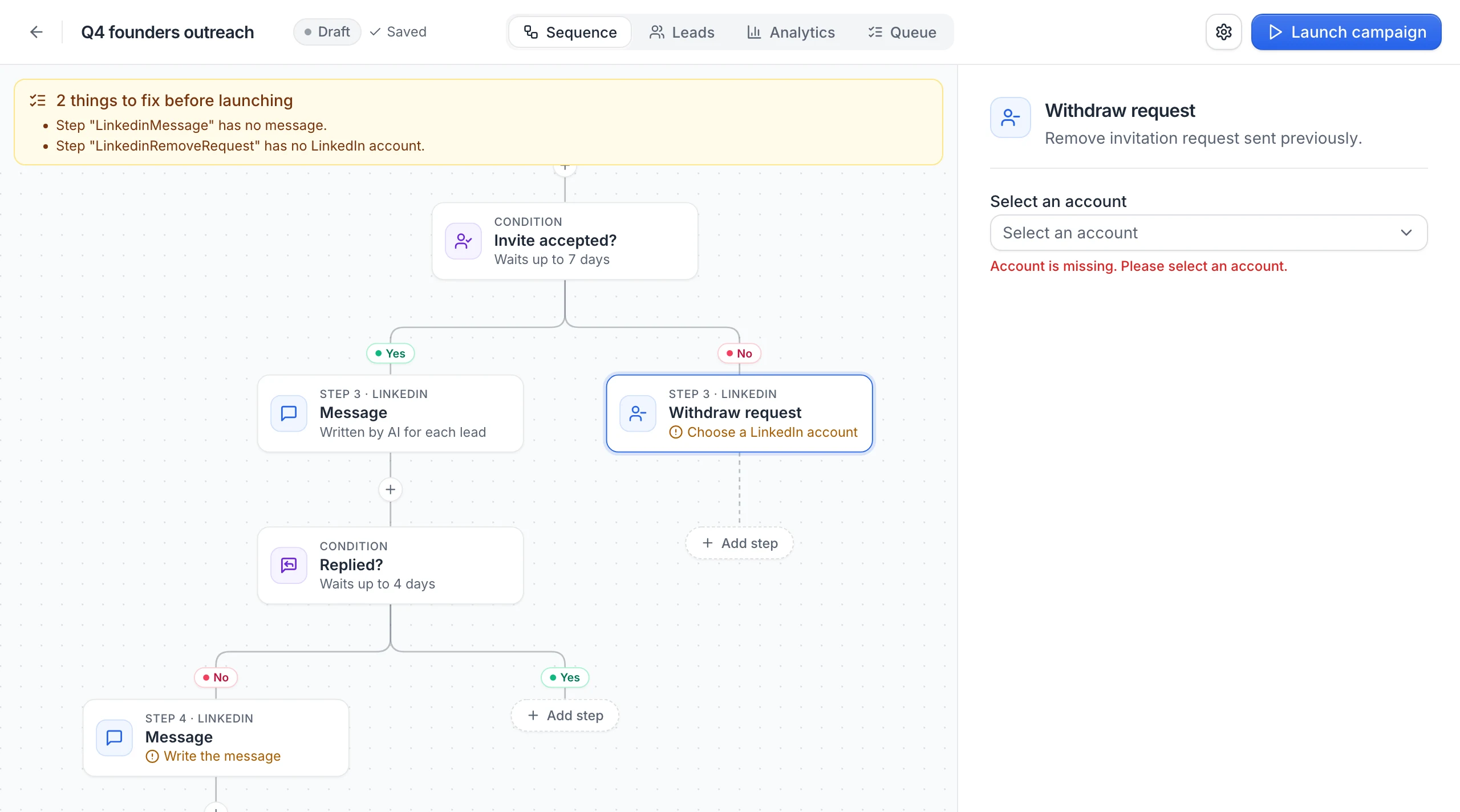
Note: In messages like Step "…" has no LinkedIn account., the name in quotes is the title of the step card on the canvas (for example Connection request or Message). When the sequence has several steps with that title, look for the one with a warning.
Select a list of leads in the first step.
Click the Start step and choose a list under Leads.
The selected list has no leads.
Add leads to the list, or select another list. See Add leads to useArtemis.
Add at least one step after the list.
Click Add step under Start and add a step. See Sequence steps.
Step "…" has no LinkedIn account.
A LinkedIn step has no account selected. This happens when the campaign was created before you connected LinkedIn: the account isn't added to existing steps automatically.
- Open each LinkedIn step and choose the account under Sent from, or
- In Campaign settings, select the account under LinkedIn › Rotate between LinkedIn accounts and click Save settings: it then applies to every LinkedIn step.
No LinkedIn account yet? Connect one first: see Connect your LinkedIn account.
Step "…" has no message.
A LinkedIn message step is empty. Write the message, or choose AI writes it under Message.
Step "…" has no mailbox. / Step "…" has an empty email body.
Open the email step, choose the mailbox under Sent from and write the email. To connect a mailbox, see Connect Gmail, Connect Outlook or Connect any mailbox with SMTP.
LinkedIn account … must be reconnected with the secure connection (Settings > LinkedIn accounts).
This account was connected with the old connection method, which no longer sends. Reconnect it on the LinkedIn accounts page. See Reconnect a LinkedIn account.
LinkedIn account … is not connected.
The account is disconnected or restricted. Reconnect it on the LinkedIn accounts page, or select another account on the steps.
A LinkedIn account used by the sequence no longer exists.
An account selected on a step was removed. Select another account on that step.
Mailbox … must be reconnected (Settings > Email accounts). / Mailbox … is not connected.
Reconnect the mailbox in Settings › Email accounts, or select another mailbox on the email step.
A mailbox used by the sequence no longer exists.
The mailbox selected on an email step was removed. Select another one.
Upgrade prompts
Launching and resuming a campaign need a subscription.
- On a free account (including after a cancellation) you can create and prepare campaigns. Launch opens Subscribe to launch your campaign: your campaign stays saved, and Subscribe now opens the checkout of the Starter plan. Once you've paid, launch it again. See Free account: what's included.
- When a payment failed or your subscription is paused, the app asks you to update your payment method or to contact us before you can use it again. See Invoices and payments.
- AppSumo Lifetime accounts get "Campaigns aren't available on AppSumo Lifetime plans. Upgrade to a subscription to use them." See AppSumo.
In a team, a member can launch the team's campaigns when the team owner has a paid subscription.
After the launch: alerts
If an account stops working while the campaign runs, a red banner on the campaign page explains it, for example "LinkedIn account … is disconnected — reconnect it to resume the campaign." The steps that use that account wait, and continue once it's fixed. See Pause, resume, edit or delete a campaign. When the same error hits several leads in a row, that action is put on hold with a red banner too, instead of every lead skipping the step: see When the same error hits every lead.
FAQ
I can't start my campaign: the LinkedIn account is missing
Connect your LinkedIn account on the LinkedIn accounts page, then select it on each LinkedIn step, or select it under Rotate between LinkedIn accounts in Campaign settings. Launch again.
The launch says "0 leads added"
Leads already in the campaign aren't added twice. If the list is new, check that it really contains leads.
Can I launch a campaign with email steps?
Yes, as long as each email step has a connected mailbox and a message. Leads without an email address skip the email steps. See Find emails for a list.
Was this article helpful?
Related articles
Still need help?
Write to hello@useartemis.co with your account email and what you were trying to do.