Connect your LinkedIn account
Connect LinkedIn to useArtemis through a secure login page or in one click from the Chrome extension: access, 2FA, statuses and plans.
Updated October 27, 2026
On this page
Open LinkedIn accounts in the sidebar, click Connect LinkedIn account and log in to LinkedIn on the secure page that opens. You come back to useArtemis a few seconds later with the account ready for your campaigns. useArtemis never sees or stores your LinkedIn password.
With the useArtemis Chrome extension, you can also connect the LinkedIn account you're logged in to in Chrome in one click (see Connect with the Chrome extension below).
Before you start
- You need a subscription. Connecting LinkedIn isn't part of the free account: subscribe to connect your account. On AppSumo Lifetime plans, connecting LinkedIn is locked (see Plan requirements below).
- Any LinkedIn account works, free or Premium. Premium accounts can write longer invitation notes (see LinkedIn sending limits).
- Keep your phone close if your LinkedIn account uses two-step verification: LinkedIn may ask for a code.
Connect your account
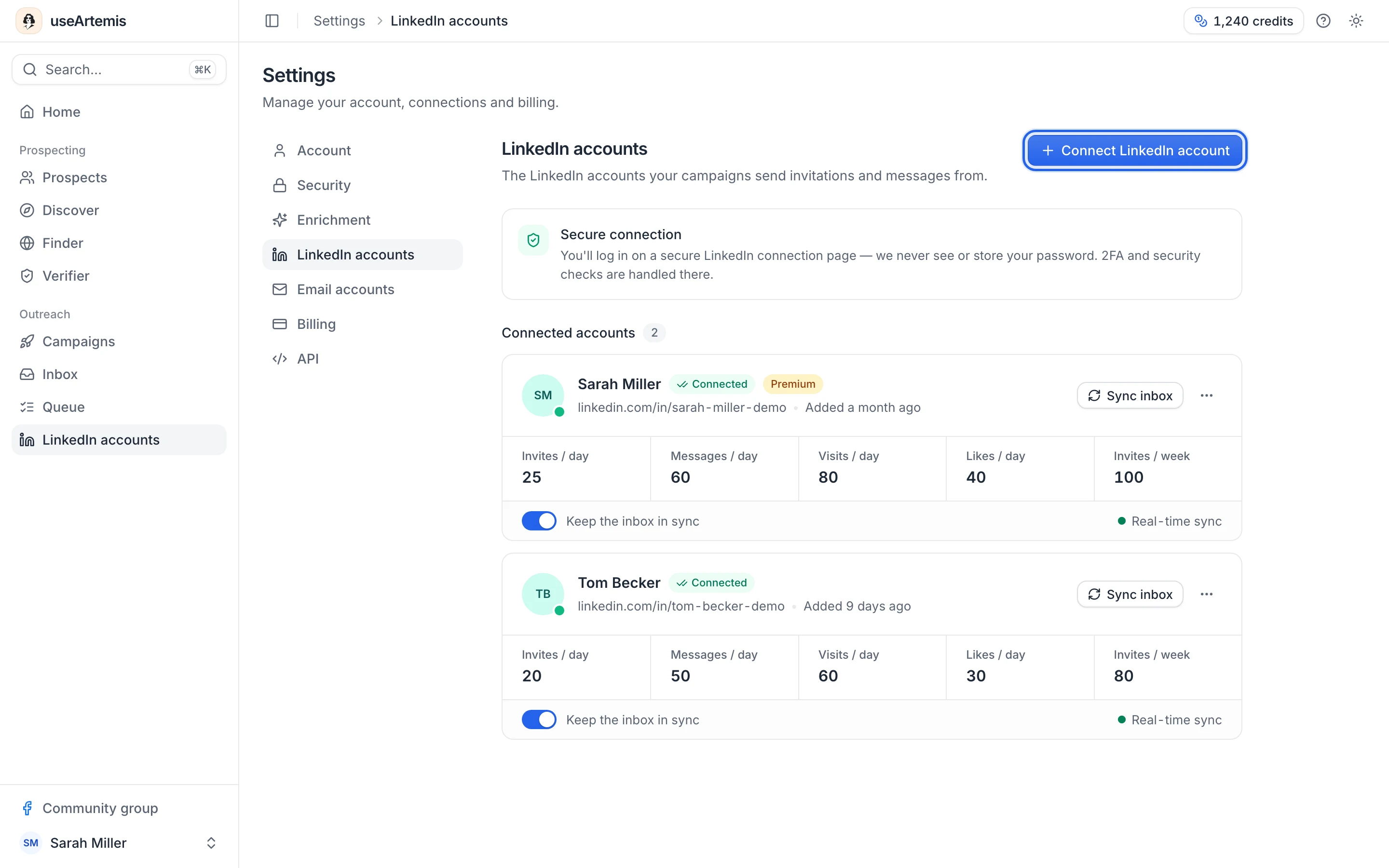
In the sidebar, under Outreach, click LinkedIn accounts. You can also go to Settings › LinkedIn accounts.
Click Connect LinkedIn account.
On the secure connection page that opens, log in with your LinkedIn email and password.
If LinkedIn asks for a verification code or a security check, complete it on that same page.
You're sent back to LinkedIn accounts. A LinkedIn account connected message appears and the banner Finishing your LinkedIn connection… stays visible while setup completes.
After a few seconds, the account shows up under Connected accounts with the Connected status.
Note: The connection page stays valid for one hour. If you started a while ago, close it and click Connect LinkedIn account again.
The Connect LinkedIn step of the Get started with useArtemis checklist on Home opens the same page.
How the secure connection works
The login page is run by our LinkedIn connection partner, not inside useArtemis. You type your password there, and useArtemis only receives a working connection to your account. Two-step verification codes and LinkedIn security checks are handled on that page too.
Once connected, useArtemis imports your name, photo, headline and profile link. A Premium badge appears on the card if your account has LinkedIn Premium. Inbox sync is turned on automatically, so your LinkedIn conversations start appearing in the Inbox.
Connect with the Chrome extension
If the useArtemis Chrome extension is installed and connected to your useArtemis account, it can connect the LinkedIn account you're logged in to in Chrome, without typing your password.
- In Chrome, log in to LinkedIn with the profile you want to connect and open any LinkedIn page.
- Click the useArtemis icon in Chrome's toolbar to open the side panel.
- At the bottom of the panel, the Use this LinkedIn account in campaigns card shows your LinkedIn name. Click Connect this LinkedIn account.
- After a few seconds, the panel shows that the account is connected and you can use it in your campaigns. It also appears on LinkedIn accounts with the Connected status, its inbox sync turned on.
The card only shows when this LinkedIn profile isn't connected to useArtemis yet. Click × (Not now) to hide it for this profile. If the profile is already connected but needs to be reconnected, the panel shows Reconnect your LinkedIn account at the top instead: see Fix a disconnected LinkedIn account.
How it differs from the secure connection
- It uses the LinkedIn session of your browser. When you click the button, the extension reads your LinkedIn session cookie and sends it once to useArtemis, which passes it to our LinkedIn connection partner to open the connection. Neither the extension nor useArtemis keeps it, and your password isn't involved.
- Logging out of LinkedIn in that browser ends the session. The account then shows Reconnection needed and stops sending until you reconnect it: log in to LinkedIn again and click Reconnect in the panel, or use Reconnect on LinkedIn accounts. Clearing your browser's cookies logs you out of LinkedIn too.
- Security checks aren't shown in the panel. If LinkedIn asks for a code or a captcha, the panel shows LinkedIn asked for an extra security check. Connect this account from LinkedIn accounts in useArtemis instead. Use Connect LinkedIn account on that page.
- The same plan rules apply (see Plan requirements below). On a free account, the panel shows Connecting a LinkedIn account needs a paid plan. with a See plans link. On AppSumo Lifetime plans the card doesn't show.
- A profile a teammate already connected isn't offered again: only that teammate can reconnect it.
Other messages you may see in the panel:
- Log in to LinkedIn in this browser first.: you're logged out of LinkedIn in Chrome.
- LinkedIn didn't accept the session of this browser. Reload LinkedIn, log in again if it asks, then try again.
- LinkedIn restricted this account. Resolve it on linkedin.com, then try again.
What useArtemis can do with the account
useArtemis only acts when one of your campaign steps runs, when you reply from the Inbox, or when you save people or export a search with the Chrome extension, and always within the sending limits of the account. It can:
- visit a lead's profile (the lead sees your visit, like a normal one)
- send invitations, with or without a note
- send messages and voice notes to your 1st-degree connections
- like a lead's latest post
- withdraw pending invitations
- read your one-to-one conversations to show them in the Inbox, and detect replies and accepted invitations so your sequences react to them
- send the replies you write in the Inbox
- read the LinkedIn and Sales Navigator searches you export with the Chrome extension (see Export a LinkedIn or Sales Navigator search)
- read the full profile of the people you save with the Chrome extension, and their company's page, without notifying them (up to 80 profiles a day per account, see Find emails on LinkedIn with the Chrome extension)
LinkedIn Recruiter features aren't used.
The account card
Each connected account has its own card on LinkedIn accounts:
- Status badge: Connected when everything works. Hover it to see when the status last changed.
- Limits row: Invites / day, Messages / day, Visits / day, Likes / day and Invites / week. Click it to edit the limits.
- Sync inbox: fetches your latest LinkedIn conversations right away.
- Keep the inbox in sync: when it's on and the account is connected, Real-time sync shows that new messages arrive instantly.
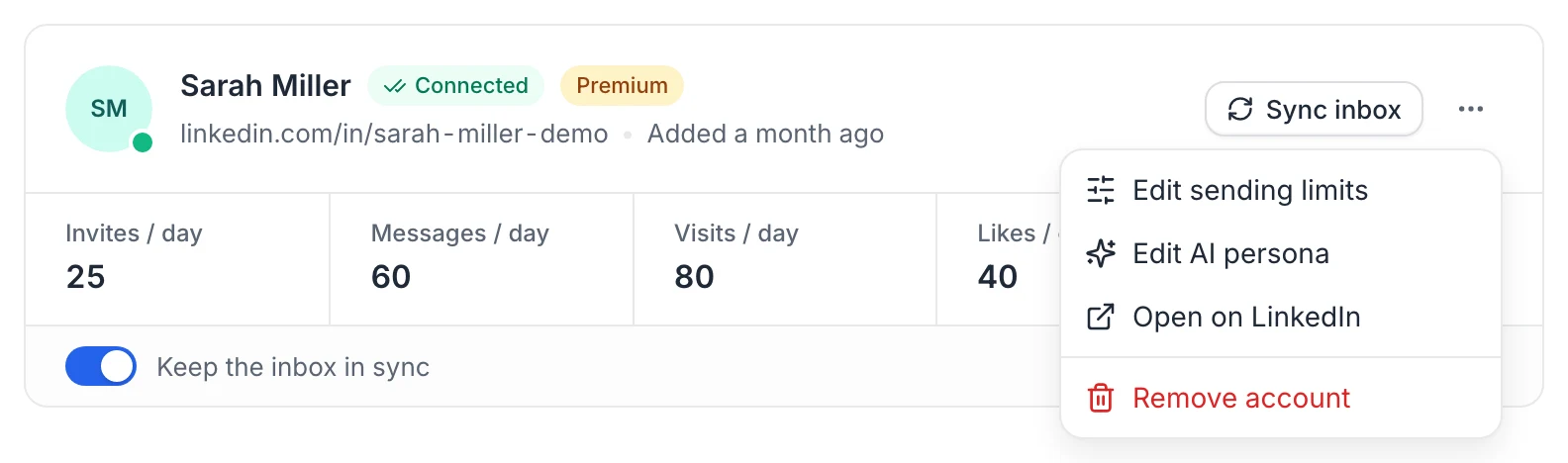
- The ⋯ menu: Edit sending limits, Edit AI persona, Open on LinkedIn and Remove account.
If the badge turns red (for example Reconnection needed or Restricted by LinkedIn), a Reconnect button appears on the card. See Fix a disconnected LinkedIn account.
Plan requirements
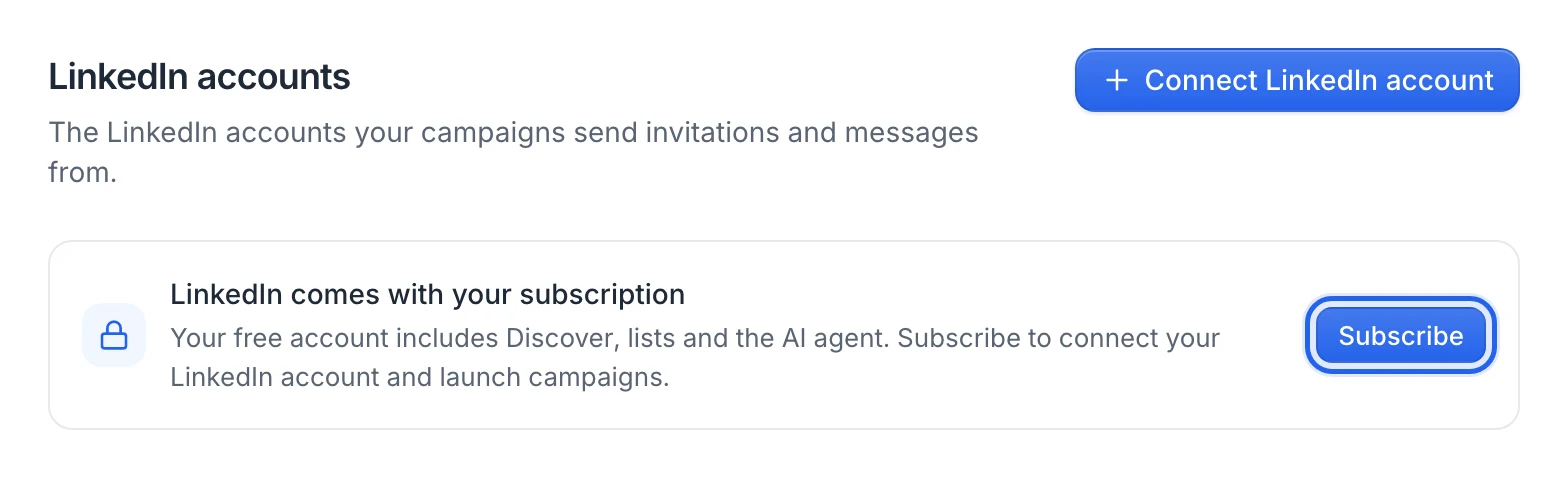
Free account: connecting LinkedIn comes with a subscription. The page shows LinkedIn comes with your subscription with a Subscribe button, and clicking Connect LinkedIn account opens Subscribe to connect LinkedIn: click Subscribe now to pay for the Starter plan in a secure checkout, then connect your account. See Free account: what's included.
AppSumo Lifetime: the page shows LinkedIn automation isn't included in your plan and there's no connect button. Connecting LinkedIn and running campaigns need a subscription plan. See AppSumo codes.
Number of accounts: Starter includes 2 LinkedIn accounts, Scale 5 and Agency 10. See Use several LinkedIn accounts and pricing.
If the connection doesn't work
- LinkedIn connection failed / Your account was not connected. Please try again.: the login wasn't completed on the secure page (closed early, wrong code, security check not finished). Click Connect LinkedIn account and try again.
- Still finishing the connection: the account is taking longer than usual to appear. Refresh the page after a minute.
- Could not start the LinkedIn connection: the secure page couldn't be opened. Try again in a moment.
- A subscribe window opens instead of the login page: you're on a free account, or your plan doesn't include LinkedIn (see above).
If it still fails, write to hello@useartemis.co with the LinkedIn profile you're trying to connect.
FAQ
Do you store my LinkedIn password?
No. You enter it on the secure connection page, never in useArtemis, and we don't keep a copy.
Can I still paste my LinkedIn cookie or type my LinkedIn password in the app?
No. These old connection methods are closed. Use the secure connection, or the Chrome extension, which uses the LinkedIn session of your browser without you copying anything (see Connect with the Chrome extension above). Accounts connected the old way, including with the previous version of the Chrome extension, show Reconnection needed and a Switch to secure connection button: see Fix a disconnected LinkedIn account.
Does useArtemis store my LinkedIn cookie?
No. When you connect with the Chrome extension, your LinkedIn session cookie is sent once to open the connection, and neither the extension nor useArtemis keeps it. Our LinkedIn connection partner keeps the connection open to run your campaigns, as with the secure connection.
What happens if I connect the same LinkedIn profile twice?
useArtemis recognizes the profile and updates the existing card instead of adding a duplicate.
Was this article helpful?
Related articles
Still need help?
Write to hello@useartemis.co with your account email and what you were trying to do.