Personalize messages with variables and custom properties
Insert each lead's first name, company or job title in notes, messages and emails, add fallbacks, use custom properties and preview the result before sending.
Updated October 21, 2026
On this page
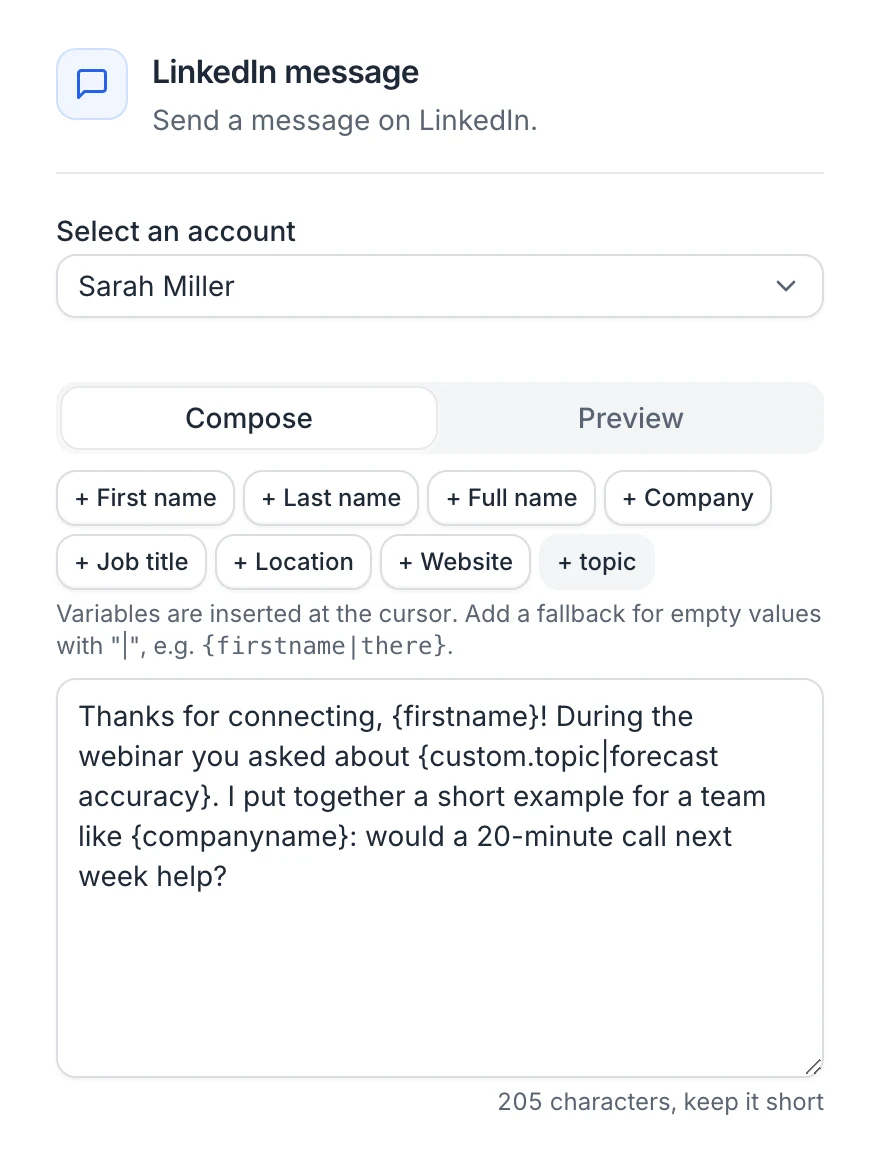
Variables like {firstname} or {companyname} are replaced with each lead's details when the step is sent. Insert them from the Variable menu of the editor, add a fallback for leads with an empty value, and check the result in the Preview under the editor.
Where you can use variables
- The note of a Connection request, when you write it yourself
- A LinkedIn Message, when you write it yourself
- The Subject and Message of an email
When AI writing is on, you don't need variables: the AI reads the lead's profile. See Write messages with AI.
Insert a variable
Click in the text where you want the variable, then open the Variable menu (under a LinkedIn note or message, above an email) and pick one: First name, Last name, Full name, Company, Job title, Location, Website, then your list's columns and, in emails, Unsubscribe link. You can also type the variable yourself.
| Variable | Replaced with |
|---|---|
{firstname} |
First name, capitalized |
{lastname} |
Last name, capitalized |
{fullname} |
First and last name |
{companyname} |
Company of the current job ({company} works too) |
{jobtitle} |
Job title |
{location} |
Location |
{website} |
Company website |
{custom.name} |
The lead's custom property called "name" |
{unsubscribe} |
Emails only: an unsubscribe link |
Variable names aren't case-sensitive: {FirstName} works like {firstname}. Every occurrence in the text is replaced.
Add a fallback
Add | and a default text inside the braces: {firstname|there}. If the lead has no first name, "there" is used instead.
Without a fallback, an empty variable is simply removed and the extra space is cleaned up: "Hi {firstname}, …" becomes "Hi, …".
Use custom properties
Custom properties are extra fields you store on the leads of a list, such as a pain point, the name of a mutual contact or a whole message written for each person. Insert them with {custom.property}, for example {custom.icebreaker}.
- Import them from a CSV file: when you import a file, the columns you don't map to a field are kept as custom variables (switch off the ones you don't need). A
Messagecolumn becomes{custom.message}. See Keep other columns as custom variables. - Add a property to a lead from its panel in the list: click a lead, then Add a property under Custom properties ("Adds a column to this list"). See Lead profile.
- Properties can also be sent through the API, in
customAttributes. See API. - The campaign uses the values stored on the leads of its target list.
- The custom properties of the target list's leads appear in the Variable menu under Your list's columns.
Warning: Use only letters, numbers and underscores in property names you want to insert, such as pain_point. A name with a space or a dash (pain point, pain-point) isn't recognized: the text in braces is sent as typed. The part after custom. must match the property name exactly, including capital letters.
Send a message written for each lead
To send each person a message you wrote in a spreadsheet:
- Put the messages in a column of your file, for example
Message, one per row. Line breaks inside a cell are kept. - Import the file and leave Keep as custom variable on for that column. See Import leads from a CSV file.
- In a LinkedIn Message step (or a connection note, or an email), write
{custom.message}, alone or with other text around it. - Check Preview for a few leads: it shows the message of each one.
A lead whose cell was empty gets an empty variable. If the whole message is empty for a lead, it isn't sent and the lead moves on to the next step. Add a fallback, such as {custom.message|Thanks for connecting!}, to send something else instead.
When no lead has the property
If a note, a message or an email uses {custom.property} without a fallback and no lead of the target list has that property, the top of the step's settings warns you: "No lead of this list has a value for {custom.property}, so it would be empty. Check the name, or add a fallback: {custom.property|…}." Until you fix the name, add a fallback or target a list that has the property, the step is counted in the chip at the top left of the canvas, such as 1 step needs your attention.
Preview before sending
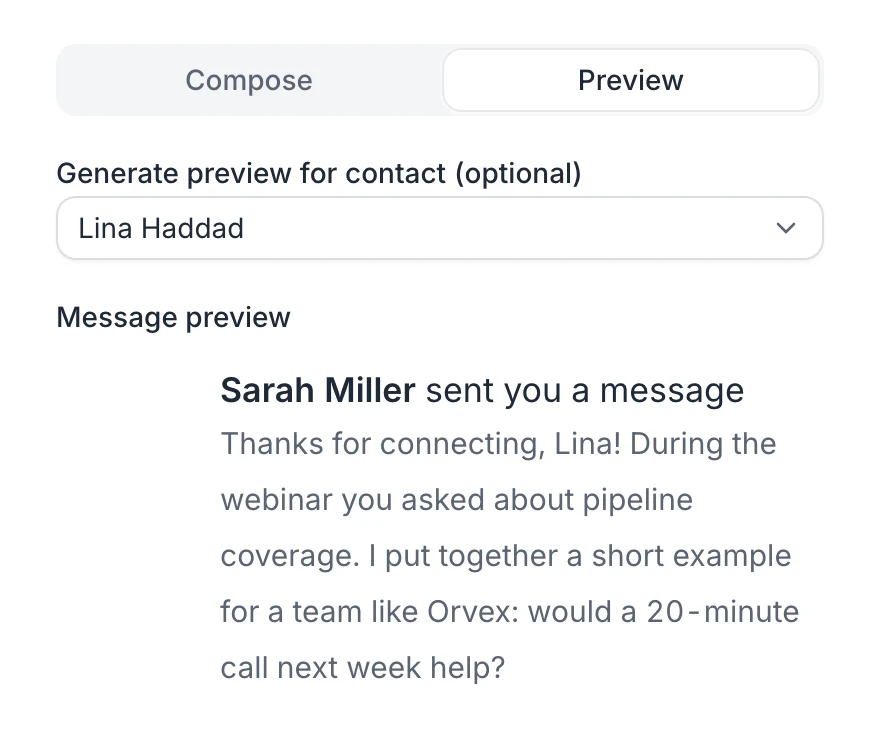
Preview, under the editor, shows the text with the values of a lead of the target list, as you type: an invitation or a LinkedIn message as the lead sees it, or the email with its sender, subject, signature and unsubscribe link. The first lead is picked for you; choose another one in the menu next to Preview.
Send me a test email on an email step sends the email to you. In the test, only {firstname}, {lastname} and {companyname} are replaced, with your own details. Use Preview to check the other variables.
Common mistakes
- Double braces:
{{firstName}}is sent as "{John}". Use single braces:{firstname}. - Unknown variables: a variable that isn't in the list above (a typo like
{first_name}) is sent as typed. - Lowercase company names: leads imported from a CSV file have their job title and company stored in lowercase. First and last names are capitalized when inserted, but
{companyname}and{jobtitle}are inserted as stored. Check the preview, and fix the values in the lead panel if needed. - Note length: in a connection note, variables are counted as typed. The final length depends on each lead, and a note longer than LinkedIn's limit (300 characters with Premium, 200 without) is cut. When the note is too long for the lead shown in Preview (a long custom property, for example), a warning under the editor says so.
- Message length: a LinkedIn message longer than 8,000 characters once its variables are filled in is cut to 8,000. The message step warns you when that's the case for the lead shown in Preview.
FAQ
Do variables work in the email subject?
Yes. {firstname}, {companyname} and the other variables work in the subject and the body.
What happens if a lead has no company?
{companyname} is removed from the text. Add a fallback, such as {companyname|your team}, to keep the sentence natural.
Was this article helpful?
Related articles
Still need help?
Write to hello@useartemis.co with your account email and what you were trying to do.