Connect a Gmail or Google Workspace mailbox
Connect Gmail or Google Workspace to useArtemis with an app password: create it, paste it, test the connection and fix the most common login errors.
Updated October 27, 2026
On this page
Gmail and Google Workspace mailboxes connect with an app password: a separate password that Google generates for useArtemis. Create one in your Google account, paste it in Settings › Email accounts › Connect mailbox › Gmail / Google Workspace, and click Test & connect. Your campaign emails are then sent from your own Gmail address.
Before you start
- You need a subscription. On a free account, the connection is refused with Connecting a mailbox comes with a subscription. Subscribe to connect it and launch your campaigns., and the Subscribe to connect your mailbox window opens. See Free account: what's included.
- 2-Step Verification must be on for the Google account. Google only offers app passwords to accounts that use it.
- Google Workspace only: IMAP must be allowed by your Workspace admin. It is by default. useArtemis uses IMAP to read replies.
Step 1: create an app password in Google
- Sign in to the Google account you want to send from.
- If it isn't on yet, turn on 2-Step Verification in your Google account's security settings.
- Open App passwords.
- Create an app password named "useArtemis".
- Copy the password Google shows you (16 characters, in groups of 4). Google only shows it once.
Step 2: connect the mailbox in useArtemis
Open the account menu (your name at the bottom of the sidebar) and click Settings, then Email accounts.
Click Connect mailbox.
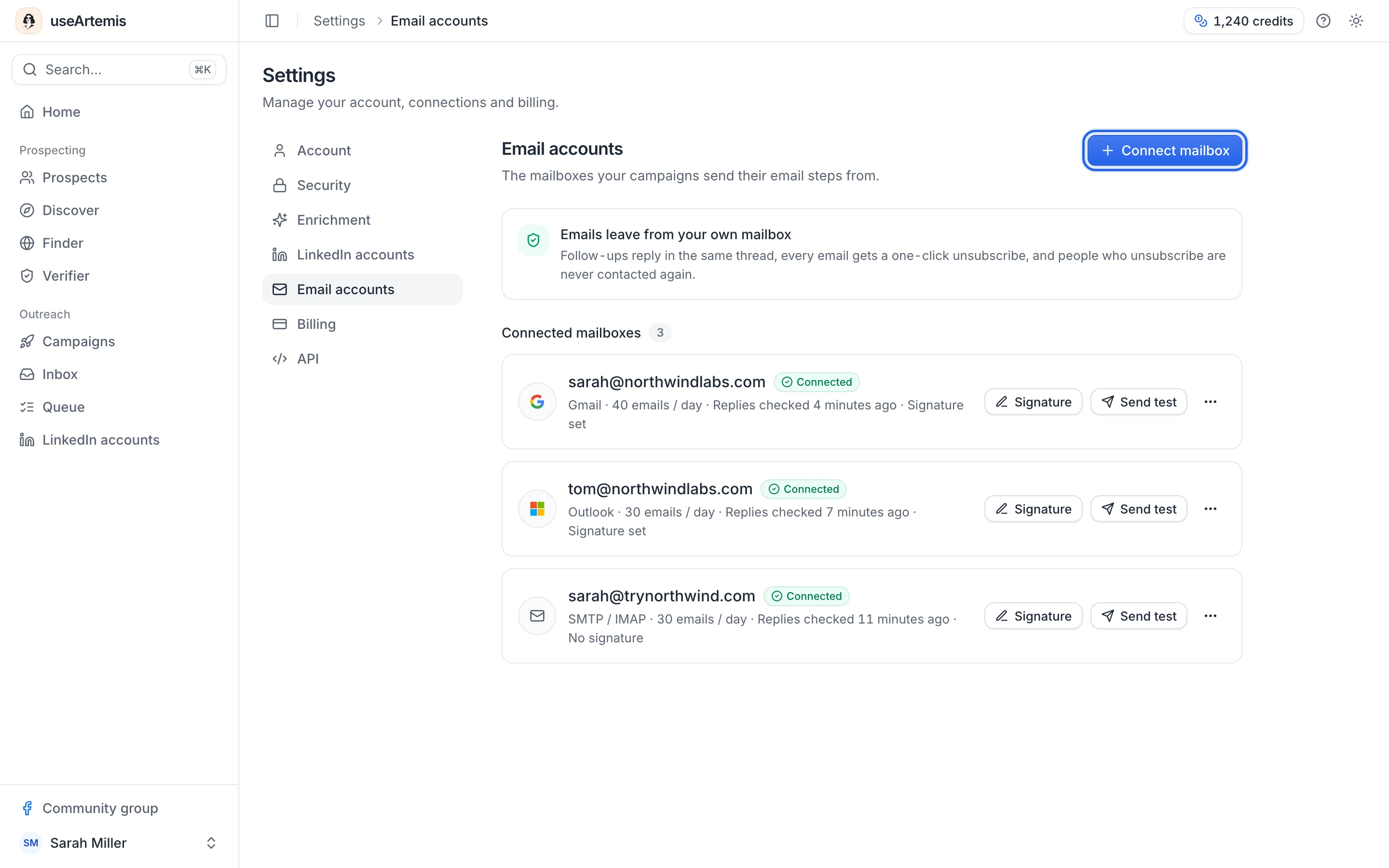
Choose Gmail / Google Workspace.
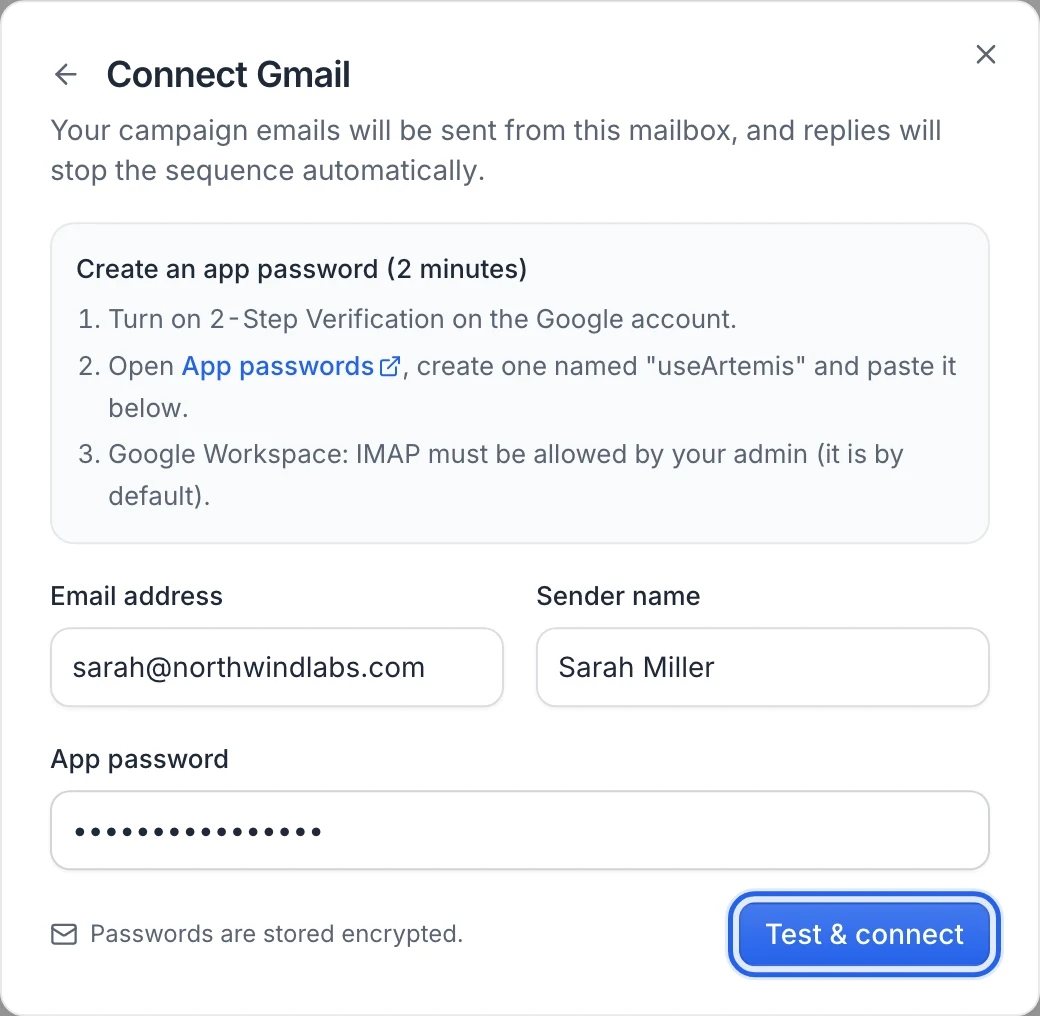
Fill in:
- Email address: the Gmail or Workspace address.
- Sender name: the name your leads will see, for example "Emma Laurent".
- App password: the password from step 1.
Click Test & connect. useArtemis tests sending and reading replies before saving anything.
When both work, the dialog closes, a Mailbox connected message appears and the mailbox shows up under Connected mailboxes with the Connected status.
New mailboxes send up to 30 emails a day. You can change this in Sending settings: see Manage a connected mailbox.
What happens once it's connected
- Campaign emails are sent through Gmail from your address, and Gmail keeps a copy in your Sent folder.
- useArtemis checks your inbox for replies and bounces every few minutes, so a lead who answers is stopped automatically. Replies stay in Gmail: answer them from there.
- You can select the mailbox in any Send an email step of your campaigns.
More on daily limits, tracking and unsubscribes: Email sending limits and deliverability.
Fix connection errors
After Test & connect, the dialog shows two lines, Sending (SMTP) and Reading replies (IMAP), each marked connected or with the reason it failed.
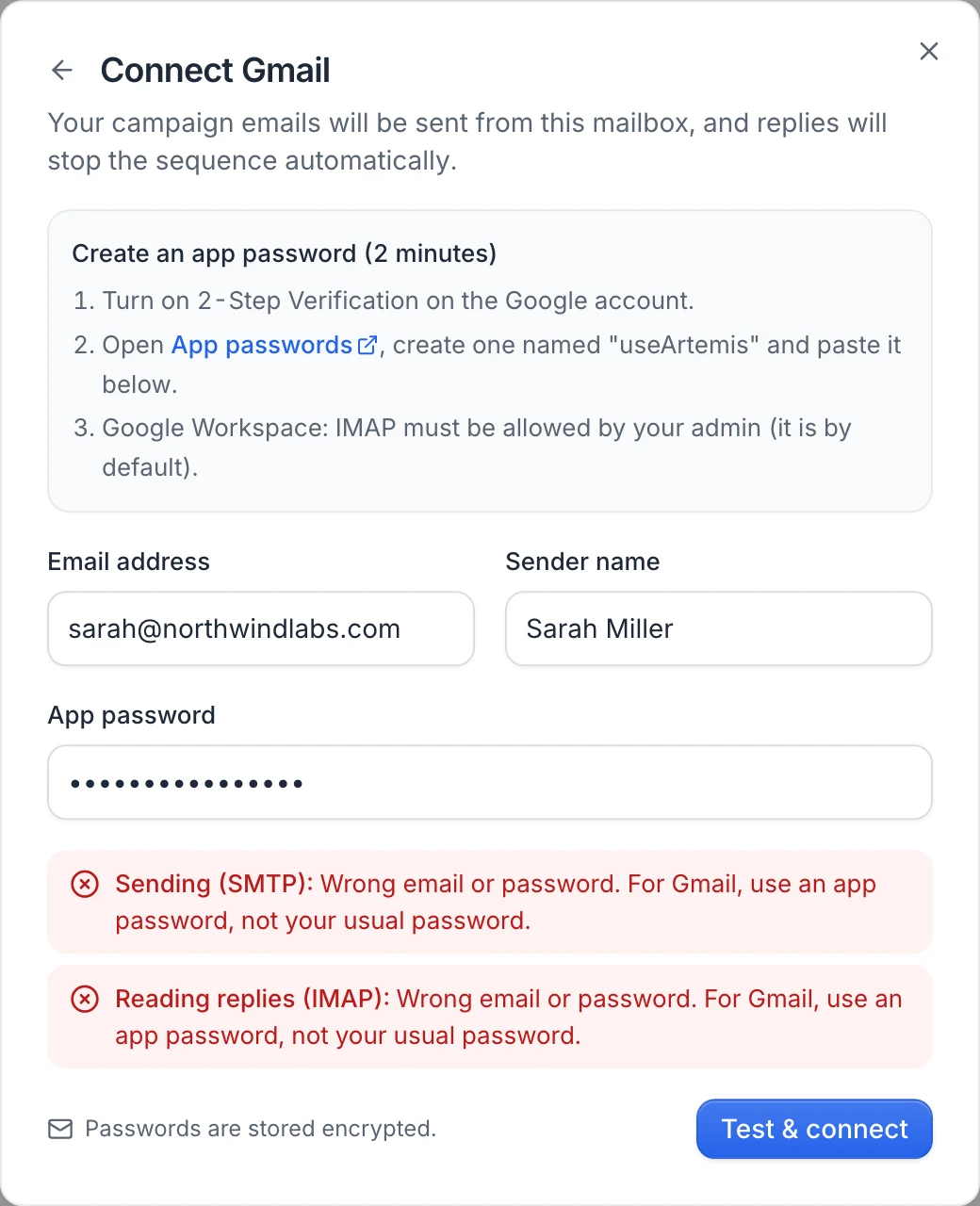
- Both lines show "Wrong email or password. For Gmail, use an app password, not your usual password.": you typed your regular Google password, the app password was mistyped, or the email address doesn't match the Google account that created the app password. Create a new app password and paste it.
- Sending works but Reading replies (IMAP) fails: IMAP isn't allowed for this account. On Google Workspace, ask your admin to allow IMAP for your account, then try again.
- Google says app passwords aren't available for your account: 2-Step Verification is off, or your Workspace admin restricts it. Turn on 2-Step Verification, or ask your admin.
If the connection still fails, write to hello@useartemis.co with the message shown in the dialog.
FAQ
Why not "Sign in with Google"?
Gmail and Google Workspace connect with an app password only. It works for personal Gmail and Workspace accounts alike.
Is my app password safe?
It's stored encrypted and only used to send your campaign emails and read replies. You can revoke it at any time from your Google account: the mailbox then shows Reconnect needed in useArtemis the next time it tries to send or read replies.
I changed my Google password and emails stopped. Why?
Google revokes your app passwords when you change your Google password. Create a new app password, then click Reconnect on the mailbox, choose Gmail / Google Workspace and paste it. The mailbox keeps its place in your campaigns.
Can I connect several Gmail addresses?
Yes, connect each one with its own app password. Your plan doesn't limit the number of mailboxes.
Was this article helpful?
Related articles
Still need help?
Write to hello@useartemis.co with your account email and what you were trying to do.