Follow and manage the leads of a campaign
Use the Leads tab to see where each lead is, what they wait for, how they replied and why an action failed, then stop, skip, resume or restart a lead.
Updated October 22, 2026
On this page
The Leads tab of a campaign shows every lead that entered the sequence: the step they're on, their status, their next action and what went wrong. From there you can stop a lead, skip a step, resume a stopped lead or restart one from the beginning.
The Leads tab
Open a campaign and click Leads. Leads appear once the campaign is launched: before that, the tab shows "Leads of the target list are added when you launch the campaign."
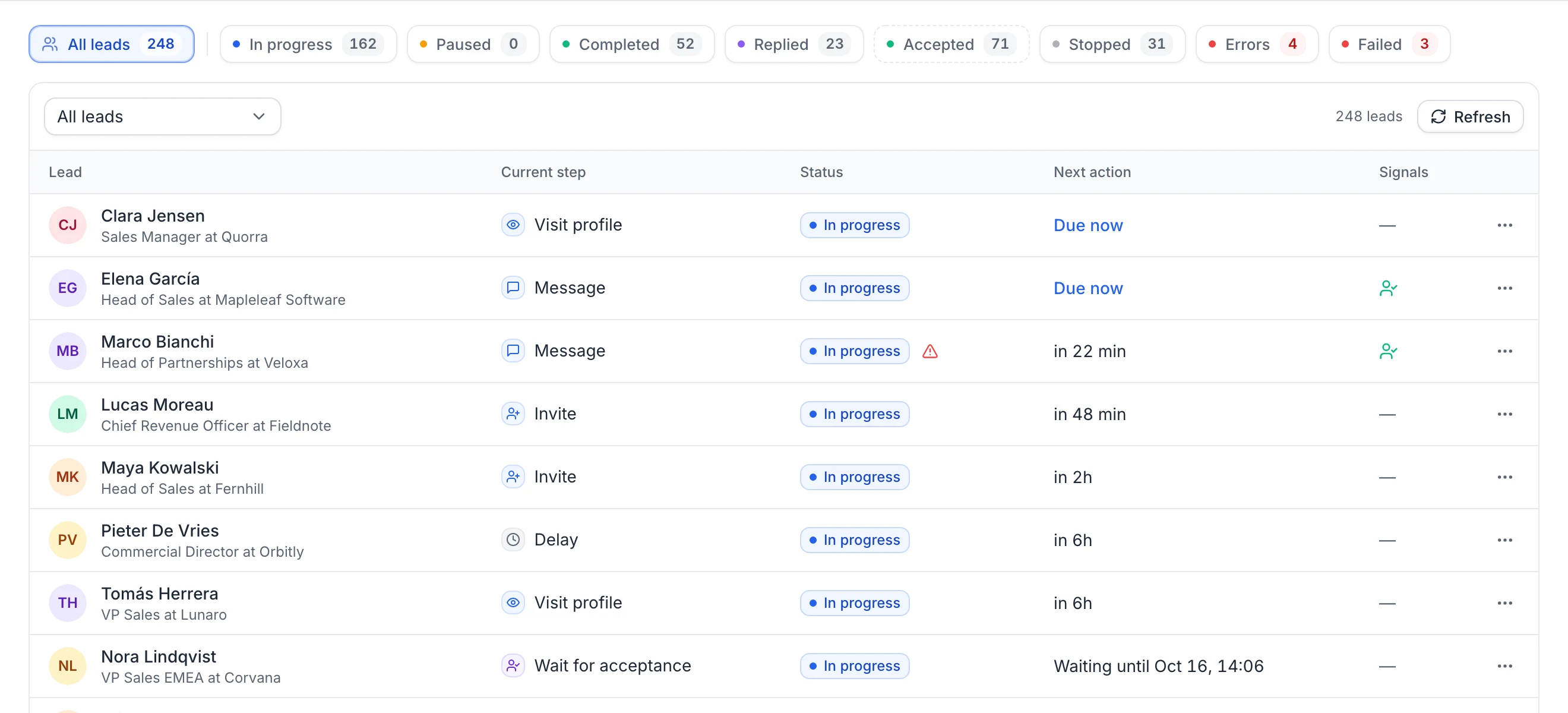
At the top, counters summarize the campaign: All leads, In progress, Paused, Completed, Replied, Interested, Accepted, Stopped, Errors, Skipped steps and Failed. Click one to filter the table, or use the filter menu, which also offers Accepted the invitation, Blocked by an error and Skipped a step. Click Refresh to update.
Interested counts the leads whose last reply the AI reads as interested (see How replies are read).
The table shows:
- Lead: name and job.
- Current step: the step the lead is on.
- Status: see below. A red warning icon means the lead is blocked on its step by an error and will be tried again: hover it to read why.
- Next action: when the next action should run, within the campaign's working hours: Due now, "in 22 min", "Today 14:30", "Tomorrow 09:00" or a date. A time with ≈ is estimated from the lead's place in line: hover it to see, for example, "#12 of 500 waiting for a profile visit" and how many the account sends a day (with sender rotation, a lead not contacted yet waits for all the campaign's accounts, and the tooltip gives what they send together). Leads in progress are listed in the order they'll be served. On hold means the campaign is paused.
- On a wait step, what the lead waits for and until when, such as "Awaiting acceptance · until Oct 16" or "Awaiting reply · until Oct 14". The lead moves on as soon as it happens; otherwise it takes the "no" branch on that date (hover for the exact time).
- "Out of office · back Nov 4": an automatic reply gave a return date, and nothing is sent before it.
- Signals: an icon when the lead replied, one when they accepted your invitation, the AI reading of their reply (Interested, Not interested, Later, Wrong person or Replied), and Step failed (or Step skipped, "2 steps failed"…) when a step failed for the lead and it moved on: hover it to see which step, when and why.
Lead statuses
| Status | Meaning |
|---|---|
| In progress | The lead is going through the sequence. |
| Paused | The campaign is paused. The lead continues when you resume. |
| Completed | The lead reached the end of their branch of the sequence, or an AI auto-reply step. |
| Replied | The lead replied and was stopped (Stop a lead when they reply). |
| Unsubscribed | The lead unsubscribed from your emails (they're stopped in all your campaigns), or joined the campaign with an address that had unsubscribed or bounced before. |
| Stopped manually | You stopped the lead. |
| Failed | The lead can't continue, for example because the lead was deleted ("Lead deleted"). Deleting the step a lead is on doesn't fail it: the lead continues at the step that took its place. |
Errors counts leads in progress waiting on their step after an error. As the app says, "They are tried again automatically." Skipped steps counts leads that moved on after a step failed for them, for example a profile not found or no email address. When the same error hits several leads in a row, the step is put on hold instead and nobody skips it. See Queue and failed actions.
Lead details and activity
Click a lead to open their panel: status, current step, next action, the error the lead is blocked on, the steps that failed for it ("A step failed for this lead", with the step, the date and the reason) and the action buttons.
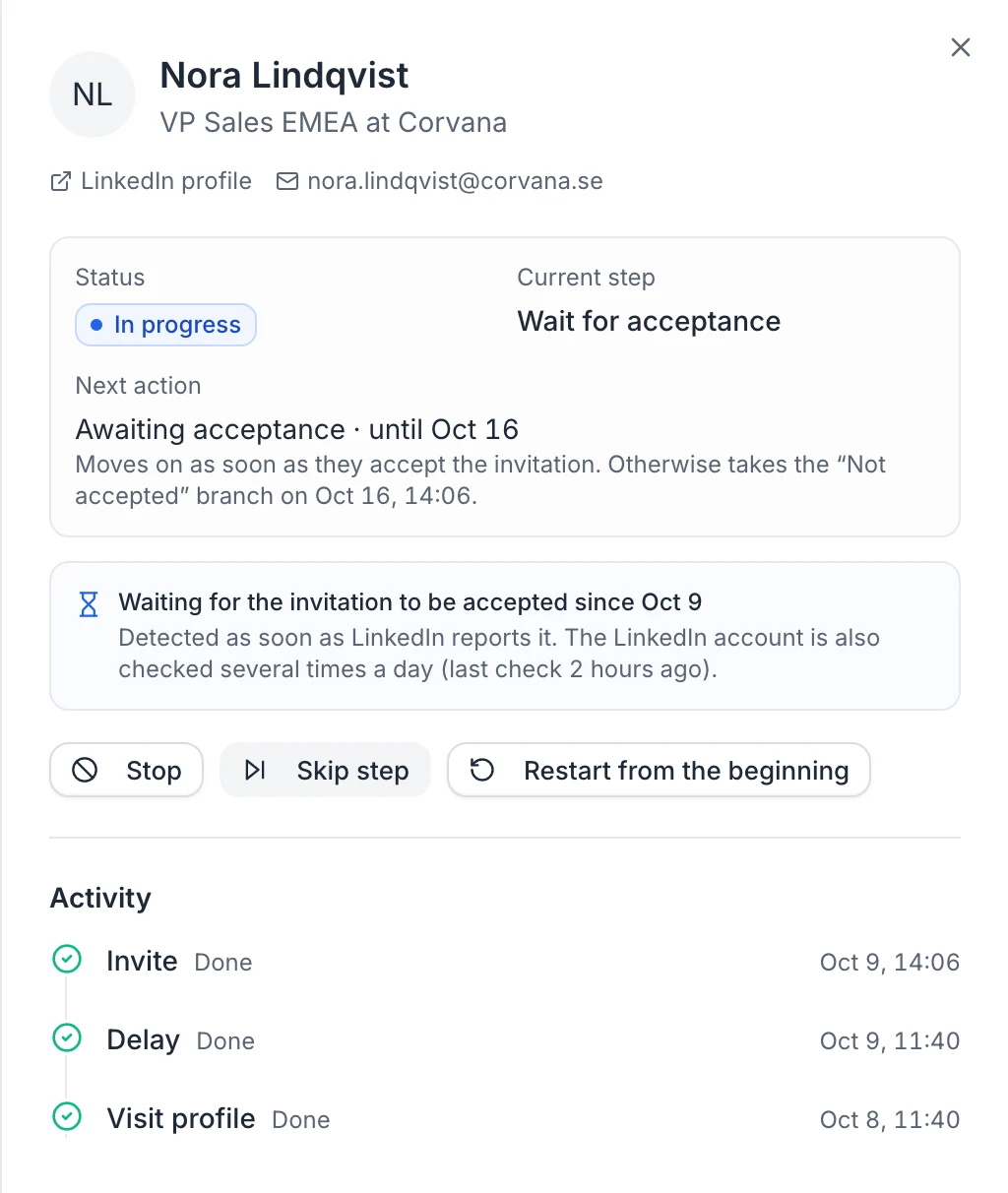
When the lead is on a wait step, a box says what they're waiting for and since when, such as "Waiting for the invitation to be accepted since Oct 9", and when their LinkedIn account was last checked:
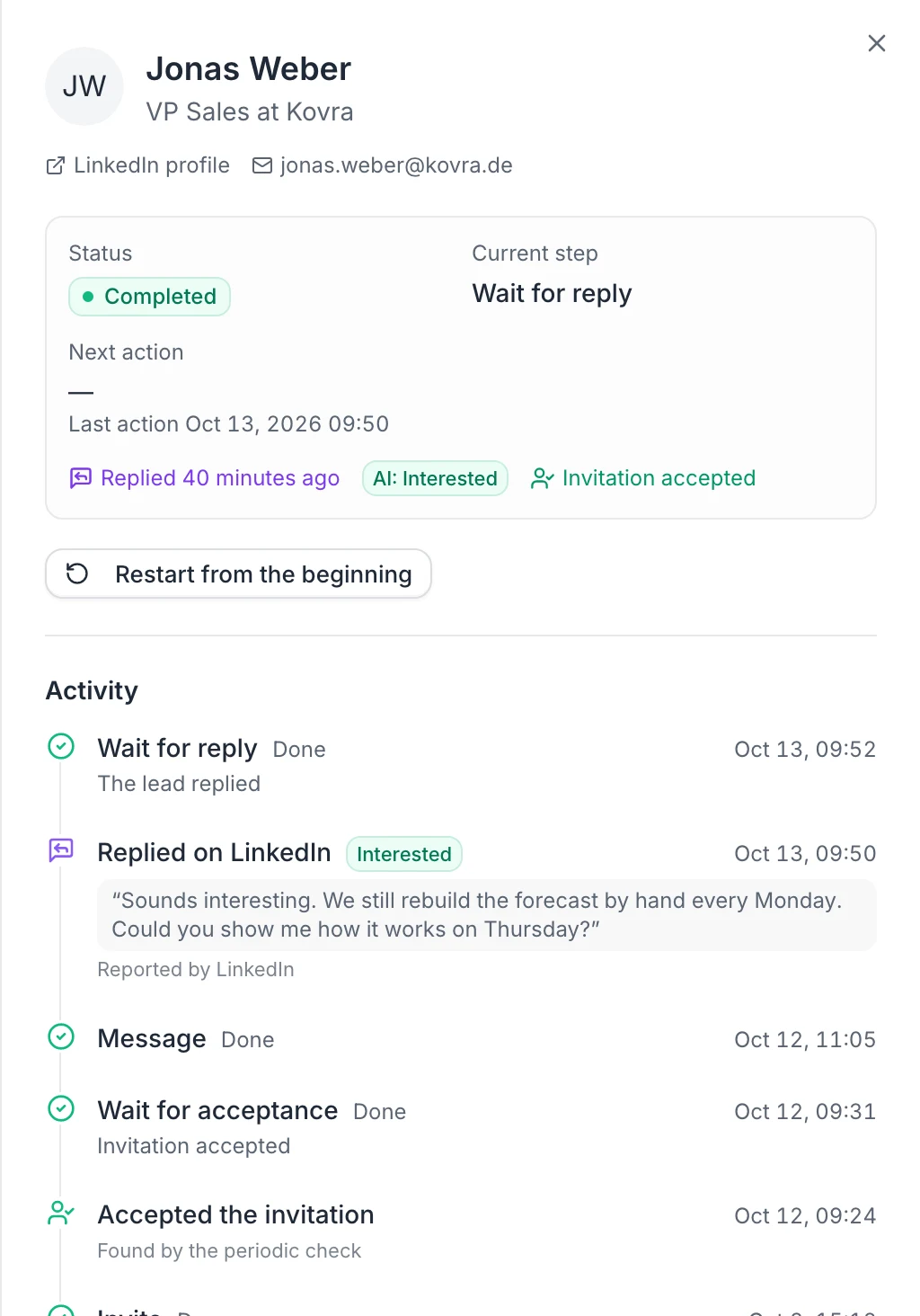
The Activity section lists, newest first, every step the lead went through and every signal received from them:
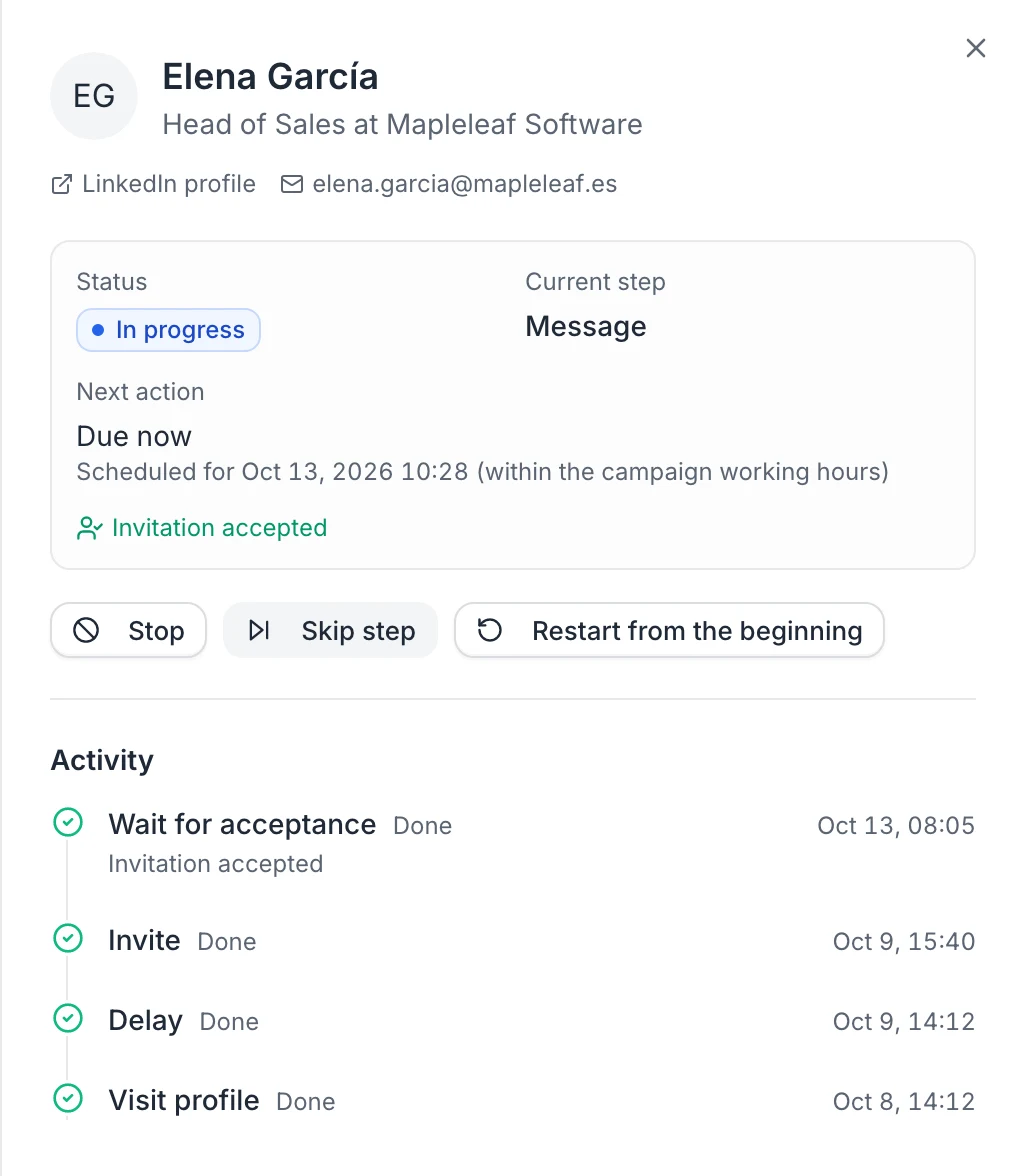
- Steps: Done, Failed, Skipped, Scheduled (planned again after a temporary problem) or Running. For waits and conditions, the result: "Invitation accepted", "No reply in time", "No open or click in time", "AI analysis: positive", "Result: yes"…
- Signals: Accepted the invitation, Replied on LinkedIn or Replied by email (with the start of the reply and its AI reading), Opened the email, Clicked a link in the email, Email bounced, Unsubscribed and Out of office (automatic reply). Under each one, how it was detected: Reported by LinkedIn, Found by the periodic check, Found by a last check, Detected from the conversation, Already connected when invited, Tracked or Read from the mailbox.
- Notes and error messages, such as "The lead has not replied", "No invitation was sent (…)" or "No valid email address for this lead".
How replies are read
Each reply is read by AI and tagged, so you can see at a glance who to answer first:
| Tag | The reply… |
|---|---|
| Interested | is positive: asks for a call, a demo, a price or details. |
| Not interested | declines or asks to stop. |
| Later | says not now, or asks to come back later. |
| Wrong person | says they're not the right contact, or refers you to someone else. |
| Replied | anything else (a question, a thank-you…). |
The tag doesn't change what the campaign does: a reply is handled as described in When a lead replies.
An out-of-office reply isn't a reply. The lead continues the sequence, and when the message gives a return date (within the next 60 days), nothing is sent to them before that day. Automatic email replies are recognized from their headers and subject; other out-of-office messages (on LinkedIn or by email) are recognized by the AI.
Actions on a lead
Use the … menu of a row, or the buttons in the lead's panel.
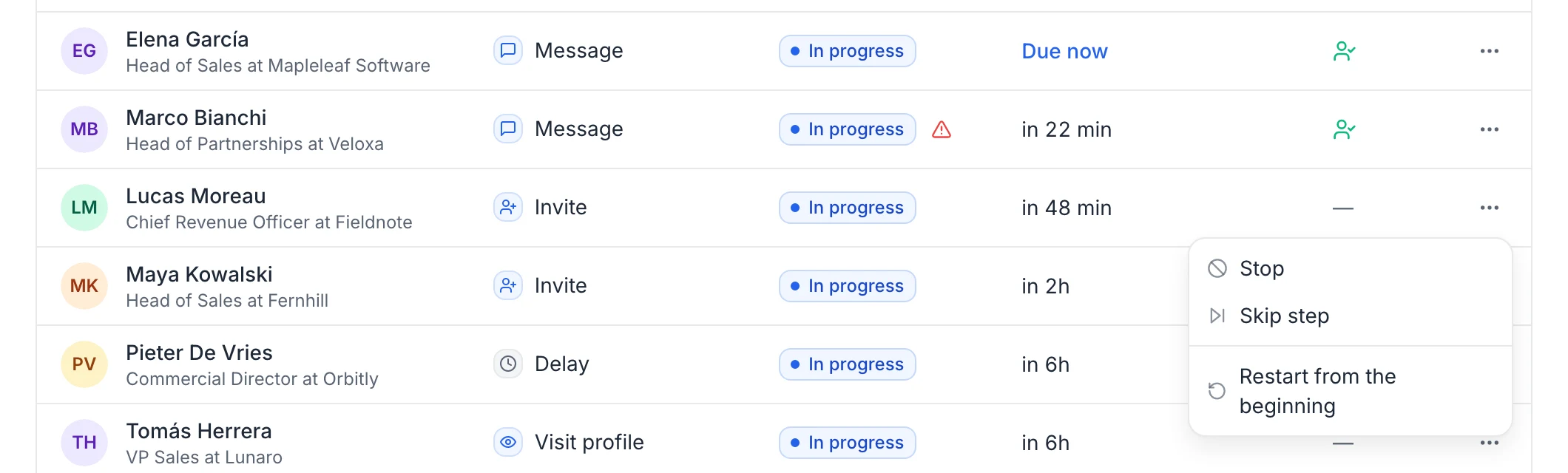
- Stop (leads in progress): no more actions for this lead in this campaign. Status Stopped manually.
- Skip step (leads in progress): moves the lead to the next step right away. On a wait, a condition or a filter, skipping sends the lead down the second branch (such as Not accepted or No reply). If there's no next step, the lead is Completed.
- Resume (stopped or failed leads): the lead continues from its current step right away, within working hours. If that step no longer exists, it starts again from the first step. Replies received before you resume don't stop the lead again; a new reply does, while Stop a lead when they reply is on.
- Restart from the beginning (any lead, after a confirmation): the lead goes back to the first step, and their reply and acceptance status are reset. Steps that already succeeded for this lead aren't sent a second time: the lead goes through the delays and conditions again, and steps that failed or were skipped are tried again.
Add leads to a running campaign
Add the leads to the campaign's target list, for example by importing them or saving them from Discover. See Add leads to useArtemis.
- A running campaign picks up new leads of its list automatically, within about 10 minutes.
- A paused campaign adds them when you resume it.
- You can also change the list in the Start step: leads of the new list join, and leads already in the campaign continue.
Remove a lead
Removing a lead from the list doesn't remove it from a campaign that already started it. To stop sending to a lead, click Stop in the Leads tab.
The same lead in several campaigns
A lead appears only once in a campaign, even if the list contains them twice. The same lead can be in several campaigns at the same time, and each campaign runs its own sequence for them.
- A LinkedIn reply counts in every campaign where the lead is and that uses the LinkedIn account that received it.
- An email reply counts in the campaign that sent the email.
- An unsubscribe stops the lead in all your campaigns.
To avoid contacting the same person twice, keep each lead in one running campaign. See Manage lists.
FAQ
Why is a lead's next action "Due now" but nothing happens?
Due now only shows for the lead whose turn has come, while the campaign can send: the action goes out within a minute or two. The other leads wait in line, one action at a time per account, and show their estimated time (with ≈). Outside the working hours, the next action shows when the window opens instead, such as "Tomorrow 09:00". See Working hours, daily limits and sender accounts.
Do the counters follow the date range of Analytics?
No. The counters of the Leads tab are totals since the launch. For results over a period, see Campaign analytics.
Was this article helpful?
Related articles
Still need help?
Write to hello@useartemis.co with your account email and what you were trying to do.