Connect any mailbox with SMTP and IMAP
Connect Zoho, iCloud, Yahoo, OVH or any other email provider with SMTP and IMAP: the fields to fill in, which ports to use and how to fix errors.
Updated October 27, 2026
On this page
Any mailbox that offers SMTP (to send) and IMAP (to read replies) can be connected with Other provider. You enter the server names, ports and login, then Test & connect checks both before saving. Use port 587 for SMTP and 993 for IMAP.
Note: For Gmail or Google Workspace, use Gmail / Google Workspace (guide). For Outlook or Microsoft 365, use Outlook / Microsoft 365 (guide): Microsoft refuses password logins.
Before you start
- You need a subscription. On a free account, the connection is refused with Connecting a mailbox comes with a subscription. Subscribe to connect it and launch your campaigns., and the Subscribe to connect your mailbox window opens. See Free account: what's included.
- Find your provider's settings: SMTP server and port, IMAP server and port. They're usually in your provider's help pages, under "IMAP" or "email client setup".
- Check if you need an app password. Many providers that use two-step verification require a separate app password for email clients. Create one in your provider's security settings if so.
- Make sure IMAP is turned on for the mailbox, if your provider lets you turn it off.
Connect the mailbox
Open the account menu (your name at the bottom of the sidebar) and click Settings, then Email accounts.
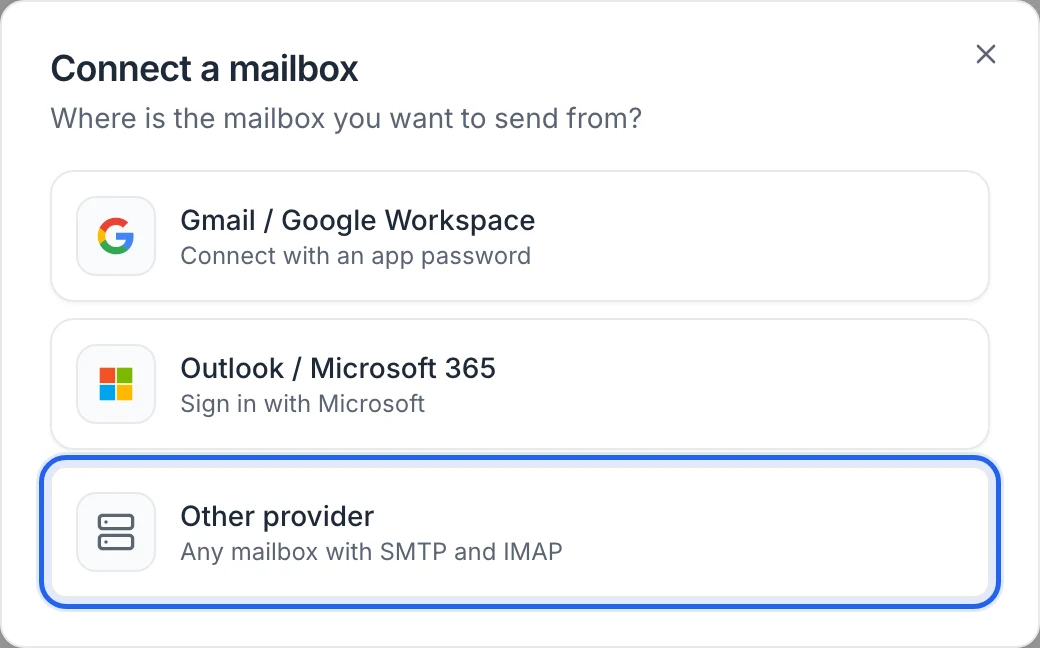
Click Connect mailbox and choose Other provider.
Fill in the form:
Field What to enter Email address The address you send from. Sender name The name your leads see, for example "Emma Laurent". SMTP server Your provider's outgoing server, for example smtp.company.com.Port (SMTP) 587. IMAP server Your provider's incoming server, for example imap.company.com.Port (IMAP) 993. Username Usually your full email address. Leave empty to use the email address. Password Your mailbox password, or the app password if your provider requires one. 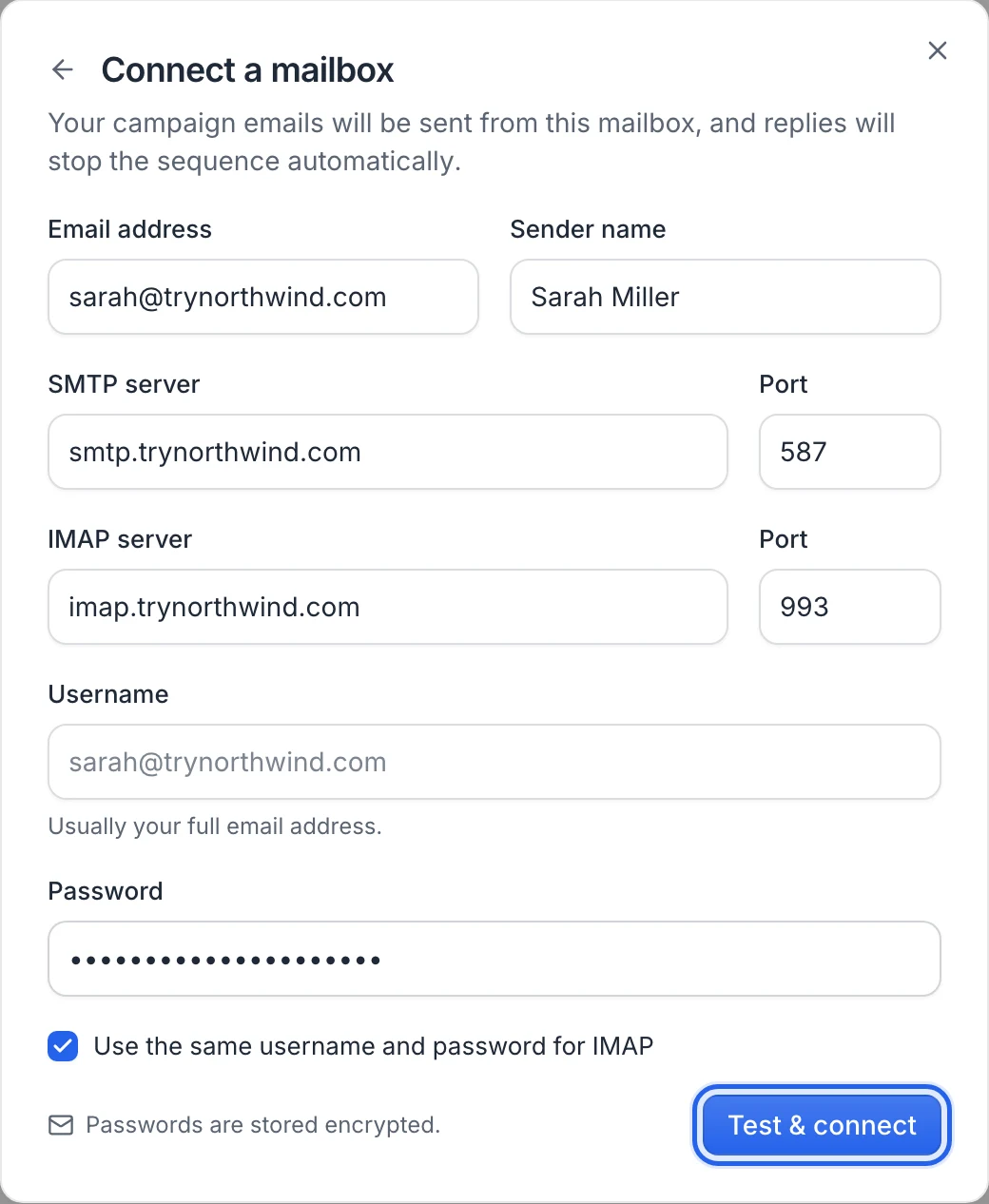
If IMAP uses a different login, untick Use the same username and password for IMAP and fill in IMAP username and IMAP password.
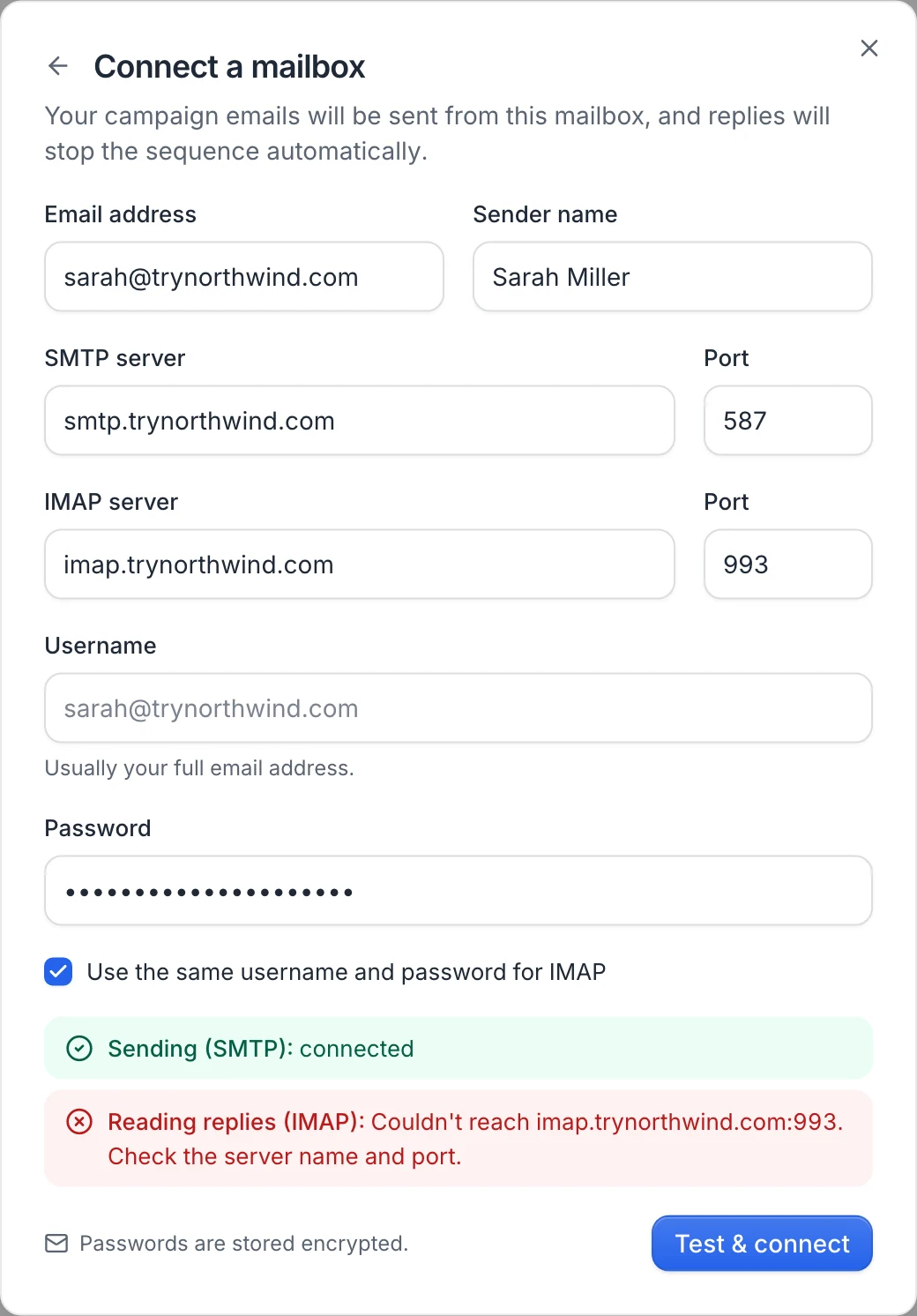
Click Test & connect. The dialog shows Sending (SMTP) and Reading replies (IMAP), each marked connected or with the error.
When both work, the mailbox appears under Connected mailboxes with a Mailbox connected message.
New mailboxes send up to 30 emails a day. See Manage a connected mailbox to change it.
Servers filled in for you
When you type the email address, useArtemis fills in the servers as smtp.<your domain> and imap.<your domain>, and uses known settings for a few providers. Check them and edit them if needed: once you change a server field, it's no longer overwritten.
| Address ends with | SMTP server | IMAP server |
|---|---|---|
| yahoo.com | smtp.mail.yahoo.com | imap.mail.yahoo.com |
| icloud.com, me.com | smtp.mail.me.com | imap.mail.me.com |
| zoho.com | smtp.zoho.com | imap.zoho.com |
| zohomail.eu | smtp.zoho.eu | imap.zoho.eu |
| gmx.com | mail.gmx.com | imap.gmx.com |
| gmx.fr | mail.gmx.net | imap.gmx.net |
| ovh.com | ssl0.ovh.net | ssl0.ovh.net |
Ports
- SMTP: 587. The connection is encrypted with STARTTLS. Port 465 isn't supported, and port 25 can't be reached either. If your provider only lists 465, check its help pages: most also accept 587.
- IMAP: 993, encrypted (SSL/TLS).
Fix connection errors
- Port 465 isn't supported. Use port 587 for SMTP.: change the SMTP port to 587.
- Couldn't reach smtp.company.com:587. Check the server name and port. (or the IMAP server): the server name is wrong, or the server doesn't accept connections on that port. Copy the exact server names from your provider.
- Wrong email or password. For Gmail, use an app password, not your usual password.: the login was refused. Check the username and password. If your provider uses two-step verification, use an app password.
- Sending (SMTP) is connected but Reading replies (IMAP) fails: IMAP is turned off for the mailbox, or it uses other credentials. Turn on IMAP in your provider's settings, or untick Use the same username and password for IMAP and enter the IMAP login.
- Enter the SMTP server. / Enter the IMAP server. / Enter a valid email address.: a field is missing or malformed.
What happens once it's connected
- Emails are sent through your provider's SMTP server, from your address. useArtemis also saves a copy in your Sent folder over IMAP when it can find it.
- useArtemis checks your inbox for replies and bounces every few minutes, and stops the sequence of a lead who replies. Answer replies from your usual email app.
- Passwords are stored encrypted.
See Email sending limits and deliverability for daily limits, tracking and unsubscribes.
FAQ
Can I use a transactional email service as SMTP?
useArtemis needs both SMTP and IMAP on the same mailbox: IMAP is how replies and bounces are detected. A send-only SMTP service without a mailbox can't pass the IMAP test.
I changed my mailbox password. What now?
Sending stops and the mailbox shows Reconnect needed. Click Reconnect, choose Other provider, fill in the form with the new password and click Test & connect. The server fields are filled from your domain again, so check them before testing. The mailbox keeps its place in your campaigns.
Was this article helpful?
Related articles
Still need help?
Write to hello@useartemis.co with your account email and what you were trying to do.