Connect an Outlook or Microsoft 365 mailbox
Connect Outlook.com or a Microsoft 365 work mailbox with Sign in with Microsoft, what it asks permission for, and what to do if admin approval is needed.
Updated October 27, 2026
On this page
Outlook.com and Microsoft 365 mailboxes connect with Sign in with Microsoft: you log in on Microsoft's own page and allow useArtemis to send emails and read replies. useArtemis never sees your password. Some Microsoft 365 work accounts first need their IT admin to approve useArtemis.
Before you start
- You need a subscription. On a free account, the connection is refused with Connecting a mailbox comes with a subscription. Subscribe to connect it and launch your campaigns., and the Subscribe to connect your mailbox window opens. See Free account: what's included.
- Use this option for every Microsoft mailbox. Microsoft doesn't accept password logins for this kind of connection, so Other provider doesn't work for Outlook or Microsoft 365 addresses.
Connect the mailbox
Open the account menu (your name at the bottom of the sidebar) and click Settings, then Email accounts.
Click Connect mailbox.
Choose Outlook / Microsoft 365, then click Sign in with Microsoft.
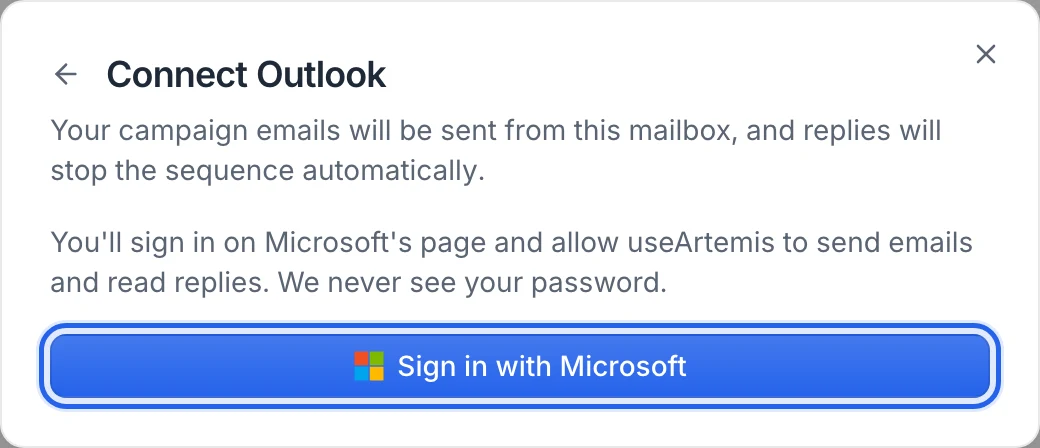
On Microsoft's page, pick or enter the account to connect and sign in, including any verification Microsoft asks for.
Review the permissions and accept them.
You're brought back to Email accounts with a Mailbox connected message, and the mailbox appears under Connected mailboxes.
Right after you sign in, useArtemis tests sending and reading replies. If one of them fails, you'll see Couldn't connect the mailbox with the reason, and the mailbox is listed with Reconnect needed.
The sender name comes from your Microsoft profile. New mailboxes send up to 30 emails a day. Change both in Sending settings: see Manage a connected mailbox.
What useArtemis asks permission for
- Send email from your mailbox, for your campaign email steps.
- Read your mailbox over IMAP, to detect replies and bounces in your inbox.
- Stay connected (offline access), so emails keep going out without you signing in again.
- Your basic profile and email address, to know which address to send from.
useArtemis renews its access automatically in the background.
"Need admin approval"
Many organizations don't let employees approve new apps on their own. In that case Microsoft shows a Need admin approval screen instead of the permissions.
- Send the request to your IT admin if Microsoft offers it, or ask them directly.
- Your admin approves useArtemis for your organization in Microsoft's admin tools.
- Once it's approved, go back to Email accounts and click Sign in with Microsoft again.
Personal Outlook.com and Hotmail accounts don't need admin approval.
Fix connection errors
The reason shows in the Couldn't connect the mailbox message, or in red under the mailbox:
- The sign-in link expired. Please try again.: the sign-in took too long. Start again from Connect mailbox.
- Microsoft did not share the email address of this account.: sign in with an account that has a mailbox.
- Microsoft sign-in failed. Please try again.: retry. If it keeps failing, contact us.
- Wrong email or password… or The mailbox refused the login (IMAP)… right after you signed in with Microsoft: the sign-in worked, but your organization blocks one of the two ways useArtemis talks to your mailbox: authenticated SMTP (to send) or IMAP (to read replies). Ask your Microsoft 365 admin to enable both for your mailbox, then reconnect.
- Microsoft session expired: reconnect the mailbox: Microsoft ended useArtemis's access, for example after a password change or because an admin revoked it. Reconnect the mailbox.
- A login error after trying Other provider with a Microsoft address: Microsoft refuses password logins. Use Outlook / Microsoft 365 instead.
If Outlook / Microsoft 365 shows Coming soon and can't be clicked, Microsoft sign-in is temporarily unavailable: write to hello@useartemis.co.
Reconnect a Microsoft mailbox
- On Email accounts, click Reconnect on the mailbox.
- Choose Outlook / Microsoft 365 and click Sign in with Microsoft.
- Sign in with the same address.
The existing mailbox is updated, so the campaign steps that use it keep working.
FAQ
Does it work with Exchange hosted by my company?
The connection goes through Microsoft's sign-in, for Outlook.com and Microsoft 365 (Exchange Online) mailboxes. For another server, try Other provider with its SMTP and IMAP settings: see Connect any mailbox with SMTP and IMAP.
Where do my sent emails and replies go?
Sent emails are kept in your Sent Items folder, like any email you send. Replies arrive in your Outlook inbox: answer them from Outlook. useArtemis reads them only to stop the sequence of the lead who replied.
Was this article helpful?
Related articles
Still need help?
Write to hello@useartemis.co with your account email and what you were trying to do.