Queue: upcoming actions and why an action failed
See the next action scheduled for each lead, understand Due now, and find out why an action failed or was skipped, what happens next and how to retry it.
Updated October 21, 2026
On this page
The Queue shows the next action planned for each lead of your running campaigns, and when it's due. Failed actions aren't in the queue: you find them in the campaign's Leads tab and in Analytics › Task results, with the reason. This article explains both.
The Queue page
Open Queue in the sidebar (under Outreach), or go to https://app.useartemis.co/queue. It lists "The next action scheduled for each lead across your running campaigns", soonest first:
- Lead: click the name to open their LinkedIn profile.
- Next action: the step the lead is on, such as Invite, Message, Email, Delay or Wait for acceptance.
- Campaign: click it to open the campaign.
- Scheduled: when it's due, or Due now.
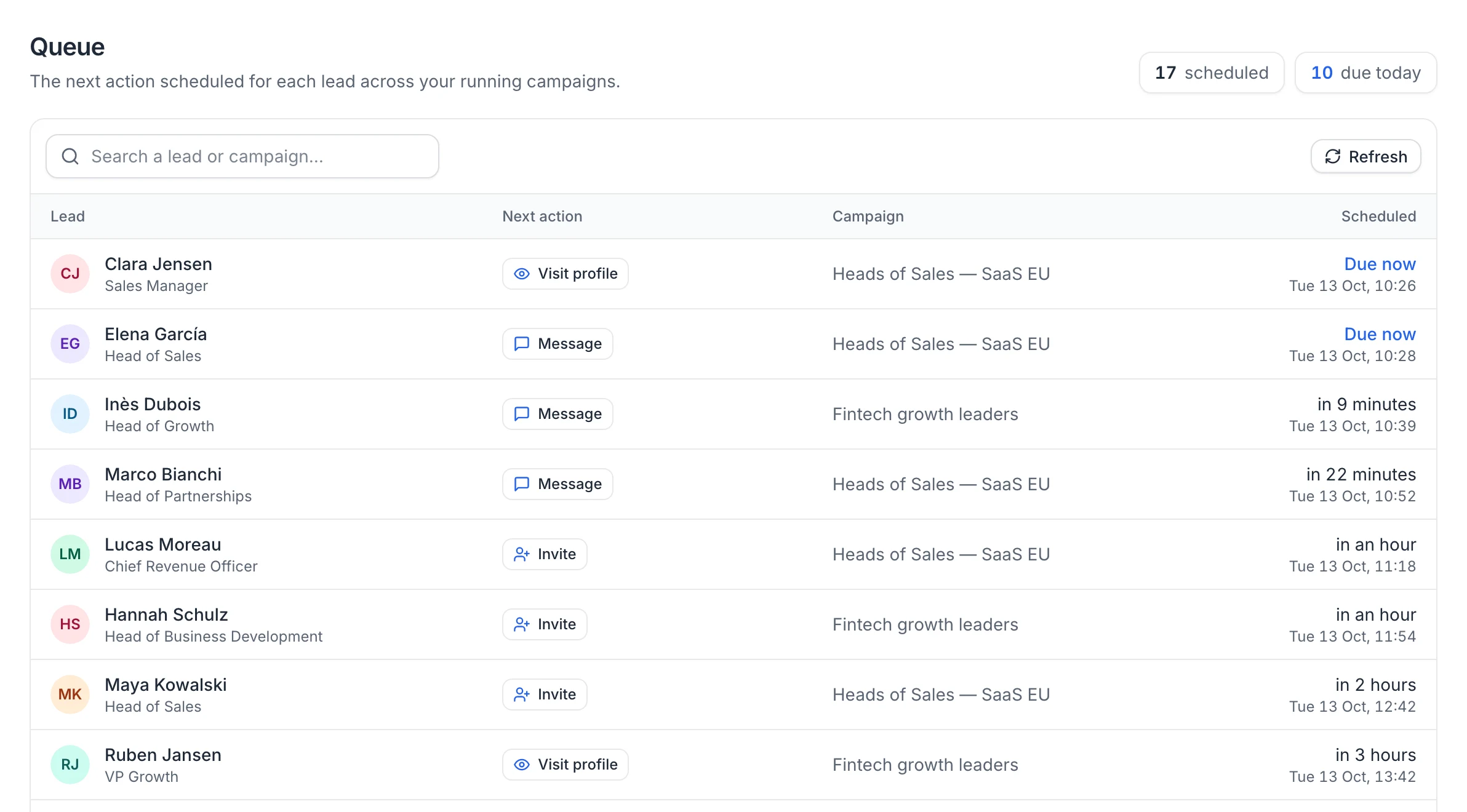
The counters at the top show how many actions are scheduled and how many are due today. Use Search a lead or campaign… to filter, and Refresh to update. The page shows up to 300 actions ("300+").
Only leads in progress in running campaigns that you created appear. Leads of paused campaigns, and leads who finished or were stopped, don't.
The Queue tab of a campaign
Each campaign has a Queue tab with the same list for that campaign only ("Upcoming actions"), plus In this step since: how long the lead has been on its current step. It stays empty before the launch and while the campaign is paused.
What the times mean
- For an action (invitation, message, email…), Scheduled is the earliest time it can run.
- For a Delay, it's when the delay ends. For a wait (Wait for acceptance, Wait for reply, Wait for email open), it's when the waiting period ends: the lead moves on earlier if they accept, reply, open or click.
- The time takes the campaign's working hours, each account's daily limits and the campaign's Leads started per day into account: leads waiting for the same kind of action on an account are served one at a time, first come, first served, so each one shows when its turn should come (an action that falls due outside the working hours shows the time the window opens, such as tomorrow 09:00).
- Due now means that lead's turn has come: the action runs within a minute or two.
Times are estimates: working hours, daily limits and the spacing between actions decide the exact moment. See Working hours, daily limits and sender accounts.
Where to see failed actions
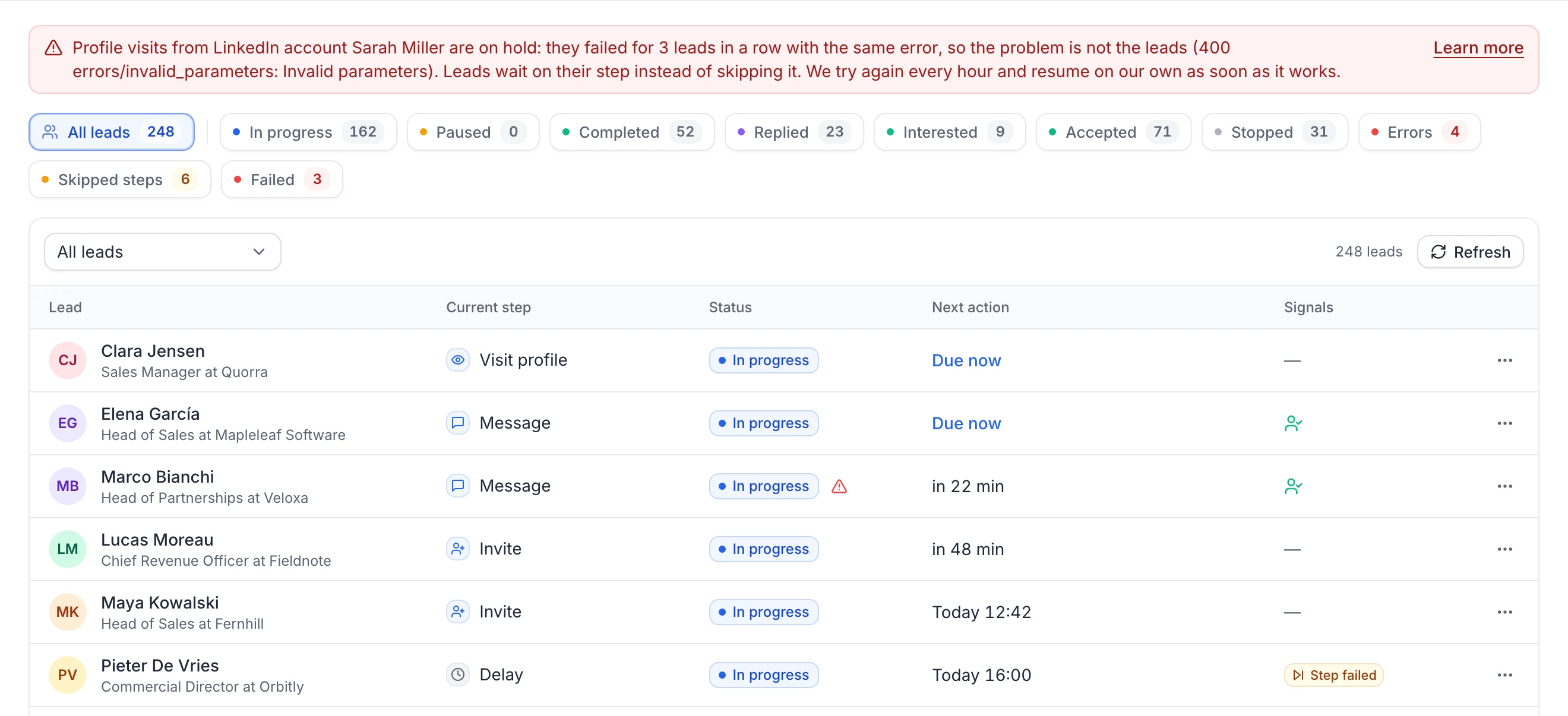
- Leads tab: the Errors counter (leads waiting on their step after an error, with a red warning icon next to the status: hover it), the Skipped steps counter (leads that moved past a step that failed for them, with a Step failed badge: hover it to see which step and why), Failed, and the Activity of each lead. See Manage campaign leads.
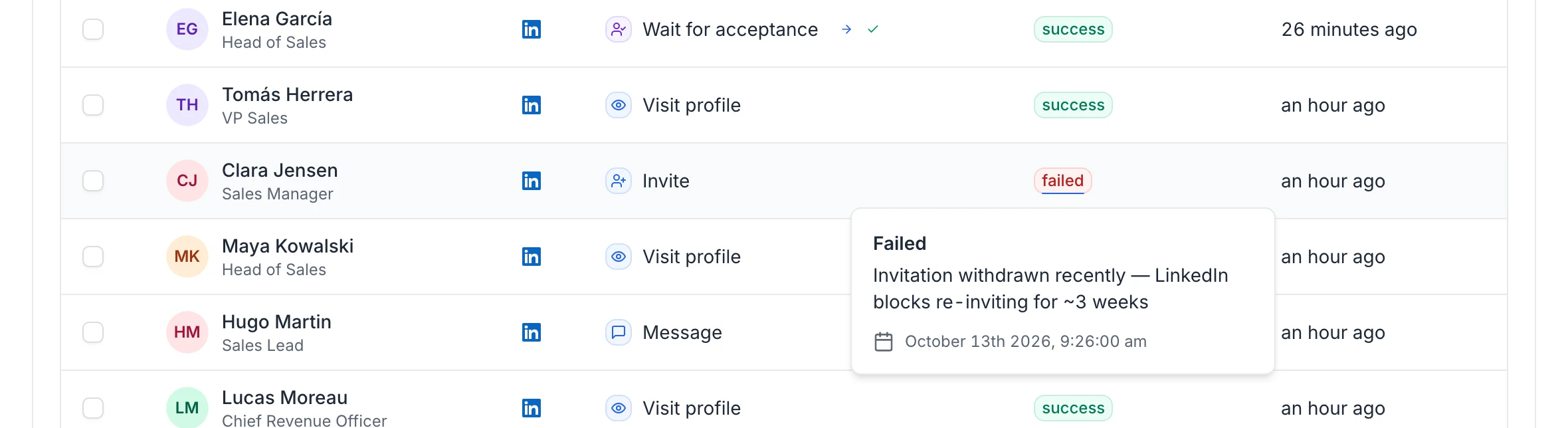
- Analytics › Task results: each action with a failed or skipped badge; hover it to read why. For a disconnected LinkedIn account, the card has an Add credentials button that opens the LinkedIn accounts page.
What happens when an action fails
What happens depends on the problem:
- Account problem (LinkedIn account disconnected or restricted, mailbox login refused): the lead waits on this step and the action is retried every few hours. The campaign shows a red alert and the account is marked as disconnected. Reconnect it and the leads continue. See Reconnect a LinkedIn account.
- Limit reached: when LinkedIn refuses an action because of its own limits, this type of action is paused on the account for 24 hours and the lead waits. A mailbox that hits its provider's sending limit also waits a day.
- A problem with the lead (no LinkedIn URL, profile not found, not a connection yet, no recent post, no email address, an address that unsubscribed or bounced…): the action is marked as failed or skipped and the lead moves on to the next step right away. In the Leads tab, the lead shows Step failed.
- Any other error: the lead keeps its step and the action is tried again later, up to 3 times, 20 to 40 minutes apart, after the other leads waiting for the same action. If it still fails, it's marked as failed and the lead moves on (Step failed).
- The same error for several leads in a row: the action is put on hold for the account and no lead skips the step. See below.
In the lead's Activity, an action that will be tried again shows Scheduled with the error.
When the same error hits every lead
When an action fails for 3 leads in a row with the same error, on the same LinkedIn account or mailbox, the problem isn't the leads: LinkedIn, the connection to it or useArtemis has an issue. Instead of letting every lead skip the step, useArtemis puts that action on hold for the account:
- No lead skips the step: the leads wait on it. Those that hit the error count in Errors: hover their warning icon to read it, for example "On hold, not skipped: profile visits from this account failed for 3 leads in a row with the same error (…)".
- Only that kind of action stops, and only on that account: for example, profile visits wait while invitations and messages keep going. It applies to every campaign that uses the account.
- Each of these campaigns shows a red banner such as "Profile visits from LinkedIn account … are on hold: they failed for 3 leads in a row with the same error, so the problem is not the leads (…)", with a Learn more link to this section.
- You get an email, "Profile visits are on hold in …", at most once every 12 hours for the same account and kind of action.
- useArtemis tries again every hour. As soon as the action goes through, every lead continues where it was and the banner disappears. You don't need to do anything.
The kinds of action are Profile visits, Connection requests, LinkedIn messages (voice messages included), Post likes, Invitation withdrawals and Emails. If the banner stays for several hours, send us the error it shows at hello@useartemis.co.
Common reasons
| Message | What it means and what to do |
|---|---|
| Not connected with this lead yet (messages need a 1st-degree connection) | LinkedIn messages only reach connections. Put message steps on the Accepted branch of Invite accepted?. |
| Lead has no LinkedIn profile URL | The lead has no LinkedIn URL. Add it on the lead, or use email steps for this lead. |
| Sales Navigator profile could not be mapped to a LinkedIn profile | The lead only has a Sales Navigator link that couldn't be matched to a profile. |
| No recent post to like | The lead hasn't posted recently. The lead moves on. |
| Invitation withdrawn recently — LinkedIn blocks re-inviting for ~3 weeks | LinkedIn doesn't allow a new invitation yet. |
| Message is empty | The message is empty once the variables are filled in. See Personalization variables. |
| AI could not write this message | The AI failed 3 times. The lead moves on without the step. |
| No LinkedIn account selected for this step | Choose the account under Sent from on the step, or use sender rotation. |
| This LinkedIn account uses the old connection method… | Reconnect the account with the secure connection on the LinkedIn accounts page. |
| LinkedIn account disconnected (…) | Reconnect the account. The lead waits meanwhile. |
| No valid email address for this lead | The email step is skipped. See Find emails for a list. |
| Email suppressed (unsubscribed) / Email suppressed (bounced) | The address unsubscribed or bounced before: it's never emailed again. |
| A previous email to this lead bounced | Later emails to this lead are skipped. |
| Recipient rejected: … | The recipient's server refused the address. It's skipped and won't be emailed again. |
| Email step has no subject (only follow-ups can reuse the previous thread) | Add a subject to the first email of the sequence. |
| Mailbox … must be reconnected / refused the login / is not connected | Reconnect the mailbox in Settings › Email accounts. The lead waits meanwhile. |
| Interrupted (server restart). Not retried to avoid sending twice. | The action may or may not have gone out, so it isn't sent again. The lead moves on. |
| On hold, not skipped: … failed for 3 leads in a row with the same error (…) | The action is on hold for the account and the lead waits on its step. See When the same error hits every lead. |
For waits, conditions and filters, a failed check sends the lead down the second branch (such as Not accepted or No reply) with a note such as "Acceptance check failed", "Condition check failed" or "Filter failed". A wait on something that was never sent doesn't wait: the lead takes the second branch right away, with "No invitation was sent (…)", "The last message was not sent (…)", "The last email was not sent (…)" or "No email was sent to this lead". The AI message analysis step goes to No with "The lead has not replied" when there's no reply to analyze.
Other messages, sometimes with a technical code, come from LinkedIn or from the mail server. If one keeps coming back, send it to hello@useartemis.co.
Retry a failed action
Open the Leads tab, open the lead's menu and click Restart from the beginning. The lead goes through the sequence again: steps that already succeeded aren't sent twice, and steps that failed or were skipped are tried again. Fix the cause first (a missing email address, a disconnected account), or the step fails again.
FAQ
Why are my task results marked as failed?
Hover the failed badge in Analytics › Task results to read the reason, then check the table above. Most failures come from a message sent to someone who isn't a connection yet, a lead without a LinkedIn URL or email address, or a disconnected account.
Why did a lead skip a step?
The step failed for that lead, usually because of the lead itself (profile not found, no email address…), or it kept failing after 3 tries. Click Skipped steps in the Leads tab to list these leads, and hover the Step failed badge to see which step and why. To try again, fix the cause and click Restart from the beginning.
Why is my queue empty?
The campaign may be paused or not launched yet, every lead may have finished, or the campaign was created by a teammate: the Queue page only lists campaigns you created. Open the campaign's Queue tab to check.
Was this article helpful?
Related articles
Still need help?
Write to hello@useartemis.co with your account email and what you were trying to do.