Write LinkedIn invitations and messages with AI
Let the AI write a different connection note or LinkedIn message for each lead, from their profile, your pitch and your prompt. How to set it up and control it.
Updated October 22, 2026
On this page
Choose AI writes it on a connection request or a LinkedIn message, and the AI writes a different text for each lead when the step is sent. It uses the lead's LinkedIn profile, your offer and the prompt you give the step.
How AI writing works
When a lead reaches an AI step, the AI writes their note or message on the spot. It uses:
- The lead's LinkedIn profile, read with your LinkedIn account: headline, location, about section, recent positions and education.
- Your offer, from the campaign settings: company name, website, pitch and goal, plus the name of the sending LinkedIn account.
- The prompt of the step (AI prompt).
- The campaign language, set in the campaign settings.
- For messages, the conversation so far with the lead, so a follow-up doesn't repeat the first message.
The AI writes like a person: short, specific, no flattery or buzzwords, no emojis unless your prompt asks for them, and no placeholders like [Name]. It never uses dashes (— or –) between words, the mark that gives AI-written text away: if one slips in, useArtemis replaces it with a comma before the text is sent. Connection notes are one to three short sentences within LinkedIn's limit (300 characters with Premium, 200 without). Messages stay under 600 characters unless your prompt asks for more.
Note: AI writing is available on connection requests and LinkedIn messages. Email steps are written by you, with variables. See Personalization variables.
Turn on AI for a step
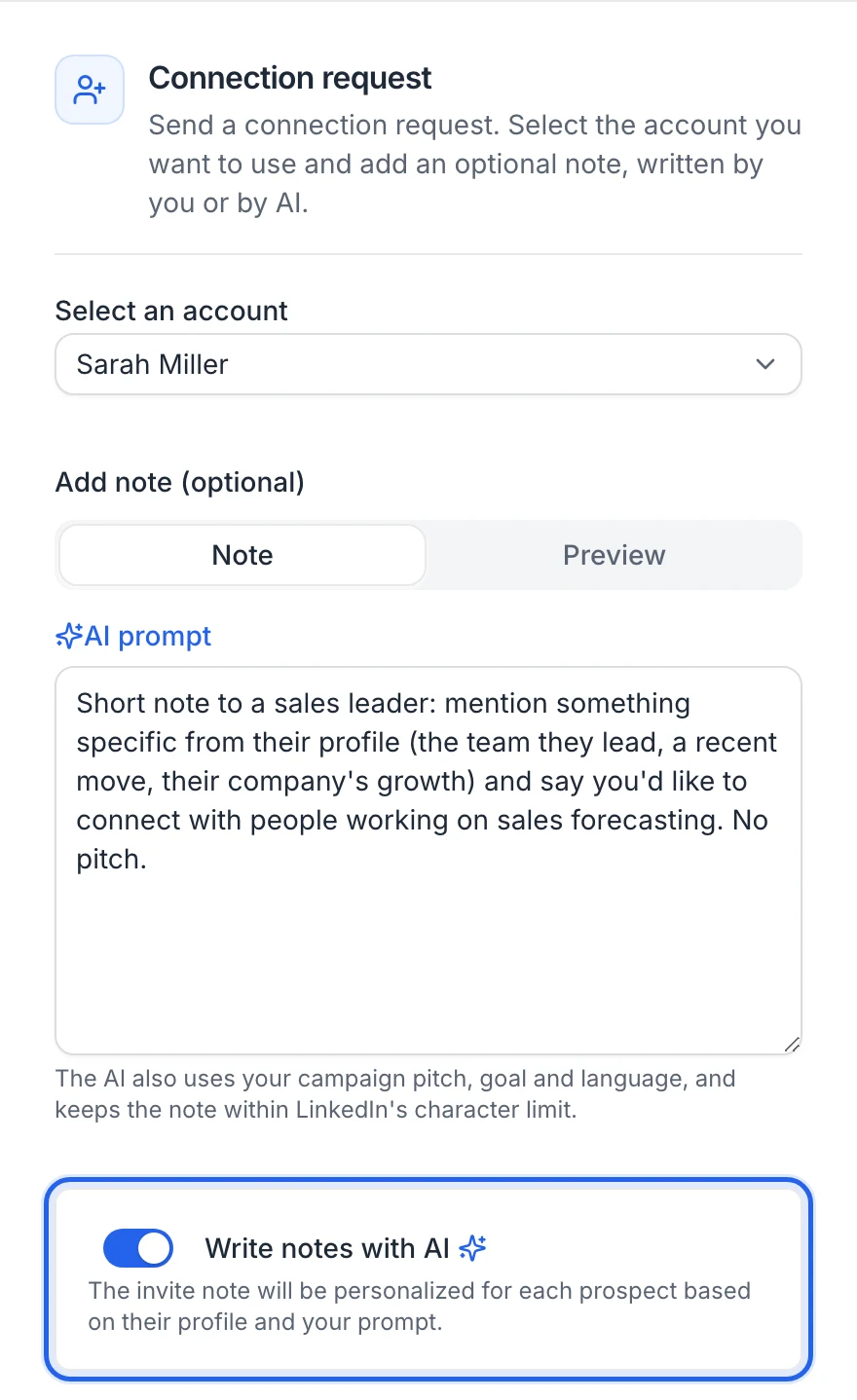
Connection request
- Open the Sequence tab and click a Connection request step.
- Check the LinkedIn account under Sent from.
- Under Note, choose AI writes it.
- Edit the prompt: what the note should say. New invite steps start with a ready-made prompt: a short, friendly note that mentions something specific from the profile and doesn't pitch yet. When the prompt is empty, Common ground, Compliment and Peer to peer fill in ready-made ones.
- Under Preview, click Write a preview for … to see the note the AI writes for a lead of your list. Pick another lead in the menu next to Preview, or click Regenerate for another version.
LinkedIn message
- Click a Message step and check the account under Sent from.
- Under Message, choose AI writes it.
- Write the prompt, click Generate prompt with AI to get one based on your pitch, your goal and the position of the step in the sequence, or start from Thank & ask, Value first or Book a call. "Tell the AI what the message should say." shows at the top of the settings while the prompt is empty.
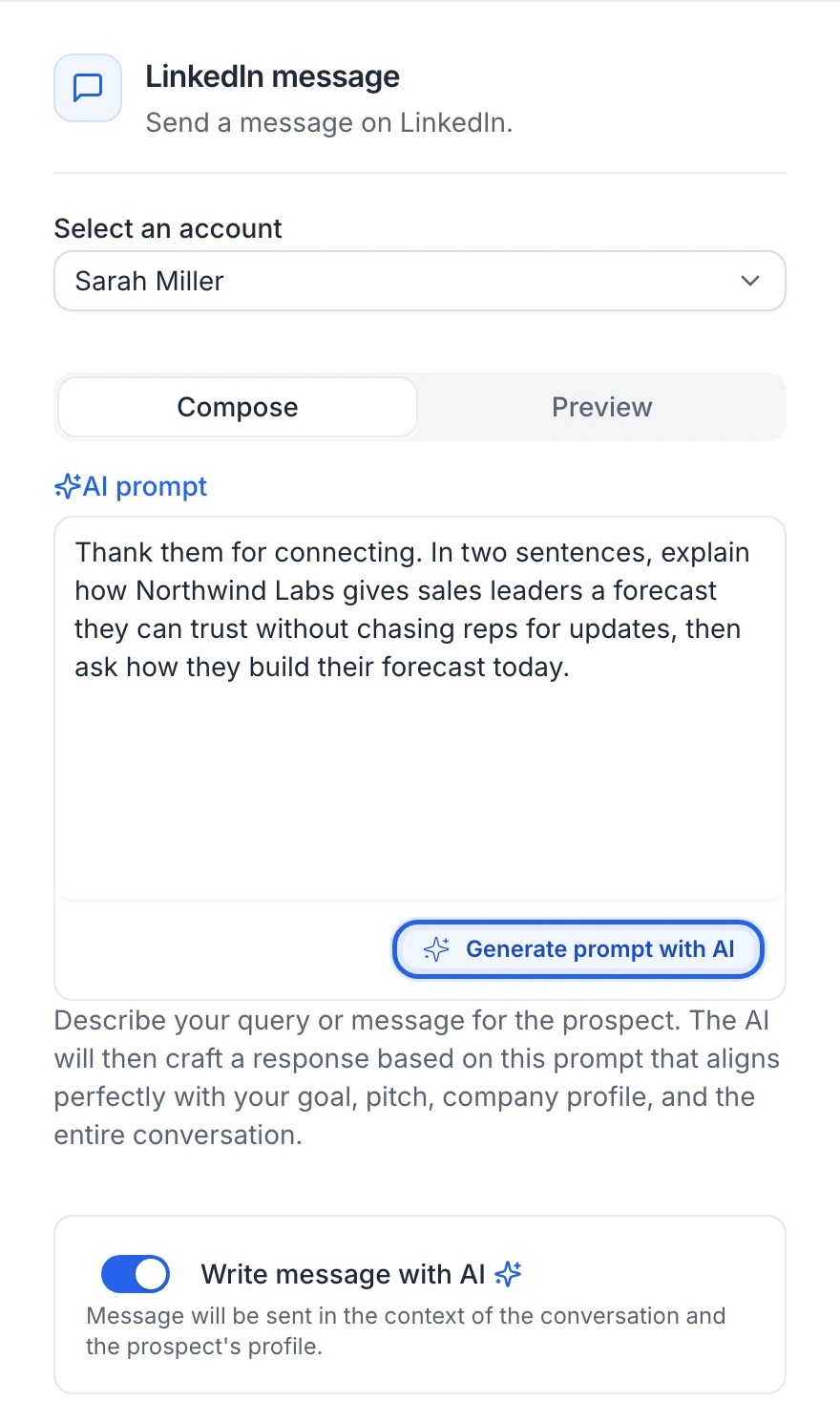
Campaigns created with Write it with AI already have AI turned on for the connection request and both messages, with prompts written from your offer and goal.
Write a good prompt
The AI already knows the lead's profile and your offer, so the prompt should say what this particular step must do. For example:
- "Thank them for connecting, mention one thing from their current role, and ask whether outbound is a priority for their team this quarter."
- "Short follow-up: share one concrete result we got for a company like theirs and propose a 15-minute call with this link: …"
Tips:
- Say where the step sits: first touch, message right after they accept, follow-up without a reply.
- Put your call-to-action link in the prompt or in the campaign goal.
- You don't need variables like
{firstname}in a prompt: the AI reads the profile. - Ask for the tone and length you want ("two sentences", "informal").
Give the AI your offer
Open Campaign settings (the gear icon on the campaign page). Under Your offer, fill in:
- Website: a moment after you type it, a preview of the site appears with Read by AI once the AI could read it. If it couldn't, write your pitch yourself.
- Company name: filled in from your site when it's empty.
- Pitch: what you sell, to whom, and why it matters to them. Click Generate pitch with AI (available once a website is filled in) to draft it from your site.
- Goal: what leads should do next, with your link.
- Language: the language of the AI-written notes and messages.
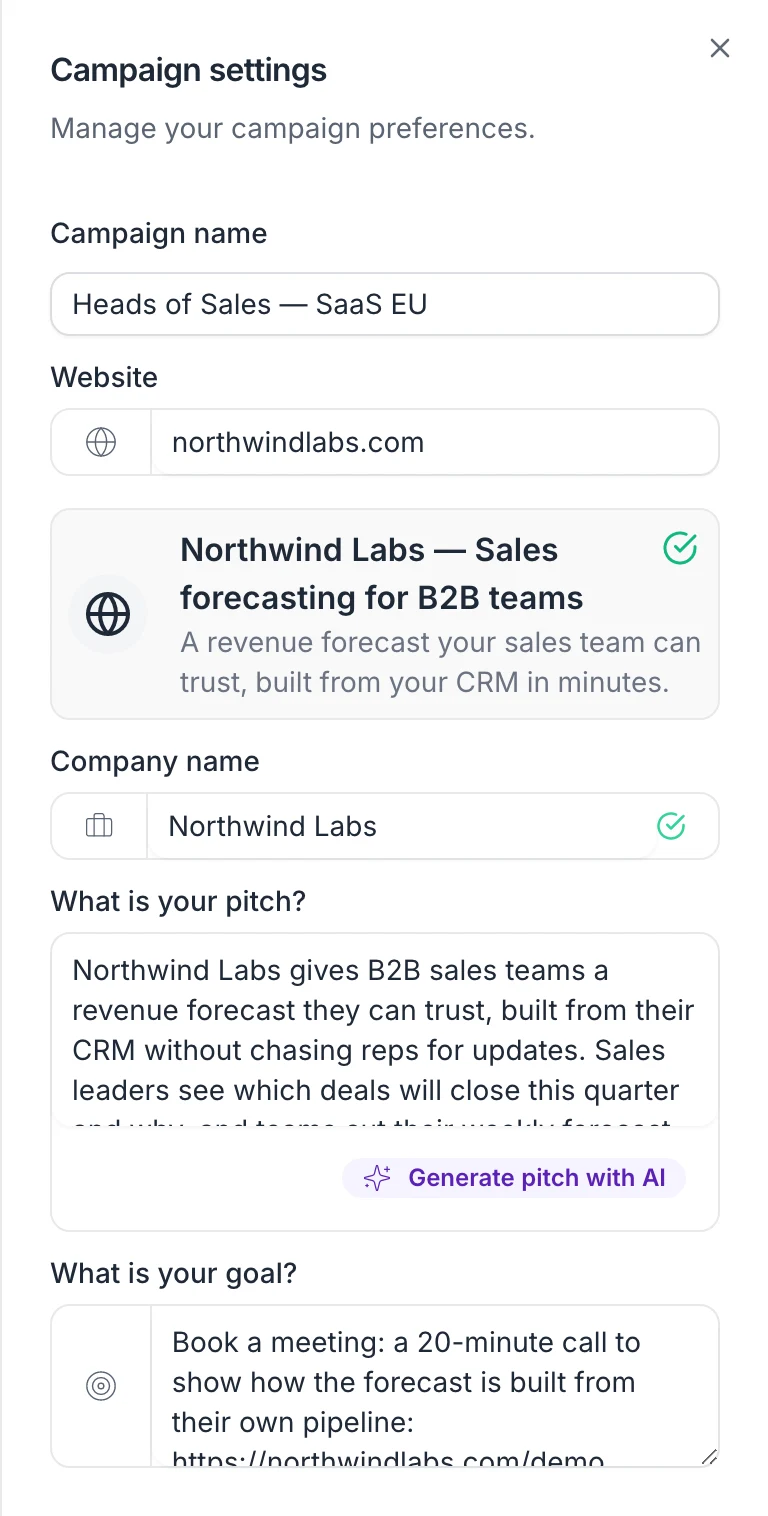
Click Save settings. The next AI texts use the new values.
Preview an AI message
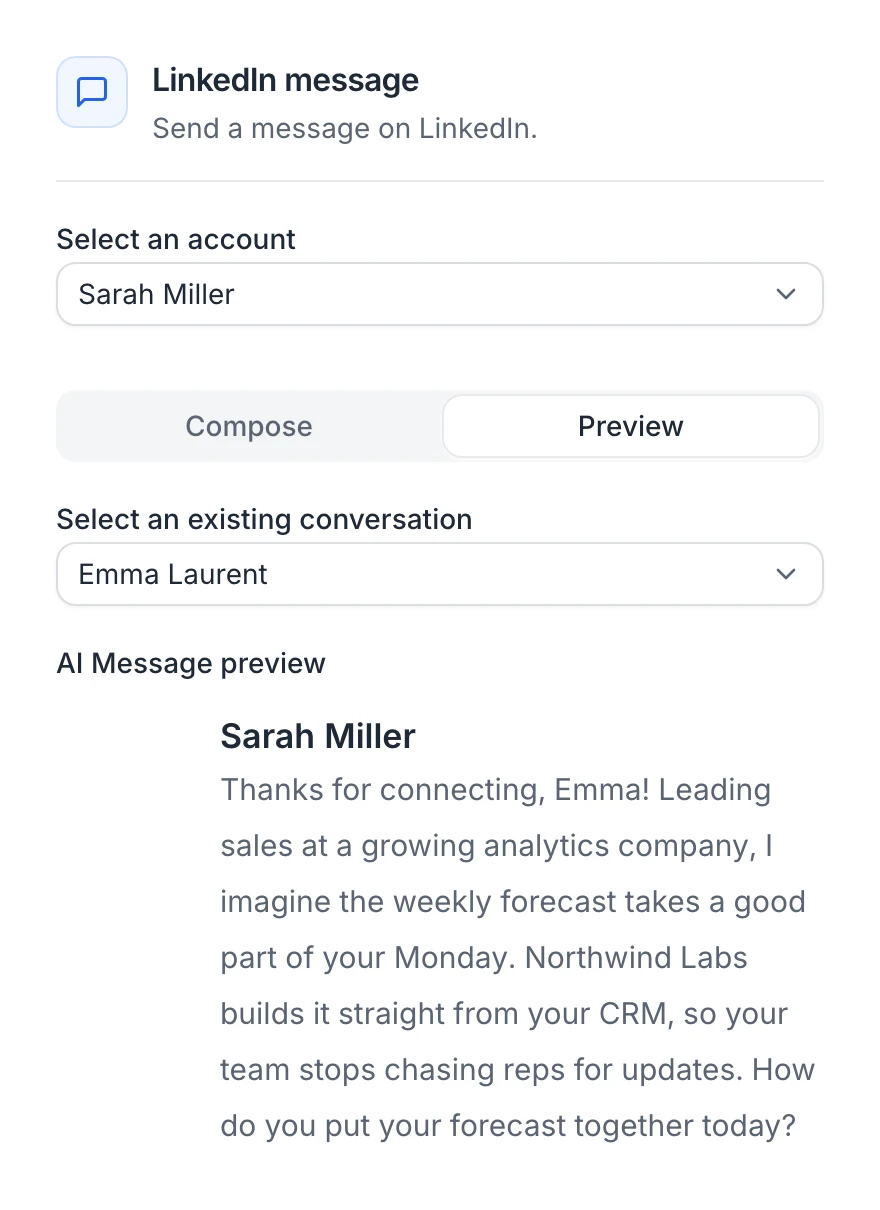
On a Message step written by AI, Preview uses one of the recent LinkedIn conversations of the sending account, so the AI writes in context. Pick the conversation in the menu next to Preview, then click Write a preview for …. The preview is written by the same AI, with the same rules, as the messages your campaign sends, and shows what it could write in that conversation, as the lead would see it. It's an example: the real message is written again for each lead when the step is sent.
If the AI can't write a text
useArtemis never sends an invitation without its note or an empty message because the AI failed. The step is retried a few times. If it still fails, the step is marked as failed with "AI could not write this message" and the lead moves on. When it fails for 3 leads in a row, the step is put on hold for the account instead, and no lead skips it. See Queue and failed actions.
AI elsewhere in campaigns
- AI message analysis: a step that reads the lead's reply and answers a yes/no question, such as "Is the lead interested?". See Sequence steps.
- AI auto-reply: a step that lets the AI answer the lead's next messages for you.
- Inbox: draft replies with AI. See Reply with AI.
FAQ
Can I mix my own text and AI on the same step?
No. A step either sends your text (with variables) or an AI-written text. You can mix them across steps: for example, your own invitation note and AI-written follow-ups.
Why is there never a dash in AI-written texts?
Dashes between words (— or –) are one of the clearest signs that a text was written by AI. The AI is told never to use them, and useArtemis replaces any that slip in with a comma before sending. Number ranges ("10-20") and hyphenated words ("follow-up") stay as they are. Notes and messages you write yourself are never changed.
Will every lead get a different note?
Yes. The AI writes each note separately, from that lead's own profile, instead of filling in a template.
Which languages can the AI write in?
The campaign wizard offers English, French, Spanish, German, Italian, Portuguese and Dutch. Campaign settings › Language also offers Russian, Chinese, Japanese, Korean and Arabic.
Was this article helpful?
Related articles
Still need help?
Write to hello@useartemis.co with your account email and what you were trying to do.