Set working hours, daily limits and sender accounts
Choose when a campaign sends (days, working hours, time zone, pause after an acceptance), how many actions it sends per day, and which LinkedIn accounts it uses.
Updated October 22, 2026
On this page
Each campaign has its own sending schedule and daily limits, set in Campaign settings: the hours and days it sends, its time zone, how many visits, invitations, messages and emails it sends per day, and which LinkedIn accounts it rotates between.
Open the campaign settings
- Open the campaign.
- Click the gear icon (Campaign settings) at the top right, or click the campaign name. It works from every tab of the campaign.
- Change what you need. The tabs at the top (Offer, Schedule, Replies, LinkedIn, Email) jump to each part of the settings.
- Click Save settings at the bottom (or press ⌘S, Ctrl S on Windows).
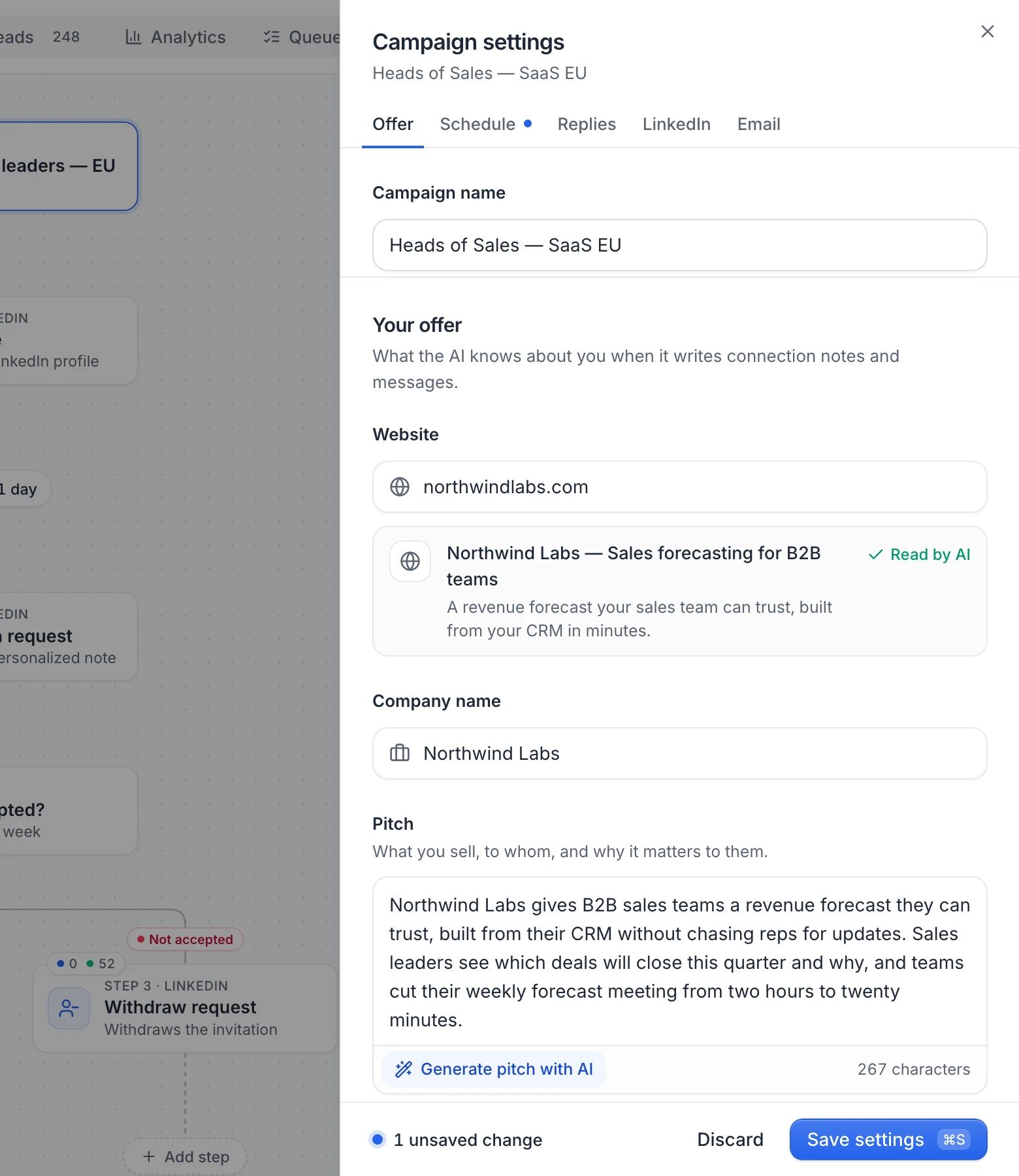
Settings aren't saved until you click Save settings. Until then, the bar at the bottom counts your unsaved changes, and a dot marks the tabs that have some. Discard puts back the saved values. If you close the settings with unsaved changes, you're asked whether to discard them (Discard changes) or go back (Keep editing). Saved settings apply right away, including on a running campaign.
Working hours and days
Under Schedule:
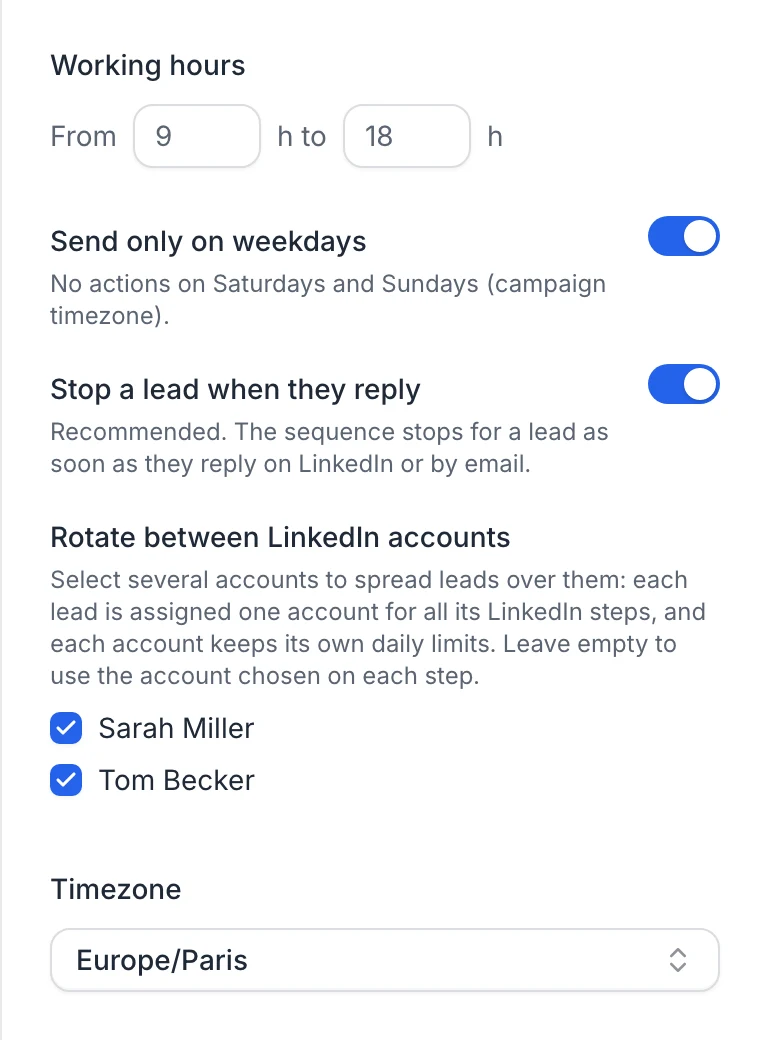
- Days: Monday to Friday (the default: no actions on Saturdays and Sundays, in the campaign's time zone) or Every day.
- Working hours: From one hour to another, in whole hours (from 00:00 to 24:00). The end must be after the start: otherwise the settings show "The end hour must be after the start hour." and Save settings answers "Invalid working hours".
The week below the hours shows when the campaign sends: the filled part of each day is the sending window, striped days don't send.
LinkedIn actions and emails are only sent inside this window. An action that falls due outside it waits for the next window. While the window is closed, a running campaign shows a banner Outside sending hours with the time actions resume (for example "Actions resume tomorrow at 09:00 (Europe/Paris)"), and the Leads and Queue tabs show that time as the next action. Delays and waits keep counting at night and on weekends: only the action itself waits for working hours.
New campaigns send from 9:00 to 18:00, on weekdays.
Time zone
Choose the Time zone that the working hours refer to (type a city or a region to search the list; each zone shows its UTC offset). Daily limits also reset at midnight in this time zone. Below the field, the current time in that zone tells you whether the campaign is inside or outside its sending window right now.
Note: Campaigns created with New campaign start in the Europe/Paris time zone. Copies made with Make a copy start in America/Los_Angeles. Set your own time zone before launching.
Pause after an accepted invitation
Under Replies & pacing, Pause after an accepted invitation sets a range in minutes: pick No pause, 5–30 min, 20 min–3 h (the default) or 1–6 h, or type your own Between … and … minutes (up to 1,440). When a lead accepts your invitation, the next action (usually your first message) waits a random time in this range, then the working hours. This way your message doesn't arrive seconds after they accept, which looks automated. No pause sends as soon as possible.
The pause only applies to the first action after an acceptance. If the acceptance was detected late, the time already spent counts in the pause.
Leads started per day
Under Replies & pacing, Leads started per day sets how many new leads take their first step each day. Leads already in the sequence aren't limited by it: they go on with their next steps.
- Auto (the default) follows the slowest step every lead goes through before its first wait. Take a sequence that visits a profile, waits a day, then sends a connection request. LinkedIn allows about 100 connection requests a week, so about 20 a day from Monday to Friday. With 80 visits a day, the visits would get weeks ahead of the requests. With Auto (20 a day), each lead visited today gets their request tomorrow, as planned. The label shows the number Auto uses, and the text below it shows which step sets it and how many leads started today. With several accounts in the rotation, Auto adds up the limits of the connected ones.
- Custom lets you type your own number, from 1 to 1,000 a day.
When today's starts are used, the leads that haven't started wait for the next day. In the Leads tab, their next action shows that day.
Daily limits of the campaign
Under LinkedIn › Daily limits of this campaign, set each limit with its slider or type the number:
- Profile visits: up to 150 a day
- Connection requests: up to 100 a day
- Messages: up to 150 a day
Under each limit, the settings show how many your sending accounts allow in total, from their own limits: for example "Your 2 accounts allow 45 a day." If the campaign's limit is higher, the line turns amber: at most what the accounts allow will go out.
Under Email, Max emails per day sets the email limit. The text below it shows the resulting pace, for example "Up to 60 emails will be sent between 9h and 18h, about one every 9 minutes on average."
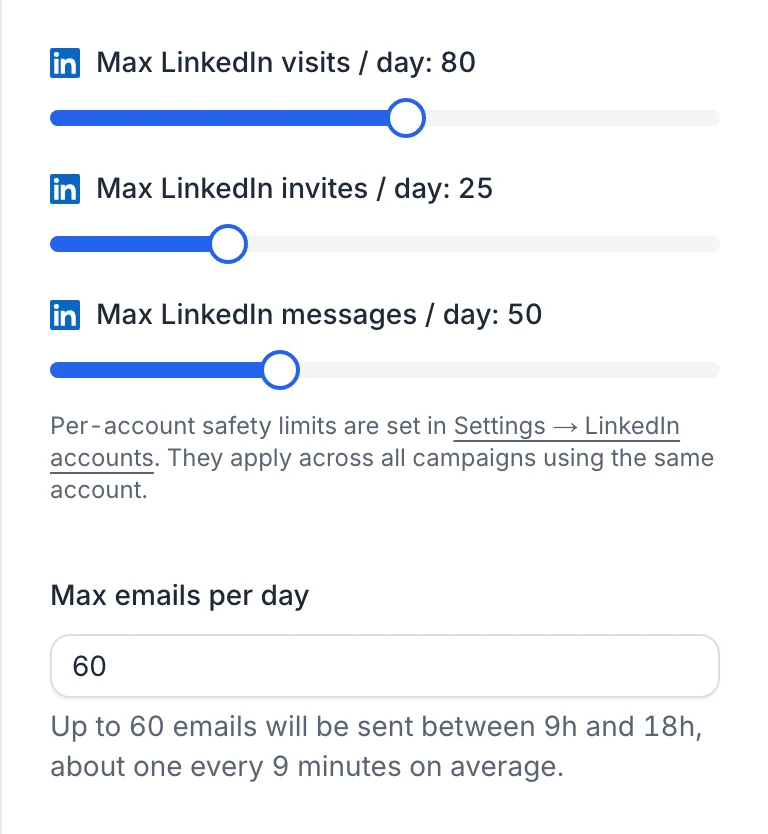
New campaigns start at 80 visits, 25 invitations, 50 messages and 60 emails per day.
Every action must also fit within the limits of the account that sends it:
- LinkedIn accounts have their own Sending limits, shared by every campaign that uses the account. Newly connected accounts also start below their limits during their first two weeks. See LinkedIn limits.
- Mailboxes have their own Emails per day, set in Settings › Email accounts. See Sending limits and deliverability.
When a limit is reached, the remaining actions wait for the next free slot or the next day's window. Leads waiting on the same limit are lined up: the first message to a lead who just accepted (or the step after a "yes" branch) goes first, then follow-ups, then new visits and invitations.
Warning: A limit of 0 doesn't stop that type of action: the campaign then uses its default limit instead (80 visits, 30 connection requests, 50 messages or 50 emails a day), as the settings remind you under a limit set to 0. To stop sending emails or invitations, remove those steps or pause the campaign.
How actions are spread out
Actions aren't sent in a burst at the start of the day. On each LinkedIn account, actions of the same kind are spaced out across the working hours, with a random gap based on the daily limit (at least one minute apart). Emails are spaced out the same way on each mailbox. When you launch, leads also enter the sequence a few seconds apart.
Leads waiting for the same kind of action on an account form a line: leads who just accepted your invitation or replied go first, then the others in the order they reached the step (first come, first served). With several accounts in the rotation, the leads not contacted yet form one line served by all of them: the next lead goes to an account with room left. The first step also follows Leads started per day (see above): with 500 leads and 20 starts a day, the first step takes about 25 working days, at the pace the following steps can keep. The Leads tab shows when each lead's turn should come.
Send from several LinkedIn accounts
Under LinkedIn › Rotate between LinkedIn accounts, click the accounts the campaign should use (click again to remove one). Each account shows its status (Connected, Reconnect or Disconnected), Premium when it is, and its own daily limits.
- Leads get an account when they're first contacted on LinkedIn, not at launch: among the selected accounts that can still act that day (connected, not on hold, under their daily and weekly limits), the one with the most room left. All its LinkedIn steps then use that account, whatever account is selected on the steps.
- Each account keeps its own daily limits, so more accounts means more actions per day. An account you add to a running campaign starts taking the leads not contacted yet right away.
- Replies and accepted invitations are detected on every selected account.
- If you remove an account from the selection, the leads it contacted switch to another selected account at their next LinkedIn step.
- If an account gets disconnected or reaches its limits, the leads not contacted yet go to the other selected accounts. The leads it already contacted wait for it: they aren't moved to another account, and the campaign shows an alert when one of them is due while the account is disconnected.
- A disconnected account in the selection doesn't block a launch, as long as one selected account is connected.
Select no account to use the account chosen on each step. Connect another account opens the LinkedIn accounts page.
When you change the selection of a running campaign, a note reminds you that leads not contacted yet get an account from the new selection, and that leads that already started keep theirs unless it's no longer selected.
Tip: Selecting a single account here applies it to every LinkedIn step of the campaign, without editing each step.
See Use several LinkedIn accounts to connect more accounts.
Other settings
- Stop a lead when they reply (under Replies & pacing): on by default. See Pause, resume, edit or delete a campaign.
- Campaign name, and under Your offer: Website, Company name, Pitch, Goal and Language, used by AI-written steps. See Write messages with AI.
FAQ
Why did nothing go out yet after launching?
Check the working hours, the days and the time zone of the campaign: outside the window, actions wait. The Queue tab shows when each lead's next action is scheduled. See Queue.
Do two campaigns using the same LinkedIn account double my daily volume?
No. Each campaign has its own limits, but the account's Sending limits are shared by every campaign that uses it.
Was this article helpful?
Related articles
Still need help?
Write to hello@useartemis.co with your account email and what you were trying to do.