Fix a disconnected LinkedIn account
What each LinkedIn account status means, why accounts get disconnected, how to reconnect in one click and what happens to your running campaigns.
Updated October 20, 2026
On this page
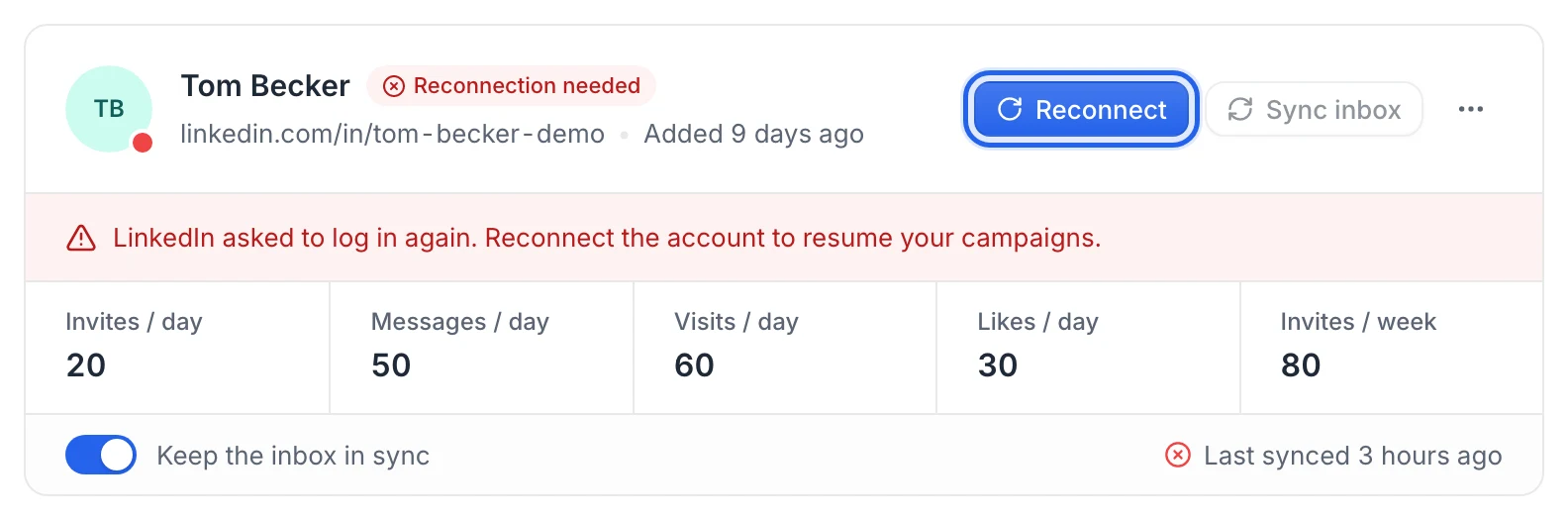
When a LinkedIn account stops working, its card on LinkedIn accounts shows a red status such as Reconnection needed. Click Reconnect on the card and log in to LinkedIn again on the secure page, or click Reconnect in the useArtemis Chrome extension. Your campaigns keep their leads and progress, and the waiting steps resume on their own.
What the statuses mean
| Status | What happened | What to do |
|---|---|---|
| Connected | Everything works. | Nothing. |
| Connecting… | LinkedIn is finishing the connection. This usually takes a few seconds. | Wait, the card updates by itself. |
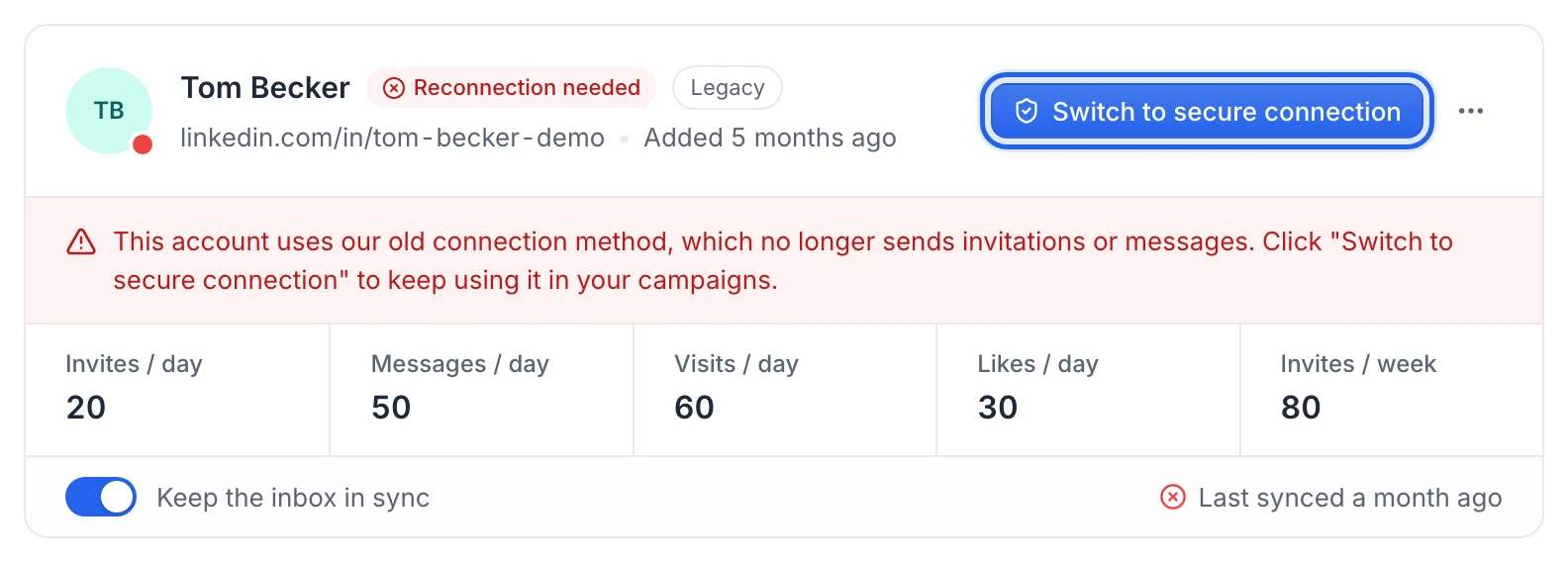
| Reconnection needed | LinkedIn asked to log in again, or the account still uses the old connection method. | Click Reconnect or Switch to secure connection. |
| Restricted by LinkedIn | LinkedIn restricted the account. | Log in on linkedin.com and resolve what LinkedIn asks, then click Reconnect. |
| Disconnected | The connection to LinkedIn was lost. | Click Reconnect. |
| Connection removed | This connection no longer exists. | Click Reconnect. |
The card also explains the problem in a red band at the bottom of its header. The page updates live, so you don't need to refresh it.
Reconnect an account
Go to LinkedIn accounts in the sidebar.
On the card of the account, click Reconnect.
Log in to LinkedIn on the secure connection page, with the same LinkedIn profile, and complete any verification code or security check.
Back on LinkedIn accounts, wait a few seconds for the badge to turn Connected.
The account keeps its limits, its AI persona and its place in your campaigns.
Reconnect from the Chrome extension
With the useArtemis Chrome extension, you can reconnect an account with the LinkedIn session of your browser instead of logging in on the secure page:
- In Chrome, log in to LinkedIn with the same LinkedIn profile and open any LinkedIn page.
- Click the useArtemis icon in Chrome's toolbar. At the top of the side panel, Reconnect your LinkedIn account shows the account.
- Click Reconnect. After a few seconds, the panel shows that the account is reconnected and that campaign steps that were waiting resume on their own.
The account keeps its card, its settings and its place in your campaigns. This also works for accounts from the old connection method (below). Only the person who connected the account can reconnect it. See Connect with the Chrome extension for how this connection works.
Why accounts get disconnected
- LinkedIn asked you to log in again. This usually happens after you change your LinkedIn password or when LinkedIn runs a security check on your account.
- You logged out of LinkedIn in the browser you connected from. An account connected with the Chrome extension uses that browser's LinkedIn session: logging out of LinkedIn there (or clearing the browser's cookies) ends it. Log in again and click Reconnect in the panel.
- LinkedIn restricted the account. LinkedIn sometimes limits accounts it considers too active. Fix it on LinkedIn first, then reconnect. Lower your sending limits afterwards.
- The account uses the old connection method. Accounts connected with a cookie pasted in the app, a password typed in the app or the previous version of the Chrome extension no longer send anything (see below).
- Your subscription stopped. When a subscription is cancelled, a payment fails or the subscription is paused, useArtemis pauses your running campaigns and disconnects your LinkedIn accounts (see below).
What happens to your running campaigns
Only the LinkedIn steps that use the disconnected account wait. Nothing is lost:
- The campaign shows a red banner, for example LinkedIn account Jane Doe is disconnected — reconnect it to resume the campaign., with a LinkedIn accounts link.
- You receive an email titled Your LinkedIn account … needs to be reconnected, with a Reconnect my LinkedIn account button.
- Waiting steps are retried every two hours (every six hours for an account on the old connection method). After you reconnect, they pick up again at their next retry and the banner disappears.
- Email steps and steps using other LinkedIn accounts keep running.
You can't launch a campaign that uses a disconnected account: LinkedIn account … is not connected. appears in the list of things to fix before launching until you reconnect it.
Accounts from the old connection method
Accounts connected before the secure connection carry a Legacy badge and show Reconnection needed. They no longer send invitations or messages.
On the card, click Switch to secure connection.
Log in with the same LinkedIn profile on the secure page.
useArtemis recognizes the profile and upgrades the existing account instead of creating a new one, so your campaigns keep using it. Your LinkedIn conversations are imported again from LinkedIn into the Inbox.
You can also click Reconnect in the Chrome extension while logged in to LinkedIn with that profile (see Reconnect from the Chrome extension above): the existing account is upgraded the same way.
After a cancellation or a failed payment
When your subscription stops being paid, running campaigns are paused and LinkedIn accounts are disconnected. Once your subscription is active again:
- Go to LinkedIn accounts. Each account shows Reconnection needed.
- Click the button on the card (Reconnect or Switch to secure connection) and log in with the same LinkedIn profile. The existing account is reused, with its settings.
- Resume your campaigns: they stay paused until you restart them. See Pause and resume a campaign.
Reconnect, don't remove
Remove account (in the ⋯ menu) deletes the account from useArtemis. If you connect it again later, it comes back as a new account: you'll have to select it again in every LinkedIn step and in Rotate between LinkedIn accounts. To fix a connection problem, always use Reconnect.
FAQ
Will my leads restart their sequence after I reconnect?
No. Each lead continues from the step it was waiting on.
How do I know an account got disconnected?
Three ways: the status on LinkedIn accounts, the red banner on the campaigns that use it, and an email from us (sent at most once every 12 hours per account).
My account keeps getting disconnected. What can I do?
Avoid changing your LinkedIn password while campaigns run, and complete LinkedIn's security checks when it asks. If you connected it with the Chrome extension, stay logged in to LinkedIn in that browser, or connect it with the secure page instead. If LinkedIn restricted the account, lower its daily limits, especially invitations. If it keeps happening, write to hello@useartemis.co.
Was this article helpful?
Related articles
Still need help?
Write to hello@useartemis.co with your account email and what you were trying to do.