Find emails for a lead list
Run Find emails on a lead list to search a professional email for every lead: what it needs, how many credits it uses and what each result means.
Updated October 27, 2026
On this page
Open a list, click Find emails, then Start enrichment. useArtemis searches a professional email for every lead of the list that hasn't been searched yet, and uses 1 credit for each email it finds. Leads with no result don't cost anything.
Note: Find emails comes with a subscription. On a free account, Start enrichment opens the Subscribe to find emails window instead. See Free account: what's included.
Before you start
- Give each lead a name and a company. The search works from the lead's first and last name (or full name) and their company. A company website or domain gives the best results; a company name also works. Leads without a name or a company are likely to come back Not found.
- Check your credits. To start, your credit balance must be higher than the number of leads in the list, counting every lead, even those that already have an email. Your balance shows at the top right of the app (credits) and in Settings › Billing. See Plans and credits.
- AppSumo Lifetime accounts can't run Find emails on a list. See AppSumo lifetime deal.
Run Find emails
- Click Prospects in the sidebar and open the list.
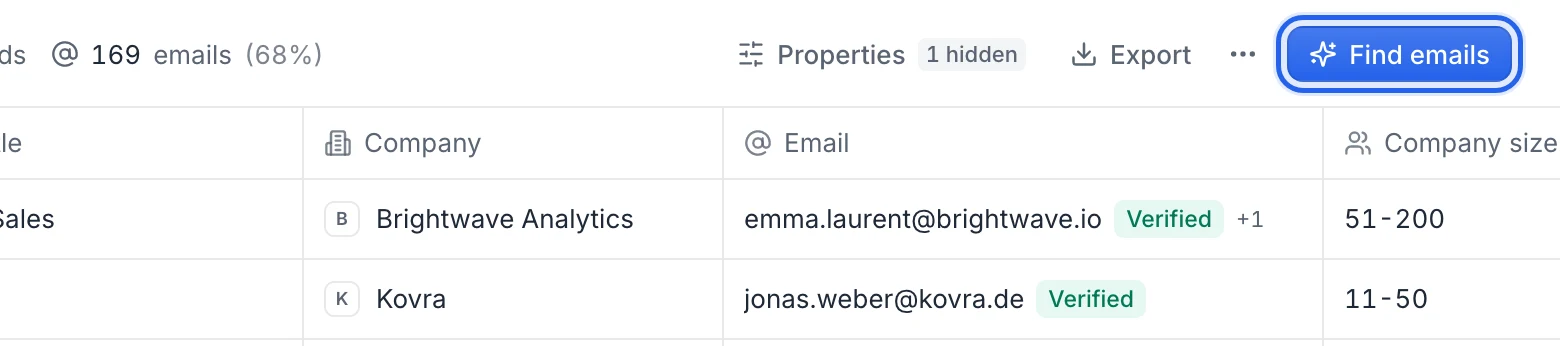
- Click Find emails at the top right of the table.
- The Waterfall enrichment panel lists the data sources that are searched one after the other for each lead. You don't need to set anything.
- Click Start enrichment.
You see Enrichment started! with It may take a few minutes. You can leave the page: the search keeps running.
Follow the progress
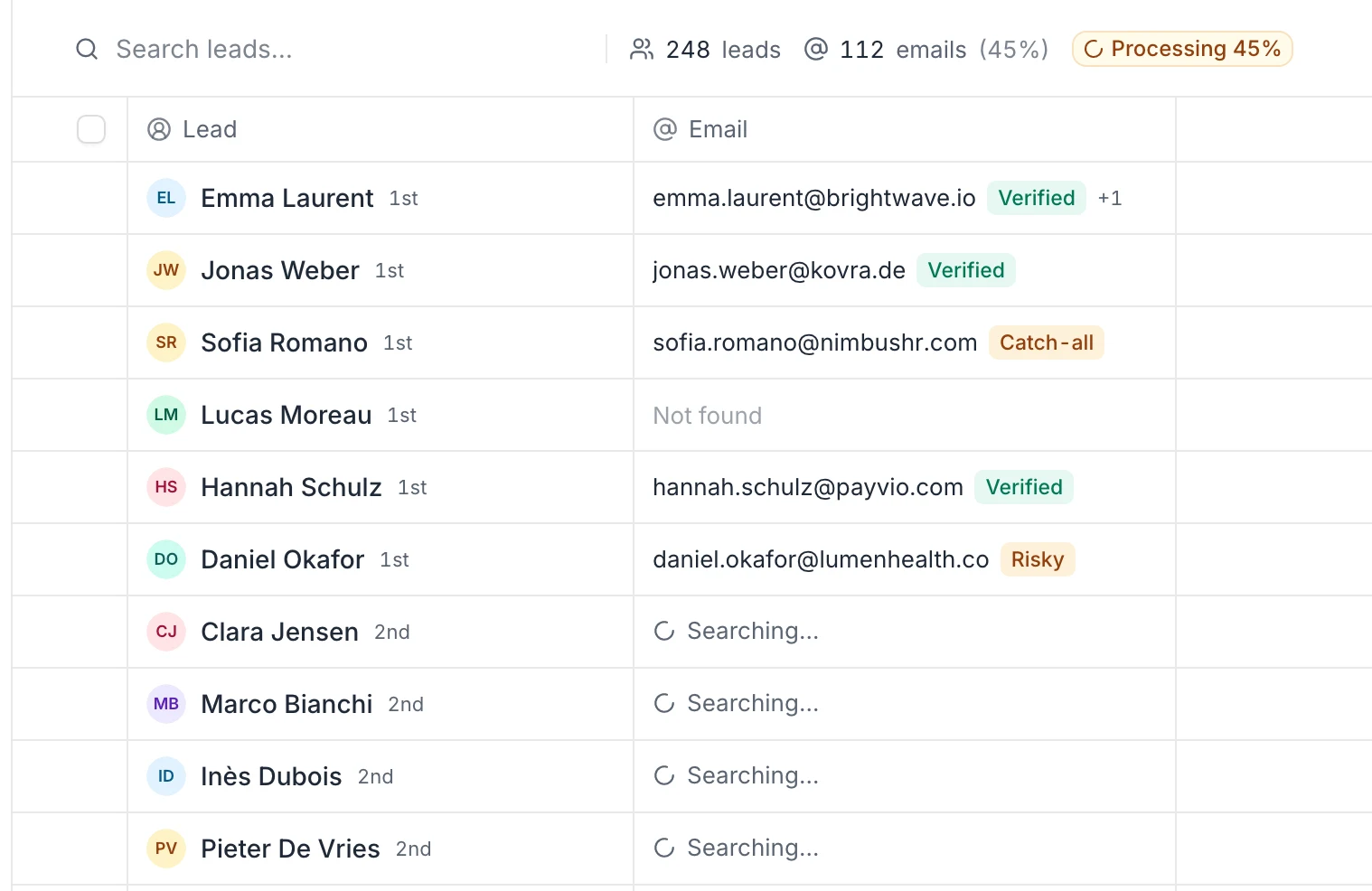
- The list shows a Processing badge next to the search box, with the progress once it's known (for example
Processing 45%), and its Status on the Prospects page is Processing (or Enriching followed by the progress). It goes back to Ready when every lead has been searched. - Emails show up in the Email column as they're found. Leads where nothing was found show Not found.
- The count next to the search box shows how many leads have an email, and the share of the list (for example
412 emails (68%)). On the Prospects page, the Enriched column shows the same share.
What the results mean
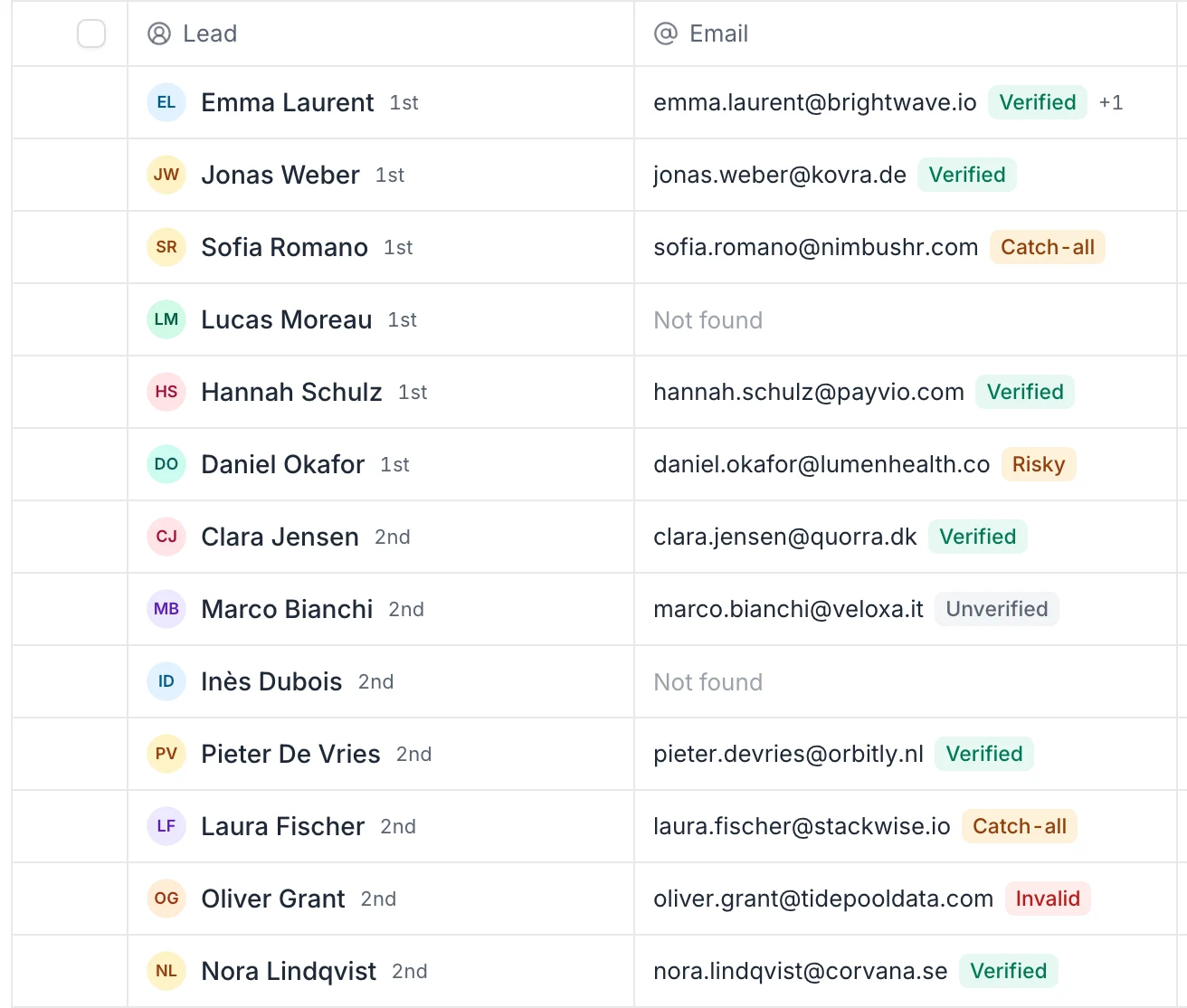
Each email gets a status tag:
| Tag | Meaning |
|---|---|
| Verified | The address was checked and accepts mail. |
| Catch-all | The company's server accepts every address, so this one can't be confirmed. |
| Risky | The address may not work. |
| Invalid | The address doesn't work. |
| Unverified | No verification result. |
When a lead has several emails, the first one is shown with +1, +2… next to it. Open the lead to see them all. More details in Email statuses.
How credits are counted
- 1 credit for each lead where an email is found, whatever its status tag.
- No credit for a lead where nothing is found.
- Leads that were already searched, found or Not found, are skipped when you run Find emails again. So are leads that came with an email in the CSV file that created the list, and leads saved from Discover or the AI agent with an email you had already revealed.
To search leads you added to the list later, click Find emails again: only the new leads are searched.
If it doesn't start
You see Uh oh! Something went wrong. with one of these messages:
| Message | What to do |
|---|---|
| You need at least … credits. | Your balance must be higher than the number of leads in the list. Get more credits with Upgrade, or move part of the leads to another list and run it on a smaller list. |
| The list you are trying to enrich is empty. | Add leads to the list first. |
| This prospect list is already in the process of enrichment. Please wait for it to complete. | A search is already running on this list. Wait for Ready. |
| You have reached the maximum number of active tasks. Wait for completion or upgrade to get more parallel tasks. | Other searches of yours are still running. Try again when they're done. |
| This feature isn't available with Appsumo deals. Upgrade to monthly subscription to use premium enrichment. | Your account is on an AppSumo Lifetime plan. See AppSumo lifetime deal. |
FAQ
Can I find emails for only some leads of a list?
Find emails runs on every lead of the list that hasn't been searched. To search only some of them, select them, use Move to to put them in a separate list, and run it there. See Move leads to another list.
Can I search a lead marked Not found again?
Not with Find emails: leads marked Not found are skipped on later runs. You can look the person up one by one with the email finder.
Can I use the emails in a campaign right away?
Yes. Once the search is done, pick the list in your campaign. Prefer Verified emails for email steps to protect your sending reputation. See Sending limits and deliverability.
Was this article helpful?
Related articles
Still need help?
Write to hello@useartemis.co with your account email and what you were trying to do.