Go from target to LinkedIn campaign with the AI agent
Let the AI agent propose who to target, find the people, save them to a list, connect LinkedIn, prepare a campaign and launch it once you approve.
Updated October 27, 2026
On this page
With the AI agent, one conversation can take you from "I'm not sure who to target" to a campaign ready to launch. This article walks through each step and what you can do on each card. New to the agent? Start with Get started with the AI agent.
1. Choose who to target
If you don't know where to start, click Find my ideal customers or tell the agent what you sell. It asks a few questions (your market, your current customers…) and can read your website when you give its address.
It then proposes target segments as cards. Each card shows why the segment needs your offer and its criteria: job titles, seniority, industries, company size and locations.
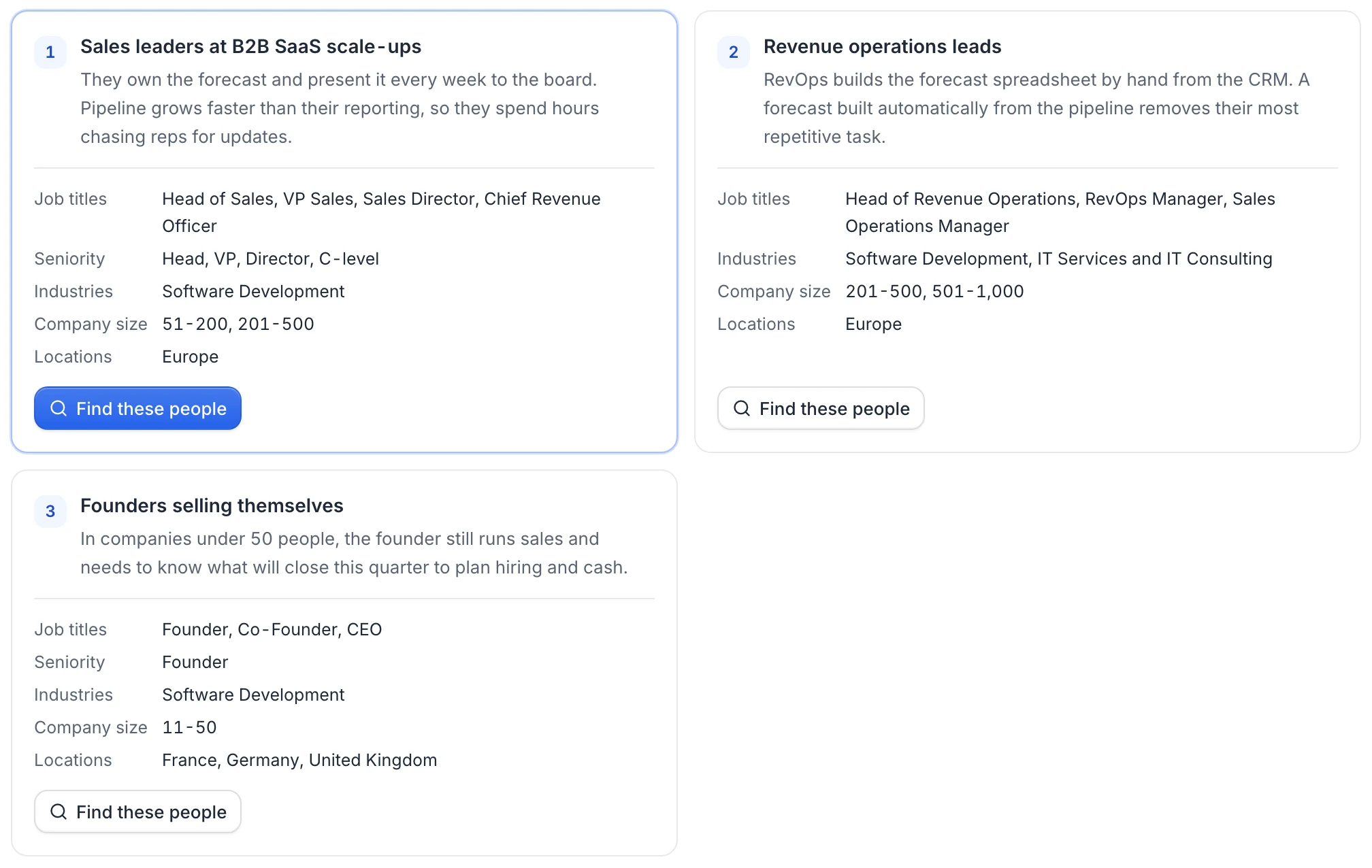
Click Find these people on the segment you want: the agent runs the search. You can also ask it to change a segment first ("same, but only companies over 200 people").
2. Look at the people found
Searches show up as a lead table, with the same columns as a list in Prospects: lead, job title, company, location and email. Above the table, the number of people found and the filters the agent used.
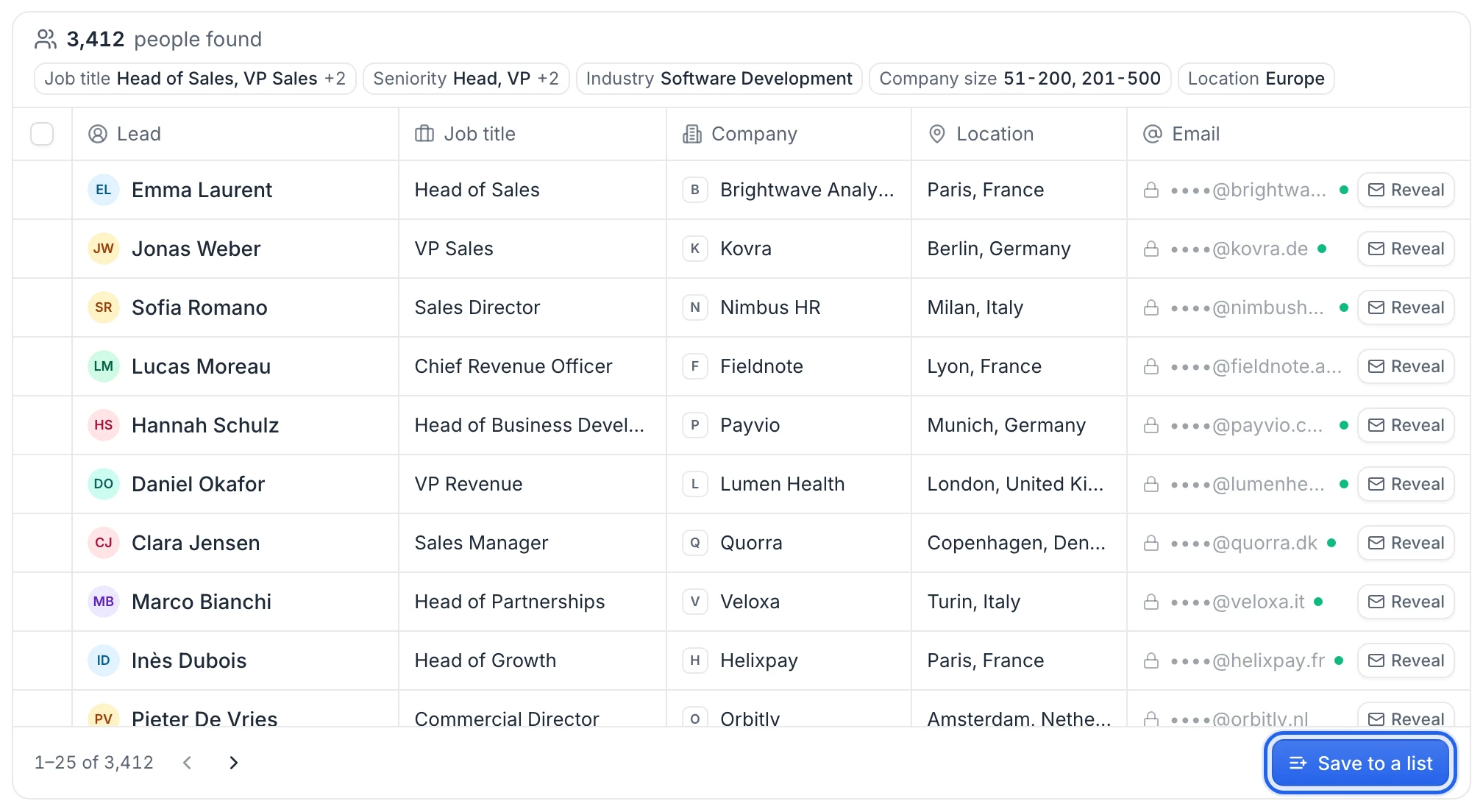
In the table you can:
- Browse the results 25 at a time with the arrows under the table.
- Reveal an email: click Reveal on a row (1 credit when an email is found; revealing comes with a subscription, not the free account). A green dot means a verified email is available. To reveal several at once, tick the leads, then click Reveal N emails.
- Hover a lead to open their LinkedIn profile.
If the results aren't right, tell the agent: "too broad, only Paris", "add Head of Revenue", "companies over 500 people". When a search returns tens of thousands of people, the agent suggests narrowing it.
3. Save the people to a list
Either ask the agent ("save the first 200 to a list") or do it from the table:
- Click Save to a list under the table.
- Type a List name and choose People to save: the first 25, 100, 250, 500 or 1,000 of the results.
- Click Save N people.
The list is created in Prospects, with AI agent as its source when the agent saved it. The table then shows Saved to with a link to the list. Each lead is saved with their name, job title, company and website, location, photo and LinkedIn profile. The emails you revealed in the table (or earlier in Discover) are copied to their leads. Run Find emails on the list to get the others: it skips the leads that already have an email. See Find emails for a list.
When the agent saves the list, a card shows it with Open list and Create a campaign.
4. Connect a LinkedIn account
Campaigns send connection requests and messages from your LinkedIn account. The agent checks your accounts before preparing a campaign and shows them in a LinkedIn accounts card: Connected, Reconnect needed or Disconnected.
If none can send, the card shows Connect LinkedIn account:
- Click Connect LinkedIn account.
- Log in to LinkedIn on the secure connection page. useArtemis never sees your password.
- You come back to the same conversation. After a few seconds, "LinkedIn account connected" confirms it.

Connecting LinkedIn comes with a subscription: on a free account, the card shows Connecting LinkedIn comes with a subscription. and an Upgrade button instead. See Connect your LinkedIn account.
5. Review the campaign draft
Ask the agent to prepare a campaign, for example "prepare a LinkedIn campaign to book demos". It needs to know the list, what you offer and the goal of the outreach, and asks if something is missing. It then creates a draft campaign and shows it as a card with its sequence, drawn exactly like in the campaign builder:
- Visit profile, then a Wait of 1 day
- Connection request, with a note written by AI (or without a note, if you asked for it)
- Invite accepted?: if yes, a Message, then Replied? and a follow-up message after 4 days without a reply; if the invitation isn't accepted after 7 days, it's withdrawn
Drag the sequence to move around it, or click Expand to open it full size with zoom buttons. Under the sequence, What the AI writes for each lead shows the instruction the AI follows to write the connection note, the message and the follow-up for every lead, from their LinkedIn profile. A lead leaves the sequence as soon as they reply, and the conversation continues in your Inbox.
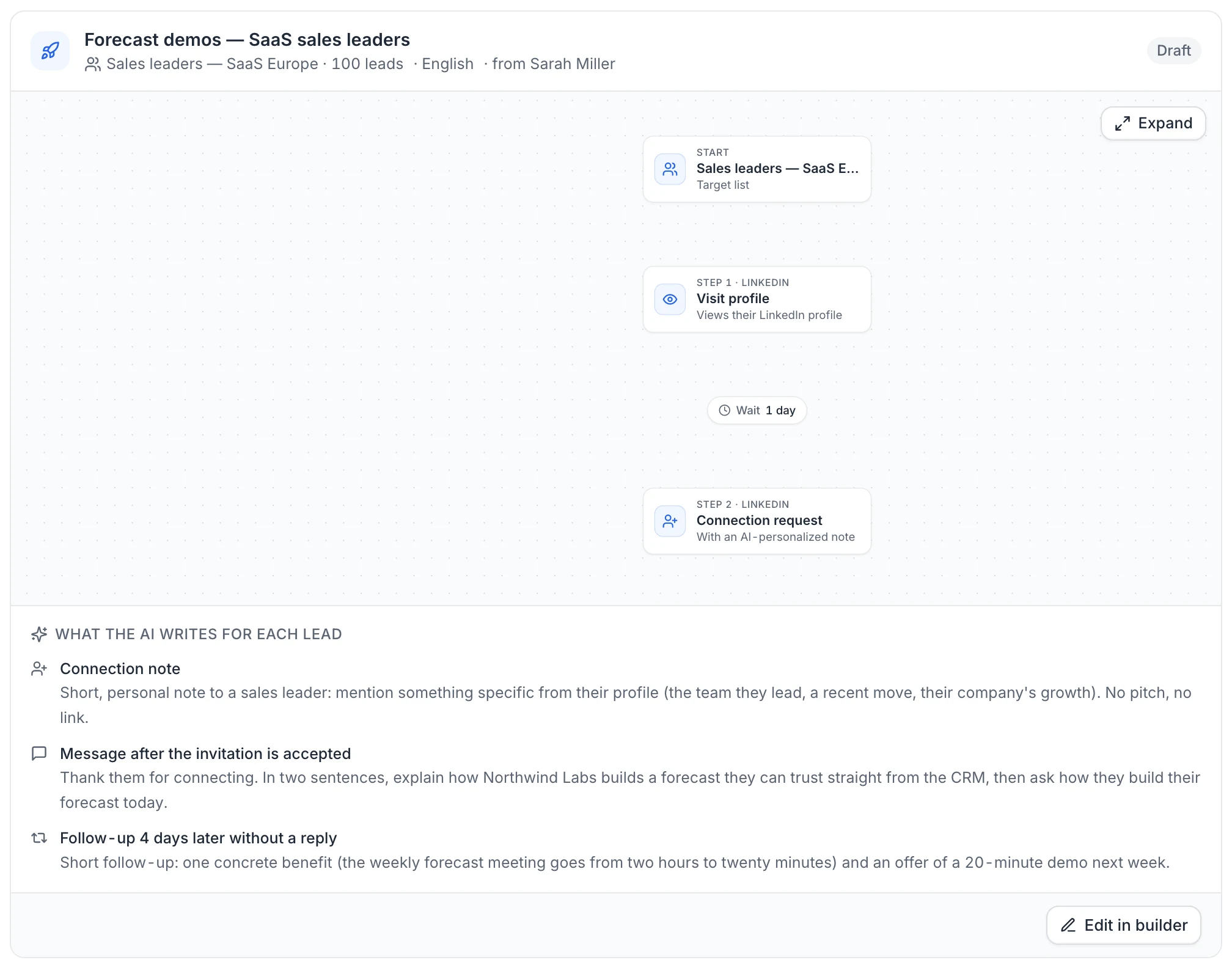
To change it, ask the agent ("make the follow-up shorter", "write in German", "send from Tom's account"): it updates the same draft. You can also click Edit in builder to open the campaign in the sequence builder, where you can change every step and the settings (daily limits, working hours, time zone).
6. Approve the launch
The agent never launches a campaign on its own. When the draft is ready and a LinkedIn account can send it, it asks for your approval with a card that sums up the launch: the number of leads and their list, the account it sends from (you can pick another one), the schedule and the daily limits.
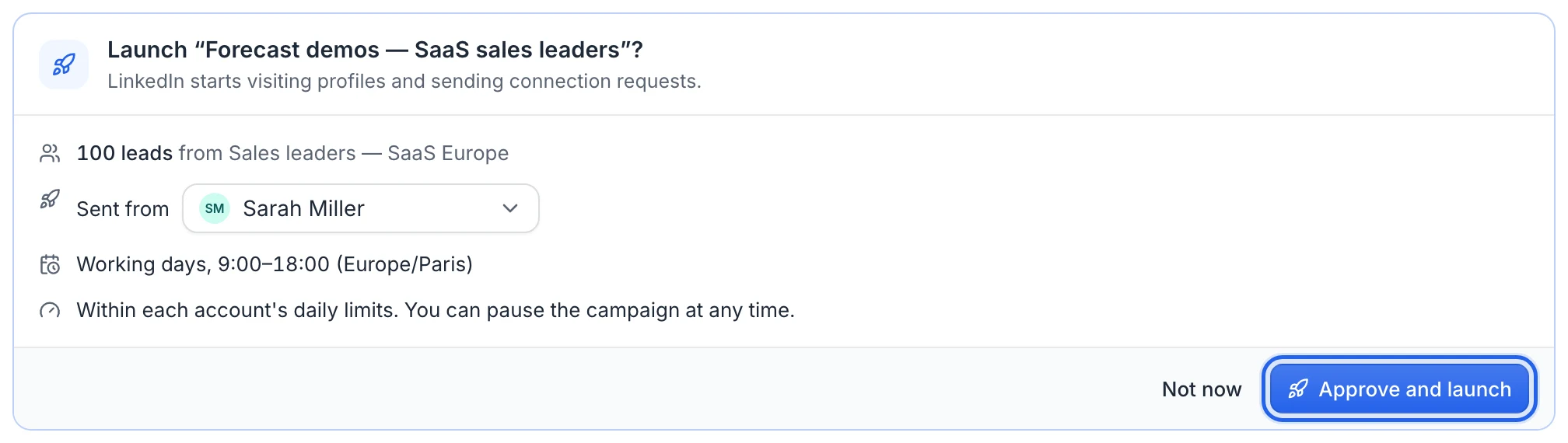
- Click Approve and launch: the agent launches the campaign and confirms it with Campaign launched and the number of leads added. The campaign appears in Campaigns.
- Click Not now to keep it as a draft.
- Or answer in the message box. If you clearly approve ("yes, launch it"), the agent launches the campaign. If you ask for a change, it updates the draft and asks for your approval again.
Actions then go out on working days and hours, within the daily limits of the account. You can pause the campaign at any time from Campaigns. See Pause and resume a campaign.
If something blocks the launch (for example no connected LinkedIn account), the agent tells you what to fix. Launching needs a subscription: on a free account, the agent keeps the campaign as a draft and shows an Upgrade button. See Free account: what's included. See LinkedIn limits.
FAQ
Can the agent launch a campaign without asking me?
No. Every launch goes through your approval: the agent asks each time, even if you told it earlier to launch. Nothing is sent before you click Approve and launch or approve in the conversation.
Can I send from several LinkedIn accounts?
Ask the agent to use several accounts when it prepares the campaign: the leads are then shared between them, and the approval card lists every account. You can also change the senders later in the campaign settings. See Use several LinkedIn accounts.
Are the emails I revealed copied to the list?
Yes. Saving a list copies the emails you revealed in the same workspace (in the table, in Discover or in an earlier search) to their leads, and Find emails skips those leads, so you don't pay for them twice.
Was this article helpful?
Related articles
Still need help?
Write to hello@useartemis.co with your account email and what you were trying to do.