Ways to add leads to useArtemis
Every way to bring leads into useArtemis: upload a CSV, save people from Discover or LinkedIn, or add leads to an existing list by hand or through the API.
Updated October 20, 2026
On this page
You bring leads into useArtemis in two main ways: upload a CSV file, or search for new people in Discover and save them. Each import creates a lead list on the Prospects page. Once a list exists, you can add more leads to it from another file, by hand, or through the API.
Open the import dialog
- Click Prospects in the sidebar (or Import leads on the Home page).
- Click Import leads at the top right.
- Pick where your leads come from.
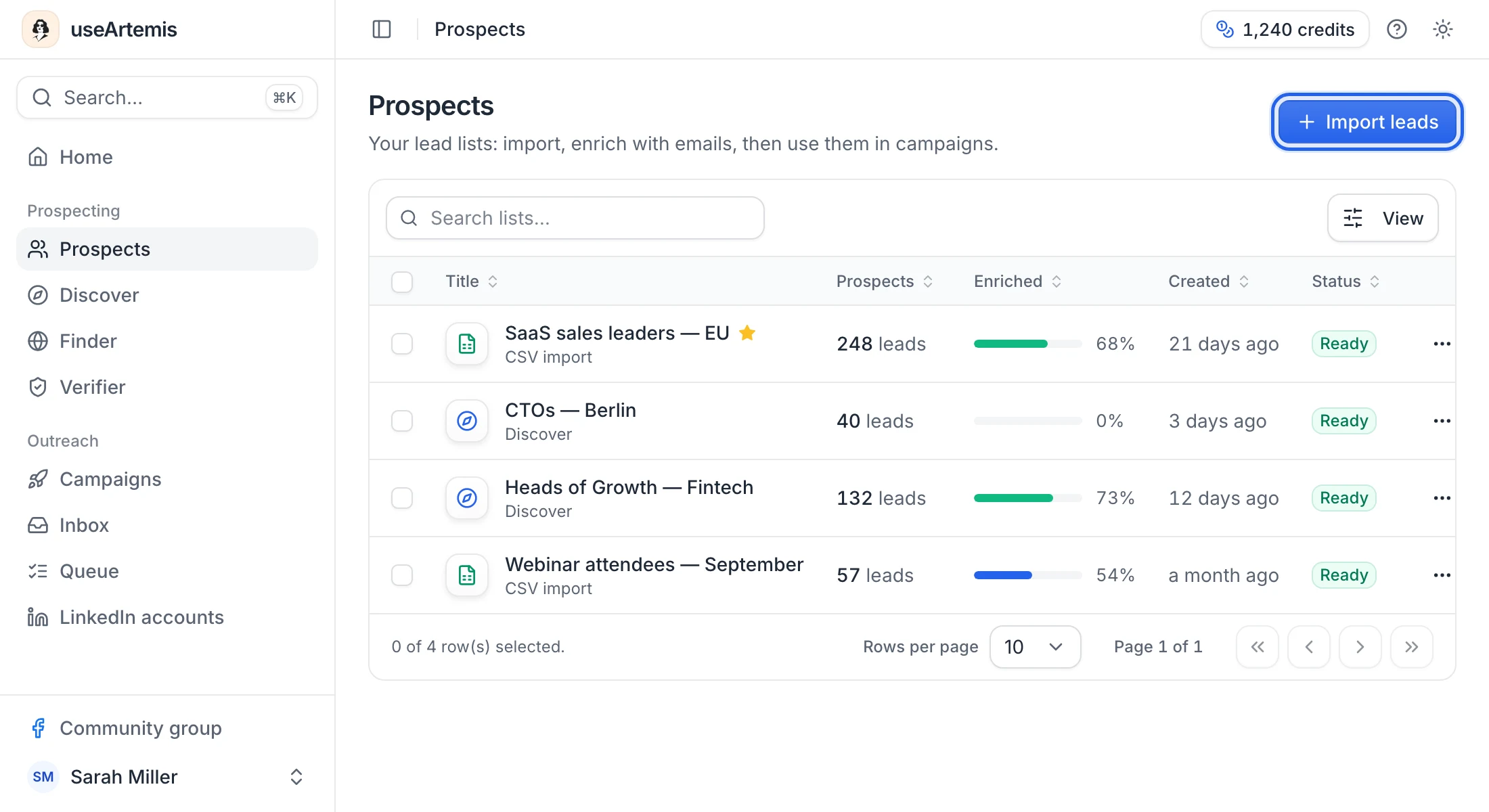
If you don't have any list yet, the Prospects page shows No lead lists yet with the same Import leads button.
The dialog offers:
- Upload a CSV file: you upload a file, tell useArtemis which column holds which field, and a new list is created. See Import leads from a CSV file.
- Find leads in Discover: opens Discover, where you search people by title, company, location and industry, then save the results to a new list with Save to a list. See Save Discover results to a list.
- Save leads from LinkedIn: opens the Chrome Web Store page of the useArtemis extension. With it, you save the person whose LinkedIn profile you're viewing to a list or a campaign and find their email, or export a LinkedIn or Sales Navigator search to a list. See Find emails on LinkedIn with the Chrome extension.
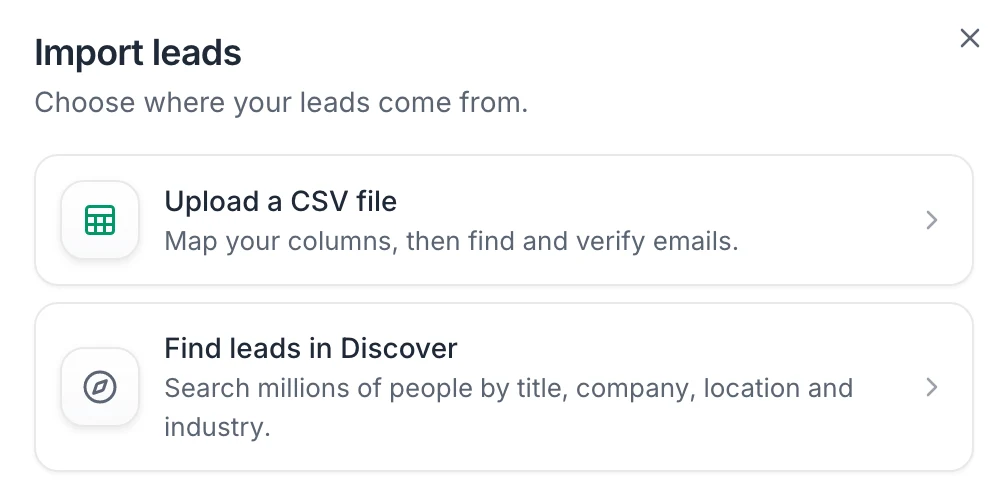
Note: AppSumo Lifetime accounts don't have Discover, so the dialog doesn't show the Discover option for them.
Which one should you use?
| Your situation | Best option |
|---|---|
| You already have the people (CRM export, spreadsheet, event attendees) | Upload a CSV file |
| You need new people who match a profile (job title, company, location) | Find leads in Discover |
| You're on someone's LinkedIn profile and want to keep them | Save leads from LinkedIn (Chrome extension) |
| You built a LinkedIn or Sales Navigator search and want its people in a list | Save leads from LinkedIn (Chrome extension), then Export this search |
| You want to add one or two people to a list | Add a lead manually inside the list |
| Another tool should push leads automatically | Add leads from the API inside the list |
Add leads to an existing list
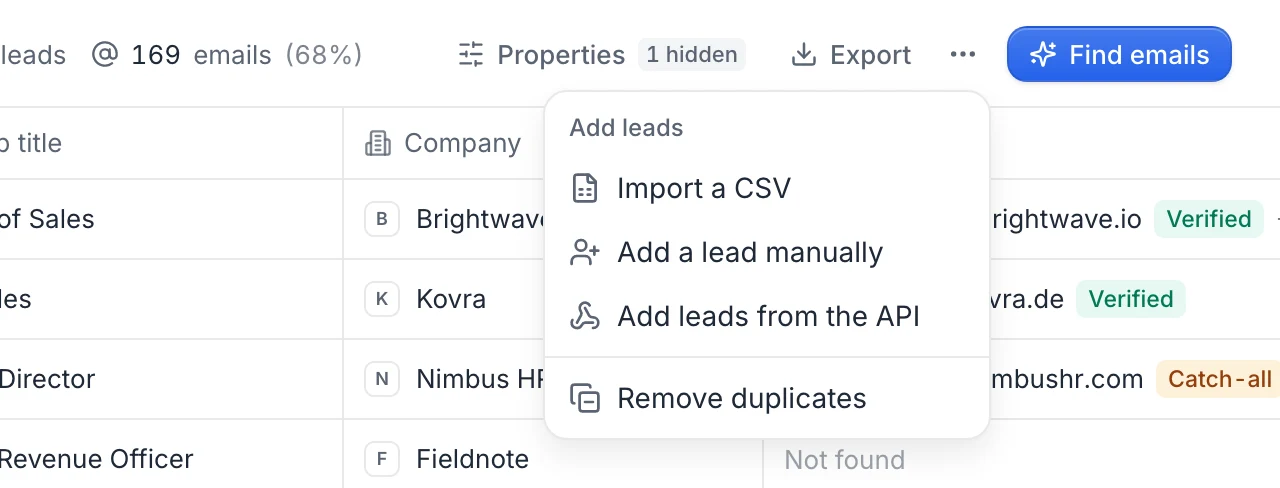
Open the list from Prospects, then click the ⋯ button (More actions) next to Find emails. Under Add leads you'll find:
- Import a CSV: same column mapping as a new import, but the leads go into this list. See Import into an existing list.
- Add a lead manually: opens Add new lead. Fill in what you know (Fullname, Firstname, Lastname, Profile picture, LinkedIn URL, Job title, Company, Company domain, Location, Email, Phone) and click Save lead. Reload the list to see the new lead.
- Add leads from the API: shows the request your tool should send to create or update leads in this list (Create and Update tabs). See Use the useArtemis API.
Add leads while creating a campaign
In the campaign creator, the Who do you want to reach? step lists your lead lists. If the people you want aren't in a list yet, click Upload a CSV file below the lists: the new list is selected for the campaign as soon as the import starts. See Create a campaign.
What to do next
A new list holds names, companies and whatever your source provided. To email these people, run Find emails on the list first: see Find emails for a lead list. To organize your lists, see Manage your lead lists.
FAQ
Does importing leads use credits?
No. Uploading a CSV file, adding a lead by hand or through the API doesn't use credits. Credits are used when you find emails: 1 credit for each email found.
How do I add people I found on LinkedIn?
Put their LinkedIn profile URLs in a CSV file, one person per row with a header row, and upload it. A LinkedIn URL column is enough to import. Add their first name, last name and company too if you have them: Find emails needs them to look for an email.
Does useArtemis skip people who are already in my lists?
No. Every imported row becomes a new lead, even if the same person is already in a list. Use Remove duplicates in the list's ⋯ menu to clean it up. See Remove duplicates.
Was this article helpful?
Related articles
Still need help?
Write to hello@useartemis.co with your account email and what you were trying to do.