Sequence steps: every step you can add
Every step of the sequence builder (LinkedIn actions, emails, delays, waits, conditions, filters, AI steps) and what happens when a lead replies.
Updated October 22, 2026
On this page
A sequence is a series of steps that each lead of the campaign goes through, from top to bottom: LinkedIn actions, emails, delays, and waits and conditions that split the flow in two branches (such as Accepted and Not accepted). This article lists every step of the builder, how it behaves, and what happens when a lead replies.
How the builder works
Open a campaign on its Sequence tab.
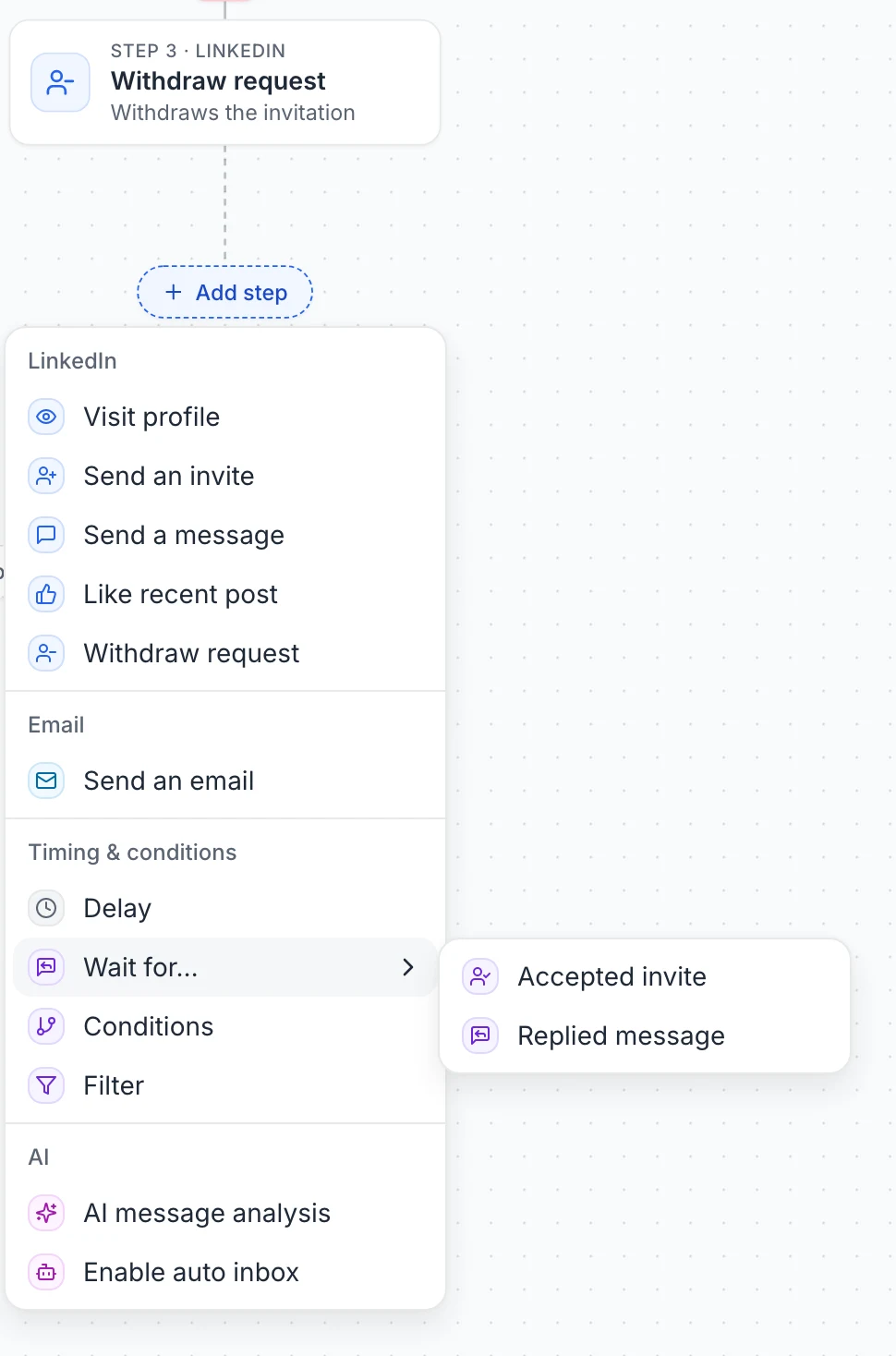
- Add a step at the end of a branch with Add step, or between two steps with the + on the connector (Insert a step here).
- Edit a step by clicking it: its settings open in the panel on the right. Hovering a step shows Edit step and Delete step.
- Move between steps with the arrows at the top of the panel, or the ↑ and ↓ keys when you're not typing. The canvas follows the selected step.
- Where a lead goes next is shown at the bottom of each step's settings (Then, or Branches with the step each branch leads to). Click a step there to open it.
- Delete step is at the bottom of the panel.
- Branching steps (waits, conditions, filters and AI message analysis) have two branches, labeled with their outcome: Accepted / Not accepted, Replied / No reply, Opened / Not opened, Connected / Not connected, Matches / Doesn't match, or Yes / No. Below, "the first branch" is the green one and "the second branch" the red one. When you insert a branching step between two steps, the steps that followed go on its first branch and the second branch starts empty.
- Deleting a branching step also deletes everything on its second branch (you're asked to confirm). Its first branch is reconnected in its place.
- Steps can't be dragged. Use the controls at the bottom of the canvas to zoom, go back to the start or fit the whole sequence on screen.
- A step that isn't fully set up shows a warning on its card, such as Choose a LinkedIn account, Write the message, Choose a mailbox or Set up the filter, and what's missing at the top of its settings. While some steps still need something, a chip at the top left of the canvas says how many (for example 2 steps need your attention): click it to open them one after the other.
- A wait or a condition that can't work where it is also shows a warning: No invitation is sent before this step, Nothing is sent before this step, No email is sent before this step, or "Checked right after…" for a condition placed right after the action it checks (it would almost always answer no).
- On a running campaign, counters above each step show how many leads are on it and how many went each way, and the same numbers appear at the top of the step's settings. See Campaign analytics.
Changes save automatically. See Pause, resume, edit or delete a campaign before editing a running campaign.
Start
The first step holds the target list. Choose it under Leads: the menu lists your lists with their number of leads, and you can search them by name. Open the list opens the selected list. Leads of this list enter the sequence when you launch the campaign.
LinkedIn steps
Each LinkedIn step needs an account under Sent from. The menu shows each account's status (Connected, Reconnect or Disconnected) and a Premium badge for LinkedIn Premium accounts. When the campaign rotates between several accounts, Sent from shows Rotating between N accounts instead: each lead gets an account when it's first contacted, among the accounts with room left that day, and uses it for all its LinkedIn steps. There's no account to choose on the step. See Working hours, daily limits and sender accounts.
Visit profile
Visits the lead's LinkedIn profile. The visit is real: the lead can see it in their profile viewers.
Send an invite
Shown as Connection request on the canvas. Sends a LinkedIn invitation, with or without a note.
- Under Note, choose No note, Write it or AI writes it.
- Write it: write the note, with variables such as
{firstname}from the Variable menu. See Personalization variables. - AI writes it: describe the note you want, and the AI writes a different one for each lead. See Write messages with AI.
- The counter under the note shows the limit: 300 characters, or 200 when the sending account isn't LinkedIn Premium. A longer note is cut. Free LinkedIn accounts can only send a few invitations with a note per month, so on a free account it's better to invite without a note. Once they're used up, the invitations go out without the note until the next month instead of stopping.
- Preview shows the invitation as the lead receives it, for a lead of your list (pick another one in the menu next to Preview).
- If the lead is already one of your connections, the step counts as done and the lead is marked as accepted. If an invitation is already pending, the step also counts as done.
- After you withdraw an invitation, LinkedIn doesn't let you invite the same person again for about three weeks.
Send a message
Shown as Message on the canvas. Sends a LinkedIn message, written by you (Write it) or by AI (AI writes it). Preview shows the message as the lead receives it. To send a message written for each lead, import it as a column of your CSV file and write {custom.message}: see Send a message written for each lead.
LinkedIn messages only reach 1st-degree connections. Put this step on the Accepted branch of Invite accepted? (or on the Connected branch of an is in my relations condition). Otherwise the step fails with "Not connected with this lead yet" and the lead moves on to the next step. There's no InMail step.
Like recent post
Likes the lead's most recent post (reposts are skipped). If the lead hasn't posted recently, the step fails with "No recent post to like" and the lead moves on.
Withdraw request
Withdraws the pending invitation sent to the lead. If there's none (the lead accepted, or no invitation was sent), the step counts as done. The default sequence uses it on the Not accepted branch of Invite accepted? to keep your pending invitations low.
Email step
Send an email sends an email from one of your connected mailboxes. See Connect Gmail, Connect Outlook or Connect any mailbox with SMTP.
- Sent from: the mailbox that sends. A mailbox marked Reconnect can't be selected until you reconnect it.
- Subject: required on the first email of the sequence. Leave it empty on a later email to reply in the same thread as the previous one ("Re: …").
- The body, with bold, italic, links and lists. The Variable menu inserts a variable where your cursor is, in the subject or the body, and
{unsubscribe}adds an unsubscribe link. See Personalization variables. - Add my signature: adds the mailbox signature, set in Settings › Email accounts.
- Preview: the email as a lead of your list receives it, with the sender, the subject and the signature.
- Send me a test email: sends the step to your own account email from the selected mailbox, with "[Test]" before the subject. In the test, only
{firstname},{lastname}and{companyname}are filled in, with your own details.
The email goes to the lead's email address (addresses marked invalid are ignored). A lead without an email address is skipped. Use Find emails for a list before launching. Addresses that unsubscribed or bounced are skipped too. Opens and clicks are tracked automatically.
Timing and conditions
Delay
Waits before the next step. Under Wait for, pick 1 hour, 1 day, 2 days, 3 days or 1 week, or type a whole number of hours or days (minimum 1 hour). A new delay starts at 2 days. The delay counts nights and weekends; the action that follows is then sent within the campaign's working hours.
Wait for… › Accepted invite
Shown as Invite accepted?. The lead stays on this step until they accept your invitation (Accepted branch) or until the waiting period ends (Not accepted branch). Set the period under Wait up to (4 days for a new step; 3 days, 1 week, 2 weeks and 3 weeks are one click away).
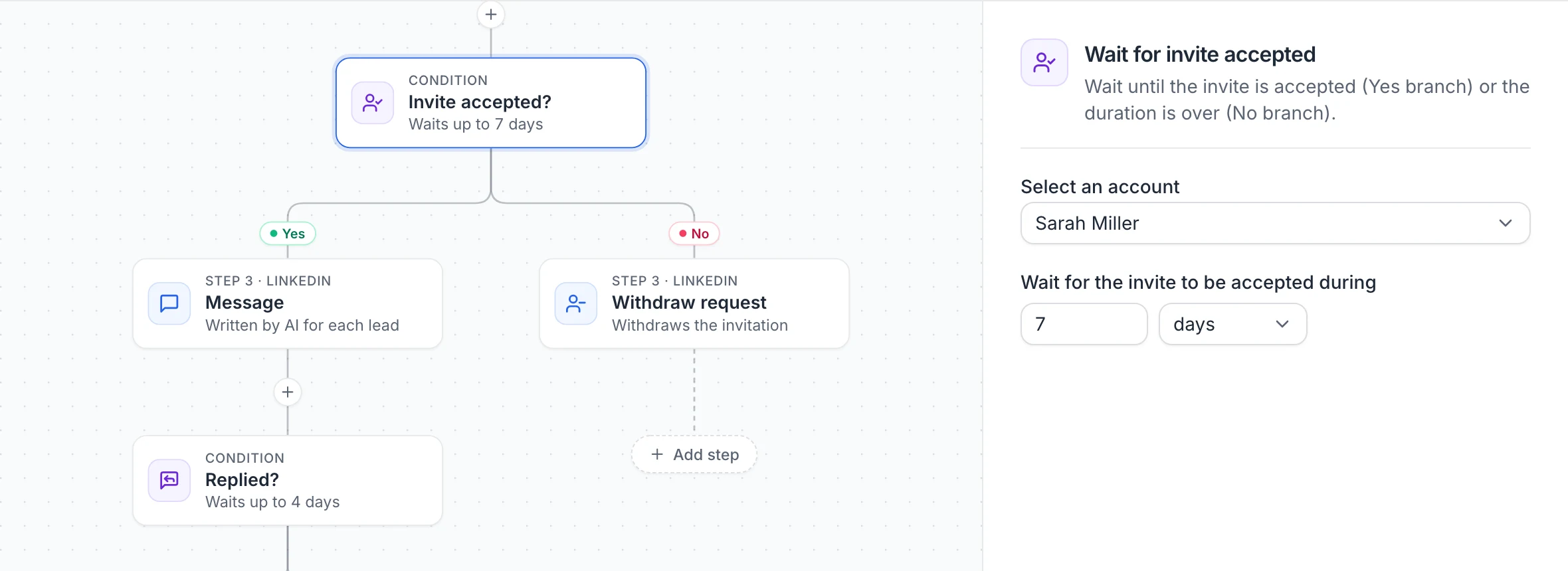
- The acceptance is checked on the LinkedIn account that sent the invitation to the lead: there's no account to choose.
- The lead moves on as soon as the acceptance is detected. When your invitation had a note, LinkedIn turns it into a conversation once accepted, which is detected within moments. Otherwise LinkedIn can report the acceptance a few hours late. Each LinkedIn account is also checked several times a day, and the connection is checked one last time before the Not accepted branch.
- If the invitation wasn't sent (for example "Invitation withdrawn recently"), the lead doesn't wait: it takes the Not accepted branch right away.
- After an acceptance, the next action waits the campaign's Pause after an accepted invitation (20 to 180 minutes by default). See Working hours, daily limits and sender accounts.
Wait for… › Replied message
Shown as Replied?. The lead stays on this step until they reply (Replied branch) or the period set under Wait up to ends (No reply branch, 4 days for a new step). Replies on LinkedIn and replies to the campaign's emails both count; out-of-office auto-replies don't.
- Only a new reply counts. A reply that an earlier reply step already handled doesn't move the lead again, so a second Replied? step waits for another reply.
- This is the step that lets you build what happens after a reply: steps on its Replied branch still run. See When a lead replies.
- At the end of the period, the LinkedIn conversation is checked one last time before the No reply branch.
- If the last message or email couldn't be sent, the lead takes the No reply branch right away.
Wait for… › Opened email / Clicked a link in email
Shown as Email opened? or Link clicked?. The lead stays on this step until they open the last email of the sequence, or click one of its links, or until the period ends (branches Opened / Not opened, or Clicked / No click). Under Wait until the lead, choose Opens the email or Clicks a link, then the duration under Wait up to (3 days for a new step).
Opens are detected when the lead's email app loads images, so treat them as a hint; a click is a stronger signal. A clicked link also counts as an open. If no email was sent to the lead (no address, bounce, unsubscribe…), the lead takes the second branch right away.
Conditions
A condition checks something once, at the moment the lead reaches it, and sends the lead down one of its two branches. Under If the lead… choose:
- Is connected with me: connected with the LinkedIn account that contacts the lead (Connected / Not connected). With sender rotation, a lead not contacted yet is checked on every selected account and, when connected with one, gets that account.
- Replied on LinkedIn: replied on LinkedIn, with a reply that no earlier reply step handled (Replied / No reply).
- Replied to an email: same, for a reply to an email of this campaign.
- Opened the last email (Opened / Not opened).
- Clicked a link in the last email (Clicked / No click).
From the + on a connector, Conditions offers these as presets: Accepted invite, Replied message, Replied email, Opened email and Clicked a link in email.
Tip: To give a lead time to act, use Wait for… instead: a condition checks only once. A condition placed right after the action it checks (a connection condition right after an invitation, an open condition right after an email) shows a warning on its card.
Filter
Splits leads by a property. Under Keep the leads whose…, choose the property: Name, Job title, Company, LinkedIn URL, Twitter URL, a LinkedIn signal (LinkedIn Premium, Open profile, Open to work, Accepts InMail) or one of your list's columns. Then:
- For a LinkedIn signal, choose Yes or No.
- For the others, choose a rule (is, is not, contains, doesn't contain, starts with, ends with, is filled in, is empty) and the text to compare with.
The comparison is exact and case-sensitive. A lead with no value for the property counts as empty: it matches is empty, is not and doesn't contain, and not the other rules. Leads imported from a CSV file have their name, job title and company stored in lowercase, so write your text in lowercase for them.
AI steps
AI message analysis
Reads the conversation with the lead (on LinkedIn, or their email reply) and asks the AI your yes/no question under Question (by default "Is the lead interested by my previous message?"; Interested?, Wants a meeting?, Not now? and Wrong person? fill in other ready-made questions). A yes goes to Yes, a no to No. If the lead hasn't replied yet, the lead goes to No. Place it on the Replied branch of a Replied? step. The LinkedIn account whose conversation is read is chosen under Reads the conversation of.
Enable auto inbox
Shown as AI auto-reply, and only available at the end of a branch. When a lead reaches it, AI replies are turned on for the LinkedIn conversation with that lead: each time they write, an AI reply is sent a few minutes later, based on the conversation and your campaign's pitch and goal. The lead's sequence ends there, so steps placed after it never run. Auto-replies then stay on for that conversation. See Reply with AI.
When a lead replies
With Stop a lead when they reply on (the default), nothing more is sent to a lead after they reply on LinkedIn or by email: no LinkedIn action, no email. A message that was about to go out is checked one last time and isn't sent.
The only exception is a reply step placed next on the lead's path, before any message: a Wait for… › Replied message step, a reply condition, an AI message analysis or an AI auto-reply. That step reads the reply and sends the lead down its "replied" branch, and the steps you put there run normally. For example:
- Message → Replied? (4 days): a reply during these 4 days takes the Replied branch, where you can add an AI message analysis and a follow-up for interested leads.
- Message → Delay 3 days → Follow-up → Replied?: a reply during the delay stops the lead. The follow-up isn't sent, even though a Replied? step comes later.
- Invite accepted? → Message: a lead who accepts and answers your note right away is stopped, and doesn't get the message written before they answered.
A reply only counts once: after a reply step handled it, a later reply step waits for a new one. Each reply is also read by AI and tagged (Interested, Not interested, Later, Wrong person), and out-of-office replies don't stop the lead (when they give a return date, nothing is sent before it). See How replies are read and Pause, resume, edit or delete a campaign.
When a step fails
A step that can't be done because of the lead (no LinkedIn URL, profile not found, no email address…) is marked as failed or skipped and the lead moves on to the next step. Other errors are tried again up to 3 times first, and the same error for several leads in a row puts the step on hold for the account instead of letting every lead skip it. See Queue and failed actions.
Was this article helpful?
Related articles
Still need help?
Write to hello@useartemis.co with your account email and what you were trying to do.