Pause, resume, edit or delete a campaign
What pausing does to leads in progress, how to resume, what to know before editing a running campaign, how replies and unsubscribes stop leads, and how to delete.
Updated October 23, 2026
On this page
Click Pause campaign to stop sending without losing anything: every lead keeps its place in the sequence and continues where it left off when you click Resume campaign. To end a campaign for good, delete it from the Campaigns list.
Pause a campaign
Open the campaign.
Click Pause campaign at the top right.
Confirm with Pause in Pause the campaign?.
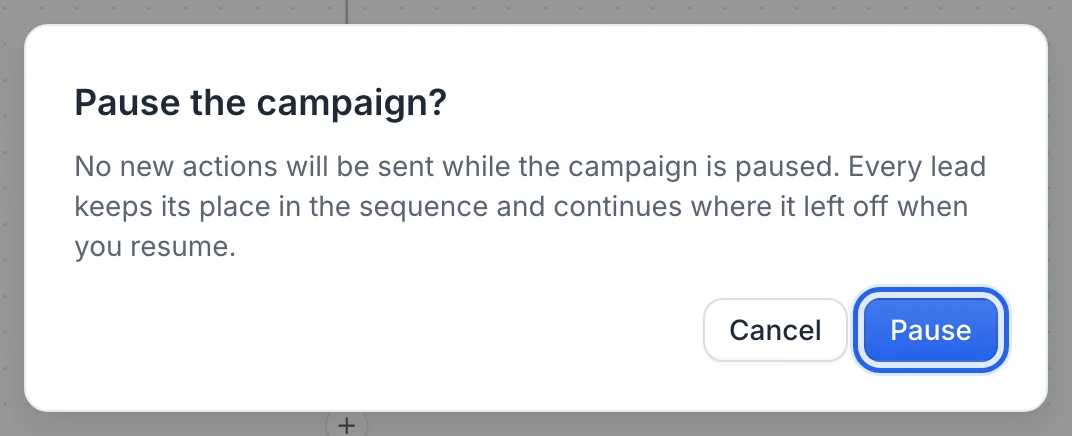
You can also use the switch of the campaign in the Campaigns list (no confirmation there).
While a campaign is paused:
- No new action is sent. An action that is already being sent when you pause still finishes.
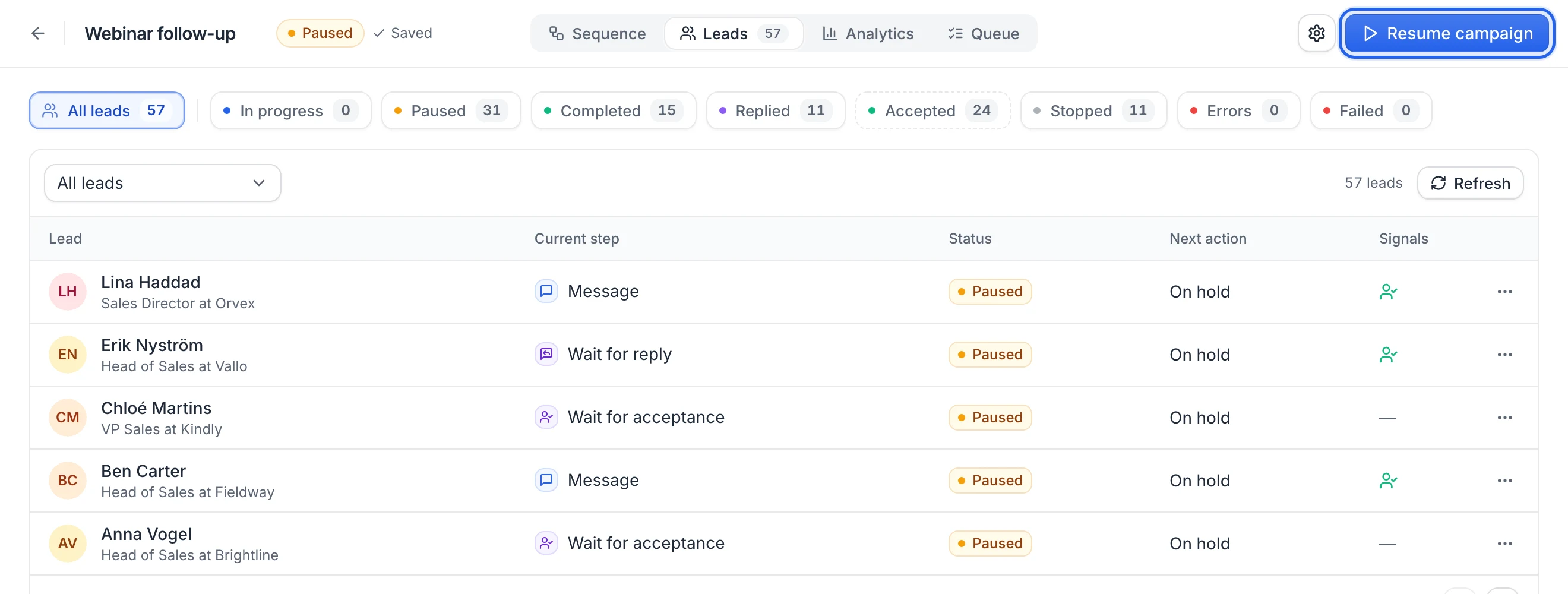
- Every lead keeps its current step. In the Leads tab, they show Paused and their next action shows On hold.
- Replies and accepted invitations are still recorded, and Stop a lead when they reply still applies.
- Leads added to the target list join only when you resume.
Resume a campaign
Click Resume campaign (or turn the switch back on). You see Campaign resumed: "Leads continue where they left off", plus the number of new leads added from the list.
- A delay or a wait that ended during the pause moves on as soon as the working hours allow.
- Resuming runs the same checks as a launch: if something is missing, you get the Almost ready to launch list. See Launch a campaign.
- Resuming needs a subscription, like launching.
A step is never sent twice to the same lead, even if you pause and resume several times.
Edit a running campaign
You can edit a running campaign. Sequence changes save automatically and apply within a few seconds; settings apply when you click Save settings.
- Changing a text (note, message, email): the next sends use the new text. What was already sent doesn't change.
- Adding a step: leads reach it when they get there. Leads already past that point don't go back to it.
- Deleting a step: leads currently on that step continue at the step that takes its place (the step that followed it, or the first branch of a wait or a condition, such as Accepted). If nothing follows, they're Completed.
- Changing the duration of a delay or a wait: leads already on that step get the new duration, counted from when they reached it. A lead whose new wait is already over moves on right away.
- Changing the target list in the Start step: leads of the new list join the campaign. Leads already in the campaign continue.
Tip: For big changes, pause the campaign first, edit, then resume.
Stop a lead when they reply
In Campaign settings › Replies & pacing, Stop a lead when they reply is on by default ("Recommended. Nothing more is sent to a lead after they reply on LinkedIn or by email, unless their next step is a reply step (Wait for a reply, a reply condition, AI analysis)."). A lead who replies is stopped and shows Replied in the Leads tab. The conversation continues in your inbox. See Use the inbox.
- LinkedIn replies count when they're sent to a LinkedIn account used by the campaign. Messages from before the lead joined the campaign don't count.
- Email replies count for the campaign that sent the email. Out-of-office auto-replies don't count (see How replies are read).
- The lead isn't stopped when a reply step comes next for them, before any message: a Wait for… › Replied message step, a reply condition, an AI message analysis or an AI auto-reply. That step reads the reply and sends the lead down its "replied" branch, where the steps you placed still run. A reply that arrives anywhere else (during a delay, before a follow-up) stops the lead, even if a reply step comes later in the sequence.
- A message that was about to be sent is checked one last time just before sending: if a reply arrived meanwhile, it isn't sent.
If you turn the setting off, leads who reply keep receiving the next steps of the sequence; reply steps still send them down their "replied" branch.
Unsubscribes and bounces
Every campaign email carries a one-click unsubscribe header, which many mail apps show as an unsubscribe button. You can also add a visible link in the body with {unsubscribe}. When someone unsubscribes:
- They see "You have been unsubscribed".
- The lead is stopped in all your campaigns, with the status Unsubscribed.
- Their address is never emailed again by your campaigns. Leads with that address are also stopped when they join a campaign later.
When an address is rejected by the recipient's server, it's added to the same list: later emails to it are skipped.
Campaigns on hold or paused for you
Account problems don't pause the campaign. If a LinkedIn account or a mailbox stops working, a red banner explains it, for example "LinkedIn account … is disconnected — reconnect it to resume the campaign." The steps that use that account wait and are retried automatically every few hours. Nothing is lost: they continue once the account works again. For a disconnected LinkedIn account, you also get an email: "Your LinkedIn account … needs to be reconnected". See Reconnect a LinkedIn account.
The same error for several leads in a row doesn't pause the campaign either. When an action fails for 3 leads in a row with the same error on an account, that action is put on hold for the account (for example "Profile visits from LinkedIn account … are on hold…"): the leads wait on their step instead of skipping it, a red banner explains it and you get an email. It's tried again every hour and resumes on its own as soon as it works. See When the same error hits every lead.
Subscription changes do pause campaigns: when a subscription is cancelled or a payment fails, every running campaign is paused and your LinkedIn accounts are disconnected. See Cancel your subscription.
Delete a campaign
Go to Campaigns.
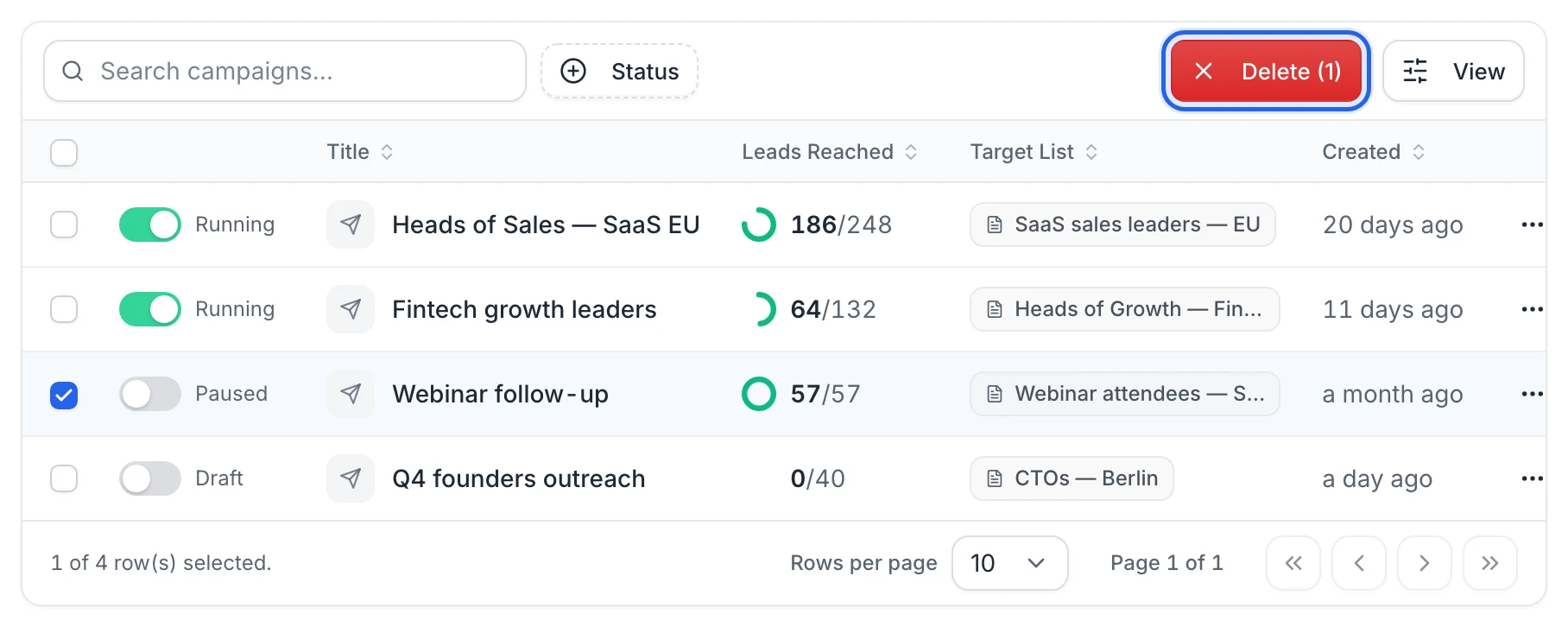
Tick the campaigns to delete.
Click Delete (N) in the toolbar.
Confirm with Delete.
The campaign is deleted permanently and its leads stop receiving actions. This can't be undone. Your leads and lists stay in Prospects.
There's no "stop" button for a whole campaign: pause it to keep its history, or delete it.
FAQ
Does pausing reset delays?
No. Each lead keeps its step and its schedule. If a delay ended during the pause, the next action goes out once the campaign is resumed, within working hours.
Can I stop a single lead?
Yes, from the Leads tab: open the lead's menu and click Stop. See Manage campaign leads.
Was this article helpful?
Related articles
Still need help?
Write to hello@useartemis.co with your account email and what you were trying to do.