Payments, invoices and failed payments
How useArtemis bills you through Paddle, where to see your next payment and card, how to update your payment method and what happens when a payment fails.
Updated October 27, 2026
On this page
Payments for useArtemis go through Paddle, our payment provider. You can see your next payment, your payment method and your last payment in Settings › Billing, and update your card from there. If a payment fails, your access is suspended until a payment goes through.
How you're billed
- Monthly, in USD, by card or PayPal.
- Through Paddle. The checkout page and the payment forms are Paddle's (Secure payment by Paddle). The checkout you open from the app is in the language you signed up in: English, French or Spanish.
- Taxes are calculated by Paddle at checkout: the order summary shows the Subtotal, the Taxes and the Total due today, then the price your subscription renews at each month, taxes included.
See your billing details
Open Settings › Billing (https://app.useartemis.co/settings/billing). Your plan card shows:
- the plan name and its status: Active, Trial, Payment failed, Paused or Canceled,
- the monthly price and since when you're a member,
- Next payment: the date of your next charge,
- Payment method: the card brand, its last four digits and expiry date (or the other method you use),
- Last payment: the amount and date of your latest charge.
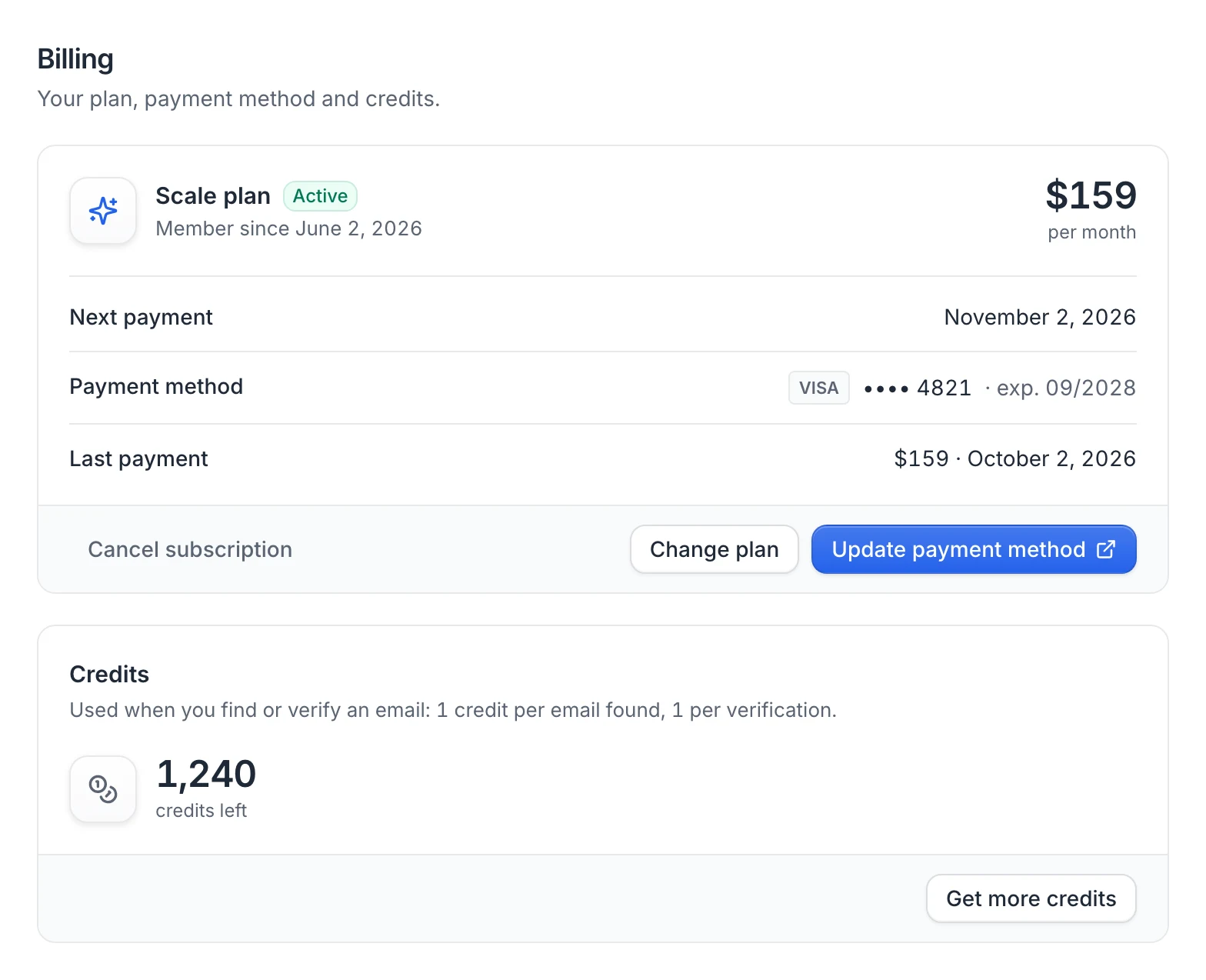
If you see We couldn't load your payment details right now, try again later, or email us for an invoice or a card change.
Update your card
- Open Settings › Billing.
- Click Update payment method. A secure Paddle page opens in a new tab.
- Enter your new card details and save.
Your next payments are charged to the new card.
Invoices and receipts
The app doesn't list your invoices. To get an invoice or a receipt, or an invoice with your company details, email hello@useartemis.co from the address of your account and tell us which payment it's for.
When a payment fails
If Paddle can't charge your card, your subscription goes to Payment failed and your access is suspended straight away:
- your running campaigns are paused,
- your LinkedIn accounts are disconnected from useArtemis,
- the app shows Your payment didn't go through.
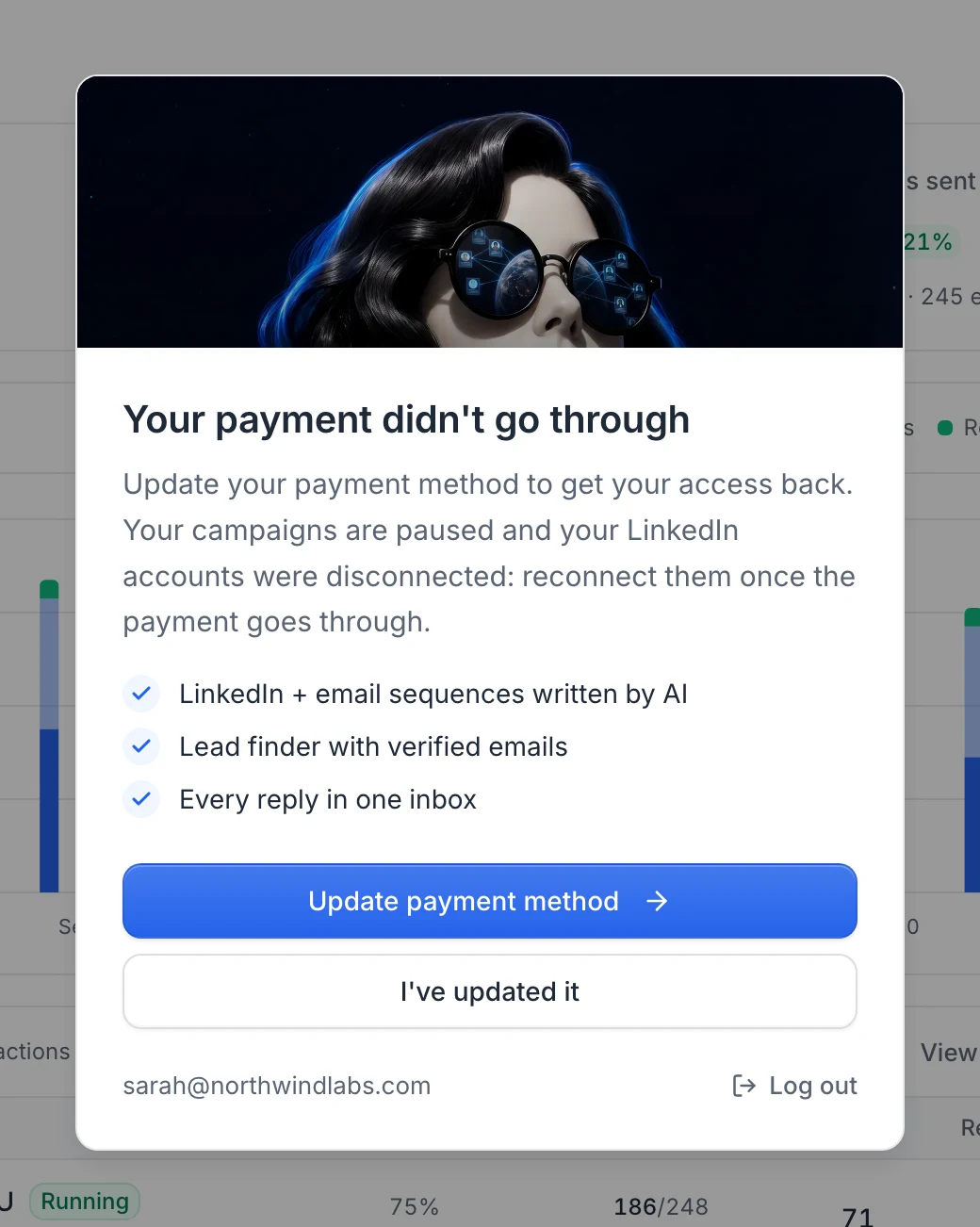
To get your access back:
- On the Your payment didn't go through screen, click Update payment method. Paddle's page opens in a new tab. (If the screen shows Contact us instead, email hello@useartemis.co.)
- Enter a card that works and save.
- Back in the app, click I've updated it to reload it. Your access comes back once the payment has gone through.
- Reconnect your LinkedIn accounts in LinkedIn accounts (see Reconnect a LinkedIn account), then resume your campaigns from Campaigns.
Your access comes back as soon as a payment succeeds. That payment also resets your credits to your plan's monthly amount.
Paused subscription
If your subscription is paused, the app shows Your subscription is paused and your access is suspended the same way. Click Contact us, or email hello@useartemis.co, and we'll help you reactivate it.
Note: Suspension only concerns subscriptions. AppSumo Lifetime accounts aren't affected.
FAQ
Can I pay yearly?
Plans are billed monthly. For annual billing, email hello@useartemis.co.
Can I pay with PayPal?
Yes, Paddle accepts cards and PayPal.
My payment failed but I updated my card. Why is my account still locked?
Access comes back when a payment succeeds, not when the card is saved. Once the payment has gone through, click I've updated it or reload the app. If it's still locked, email hello@useartemis.co.
Was this article helpful?
Related articles
Still need help?
Write to hello@useartemis.co with your account email and what you were trying to do.