Create a campaign
Create a LinkedIn outreach campaign with the AI wizard or from scratch: your offer, goal, language and target list, then find your way around the campaign page.
Updated October 27, 2026
On this page
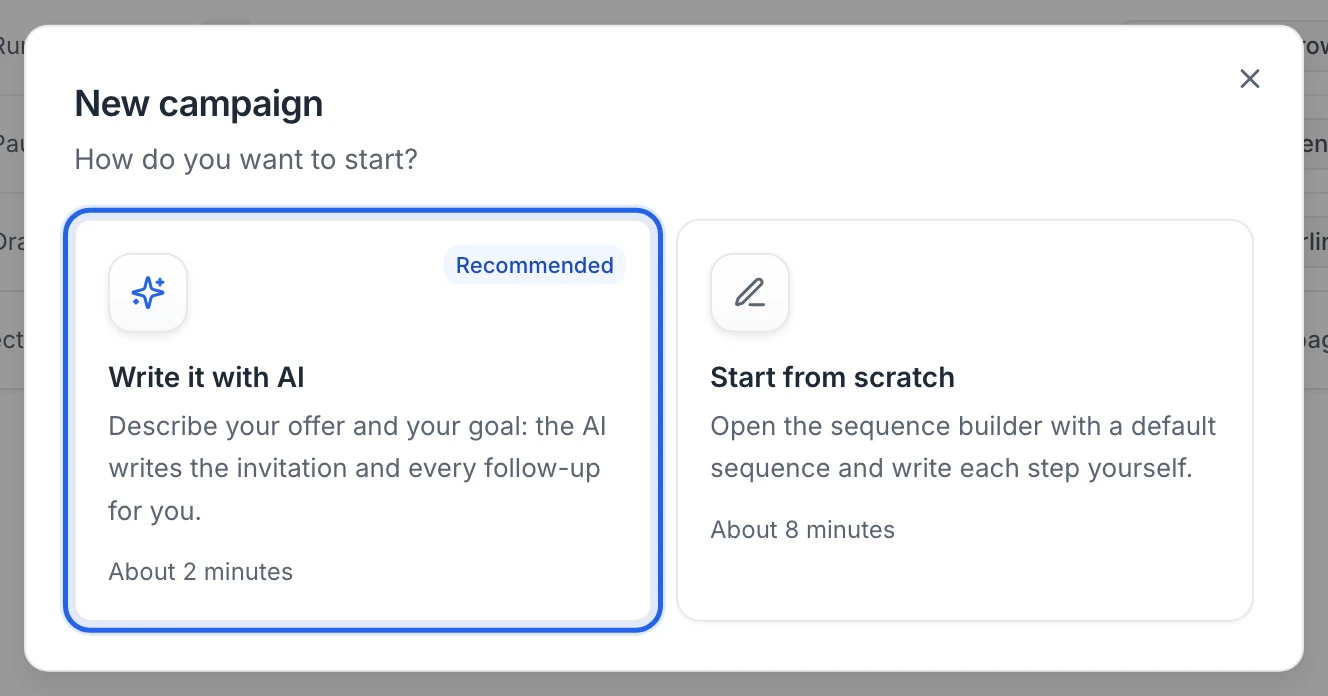
Go to Campaigns › New campaign and choose Write it with AI or Start from scratch. Both create a draft campaign with a ready-made LinkedIn sequence that you can edit. Nothing is sent until you launch it.
Before you start
- Leads: a list of leads to contact. You can also upload a CSV file from the creation dialog, or create the campaign without a list and pick one later. See Add leads to useArtemis.
- A LinkedIn account isn't needed to create a campaign, but it is to launch one. See Connect your LinkedIn account.
- Your plan: you can create and prepare campaigns on a free account; launching them comes with a subscription. See Free account: what's included. Campaigns aren't included with AppSumo Lifetime plans.
Create a campaign with AI
Go to Campaigns and click New campaign.
Choose Write it with AI.
On Your offer, enter your Company website (optional). useArtemis reads the site to pre-fill Company name and to give the AI context.
Fill in Company name and Your pitch, or click Write it with AI next to Your pitch to draft it from your website. Click Continue.
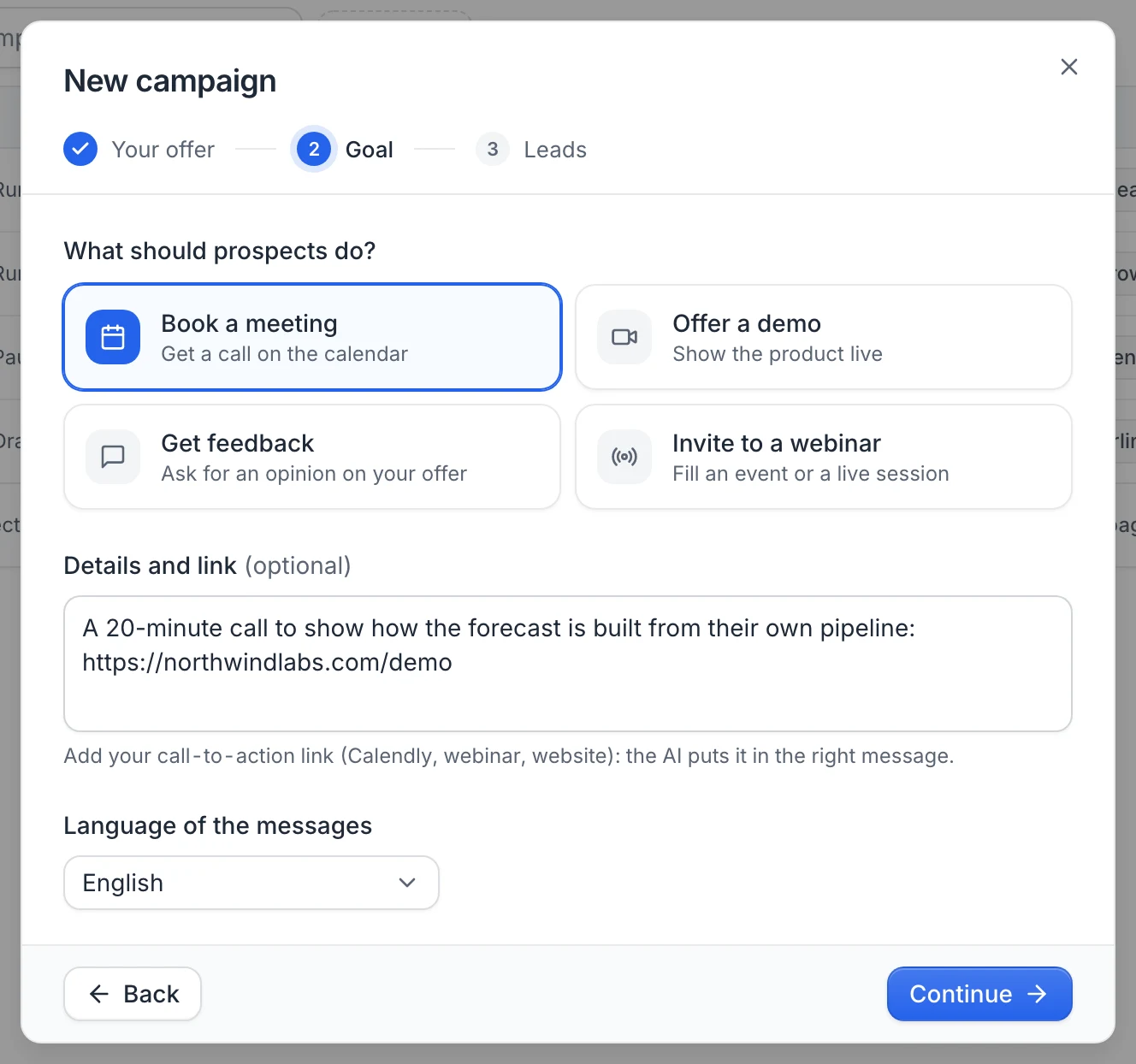
On Goal, pick what prospects should do under What should prospects do? (Book a meeting, Offer a demo, Get feedback or Invite to a webinar) and add your call-to-action link in Details and link (a Calendly link, for example). If you don't pick a preset, the details are required.
Choose the Language of the messages: English, French, Spanish, German, Italian, Portuguese or Dutch. It defaults to your browser's language. Click Continue.
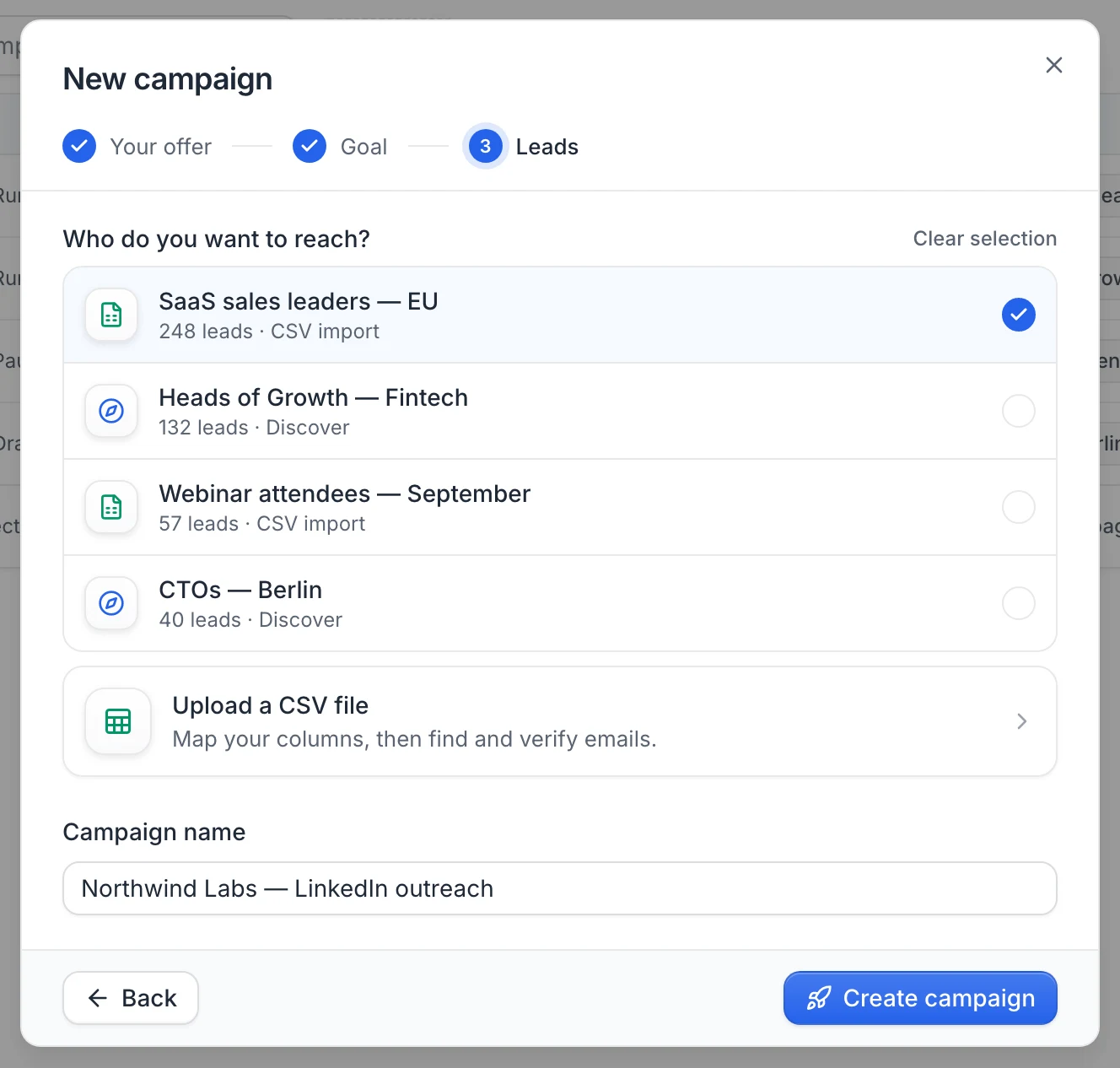
On Leads, under Who do you want to reach?, select a list, or click Upload a CSV file to import one. You can skip this step and add leads later.
Check the Campaign name (pre-filled as "Company — LinkedIn outreach") and click Create campaign.
The AI writes the prompts of every AI-written step from your offer and goal ("The AI is writing your messages…"), then the campaign opens on its Sequence tab.
Tip: Your website, company name, pitch and goal are saved on your account and pre-filled the next time you create a campaign.
Start from scratch
Choose Start from scratch to create the campaign right away and open the sequence builder. You get the same default sequence, without a list and without an offer.
- Pick the target list in the Start step.
- The connection request and message steps have AI writing switched on, with generic prompts. To write your own text, open each step and choose Write it under Note or Message. See Write messages with AI.
- If you keep AI writing, fill in your pitch and goal in Campaign settings so the AI knows what you sell.
The default sequence
Every new campaign starts with this LinkedIn sequence:
- Visit profile
- Wait 1 day
- Connection request with a note written by AI
- Invite accepted? (waits up to 7 days)
- Accepted: a Message written by AI, then Replied? (up to 4 days). If they don't reply, a follow-up Message, then Replied? (up to 5 days).
- Not accepted: Withdraw request, to cancel the pending invitation.
The LinkedIn steps use one of your connected LinkedIn accounts. If you had none when you created the campaign, the steps show Choose a LinkedIn account: pick an account on each step, or select it under Rotate between LinkedIn accounts in the campaign settings. Add, remove or change any step: see Sequence steps.
Note: New campaigns send on weekdays from 9:00 to 18:00 in the Europe/Paris time zone. Change this in Campaign settings before launching. See Working hours, daily limits and sender accounts.
The campaign page
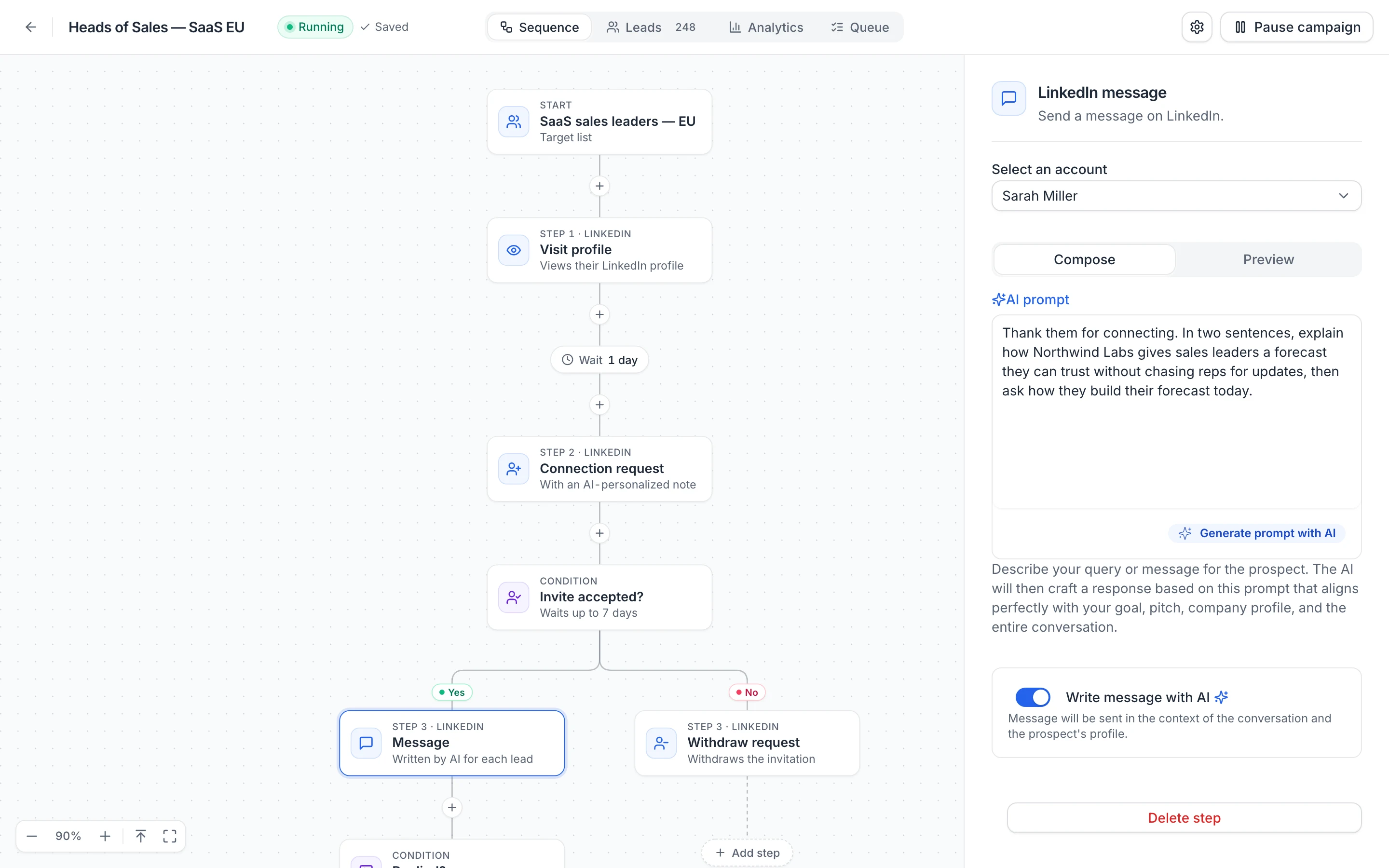
The header shows the campaign name (click it to open the settings), its status (Draft, Running or Paused) and the save status of the sequence (Saving…, Saved, or Save failed, which you can click to retry). The sequence saves automatically as you edit.
Four tabs:
- Sequence: the builder. Click a step to edit it in the panel on the right.
- Leads: every lead of the campaign and where they are in the sequence, once launched. See Manage campaign leads.
- Analytics: results over a date range. See Campaign analytics.
- Queue: the next action scheduled for each lead. See Queue.
On the right, the gear icon opens Campaign settings, next to Launch campaign (or Pause campaign / Resume campaign). See Launch a campaign.
Manage your campaigns
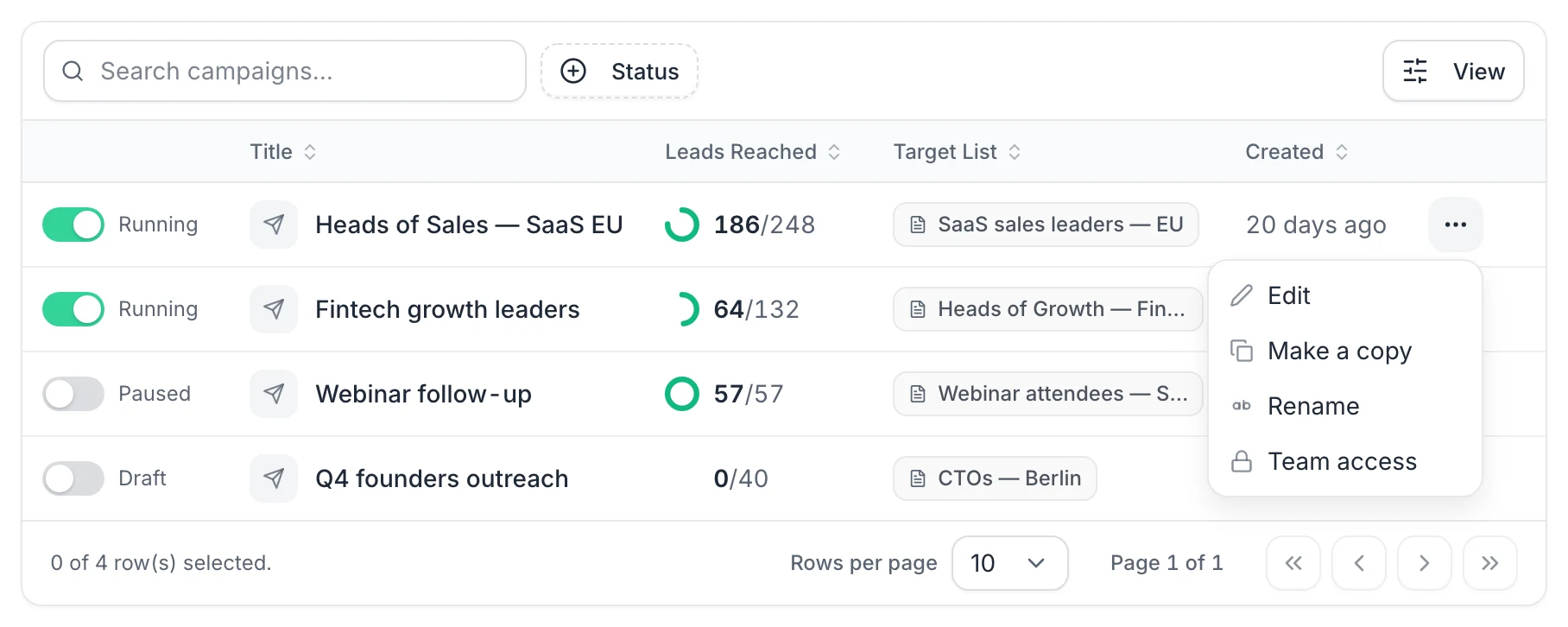
The Campaigns page lists your campaigns with a status switch, Title, Leads Reached (leads with at least one completed step, out of the leads in the list), Target List and Created. Use Search campaigns… and the Status filter to find one.
The … menu of a row offers:
- Edit: opens the campaign.
- Make a copy: creates a draft named "name-duplicate" with the same sequence, target list, offer and language. Working hours, time zone, daily limits, Stop a lead when they reply and sender rotation go back to their defaults, so review the settings before launching the copy.
- Rename: changes the name.
- Team access: gives a team access to the campaign. See Teams.
To delete campaigns, see Pause, resume, edit or delete a campaign.
FAQ
Can I create a campaign without a list?
Yes. Create it without selecting a list, then pick the list in the Start step of the sequence. A campaign can't be launched without leads.
Can I build an email-only campaign?
Yes. Delete the LinkedIn steps and add Send an email steps instead. You need a connected mailbox. See Sequence steps.
Was this article helpful?
Related articles
Still need help?
Write to hello@useartemis.co with your account email and what you were trying to do.