Reply with AI: draft replies and automatic AI replies
Draft inbox replies with Write with AI, or let the AI auto-reply campaign step answer your leads on LinkedIn. What the AI uses and how to set it up.
Updated October 27, 2026
useArtemis can write your LinkedIn replies in two ways. In the inbox, Write with AI drafts an answer that you review and send yourself. In a campaign, the AI auto-reply step lets the AI answer a lead's messages on LinkedIn for you, without any action on your side.
Draft a reply with Write with AI
Open Inbox and click the conversation.
Click Write with AI at the bottom of the reply box.
The draft appears in the box. Read it and edit it as you like.
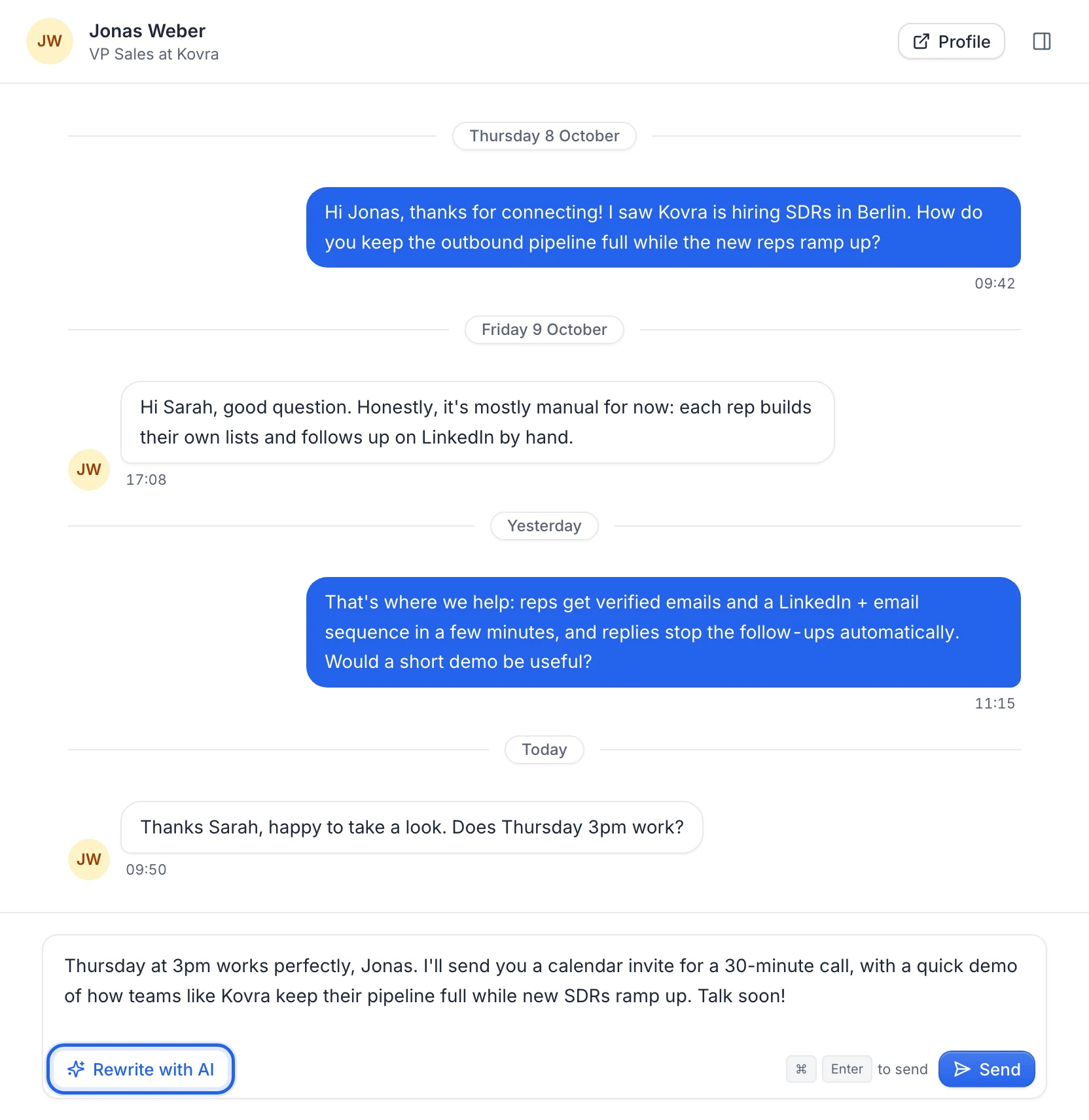
Click Send (or press ⌘ + Enter / Ctrl + Enter). Nothing is sent until you do.
Once there is text in the box, the button becomes Rewrite with AI. Clicking it writes a new draft from the conversation and replaces what's in the box, including your own edits. Copy your text first if you want to keep it.
What the AI uses
- The conversation. It reads the whole thread and answers the last message.
- The person. Their name and LinkedIn headline.
- Your offer. If the person is a lead in one of your campaigns, the AI uses that campaign's company, pitch, goal and message language. Otherwise it uses the company details, pitch and goal saved on your account and on the LinkedIn account's AI persona (LinkedIn accounts › the account's menu › Edit AI persona).
The reply is short (2 to 4 sentences), natural and not pushy, with no dashes (— or –) between words. If the person says they're not interested, the AI thanks them politely and stops selling. It writes in the campaign's language when one is set, otherwise in the language the person uses.
Tip: The better your pitch and goal, the better the drafts. Fill them in the campaign's Campaign settings (Your offer › Pitch and Goal) or in the account's AI persona. See Write messages with AI.
If no draft appears
A Could not generate a reply notice tells you why:
- Upgrade to use this feature: AI drafts need a subscription. They aren't available on AppSumo Lifetime or on a free account.
- The AI could not write a reply, please retry.: try again in a moment.
Let the AI answer automatically
The AI auto-reply step turns on automatic replies for a lead's LinkedIn conversation. From then on, every time the lead writes to you, the AI answers on LinkedIn a few minutes later, from the LinkedIn account chosen in the step. If the lead sends several messages in a row, the AI sends one answer. The AI's messages appear in the Inbox like any other message.
The AI writes these replies the same way as Write with AI drafts, with the campaign's pitch, goal and language, and the lead's profile.
Add the step to a campaign
- Open the campaign from Campaigns.
- Click the + at the end of a branch of the sequence. The step is only offered there, not in the + between two steps.
- Under AI, choose Enable auto inbox. The step appears in the sequence as AI auto-reply.
- In the step's settings, under Replies from, pick the LinkedIn account whose conversation the AI should answer. Until you do, the settings show Choose the LinkedIn account that sends this step. When the campaign rotates between several accounts, there's nothing to pick: the AI answers from the account that contacted each lead.
- Open Campaign settings and check the pitch and goal: the AI answers with that goal in mind.
- Launch the campaign (or resume it).
Tip: Place the step after a Send a message step, so that a conversation with the lead already exists on that LinkedIn account when the lead reaches it.
What changes for the lead
- The lead finishes the sequence when they reach the step: it's the last step of its branch.
- A lead who replies when the AI step is their next step (no message in between) isn't stopped by Stop a lead when they reply: they reach the AI step, which answers them. A lead who replies earlier, while a message is still ahead of them, is stopped and never reaches the AI step.
- The AI only answers when the last message comes from the lead, and only while the LinkedIn account is connected.
Note: There's no switch yet to turn automatic replies off for a single conversation, and pausing the campaign doesn't turn them off for leads who already reached the step. To stop them, email hello@useartemis.co.
Launching a campaign needs a subscription: on a free account you can prepare campaigns, not launch them. See Free account: what's included.
FAQ
Does Write with AI send the message for me?
No. It only fills the reply box. You decide whether to send it.
Does the AI answer emails?
No. Both features work on LinkedIn conversations. Email replies arrive in your own mailbox.
Will the AI answer conversations that aren't part of a campaign?
No. Automatic replies only run for leads who reached an AI auto-reply step. For any other conversation, use Write with AI and send the reply yourself.
Was this article helpful?
Related articles
Still need help?
Write to hello@useartemis.co with your account email and what you were trying to do.