Work as a team
Team workspaces in useArtemis: open one, share lists and campaigns with it, add or remove teammates, team credits and who needs a subscription.
Updated October 27, 2026
On this page
A team is a shared workspace: its members see the same lists and campaigns, and the credits they spend there come from the team owner's account. Each team workspace has its own address, https://app.useartemis.co/teams/<team-id>. This article explains how to open a team workspace, share your work with it and manage its members.
Note: Creating a new team isn't available from the app right now. If you need a team workspace, contact us at hello@useartemis.co.
Open a team workspace
Open the team's address, https://app.useartemis.co/teams/<team-id>. Ask a teammate for it if you don't have it: it's the address in their browser when they're in the workspace. Bookmark it to come back.
If your own subscription is suspended (a payment failed or it's paused), the window that blocks the app lists your teams under Or open a team workspace: click a team to open it.
Inside a team workspace:
- Home, Prospects and Campaigns show the team's lists and campaigns, not your personal ones.
- The AI agent keeps its own conversations for the workspace, and the lists and campaigns it creates there belong to the team. See Get started with the AI agent.
- The header shows the team's credits, and the account menu shows Team credits instead of your own.
To go back to your personal workspace, open https://app.useartemis.co.
Share a list or a campaign with your team
Lists and campaigns you create are personal. To make one visible in a team workspace, share it:
A list
- Go to Prospects.
- Open the menu at the end of the list's row and click Team access.
- In Share access, pick the team under Team.
- Click Give access. You see Access Given successfully.
A campaign
- Go to Campaigns.
- Open the menu at the end of the campaign's row and click Team access.
- In Share access to this campaign, pick the team.
- Click Give access. You see Access given.
The list or campaign now appears in the team workspace for every member, and it stays in your personal workspace too. A list or campaign is shared with one team at a time: giving access to another team moves it there.
Add a teammate
Team members are managed on the Team settings page of the workspace: https://app.useartemis.co/teams/<team-id>/teamsettings. Open it on a computer.
- Type your teammate's email address in Type email address.
- Click Send invite.
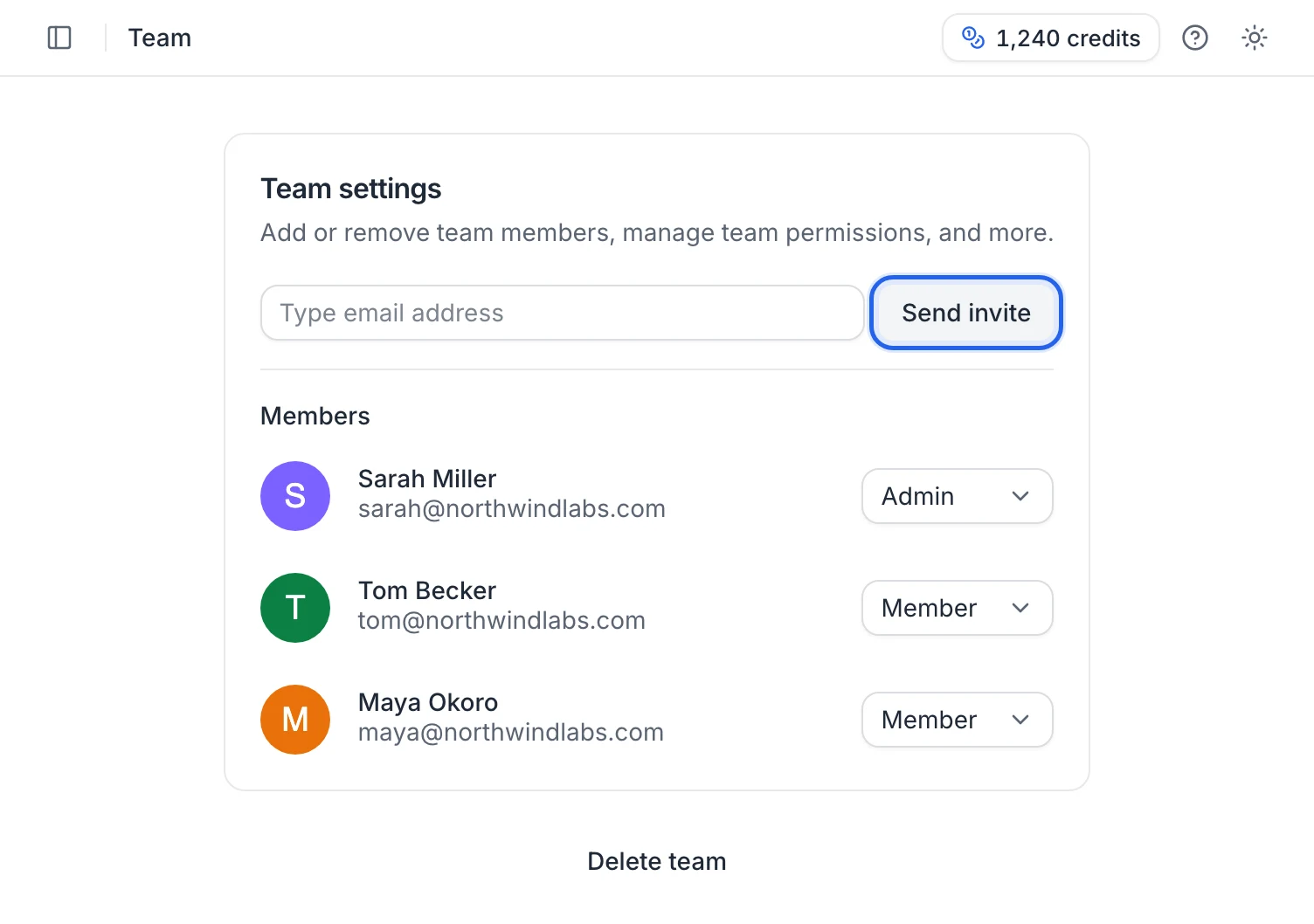
You see Member added successfully and "An invite has been sent to" their address. They're part of the team right away, there's nothing to accept, and they appear under Members.
If the person didn't have a useArtemis account, one is created for their email. To log in the first time, they use Forgot password? on the login page to choose a password, or Continue with Google if it's a Google address. See Log in, reset your password and log out.
Remove a teammate
- On the Team settings page, find the person under Members.
- Open the menu next to their name (it shows their role, Admin or Member).
- Click Revoke.
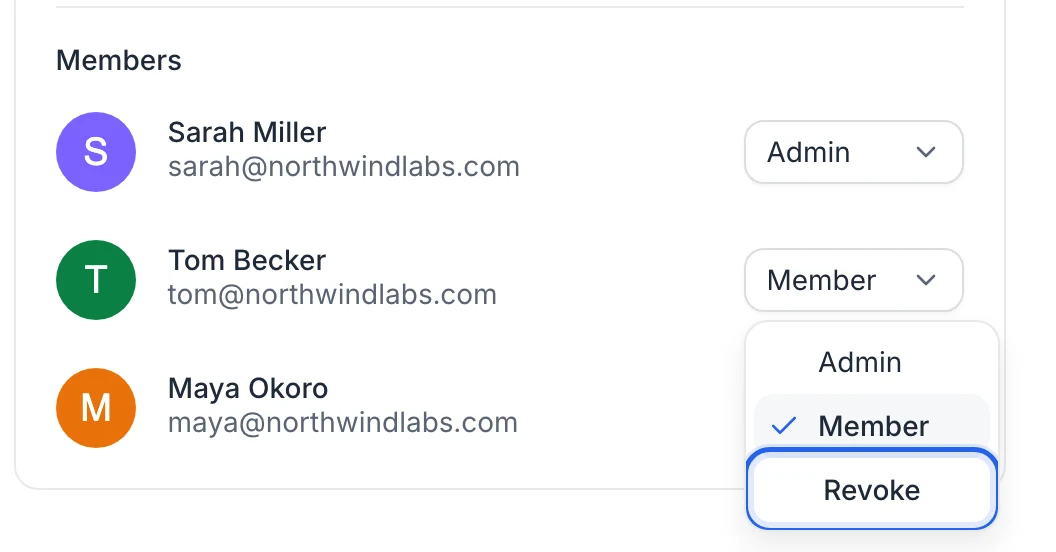
They're removed from the team and lose access to the team workspace. Their own account and personal workspace stay as they are.
Team credits
Credits spent in a team workspace are taken from the team owner's credits. Members don't use their personal credits there. To get more credits, the owner changes their plan: see Plans and credits.
Do teammates need a subscription?
Not to work in the team workspace: a member without a plan of their own can open it and work on the team's lists and campaigns.
When the owner of one of their teams has a paid subscription, such a member can also find emails with the team's credits and launch the team's campaigns, without the daily limits of a free account. Otherwise, the member is on a free account: finding emails, connecting LinkedIn and launching campaigns need a subscription. See Free account: what's included.
Delete a team
On the Team settings page, click Delete team at the bottom.
Warning: The team is deleted right away, without a confirmation step, for every member. You're taken back to Home with Team deleted successfully.
FAQ
Do my personal lists and campaigns appear in the team workspace?
No. Only the lists and campaigns you share with the team are listed there.
Can I rename a team?
Not from the app. Contact us at hello@useartemis.co.
Was this article helpful?
Related articles
Still need help?
Write to hello@useartemis.co with your account email and what you were trying to do.