Manage your lead lists
Use the Prospects page to search, rename, duplicate, favorite, share and delete lists, then sort, filter columns, move leads and remove duplicates.
Updated October 20, 2026
On this page
All your lead lists live on the Prospects page. From there you rename, duplicate, favorite, share or delete a list, and you open a list to search, sort and organize its leads in a table.
The Prospects page
Click Prospects in the sidebar. Each row is a list:
| Column | What it shows |
|---|---|
| Title | The list name, with where it came from underneath: CSV import, Discover, AI agent, Chrome extension, LinkedIn or Sales Navigator (searches exported with the Chrome extension), or another source for lists made with older import tools. A star marks favorites. |
| Prospects | The number of leads. |
| Enriched | The share of leads that have an email (found with Find emails or imported from your file). |
| Created | When the list was created. |
| Status | Ready, or Processing while leads are being added or searched (Enriching followed by a percentage once the progress is known). |
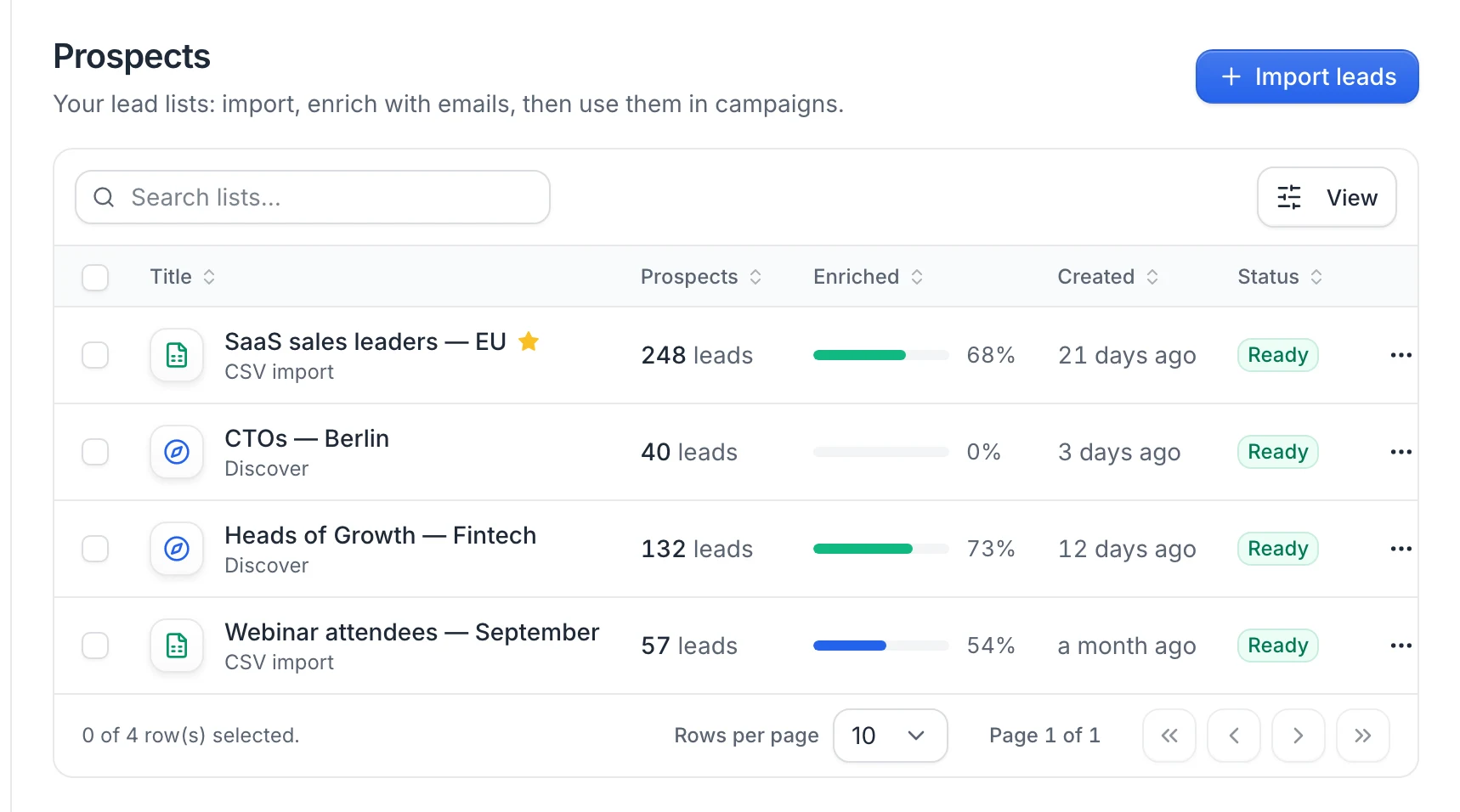
Favorite lists come first, then the newest. Type in Search lists… to find a list by name, and use the arrows at the bottom to change page.
There's no button to create an empty list: a list is created when you import a CSV, save people from Discover or save people found by the AI agent.
Rename, duplicate, favorite, share or delete a list
Click ⋯ at the end of a list's row:
- Duplicate: creates a copy named
dup_followed by the list name, with the same leads. - Rename: type the new name in Rename list and click Save changes.
- Favorite: pins the list to the top with a star. Click it again to remove the star.
- Team access: in Share access, pick one of your teams and click Give access. The list then also appears in that team's workspace. See Work with your team.
- Delete: deletes the list.
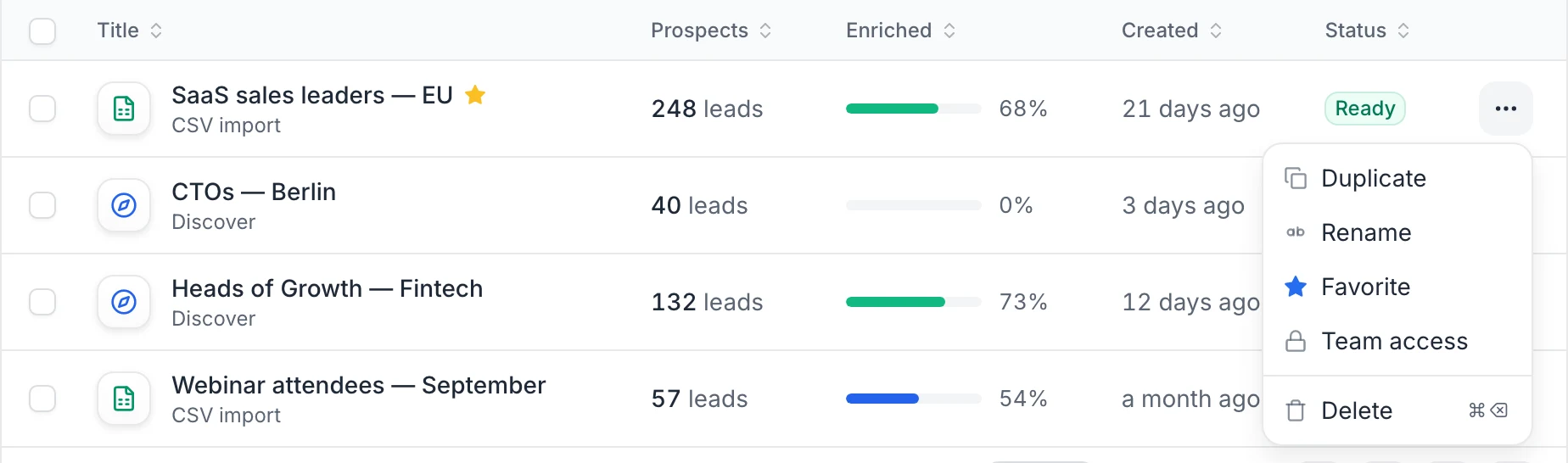
To delete several lists at once, tick their checkboxes and click Delete followed by the number of lists.
Warning: Deleting a list happens immediately, without a confirmation, and can't be undone.
Work inside a list
Click a list's name to open it. The header shows Prospects › list name, and the toolbar shows the number of leads and how many have an email.
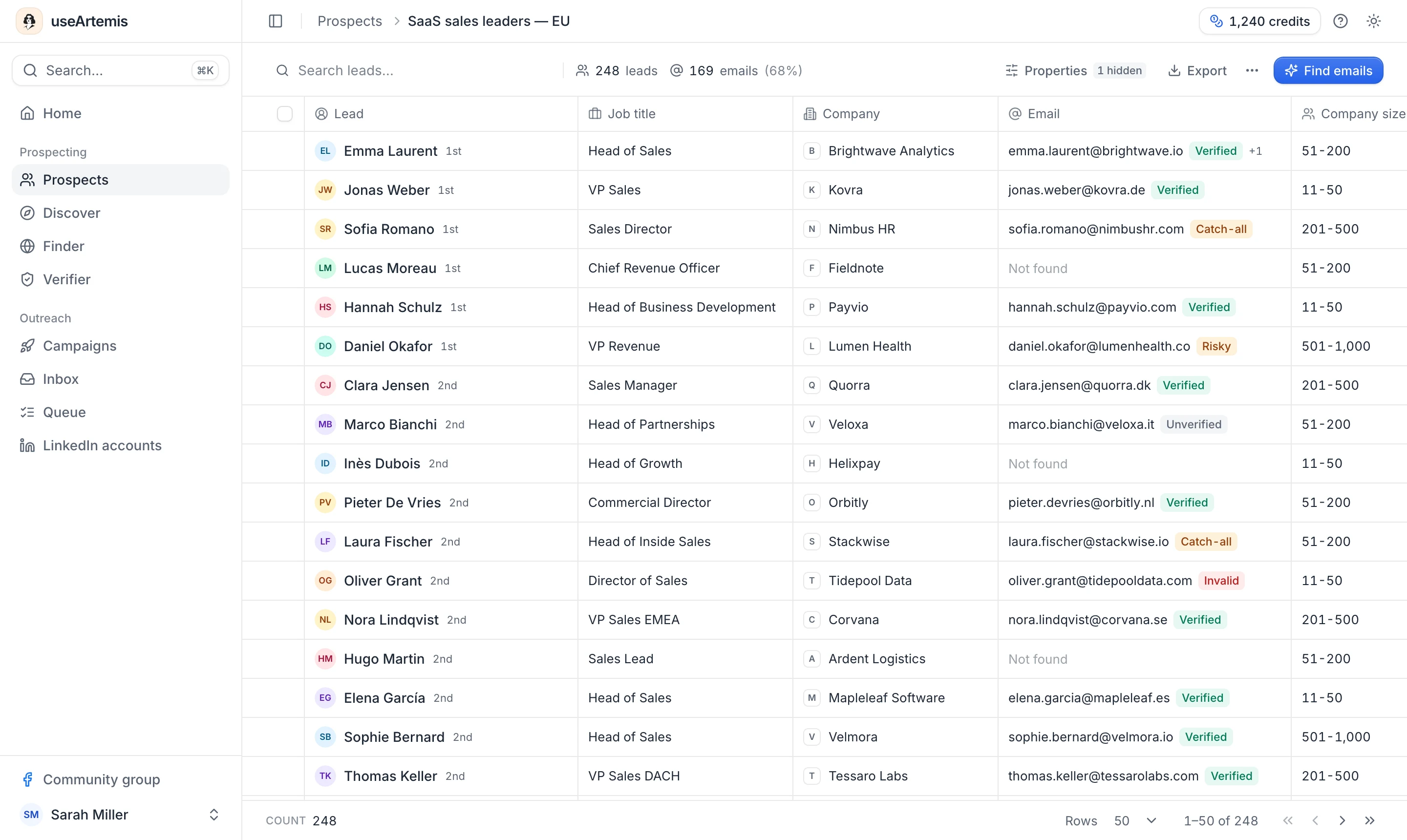
- Search leads… finds leads by name, job title, company or email.
- Click a lead's name, or hover the row and click Open, to see and edit the lead in a side panel. See View and edit a lead.
- At the bottom, Rows sets how many leads you see per page (25, 50, 100 or 200), next to the total Count.
Columns
Every list has Lead, Job title, Company, Email and Phone columns (Phone is hidden at first). More columns appear on their own when at least one lead has the data, such as company size, headquarters, description, tech stack, and your custom properties.
- Click a column header to Sort ascending, Sort descending, Remove sort or Hide property. Sorting applies to the whole list, not only the page you see.
- Click Properties in the toolbar to show or hide columns. Your choice is saved with the list; Show all brings every column back.
- Drag the edge of a column header to resize it, double-click it to reset. Column widths are remembered in your browser for all your lists.
Select leads
Hover a row and tick its checkbox. The checkbox in the header selects every lead on the current page; set Rows to 200 to select more at once. The toolbar then shows how many leads are selected, with Move to and Remove from list. Click the × next to the count to clear the selection.
Move leads to another list
- Select the leads.
- Click Move to.
- Pick the destination list. Type in Search lists… if you don't see it.
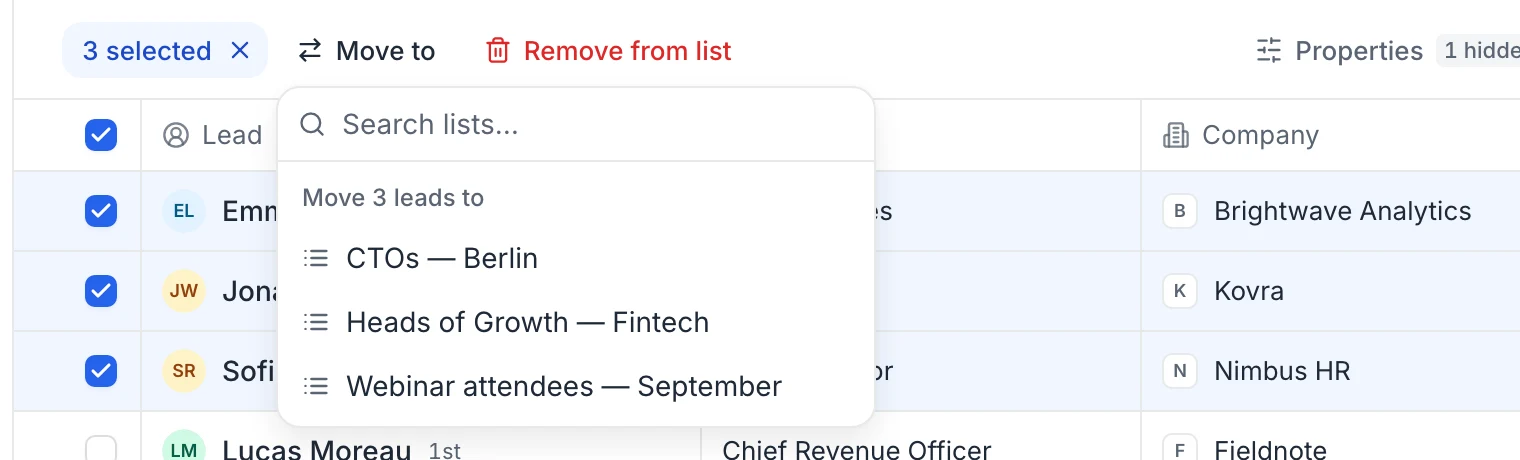
You see Leads successfully moved, with a Go to list button. The leads leave their current list and join the one you picked.
Remove leads from a list
Select the leads, then click Remove from list. They're taken out of this list right away, without a confirmation.
Remove duplicates
- Open the list.
- Click ⋯ (More actions) next to Find emails.
- Click Remove duplicates.
You see Duplicates removed!. Reload the page to see the cleaned list.
useArtemis keeps the first lead for each full name, or for each LinkedIn URL when a lead has no name. Two different people with exactly the same name count as duplicates, so check lists with common names before you run it.
FAQ
Can I create an empty list and fill it later?
Not from the Prospects page. Import a CSV or save people from Discover to create a list, then use Move to to regroup leads between lists.
What does the Enriched percentage mean?
It's the share of leads in the list that have an email, whether it was found by Find emails or came from your CSV file. See Find emails for a lead list.
Can I export a list?
Yes. Open the list and click Export. See Export a lead list to CSV.
Was this article helpful?
Related articles
Still need help?
Write to hello@useartemis.co with your account email and what you were trying to do.