Find someone's email address
All the ways to find a professional email in useArtemis: by company domain in the Finder, in Discover or with the AI agent, for a lead list or from LinkedIn.
Updated October 27, 2026
On this page
useArtemis finds professional emails in five places, depending on what you start from: a company domain, a person in Discover, a person found by the AI agent, a list of leads, or a LinkedIn profile. The table below tells you which one to use and what it costs.
Note: Finding emails comes with a subscription. On a free account, each of these opens a window to subscribe instead. See Free account: what's included.
| You have | Use | Credits |
|---|---|---|
| A company website | Finder in the sidebar | None |
| A person you found in Discover | Reveal in Discover | 1 when an email is found |
| A person found by the AI agent, or just a name and a company | Reveal in the agent's lead table, or ask the agent | 1 when an email is found |
| A list of leads (from a CSV or Discover) | Find emails on the list | 1 per email found |
| A LinkedIn profile open in Chrome | Find email in the Chrome extension | 1 when an email is found |
From a company domain: the Finder
Use the Finder when you know the company but not the people.
- In the sidebar, under Prospecting, click Finder.
- Type the company's domain (for example
company.com) and click Find emails.
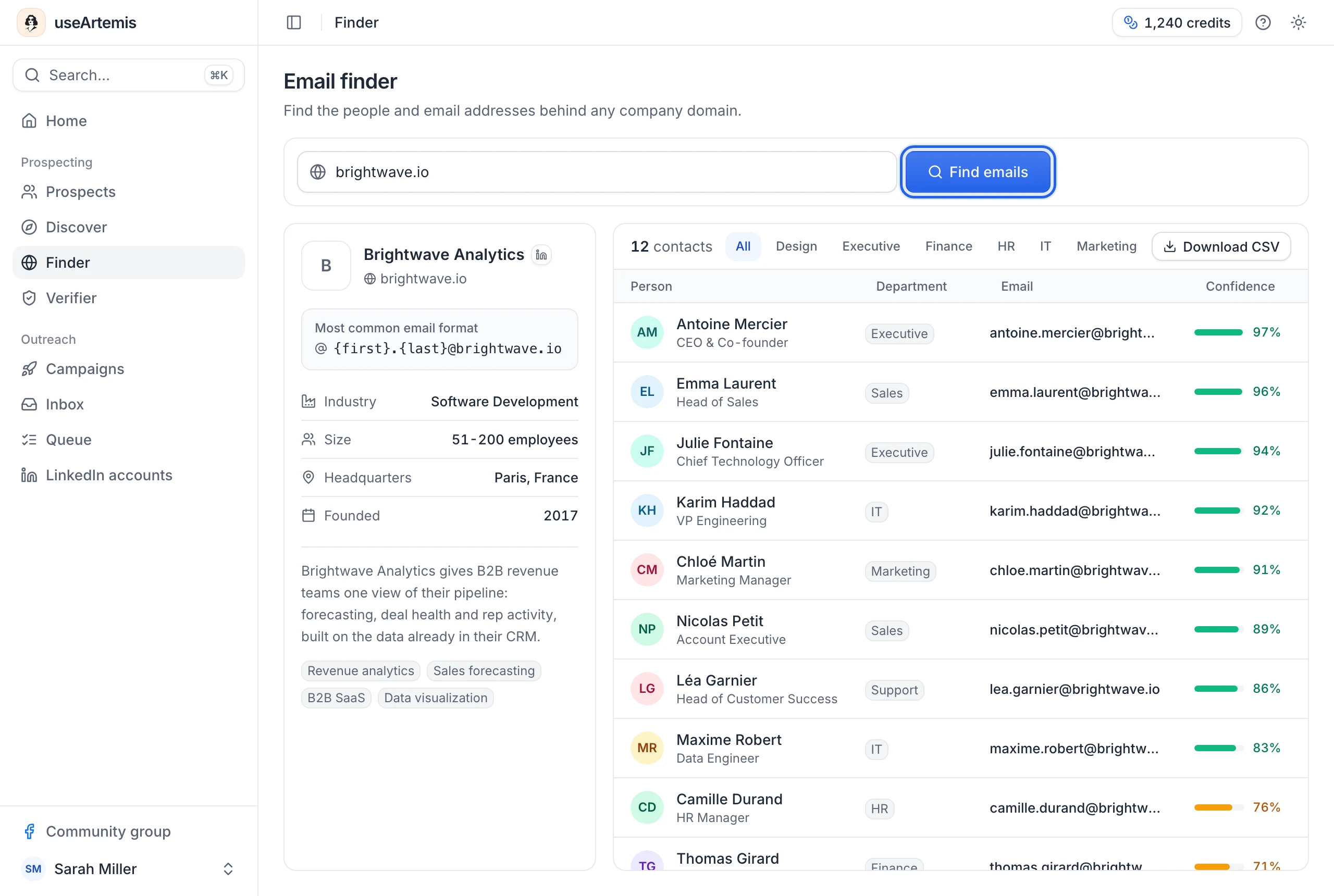
You get the people we know at that domain with their email and a confidence score, the company's most common email format and its generic addresses (contact@, sales@…). Finder searches don't use credits. Details: Find emails at a company with the Finder.
Tip: Looking for one specific person who isn't in the Finder results? Use the Most common email format shown for the company to write their likely address, then check it in the Verifier (1 credit).
From Discover
Search people by job title, company, location and industry, then click Reveal on a person (or select several people and click Reveal N emails). You only use a credit when an email is found. Revealed emails are kept: they show again in later searches, revealing them again is free, and they're copied to the list when you save the people. See Find leads with Discover.
With the AI agent
In the lead tables of the AI agent, click Reveal on a person, or select several people and click Reveal N emails. You can also ask the agent directly, for example "find the email of Emma Laurent at brightwave.io". Either way, you only use a credit when an email is found. See Get started with the AI agent.
For a list of leads
This is the way to get emails for many people at once, for leads imported from LinkedIn, Sales Navigator, a CSV file or Discover.
- Open Prospects and click the list.
- Click Find emails, then Start enrichment.
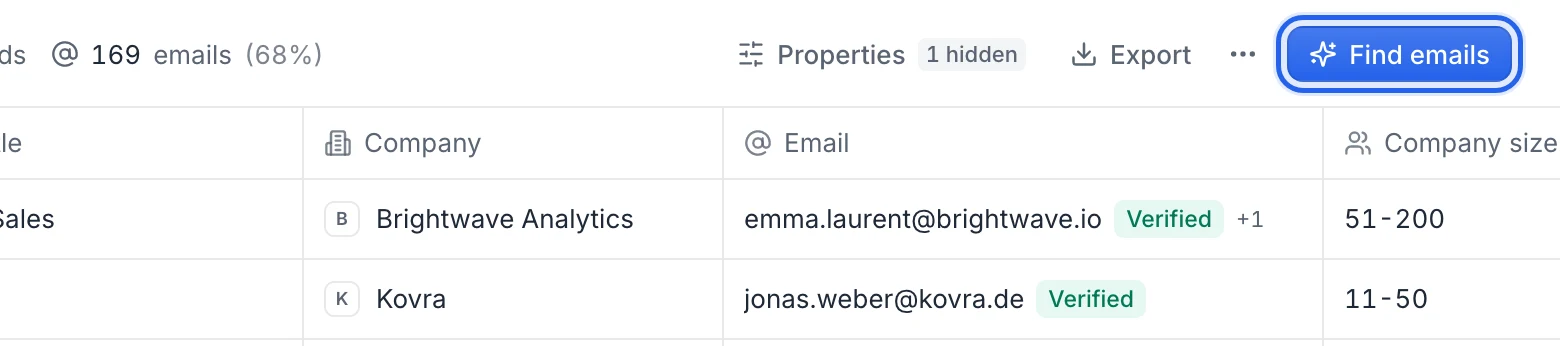
We look for each lead's email using their name and company, or their LinkedIn profile. Each lead whose email is found uses 1 credit. See Find emails for a list and, to start from a spreadsheet, Find emails in bulk from a CSV file.
It also works for a single person: add them to a list (for example with Add a lead manually in the list's ⋯ menu) and run Find emails.
From a LinkedIn profile: the Chrome extension
With the useArtemis Chrome extension, open someone's profile on LinkedIn and click Find email in the side panel. You can then save the person to a lead list or a campaign. See Find emails on LinkedIn with the Chrome extension.
Check an email before you send
A found email isn't always a deliverable one. Before a campaign, look at the email's status (Verified, Catch-all, Risky, Invalid…) and check doubtful addresses in the Verifier. See What email statuses mean.
FAQ
Can I type a first name, a last name and a company to get an email?
There's no single box for that. Either search the company's domain in the Finder and use its email format with the Verifier, or add the person to a list and run Find emails.
Do I pay when no email is found?
Not in the Finder, Discover, the Chrome extension or a list's Find emails: Finder searches are free, and Reveal, Find email and Find emails only use a credit when an email is found. The Verifier uses 1 credit each time, whatever the result. See What uses email credits.
Where do the emails come from?
When you run Find emails on a list, we query several data sources one after the other and stop as soon as one returns a verified address. If none does, we test the most common address formats against the company's mail server.
Was this article helpful?
Related articles
Still need help?
Write to hello@useartemis.co with your account email and what you were trying to do.