Find emails in bulk from a CSV file
Upload a CSV of leads, map the name, company and LinkedIn columns, then run Find emails on the new list to get their professional email addresses.
Updated October 27, 2026
To find emails for a spreadsheet of leads, import the file as a lead list, then run Find emails on that list. It takes two steps and you only use credits for the emails found.
Note: Importing a file is free, and works on a free account. Find emails comes with a subscription: on a free account, it opens a window to subscribe instead. See Free account: what's included.
1. Import your CSV file
- Go to Prospects and click Import leads.
- Click Upload a CSV file and choose your file.
- Under "Help us to identify rows", tell us which column holds what: Fullname, Firstname, Lastname, Job title, Email, Company name, Company domain, LinkedIn URL, Twitter URL, Instagram URL.
- Click Import leads.
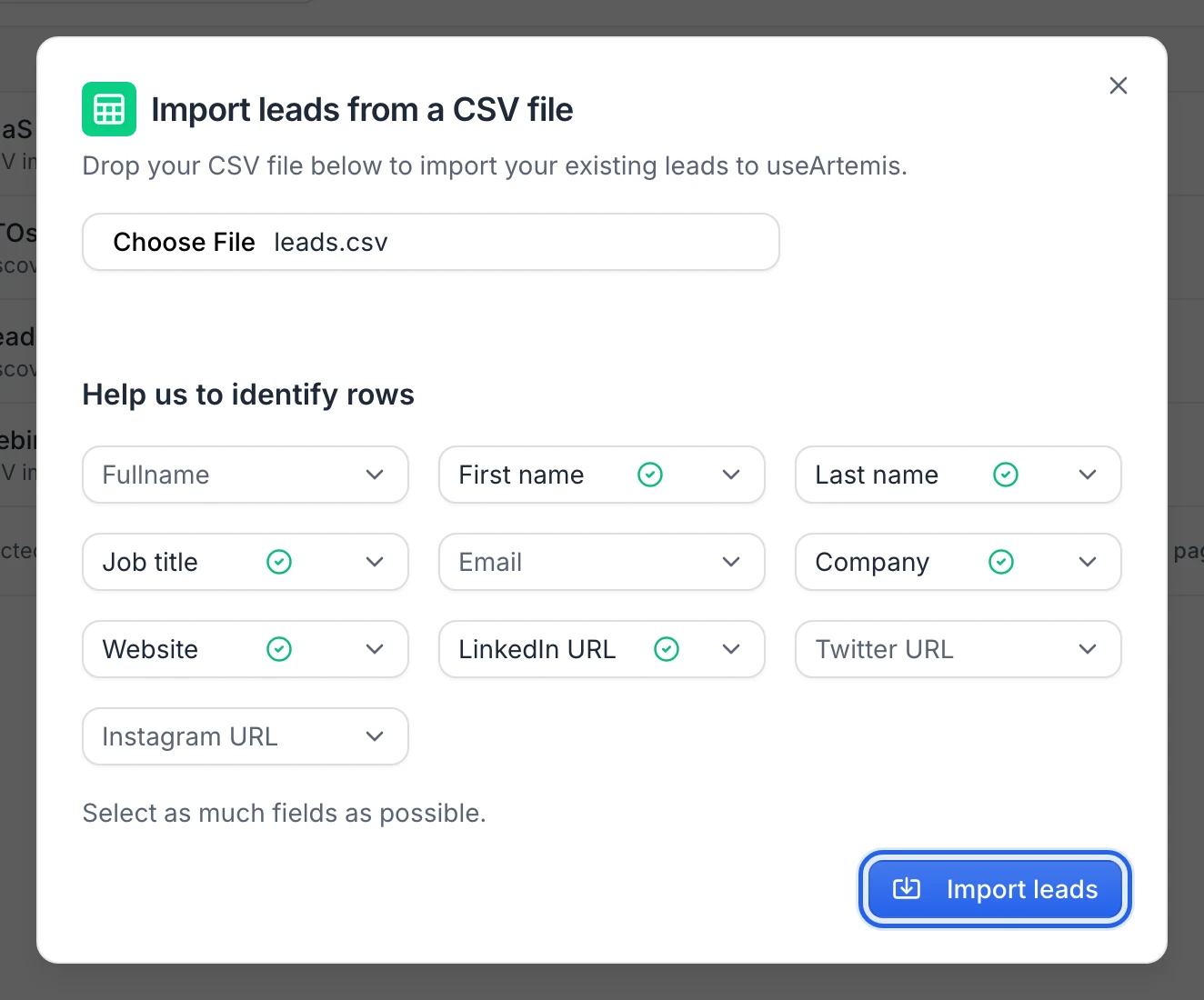
The Import leads button stays disabled until you've mapped either Firstname, Lastname and Company name, or LinkedIn URL. Map as many columns as you can: a Company domain or a LinkedIn URL helps us find more emails.
The new list opens once the import has started. Full details: Import leads from a CSV file.
2. Find the emails
- In the list, click Find emails.
- Click Start enrichment.
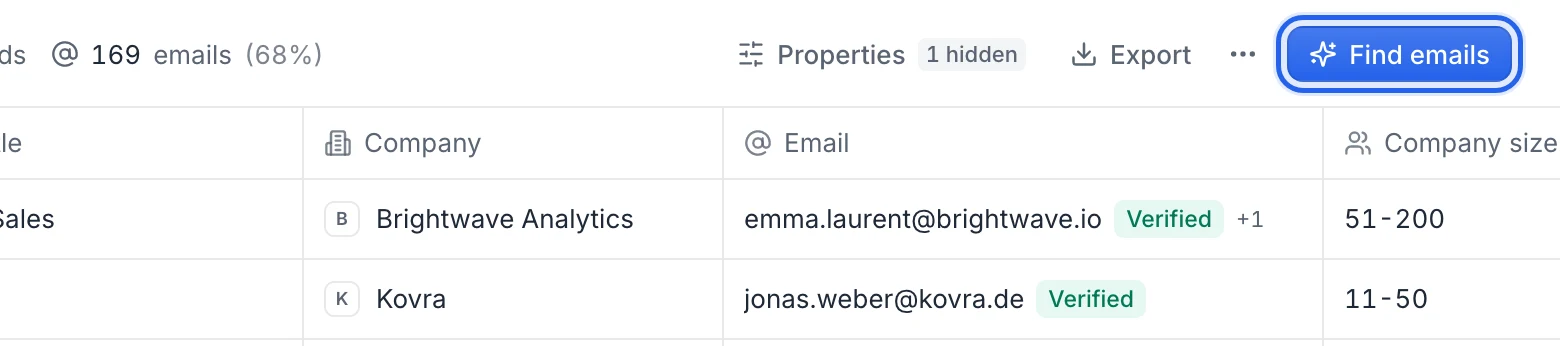
You see "Enrichment started!", and the Email column fills in as results come in, with a status for each email (Verified, Catch-all, Risky…) or Not found. Leads that already had an email in your file are skipped. Full details: Find emails for a list.
Credits
- Importing the file is free.
- Each lead whose email is found uses 1 credit. Leads marked Not found don't use any.
- To start, you need more credits than there are leads in the list. Otherwise you see "You need at least N credits."
After the enrichment
- Check what each status means and which addresses to send to: What email statuses mean.
- Export the list with its emails: Export your leads.
- Or use it right away in a campaign: Create a campaign.
FAQ
Is there a separate bulk email finder page?
No. Bulk email finding happens on lead lists, whatever their source: a CSV file, a LinkedIn or Sales Navigator search, or Discover.
I only have names and company websites. Will it work?
Yes. Map the name columns and the website column as Company domain. You'll also need a Company name column to enable the import button, unless you map a LinkedIn URL column.
Was this article helpful?
Related articles
Still need help?
Write to hello@useartemis.co with your account email and what you were trying to do.