View and edit a lead
Open a lead's side panel in any list to see contact and company details, edit fields, add custom properties and check LinkedIn activity.
Updated October 21, 2026
Click a lead's name in any list to open its side panel. It shows everything useArtemis knows about the person and their company, and lets you edit their details and add your own custom properties.
Open the panel
- Open a list from Prospects.
- Click the lead's name, or hover the row and click Open.
In the panel's top bar:
- The up and down arrows (Previous lead, Next lead) move through the leads of the page you're on, with the position shown next to them (for example
3 of 50). - LinkedIn opens the person's LinkedIn profile in a new tab, when the lead has one.
- Close (Esc) closes the panel. Pressing Esc or clicking outside the panel also closes it.
What the panel shows
The top of the panel shows the person's photo, name, job title and company, plus tags when they're known: their LinkedIn connection degree, Premium, Open profile and Open to work.
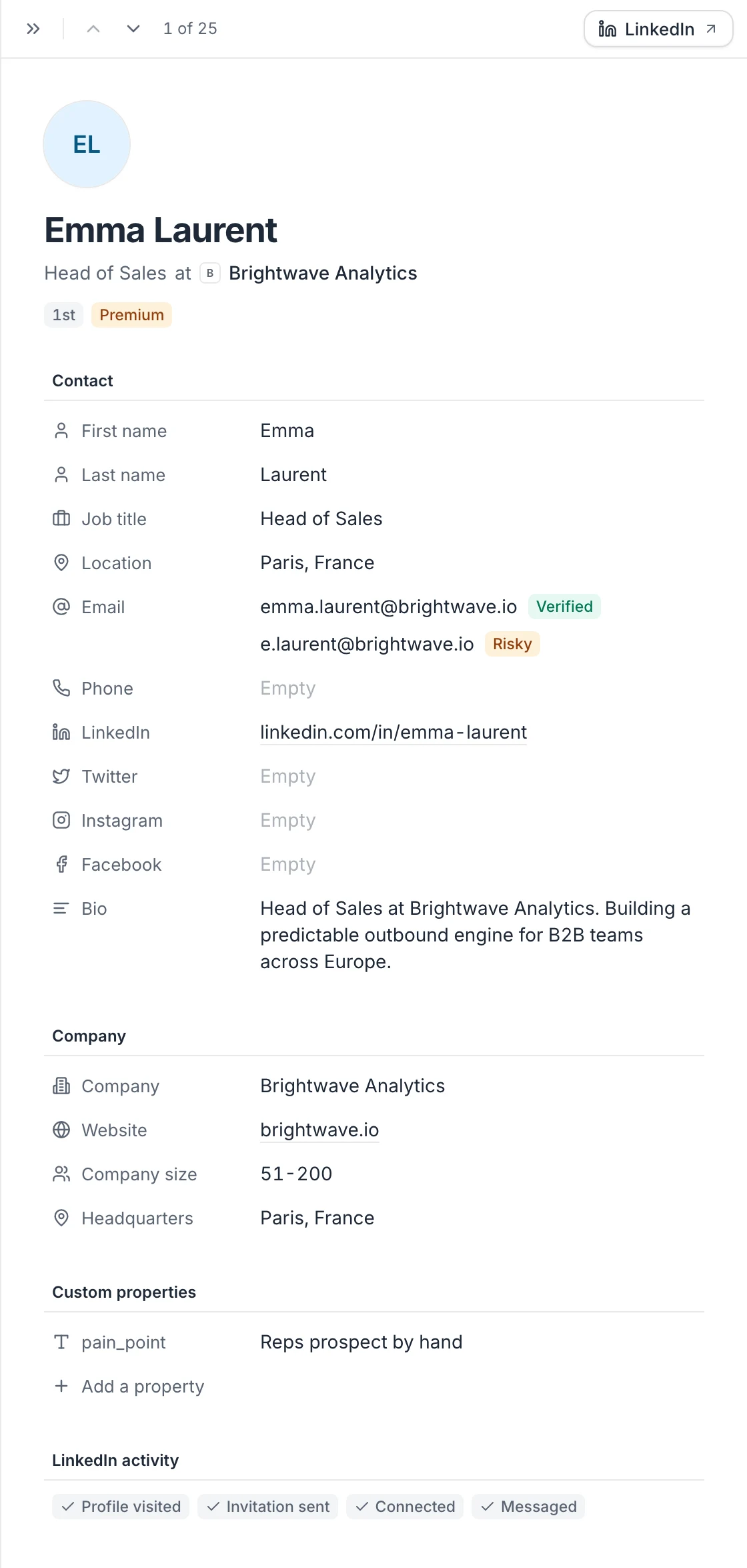
Below, details are grouped in sections:
| Section | Content | Editable |
|---|---|---|
| Contact | First name, Last name, Job title, Location, Email, Phone, LinkedIn, Twitter, Instagram, Facebook, Bio | Yes, except Email |
| Company | Company and Website, then company facts when known: size, headquarters, industry, type, founding year, description, company LinkedIn, website and SEO data, tech stack | Company and Website only |
| LinkedIn profile | For people saved with the Chrome extension: Audience (followers and connections), About, Experience, Education (or School), Skills, Languages, Certifications, Website and the Contact info LinkedIn shows you. Next to the title, From LinkedIn means the full profile was read with your connected LinkedIn account, From the LinkedIn page means what the profile page showed. See Find emails on LinkedIn with the Chrome extension | No |
| Enrichment | Data added by enrichments run on the list | No |
| Custom properties | Your own fields for this list | Yes |
| LinkedIn activity | Profile visited, Invitation sent, Connected, Messaged, when recorded for this lead | No |
Empty sections other than Contact, Company and Custom properties are hidden.
Emails
Each email shows a status tag: Verified, Catch-all, Risky, Invalid or Unverified. Hover an email to copy it. No email found yet means the lead hasn't been searched; Not found means a search found nothing. To get emails, run Find emails on the list. What each tag means: Email statuses.
Emails can't be typed or edited in the panel.
Edit a field
- Click the value (or Empty) next to a field.
- Type the new value.
- Press Enter, or click anywhere else, to save. Press Esc to cancel.
In Bio and custom properties, press Shift+Enter for a new line. The top bar shows Saving… then Saved. If a change can't be saved, you see Couldn't save this change and the previous value comes back.
Contact and company fields are saved on the lead itself. If the same lead is in several lists (for example after you duplicated a list), the change shows in each of them.
Custom properties
Custom properties are your own fields, like industry or pain_point. They belong to this list: every property used in the list shows on each of its leads, empty when the lead has no value, and appears as a column in the table.
To add one:
- In Custom properties, click Add a property.
- Enter a Property name and a Value.
- Click Add or press Enter.
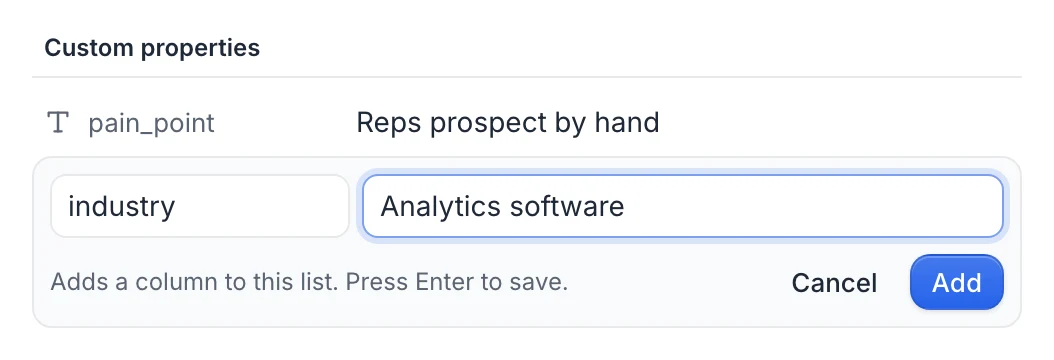
A name can't contain a dot or start with $, and must not already exist in the list. To empty a property for a lead, hover it and click the trash icon (Clear value).
The columns you keep as custom variables when you import a CSV file are custom properties too, with the value of each lead's row. See Keep other columns as custom variables.
Tip: You can insert a custom property in campaign messages with {custom.name}. Name your properties without spaces (pain_point rather than pain point) so they work as variables. See Personalization variables.
FAQ
Why can't I edit the email address?
The panel shows emails as found or imported, with their status, but doesn't let you type one. To add a lead with a known email, use Add a lead manually in the list's ⋯ menu, or import a CSV with an Email column.
Are my edits used in campaigns?
Yes. Campaign messages use the lead's current details, so a corrected first name or company is what goes into {firstname} or {companyname}. See Personalization variables.
Was this article helpful?
Related articles
Still need help?
Write to hello@useartemis.co with your account email and what you were trying to do.