Email sending limits and deliverability
How many emails each mailbox sends per day, how many mailboxes you can connect, open and click tracking, unsubscribes, bounces and reply detection.
Updated October 15, 2026
On this page
Each mailbox sends at most its Emails per day (30 by default), shared by all your campaigns, and each campaign has its own Max emails per day (60 by default). Emails only go out during the campaign's working hours, spaced out over the day. Your plan doesn't limit how many mailboxes you can connect.
Daily limits
Two limits apply to every email, and an email only goes out when both have room left:
| Limit | Where to change it | Default |
|---|---|---|
| Emails per day of the mailbox, shared by every campaign that uses it | Settings › Email accounts › ⋯ › Sending settings | 30 (between 1 and 500) |
| Max emails per day of the campaign | Gear icon Campaign settings › Email in the campaign | 60 |
When a limit is reached, the remaining emails wait for the next working day. Days are counted in the campaign's timezone.
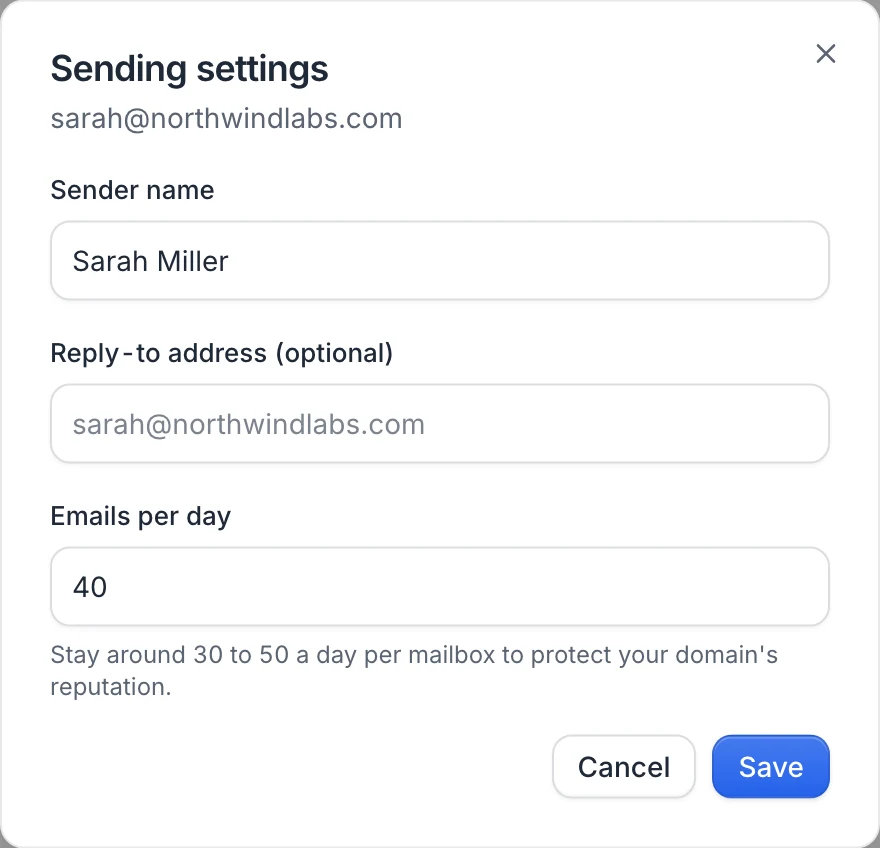
We recommend around 30 to 50 emails a day per mailbox to protect your domain's reputation. To send more, connect more mailboxes and split your leads across campaigns that each use their own mailbox. Each Send an email step sends from the one mailbox selected under Sent from.
Note: There's no automatic email warm-up. For a new mailbox or a new domain, start with a low Emails per day and raise it over a few weeks.
Working hours and spacing
- Emails are only sent inside the campaign's Working hours, and not on weekends when Days is set to Monday to Friday (the default).
- They're spread over the working hours with random gaps, not sent in a burst. Under Max emails per day, the campaign settings show the expected pace, for example Up to 60 emails will be sent between 9h and 18h, about one every 9 minutes on average.
How many email accounts can I connect?
As many as you need: plans don't limit the number of mailboxes. Gmail, Google Workspace, Outlook, Microsoft 365 and any SMTP/IMAP mailbox can be mixed. Each one keeps its own daily limit.
Open and click tracking
Opens and clicks are tracked on every campaign email:
- Opens: a tiny invisible image is added at the end of the email. It counts as opened when the image loads.
- Clicks: the links in your email go through a tracking link, then straight to your page. Unsubscribe links and email addresses (mailto links) are never rewritten.
Open rates are an estimate: some email apps block images, others load them automatically. Clicks are a more reliable signal. Results appear in the campaign's analytics: see Campaign analytics.
Unsubscribes
Every email carries a one-click unsubscribe header, which Gmail, Outlook and other providers can show as an Unsubscribe button next to the sender. You can also add a visible link: type {unsubscribe} in the email body (or click the + Unsubscribe link button above the editor). It becomes a link labeled "Unsubscribe".
When someone unsubscribes:
- they see a page saying You have been unsubscribed
- their sequence stops in all your campaigns
- their address is added to your suppression list: useArtemis never emails it again, even if the lead is added to another campaign
Bounces
useArtemis detects bounces in two ways: when the receiving server refuses the email right away, and when a "delivery failed" notification arrives in your inbox. After a hard bounce:
- the next email steps for that lead are skipped, while their LinkedIn steps continue
- the address joins your suppression list
To keep bounces low, verify emails before you send: see Verify emails. Addresses marked invalid are never used, and a lead without a usable address is skipped with No valid email address for this lead.
Reply detection
- useArtemis reads the new messages arriving in the Inbox folder of each mailbox every few minutes, for mailboxes that sent a campaign email in the last 45 days.
- A reply is matched to the email it answers, or to the lead's address. With Stop a lead when they reply on (the default), the lead's sequence stops, on email and LinkedIn alike.
- Out-of-office and other automatic replies don't stop the sequence. When an out-of-office message gives a return date (within 60 days), nothing more is sent to the lead before that day.
- Each reply is read by AI and tagged (Interested, Not interested, Later, Wrong person) in the campaign's Leads tab.
- The reply stays in your mailbox. Answer it from your usual email app.
If you have mail rules that move messages out of the Inbox as they arrive, replies they move may not be detected.
When your provider pushes back
- The provider says you hit its sending limit: the email waits about a day, then is retried.
- The provider refuses the login: the mailbox switches to Reconnect needed, its email steps wait, and the campaign shows a banner. See Manage a connected mailbox.
Best practices
- Verify your leads' emails before launching.
- Keep each mailbox around 30 to 50 emails a day, and raise volume by adding mailboxes, not by pushing one.
- Write short, personal emails, and use personalization variables.
- Leave the subject of follow-up emails empty: they're sent as a reply in the same thread as the previous email.
- Add
{unsubscribe}to cold emails, and a signature. - Make sure your domain's SPF and DKIM records are set up with your email provider.
FAQ
Why did fewer emails go out than my limit?
Both limits apply (mailbox and campaign), the mailbox limit is shared with your other campaigns, emails only go out during working hours, and leads without a valid address, unsubscribed or bounced are skipped.
Can I turn off open tracking?
Not at the moment: tracking is on for every campaign email.
Was this article helpful?
Related articles
Still need help?
Write to hello@useartemis.co with your account email and what you were trying to do.