Import leads from a CSV file
Upload a CSV of leads, map its columns (name, company, email, LinkedIn URL…), keep other columns as custom variables, and see how emails and duplicates are handled.
Updated October 21, 2026
On this page
Go to Prospects › Import leads › Upload a CSV file, choose your file, tell useArtemis which column holds which field, then click Import leads. A new list is created and opens right away; leads keep appearing in it until the whole file is imported. Columns you don't map, such as a message written for each lead, can be kept as custom variables for your campaign messages.
Prepare your file
Save it as a .csv file. In a spreadsheet tool, export or download the sheet as CSV (UTF-8 if you're offered the choice, so accented names import correctly).
Put the column names in the first row. The mapping menus show the values of that row, so clear headers like
First nameorCompanymake mapping easy. The first row isn't imported as a lead.Use one row per person. Empty rows are skipped.
Include at least one of these:
- a LinkedIn URL column, or
- First name, Last name and Company name columns.
The Import leads button stays disabled until you've mapped one of these combinations.
Add the company website or domain if you have it: it gives Find emails the best chance of finding an email.
Import the file
- Click Prospects in the sidebar, then Import leads.
- Click Upload a CSV file.
- In Import leads from a CSV file, choose your file.
- Under Help us to identify rows, open each menu and pick the matching column of your file. A green check appears next to each mapped field.
- Under Other columns, check which of the remaining columns you keep as custom variables. See Keep other columns as custom variables.
- Click Import leads.
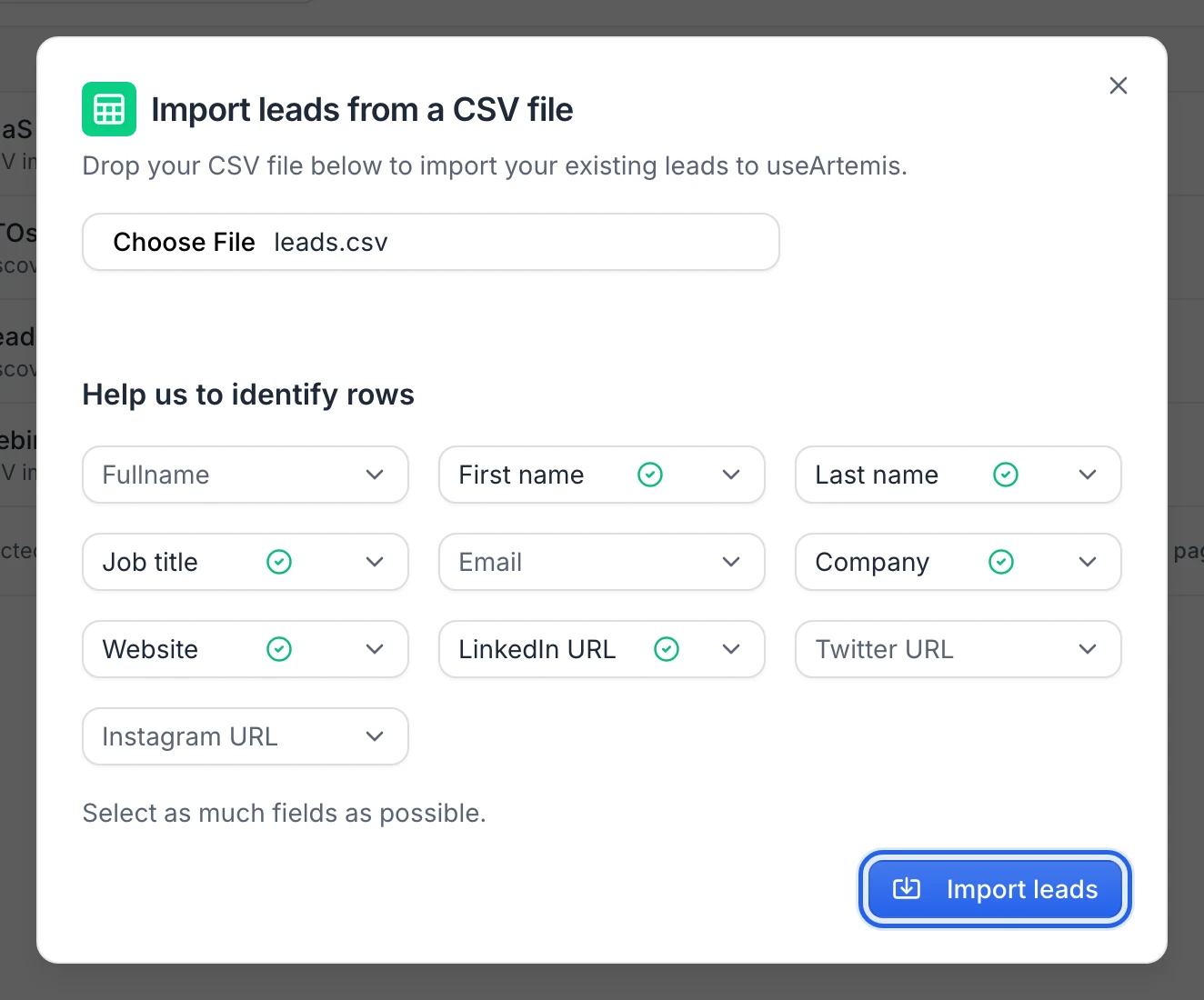
You see Your leads are being imported! and land on the new list. The list is named after your file (for example leads.csv); you can rename it from the Prospects page, see Manage your lead lists.
You can leave the page during the import: it keeps running.
Fields you can map
Map as many fields as your file has. Columns you don't map are listed under Other columns, where you can keep them as custom variables; the others are ignored. To undo a mapping, open the menu and pick Not in my file.
| Menu | What it fills | Good to know |
|---|---|---|
| Fullname | Lead name | If you don't map it, the name is built from Firstname and Lastname. |
| Firstname | First name | |
| Lastname | Last name | |
| Job title | Job title | |
| Imported as is, shown as Unverified. | ||
| Company name | Company | |
| Company domain | Company website | A domain (acme.com) or a website URL. |
| LinkedIn URL | LinkedIn profile | Values without linkedin.com/ are skipped. |
| Twitter URL | Twitter profile | Only twitter.com links are kept. |
| Instagram URL | Instagram profile | Only instagram.com links are kept. |
Keep other columns as custom variables
Every column you haven't mapped to a field is listed under Other columns, with a value from your file and the variable it becomes, such as {custom.message}. Keep as custom variable is on for every column that has values: switch it off for the columns you don't need. Columns that are empty in every row can't be kept.
Each lead of the list gets the value of its own row, as a custom property. Insert it in a connection note, a LinkedIn message or an email with its variable, and the campaign sends each lead the text of its row. For example, a Message column with a message written for each person, and a LinkedIn Message step whose text is {custom.message}. See Personalize messages with variables.
How the variable is named:
- The column name in lowercase, without accents, with every character other than a letter or a digit replaced by
_:Personalized messagebecomes{custom.personalized_message},Pain pointbecomes{custom.pain_point}. - A column whose name has no letter or digit (or no name at all) is named after its position:
{custom.column_5}. - When two columns get the same name, the second one ends with
_2.
What's saved:
- Values are saved without the spaces at the start and end. Line breaks inside a value are kept.
- Empty cells are skipped: the lead has no value for that variable. Add a fallback in your messages, such as
{custom.message|…}, or check the preview. - Up to 2,000 characters per value (longer values are cut) and up to 30 columns per import.
- The columns you keep can hold up to 4 million characters in all, for the whole file. Above that, the dialog says the columns hold too much text for one list and Import leads stays disabled: switch off the columns you don't need, or split the file.
The values show as columns of the list and in the lead panel under Custom properties, where you can edit them. See Lead profile.
Emails in your file
When your file has an Email column:
- The email is saved on the lead with the Unverified status: useArtemis doesn't check it during the import. To check addresses, use the Verifier.
- In a list created from the file, leads that already have an email are counted as enriched, and Find emails skips them, so they don't use credits.
Duplicates
The import doesn't look for duplicates. Every row becomes a new lead, even if the same person appears twice in the file or is already in another list. After the import, open the list and use ⋯ › Remove duplicates. See Remove duplicates.
Import into an existing list
To add the rows of a file to a list you already have:
- Open the list from Prospects.
- Click ⋯ (More actions) next to Find emails, then Import a CSV.
- Choose the file, map the columns and choose the custom variables as above.
- Click Import leads, then reload the page to see the new leads.
Two differences with a new import:
- Only LinkedIn profile URLs (
linkedin.com/in/…) are kept from the LinkedIn URL column. - Leads that come with an email are still searched by Find emails, which can add a second email and use a credit.
FAQ
Can I send a different message to each lead?
Yes. Write the message of each person in a column of your file (for example Message), keep that column as a custom variable when you import it, and use {custom.message} in the step. Preview shows the message of the lead you pick, line breaks included. See Personalize messages with variables.
Why is the Import leads button disabled?
You haven't mapped enough fields yet. Map LinkedIn URL, or all three of Firstname, Lastname and Company name.
Why are names and companies in lowercase?
The import stores names, job titles and company names in lowercase. The app shows names and company names with capital letters, and campaign messages capitalize first and last names. Job titles and company names are inserted in messages as stored.
Does importing a CSV use credits?
No. Credits are only used when you run Find emails on the list (1 credit per email found).
Was this article helpful?
Related articles
Still need help?
Write to hello@useartemis.co with your account email and what you were trying to do.