Quick start: from signup to your first campaign
Create your free account, add leads, prepare a campaign, then subscribe to connect LinkedIn or a mailbox and launch it, step by step.
Updated October 27, 2026
On this page
This guide takes you from a new account to a running campaign: create your free account, add leads, prepare a campaign, then subscribe to connect the account you send from and launch it. Each step links to a detailed article if you need more.
Step 1: Create your free account
- Go to https://useartemis.co/register. The page also exists in French and Spanish.
- Fill in First name, Last name, Work email and Password, then click Create account. You can also click Continue with Google to sign up with your Google account.
- Answer the five questions on Tell us a bit about you: Company name, Your role, Company size, What do you want to do with useArtemis? and How did you hear about us? They're in the language of the page you signed up on.
- Click Continue.
The app opens right away, without a card or a checkout. If you answered Find new leads, it opens on Discover; Get verified emails opens Prospects with the Import leads window; the other answers open the AI agent.
If you see "Email has already been taken", an account already exists with this address: log in instead, or reset your password from the login page.
Your free account includes Discover, lists, CSV import, the AI agent and campaign drafts, with daily limits (30 Discover searches and 15 messages to the AI agent a day). A bar at the top of the app reminds you what's free, with a Subscribe button. Finding emails, connecting LinkedIn or a mailbox and launching campaigns come with a subscription. See Free account: what's included.

Step 2: Follow the checklist on Home
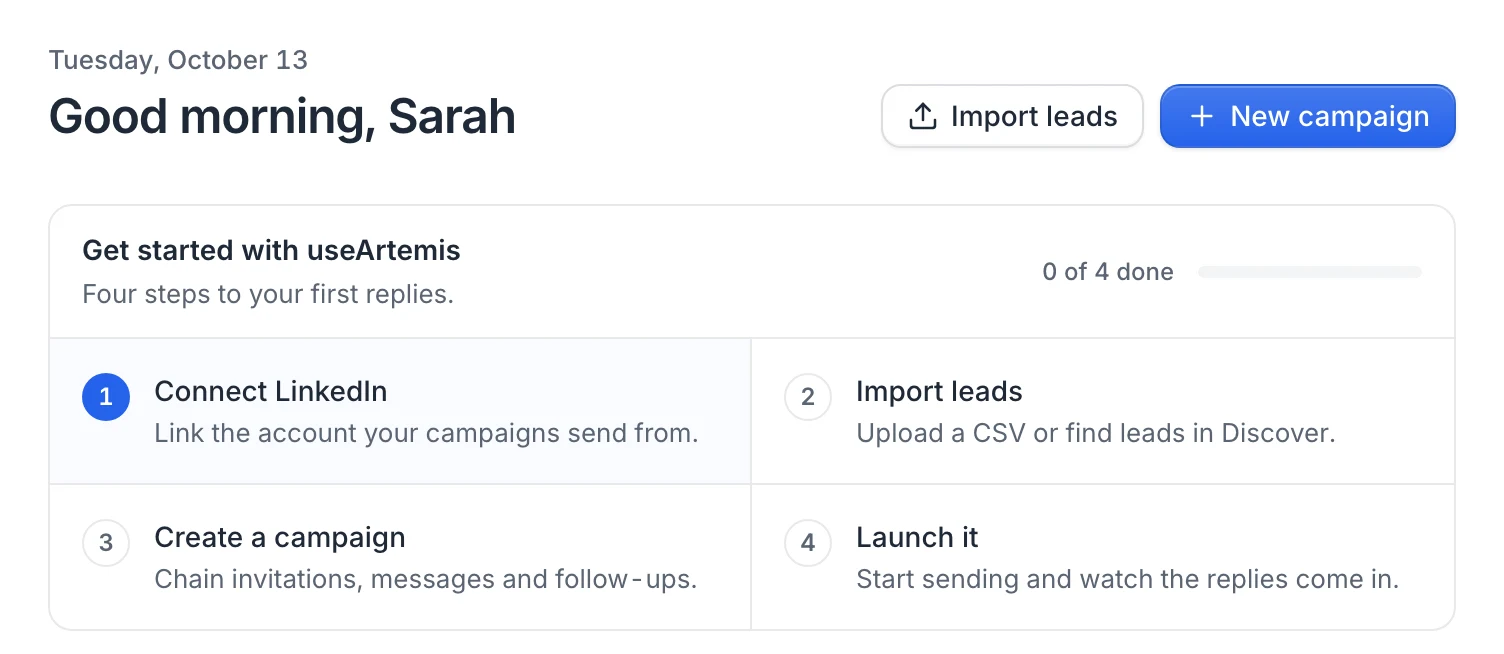
The Home page shows a Get started with useArtemis checklist with four steps: Import leads, Create a campaign, Connect LinkedIn and Launch it. Click a step to open the right page. The checklist ticks each step when it's done and disappears once all four are complete.
Tip: Prefer to describe who you want to reach? Open the AI agent: it finds the people, saves them to a list and prepares your campaign. See Get started with the AI agent.
Step 3: Add leads
- On Home, click Import leads (or go to Prospects and click Import leads).
- Choose where your leads come from:
- Upload a CSV file with the leads you already have.
- Find leads in Discover to search the lead database by title, company, location and industry.
- Save leads from LinkedIn to get the Chrome extension, which saves the LinkedIn profiles you visit, finds their email and exports LinkedIn or Sales Navigator searches to a list.
Your leads are saved in a list. To send emails, find the emails for your list first (finding emails comes with a subscription). More options in Add leads to useArtemis.
Step 4: Create a campaign
- On Home or on Campaigns, click New campaign.
- Pick how to start:
- Write it with AI (recommended): describe your offer, choose what prospects should do and the language, then pick the list to reach. The AI writes the invitation and every follow-up.
- Start from scratch: open the sequence builder with a default sequence and write each step yourself.
- Review the steps in the sequence builder and adjust the messages.
The campaign is saved as a draft. See Create a campaign and Sequence steps.
Step 5: Subscribe, then connect LinkedIn or a mailbox
Your campaigns send from your own accounts, and connecting them comes with a subscription.
- Click Subscribe in the bar at the top of the app, then Subscribe now. The secure Paddle checkout opens on the Starter plan ($69 per month). To pick another plan, click Compare plans instead. See Plans and credits.
- Pay your first month. You see Payment confirmed. Opening your account… and the app opens on your subscription, with your plan's credits.
- Connect the accounts you send from:
- LinkedIn: go to Settings › LinkedIn accounts and click Connect LinkedIn account. You log in on a secure LinkedIn connection page. See Connect your LinkedIn account.
- Email: go to Settings › Email accounts and click Connect mailbox. See Email accounts.
You need LinkedIn for LinkedIn steps and a mailbox for email steps. One of the two is enough to start.
Step 6: Launch it
- Open the campaign and click Launch campaign.
- Check the confirmation window. If something blocks the launch, it lists what to fix under Fix these first:, for example a missing list or a step without a LinkedIn account.
- Click Launch.
Leads of the list enter the sequence and the first actions go out within the campaign's working hours. Follow the results on Home, in the campaign, and answer replies in the Inbox. See Launch a campaign.
FAQ
Can I try useArtemis without a card?
Yes. The free account needs no card and has no time limit. You enter payment details only when you subscribe.
Can I build my campaign before paying?
Yes. On the free account you can find leads in Discover, import your own, build lists and prepare campaigns, alone or with the AI agent. Finding emails, connecting LinkedIn or a mailbox and launching wait for your subscription: click Subscribe when you're ready, and everything you've prepared stays as it is.
I started with Google. Do I have a password?
No. Log in with Continue with Google, or set a password with Forgot password? on the login page. See Log in, reset your password and log out.
Was this article helpful?
Related articles
Still need help?
Write to hello@useartemis.co with your account email and what you were trying to do.