Get started with the AI agent
Chat with the AI agent to find leads, choose who to target and prepare LinkedIn campaigns: what it can do, how conversations work and what it costs.
Updated October 27, 2026
On this page
The AI agent is a prospecting assistant you talk to in plain language. Tell it what you sell and who you want to reach: it helps you choose your targets, finds the people in the lead database, saves them to a list and prepares your LinkedIn campaign. You stay in control: nothing is sent to anyone until you approve the launch of a campaign.
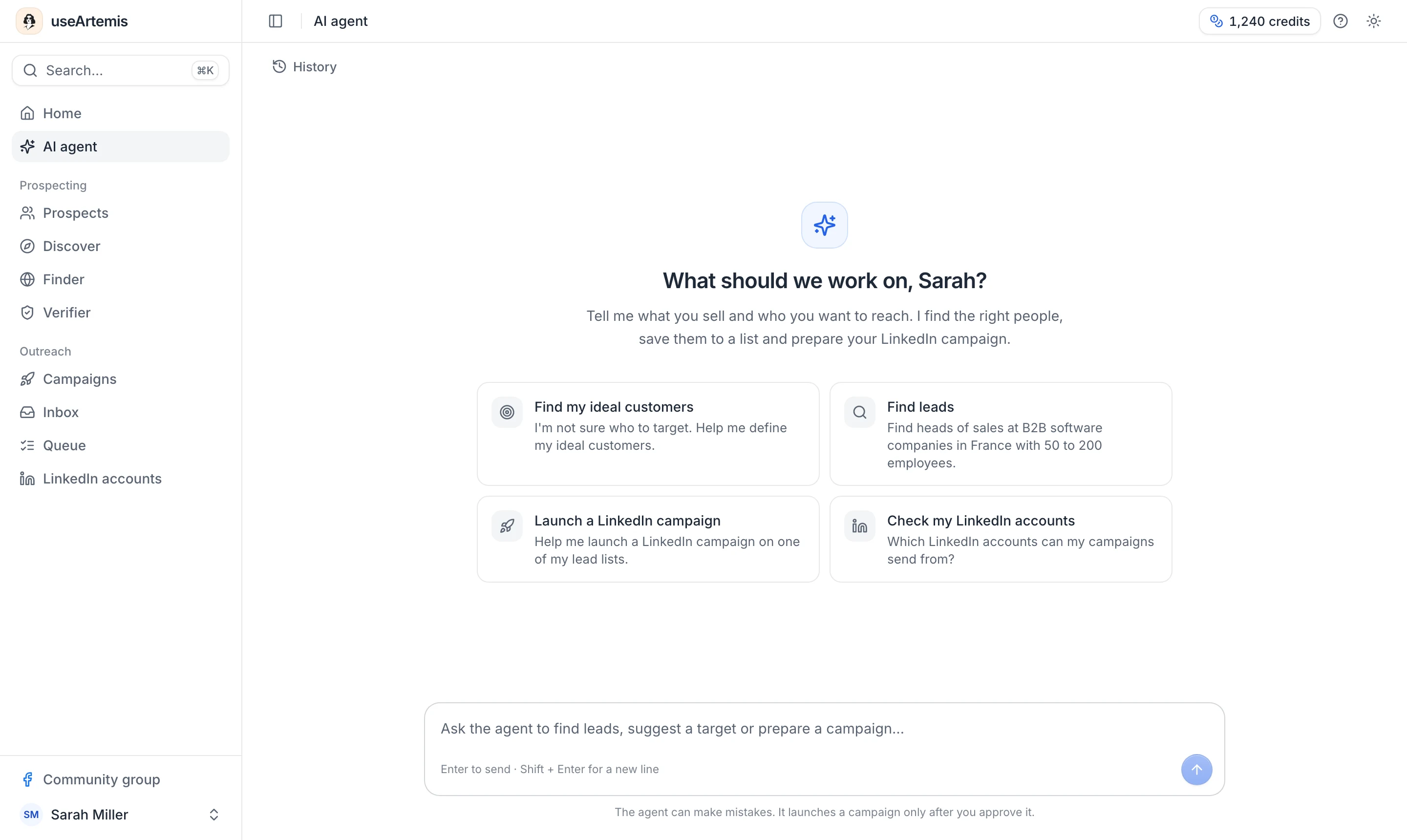
Open the AI agent
- In the sidebar, click AI agent, right under Home.
- Type your request in the box at the bottom ("Ask the agent to find leads, suggest a target or prepare a campaign…"), or click one of the suggestions: Find my ideal customers, Find leads, Launch a LinkedIn campaign or Check my LinkedIn accounts.
- Press Enter to send. Use Shift + Enter for a new line.
Write the way you'd brief a colleague, in your own language: the agent answers in the language you write in. "We sell sales forecasting software to B2B teams, who should we target?" or "Find heads of sales at software companies in Germany with 50 to 200 employees" both work.
What the agent can do
- Help you choose who to target. It asks what you sell, can read your website when you give its address, and proposes target segments (job titles, seniority, company size, industries, locations), each with the reason it fits your offer.
- Find people. It searches the lead database and shows the results in a lead table, like a list in Prospects: 25 people per page, with their job title, company, location and a Reveal button for their email.
- Find companies by name, location, industry and size, and give you the details of a company.
- Find the email of one person when you give their name and company.
- Save people to a lead list (up to 1,000 at a time).
- Check your LinkedIn accounts and let you connect one.
- Prepare a LinkedIn campaign on a list, with the messages written by AI for each lead, show its sequence like the campaign builder does, change it when you ask, and launch it once you approve.
The whole path, from choosing a target to launching a campaign, is described in Go from target to LinkedIn campaign with the AI agent.
Follow what the agent does
While the agent works, each step shows up as a line in the conversation, for example "Searching Head of Sales in Germany", followed by its result ("3,412 people found"). Results come as cards: lead tables, target segments, lists, LinkedIn accounts and campaign drafts. Click Reasoning above an answer to see how the agent thought it through.
When the agent needs a decision from you, it asks a question with clickable answers, or an approval before launching a campaign. Click one (or several, then Send answer when it accepts several), or type your own answer in the message box.
To stop an answer in progress, click the square button in the message box.
Your conversations
Conversations are saved: you can leave the page and come back later, every card is still there.
- History (top left) lists your recent conversations. Click one to reopen it, or the trash icon to delete it.
- New chat (top right) starts a new conversation.
The agent remembers everything said in the same conversation: you can refine a search ("only in Berlin", "add VP Sales") without repeating the rest. A new chat starts from scratch.
In a team workspace (/teams/<team-id>/agent), the History shows the conversations you had in that workspace, and the lists and campaigns the agent creates there belong to the team. See Work with your team.
What it costs
- Talking to the agent, searching people and companies and saving them to a list don't use credits.
- Revealing an email in a lead table, or asking the agent to find someone's email, uses 1 credit when an email is found, and nothing otherwise. It comes with a subscription: on a free account, the agent shows an Upgrade button instead. If you see Email search unavailable, no credit is used: try again in a moment. Revealing the same person again is free, and saving people to a list copies the emails you revealed. In a team workspace, the team's credits are used.
On a free account
The AI agent is part of the free account, with 15 messages a day. Each message you send counts, including your answers to its questions. When you reach the limit, the window You've reached today's free limit offers to subscribe; otherwise, you can write to the agent again after midnight, Paris time. Paging through a lead table counts as a Discover search, and a free account gets 30 of those a day.
On a free account the agent finds people, saves them to lists and prepares your campaigns. Finding emails, connecting LinkedIn and launching a campaign come with a subscription: the agent shows an Upgrade button for them. See Free account: what's included.
Good to know
- Campaigns only start after your approval. Before launching, the agent always asks with an approval card (Approve and launch / Not now). It never sends a message by itself.
- Check what matters. The agent can make mistakes: look at the people it found and at the campaign before you launch it.
- Same availability as Discover. The AI agent isn't included with AppSumo Lifetime plans: the page shows The AI agent isn't available on your plan. See AppSumo.
FAQ
The agent shows an error. What should I do?
Click Try again under the error to send your last message again. If the AI is busy, the message says so: wait a minute and try again. If it keeps happening, start a New chat or contact hello@useartemis.co.
Can the agent use one of my existing lists?
Yes. Ask it to prepare a campaign on a list you already have, by name: it looks it up in your lists.
Does the agent read my website?
Only when you give it the address, or when your company website is already in your account (from a campaign you created with Write it with AI). It reads the page to understand what you sell, nothing else.
Was this article helpful?
Related articles
Still need help?
Write to hello@useartemis.co with your account email and what you were trying to do.