Find your way around the app
A tour of useArtemis: the sidebar sections, the Home dashboard, the ⌘K command menu, the account menu, credits, Settings and dark mode.
Updated October 27, 2026
On this page
Everything in useArtemis is one click away from the sidebar on the left. The header shows where you are and your credits, and the command menu (⌘K on Mac, Ctrl+K on Windows) jumps to any page. This article explains each part of the screen.
The sidebar
The sidebar starts with Home, your dashboard, and the AI agent, an assistant you chat with to find leads and prepare campaigns (see Get started with the AI agent). Then it groups the pages by what you're doing.
Prospecting
| Page | What you do there |
|---|---|
| Prospects | Your lead lists: import, enrich with emails, export, use in campaigns |
| Discover | Search the lead database for people and companies |
| Finder | Find the people and emails behind a company domain |
| Verifier | Check that an email address exists before you send to it |
Outreach
| Page | What you do there |
|---|---|
| Campaigns | Build, launch and follow your LinkedIn and email sequences |
| Inbox | Read and answer your LinkedIn conversations |
| Queue | See the next action scheduled for each lead of your running campaigns |
| LinkedIn accounts | Connect and manage the LinkedIn accounts your campaigns send from |
To get more room, click the panel icon at the top left of the header (Collapse sidebar). The sidebar shrinks to icons; hover an icon to see its name, and click the same button (Expand sidebar) to bring it back.
When you open a campaign, the sidebar and header make way for the sequence builder. Use the back arrow at the top left (Back to campaigns) to return to your campaigns.
Note: On AppSumo Lifetime accounts, AI agent, Discover, Campaigns and Queue show a lock: they need a subscription. See AppSumo.
The account menu
Click your name at the bottom of the sidebar to open the account menu. It shows:
- Your name and email.
- Credits: your credit balance and the credits your plan adds each month (unused credits carry over).
- Settings, with the tabs Account, Security, Enrichment, LinkedIn accounts, Email accounts, Billing and API. See Edit your profile and account settings.
- Help center, Plans & pricing and Affiliate program.
- Dark mode (or Light mode) to switch the theme.
- Log out.
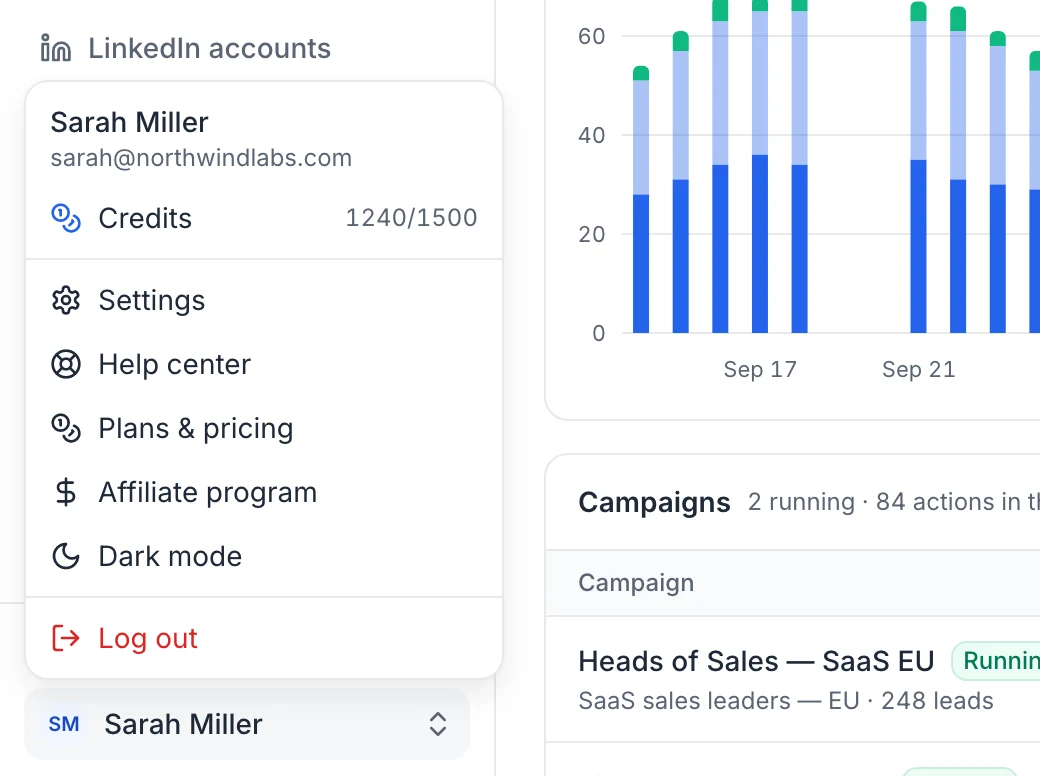
Above it, Community group opens the useArtemis Facebook group.
The header
The bar at the top of every page shows:
- The breadcrumb: the page you're on, for example Settings › LinkedIn accounts. Click a part to go back to it.
- Your credits: click the number to open Settings › Billing.
- Help (question mark icon): Help center, Plans & pricing and Community group.
- Toggle theme (sun or moon icon): switch between light and dark mode.
Search and the command menu
Press ⌘K (Mac) or Ctrl+K (Windows), or click Search… at the top of the sidebar. Type a few letters, then press Enter:
- Go to: every page of the sidebar, plus Settings and Billing.
- Actions: Switch to dark mode (or light mode) and Help center.
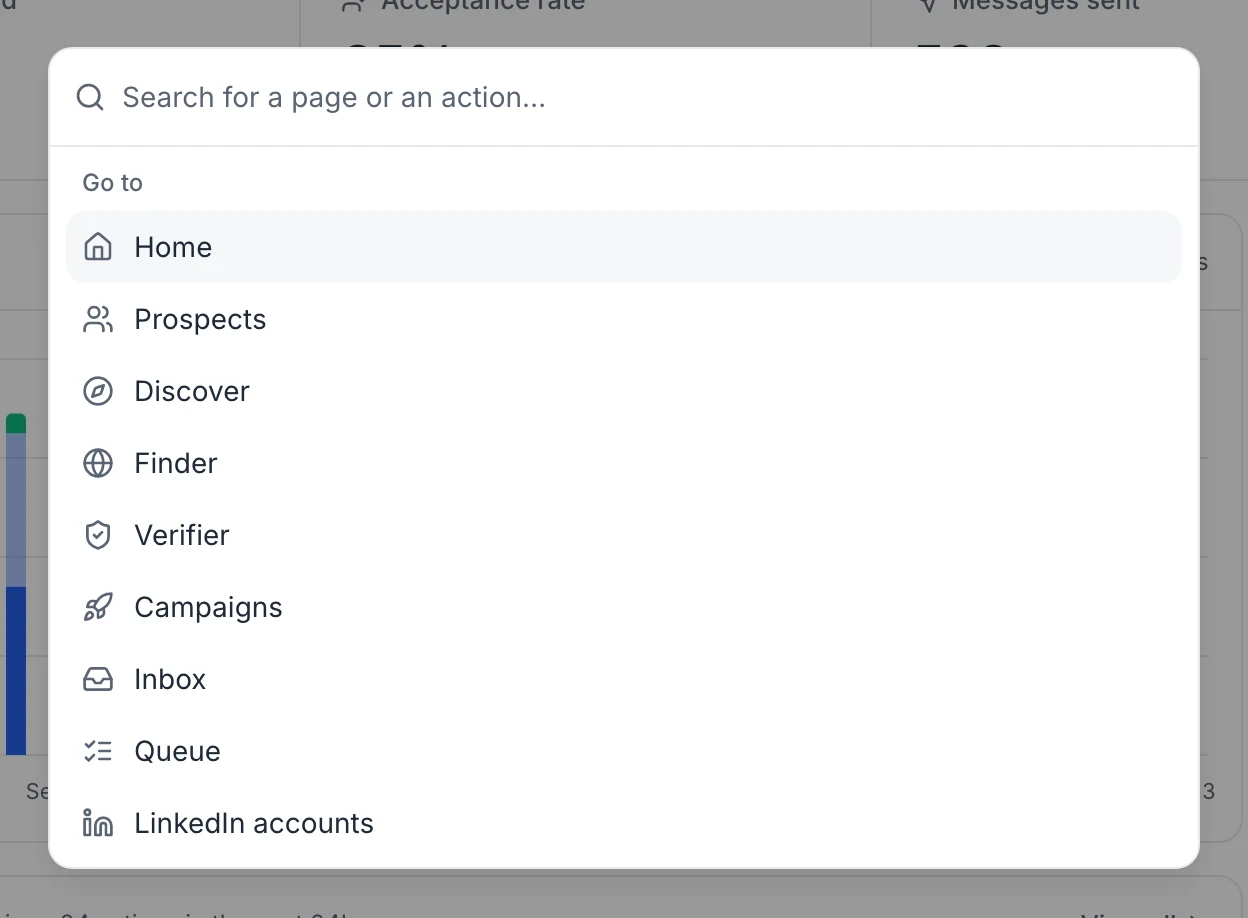
Press ⌘K or Ctrl+K again, or Esc, to close it.
The Home dashboard
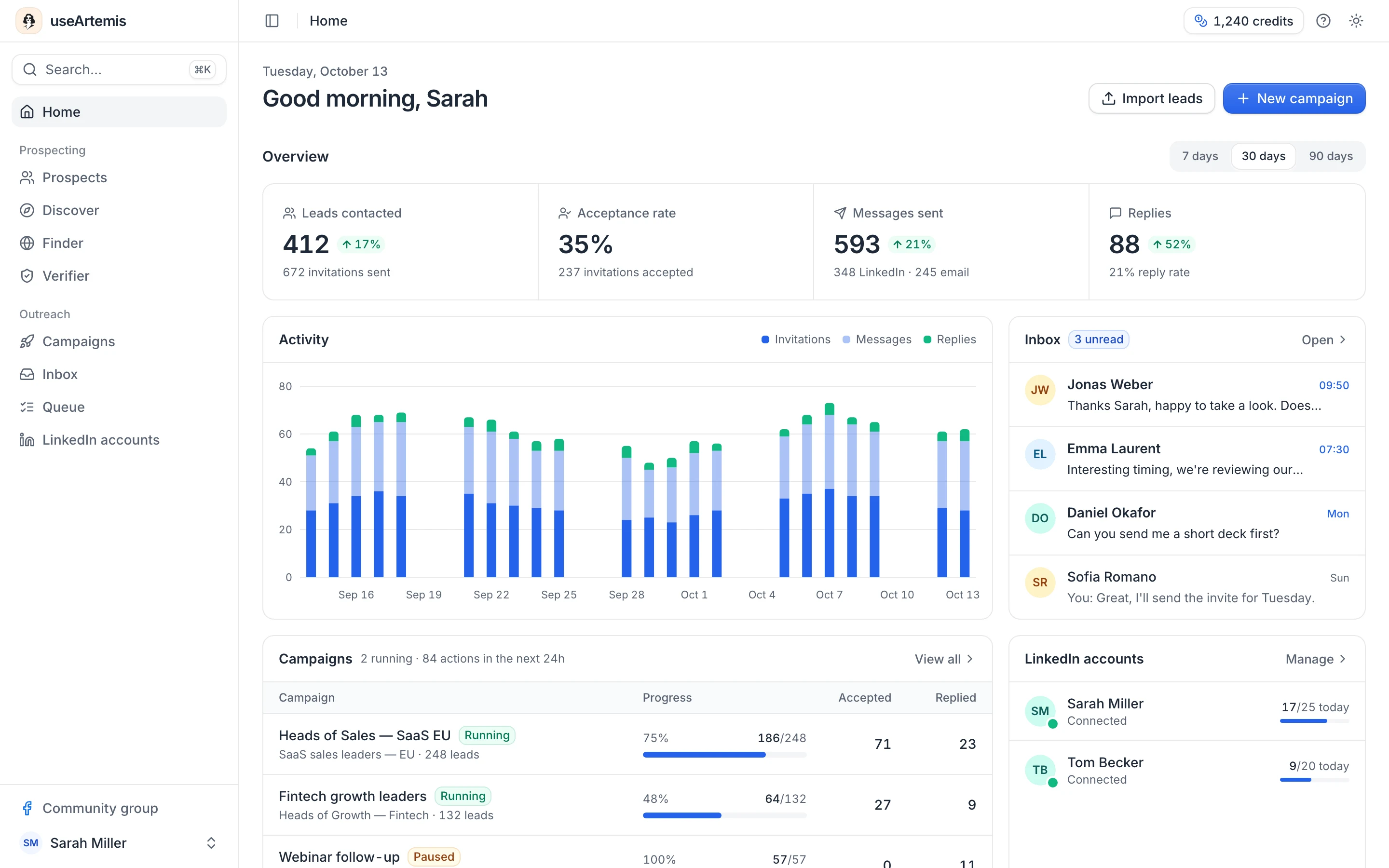
Home greets you and has two buttons at the top: Import leads and New campaign. Below them:
Get started with useArtemis: a four-step checklist (Import leads, Create a campaign, Connect LinkedIn, Launch it). It disappears when all four steps are done.
Overview: appears once your campaigns have sent something. Pick 7 days, 30 days or 90 days to see:
- Leads contacted, with the number of invitations sent.
- Acceptance rate: accepted invitations out of invitations sent.
- Messages sent: LinkedIn messages and emails.
- Replies, with the reply rate.
The small percentage next to a number compares it with the previous period of the same length. The Activity chart shows invitations, messages and replies day by day.
Inbox: your latest conversations and the number of unread ones. Click Open to go to the Inbox.
Campaigns: your running campaigns first, with their status (Running, Paused or Draft), progress, accepted invitations and replies. The header line shows how many campaigns are running and how many actions are planned in the next 24 hours.
LinkedIn accounts: each account's status (Connected, Connecting… or Reconnection needed) and the invitations sent today against its daily limit. Click Manage to open the LinkedIn accounts page.
Recent lists: your latest lists with their number of leads. A list being enriched shows Enriching and its progress.
Prospecting tools: shortcuts to Discover, Email finder and Email verifier.
On AppSumo Lifetime accounts, Home shows your lists and the prospecting tools, and the second button is Find emails.
The free account bar
On a free account, a thin bar above the app says Free account. Discover, lists and the AI agent are free. Subscribe to find emails, connect LinkedIn and launch campaigns. Click Subscribe to see the Starter plan and open its checkout. The bar disappears once you subscribe, and isn't shown in a team workspace. See Free account: what's included.
Light and dark mode
Switch the theme from the header (Toggle theme), the account menu, or the command menu. To choose Light, Dark or System (follow your computer's setting), go to Settings › Account › Appearance. The choice applies to the browser you're using.
Team workspaces
If you belong to a team, its workspace has its own address: https://app.useartemis.co/teams/<team-id>. In a team workspace, the header shows the team's credits and the account menu shows Team credits. See Teams.
On a phone
On small screens the sidebar is hidden. Tap the menu icon at the top left to open a shorter menu (Home, Prospects, Campaigns, Settings, Help center and Affiliates Program), and your picture at the top right for Settings and Log out.
Was this article helpful?
Related articles
Still need help?
Write to hello@useartemis.co with your account email and what you were trying to do.