Log in, reset your password and log out
Log in with your email or Google, reset a forgotten password, set a password on a Google account, change it in Settings and log out.
Updated October 27, 2026
On this page
Log in at https://app.useartemis.co/login with your email and password, or with Continue with Google. If you forgot your password, click Forgot password? to get a reset link by email. You can change your password anytime in Settings › Security.
Log in
- Go to https://app.useartemis.co/login.
- Enter your Work email and Password.
- Click Log in.
Or click Continue with Google and pick your Google account.
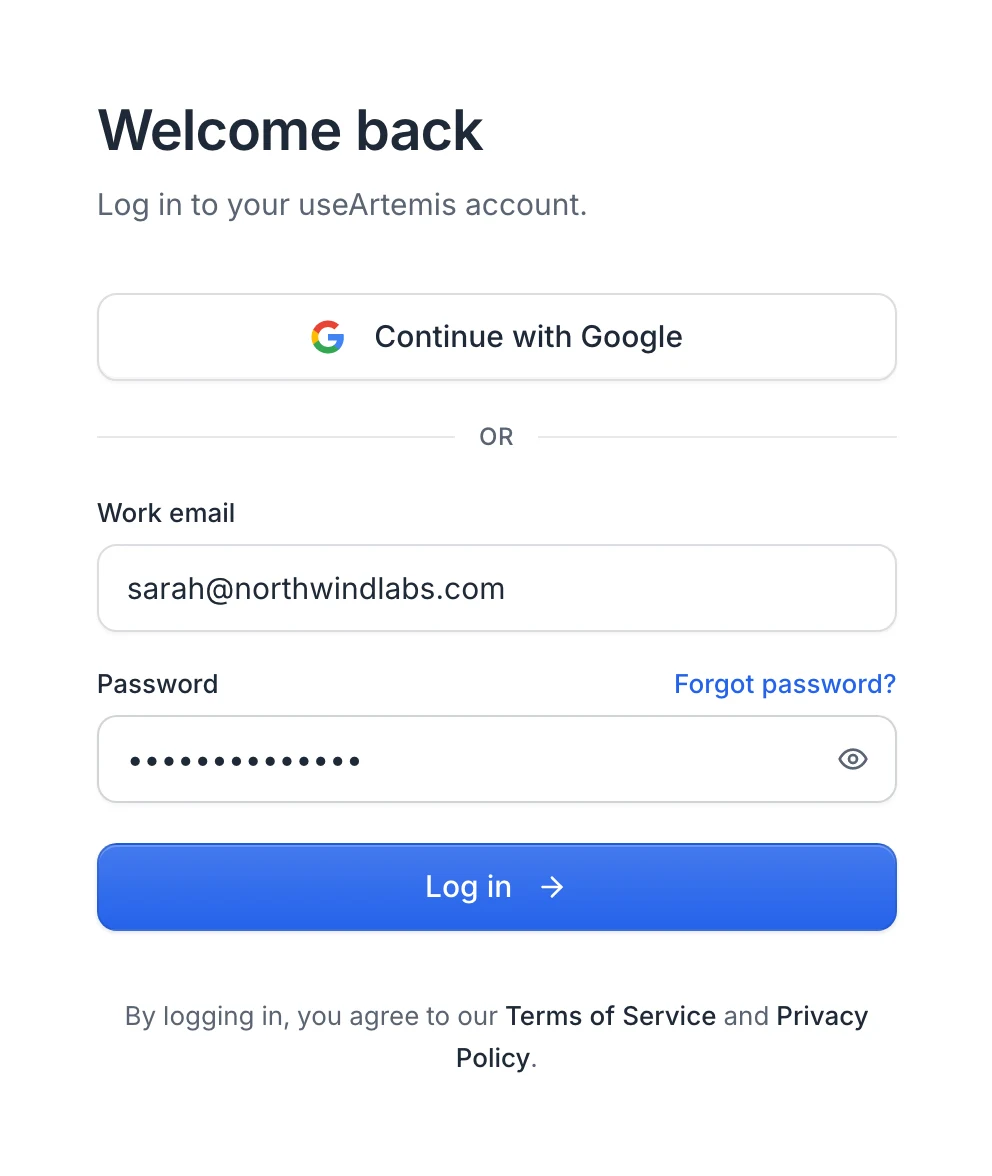
If the login fails, the page tells you why:
| Message | What it means |
|---|---|
| "Invalid Username or Password" | The email or the password is wrong. Check for typos, or reset your password. |
| "No password set. Login with Google" | Your account was created with Google. Click Continue with Google, or set a password with Forgot password? |
| "We couldn't reach our servers. Check your connection and try again." | Your connection dropped. Try again in a moment. |
Log in with Google
Continue with Google works on both the login page and the signup page:
- If a useArtemis account already uses the email of your Google account, you're logged in to it.
- If not, a new free account is created with that email, and you continue with the signup questions, then the app opens.
Tip: Pick the Google account whose email matches your useArtemis login. Choosing another one creates a second, empty account.
Reset a forgotten password
On the login page, click Forgot password? (or go to https://app.useartemis.co/forgot-password).
Enter your Work email and click Send reset link.
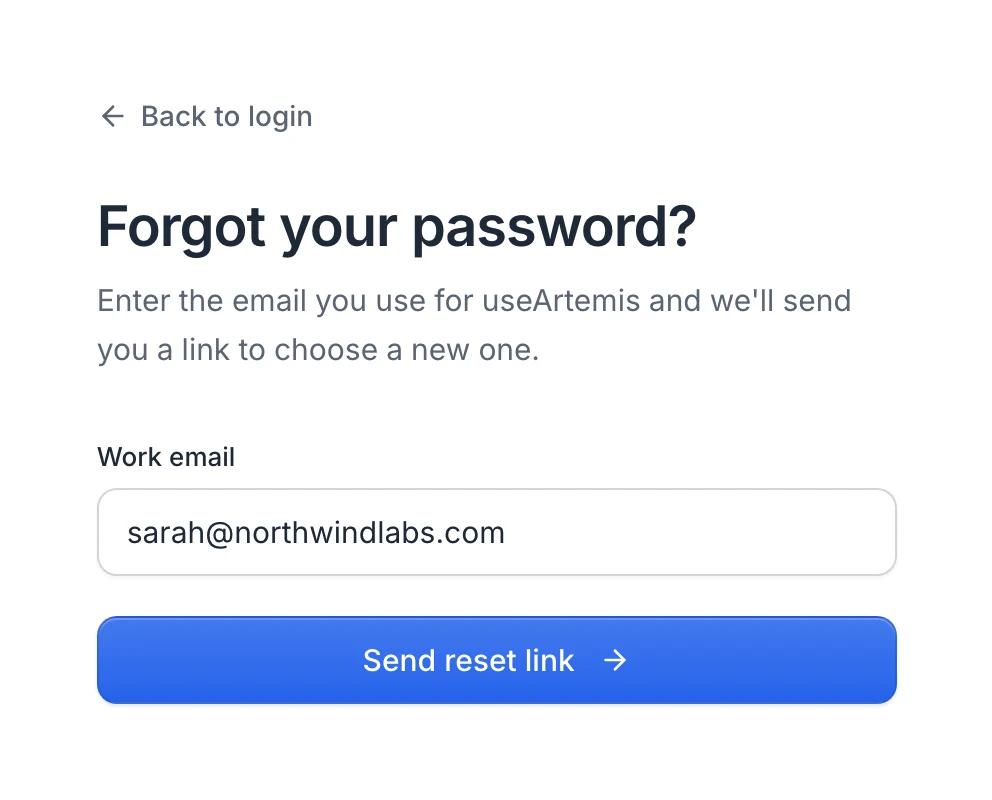
Open the email and click the link. It opens Choose a new password.
Type your New password and click Save my new password.
You're taken back to the login page with the message Your password has been changed. Log in with your new password.
Check your inbox appears whether or not an account exists for the address you typed, so a typo won't show an error. If the email doesn't arrive in a few minutes:
- Look in your spam or promotions folder.
- Check that you typed the email you signed up with, then click Use another email to try again.
If the reset page says "Invalid or expired password reset token", request a new link. Only the most recent link works.
Set a password on a Google account
Accounts created with Google don't have a password, so Settings › Security can't change it. To add one, open https://app.useartemis.co/forgot-password (the Forgot password? link of the login page) and request a reset link for your Google email. After that, you can log in either way.
Change your password
- Go to Settings › Security.
- Enter your Current password.
- Enter a New password (at least 8 characters) and type it again in Confirm new password.
- Click Update password.
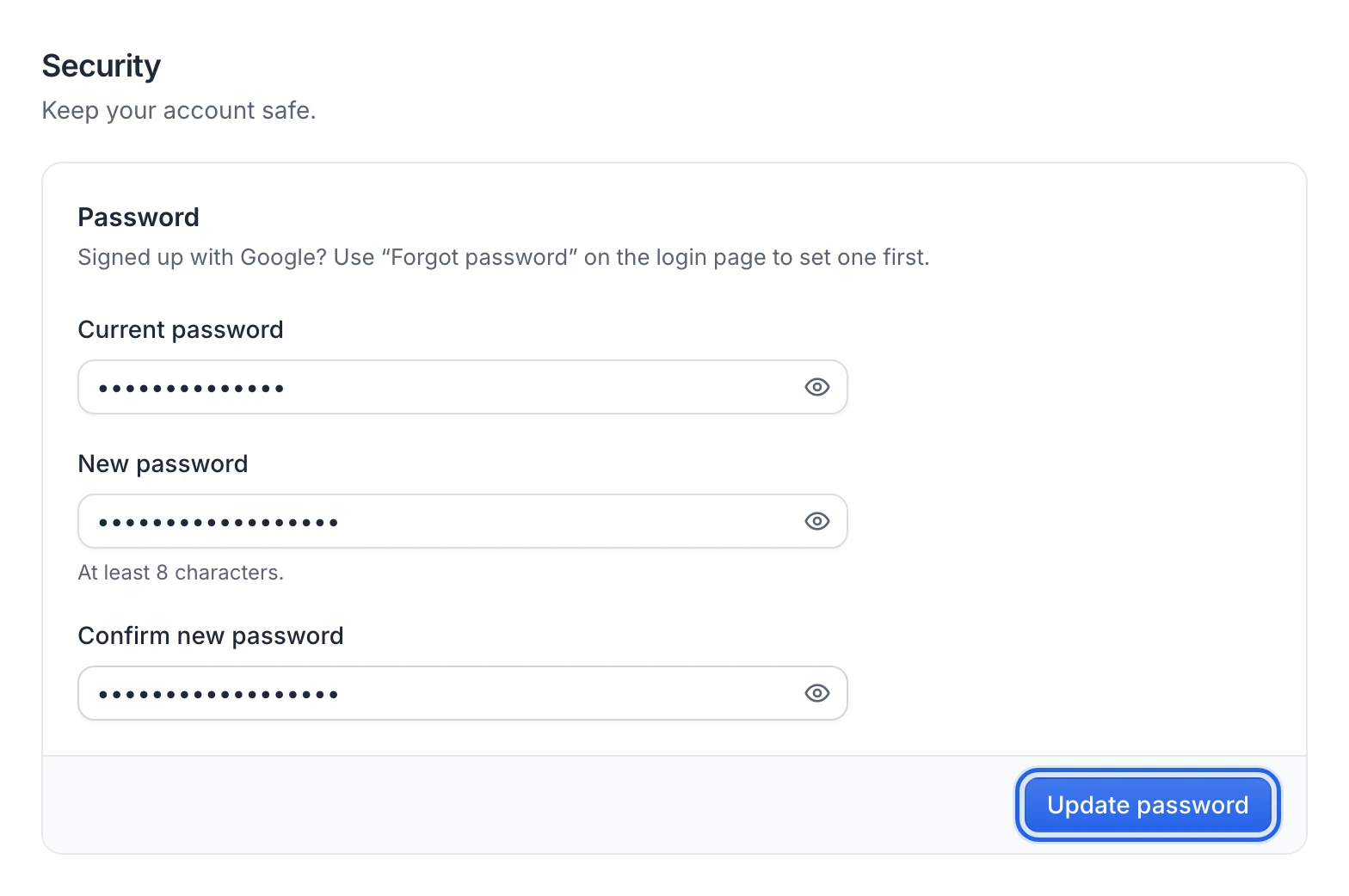
You see Password updated. If the current password is wrong, you get Couldn't update your password with "Incorrect current password". If the two new passwords differ, "The passwords don't match." appears under the field.
Log out
Click your name at the bottom of the sidebar, then Log out. On a phone, tap your picture at the top right, then Log out. You're logged out of the browser you're using and taken back to the login page.
FAQ
Can I change the email I log in with?
Not from the app. Contact us at hello@useartemis.co with your current and new addresses.
I was added to a team. What's my password?
If you didn't have a useArtemis account, one was created for your email without a password you know. Use Forgot password? with that email to choose one, or Continue with Google if it's a Google address. See Teams.
Is there two-factor authentication?
Not for useArtemis logins today. Use a password you don't use on other websites, or log in with Google and protect your Google account with 2-Step Verification.
Was this article helpful?
Related articles
Still need help?
Write to hello@useartemis.co with your account email and what you were trying to do.