Use several LinkedIn accounts in your campaigns
Connect several LinkedIn accounts, how many your plan includes, and how to pick one per step or rotate leads between senders in the same campaign.
Updated October 27, 2026
On this page
You can connect several LinkedIn accounts and use them in the same campaign, either by choosing an account on each LinkedIn step or by letting the campaign rotate its leads between several accounts. Each account keeps its own limits, so more accounts means more volume without pushing any single one.
How many accounts your plan includes
| Plan | LinkedIn accounts |
|---|---|
| Starter | 2 |
| Scale | 5 |
| Agency | 10 |
LinkedIn accounts come with a subscription, not the free account: on a free account, connecting one opens a window to subscribe. See Free account: what's included.
Need more accounts than your plan includes? Move to a bigger plan (see Change your plan and pricing) or write to hello@useartemis.co.
Connect each account
Repeat the connection for each LinkedIn profile:
- Go to LinkedIn accounts and click Connect LinkedIn account.
- Log in on the secure page with the LinkedIn profile you want to add. The person who owns the profile may need to enter the verification code LinkedIn sends them.
- Back in useArtemis, the new account appears under Connected accounts. The counter next to the title shows how many accounts you have.
Connecting a profile that is already in the list updates its card instead of adding a duplicate. Full steps: Connect your LinkedIn account.
Note: With the Chrome extension, each account uses the LinkedIn session of the browser it was connected from. Don't log out of one LinkedIn profile to connect the next one in the same browser: that disconnects the first account. Use a separate Chrome profile for each LinkedIn account, or the secure page above.
Option 1: choose the account on each step
Every LinkedIn step of a sequence (visit, invite, message, like, withdraw) has a Sent from field. The step sends from the account you pick there; the menu shows whether each account is connected and which ones have LinkedIn Premium.
Use the same account on all the steps of a sequence: messages can only go to people who accepted an invitation from that account. The Accepted invite and Replied message waits (and the LinkedIn conditions) check the account that contacted each lead, so there's no account to choose on them.
This option is the right one when each campaign belongs to one person, for example one campaign per sales rep.
Option 2: rotate leads between accounts
To spread one campaign's leads over several accounts:
Open the campaign and click the gear icon Campaign settings at the top.
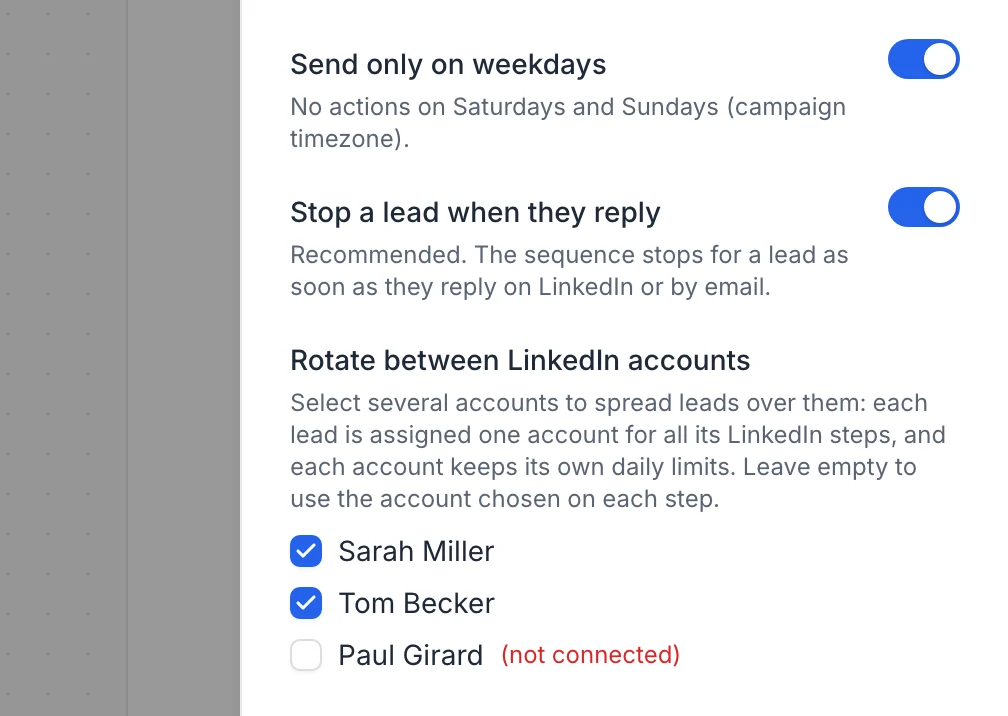
Under LinkedIn › Rotate between LinkedIn accounts, click the accounts to use (click again to remove one). Each account shows its status (Connected, Reconnect or Disconnected), Premium when it is, and its own daily limits.
Click Save settings.
How the rotation works:
- Leads don't get an account at launch. Each lead is given one when it's first contacted on LinkedIn (its first visit, connection request, like or message), among the selected accounts that can still act that day: connected, not on hold, and under their daily limit (and their weekly limit, for connection requests). The account with the most room left that day goes first; between two with the same room, the one with fewer leads in the campaign.
- From then on, that account runs all of the lead's LinkedIn steps, including the checks for accepted invitations and replies.
- When no selected account has room left, the leads not contacted yet wait together until the first one frees up, usually at the next opening of the working hours.
- A lead who's already a connection of one of the selected accounts gets that account when the sequence checks it with an Is connected with me condition before contacting them.
- Each account keeps its own daily and weekly limits. Three accounts at 25 invitations a day can send up to 75 invitations a day for the campaign, within the campaign's own Connection requests limit.
- In the Leads tab, a lead not contacted yet shows its place in the line shared by all the selected accounts, for example "#12 of 500 waiting for a profile visit from one of the campaign's 3 LinkedIn accounts", and how many they send a day together.
- While rotation is on, the account selected on each step is not used: the steps show Rotating between N accounts under Sent from instead of an account to choose, with a link to Campaign settings.
- Leave the list empty to go back to the account chosen on each step.
Tip: Raise the campaign's Connection requests and Messages (under Daily limits of this campaign) when you add accounts to the rotation. Each limit shows what your selected accounts allow in total. Otherwise the campaign cap limits the total, whatever the number of accounts.
Warning: Turn rotation on before you launch the campaign. If you turn it on in a campaign that already started with an account chosen on each step, include that account in the selection: the leads it already contacted keep it. Leads whose account isn't selected get a rotation account at their next LinkedIn step, which may not be the account that sent their invitation, so their messages can fail. Leads not contacted yet simply get an account at their first LinkedIn step.
When an account in the rotation is disconnected
- You can still launch the campaign as long as at least one account of the rotation is connected.
- Leads not contacted yet go to the other selected accounts: they don't wait for it. The same goes for an account on hold or at its daily limit.
- If an account gets disconnected or hits a LinkedIn limit just as it contacts a new lead, nothing is sent and that lead is given another account within a few minutes.
- Leads the disconnected account already contacted wait for it: they don't move to another account by themselves. Reconnect it (see Fix a disconnected LinkedIn account) and they resume.
- To move those leads to the other accounts instead, remove the disconnected account from Rotate between LinkedIn accounts (click it) and save. At their next LinkedIn step, they get one of the selected accounts with room left. Keep in mind that a new account can only message leads who accepted its own invitation.
Replies and the Inbox
Conversations from every connected account appear in the Inbox. When a lead replies to any account used by the campaign, their sequence reacts the same way (stops, or moves on in a Replied message branch).
FAQ
Can my teammates use their own LinkedIn accounts?
Yes. Each teammate connects their own LinkedIn account from their own useArtemis login, and logs in on the secure page with their own LinkedIn credentials. See Teams.
Can two accounts contact the same lead?
Within one campaign with rotation, no: each lead gets a single account, at its first LinkedIn step, and keeps it. Across different campaigns, nothing prevents it, so avoid putting the same leads in campaigns that use different accounts.
Does adding an account speed up a running campaign?
Yes. Leads get their account when they're first contacted, so an account you add to the rotation of a running campaign starts taking the leads not contacted yet right away, with its own daily limits. Leads already contacted keep their account. Leads started per day on Auto goes up with the new account's limits (a Custom number stays as you set it), and the campaign's own daily limits still cap the total: raise them if needed.
Was this article helpful?
Related articles
Still need help?
Write to hello@useartemis.co with your account email and what you were trying to do.