Read and answer your LinkedIn conversations in the inbox
Use the inbox to read and reply to your LinkedIn conversations, filter unread ones, and see each lead's emails, campaigns and activity next to the chat.
Updated October 27, 2026
On this page
The Inbox shows the LinkedIn conversations of the accounts you connected to useArtemis. You can read and answer them without opening LinkedIn, and see who you're talking to (their emails, their campaigns and what your sequences already did) in a side panel.
What appears in the inbox
- LinkedIn conversations only. The inbox shows the recent conversations of the LinkedIn accounts you connected in LinkedIn accounts, whether or not the person is one of your leads.
- One LinkedIn account at a time. If you connected several accounts, pick the one to show with the selector at the top of the conversation list.
- Text messages. Each message is shown as text, grouped by day.
- Email replies are not in the inbox. They arrive in your own mailbox (Gmail, Outlook…). They still count as replies for your campaigns, see How a reply affects your campaigns.
If you haven't connected a LinkedIn account yet, the inbox shows No LinkedIn account connected with a Connect LinkedIn button. See Connect your LinkedIn account.
Open a conversation
- Click Inbox in the sidebar, under Outreach (or go to https://app.useartemis.co/inbox).
- If you have more than one LinkedIn account, click the account name at the top left and choose the account. Under the name you see how many conversations are unread, or LinkedIn inbox when everything is read.
- Click a conversation in the list. The thread opens on the right, newest messages at the bottom.
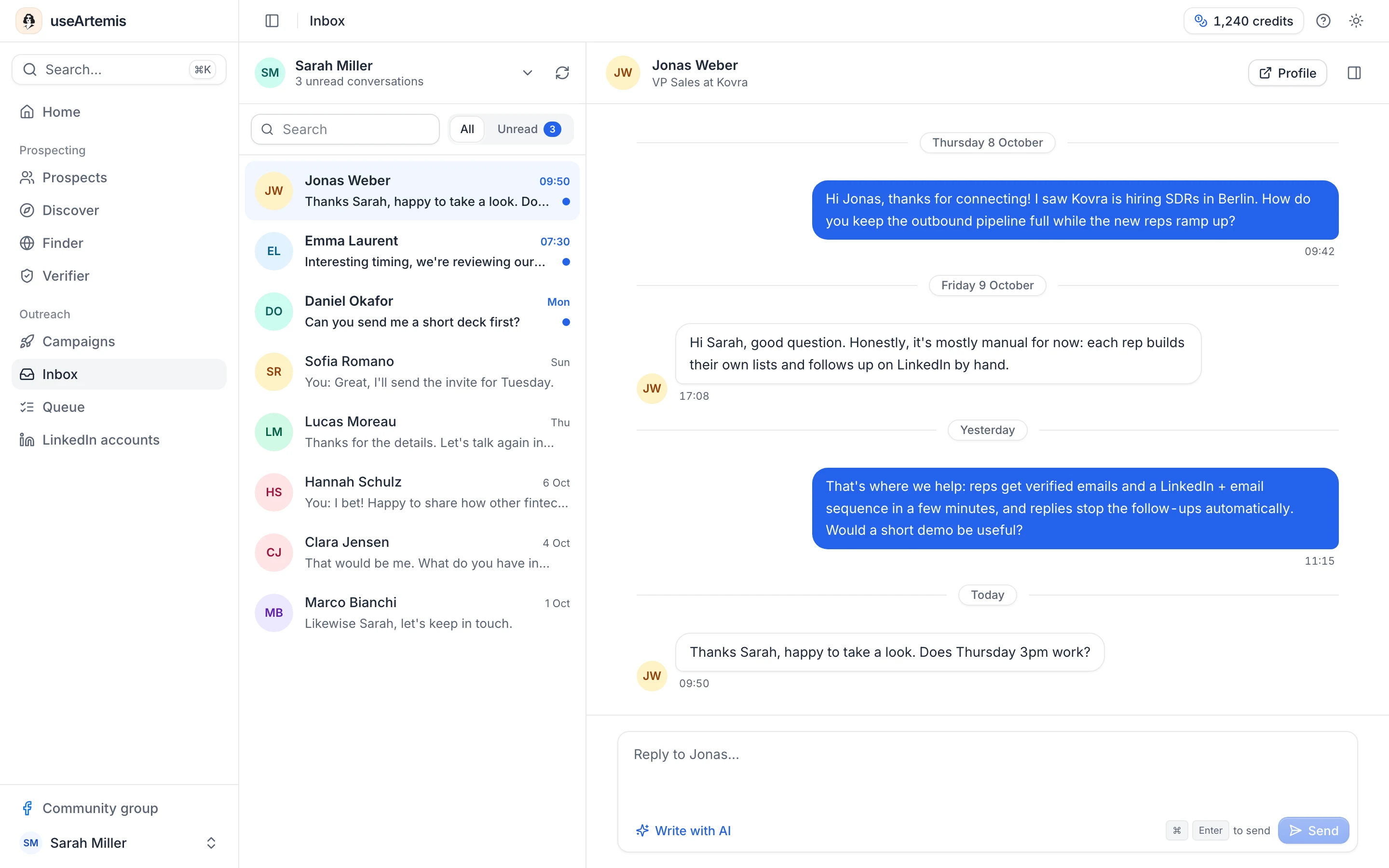
The header of the thread shows the person's name and headline. Profile opens their LinkedIn profile in a new tab.
Search and filter
- Search filters the list by the person's name.
- All shows every conversation. Unread shows only the unread ones, with a counter. When nothing is left, you see You're all caught up.
- The refresh button next to the account name (Refresh conversations) reloads the list.
Unread conversations have their name in bold and a blue dot. Opening one marks it as read in useArtemis only: it stays unread on LinkedIn, and can show as unread again in useArtemis the next time the conversation is synced.
New messages arrive on their own
You don't need to reload the page. When someone writes to one of your LinkedIn accounts, the conversation list updates by itself a moment later.
On LinkedIn accounts, the account card shows Real-time sync when new messages reach useArtemis as soon as they arrive, under the Keep the inbox in sync switch. If a conversation seems to be missing, click Sync inbox on the card to pull the latest conversations from LinkedIn, then Refresh conversations in the inbox.
Reply to a message
- Open the conversation.
- Type your answer in the box at the bottom (Reply to followed by the person's first name).
- Click Send, or press ⌘ + Enter on a Mac (Ctrl + Enter on Windows).
The Send button turns into a spinner for a second or two, then your message appears on the right of the thread with the time it was sent. If LinkedIn takes longer to confirm it, it first shows Sending… under it for a few seconds. It's sent from the LinkedIn account selected at the top of the list, exactly as if you had answered on LinkedIn.
If something goes wrong, an Error sending message notice explains why, and your text stays in the box so you can try again.
Tip: Click Write with AI to get a draft reply based on the conversation, then edit it before sending. See Reply with AI.
Note: If an account card on LinkedIn accounts says the account uses the old connection method, reconnect it before replying: messages can't be sent from these accounts. See Reconnect a LinkedIn account.
See who you're talking to
Click the panel icon at the top right of the thread (Lead details). The panel shows the person's name, headline and a LinkedIn profile button, then:
- Contact: every email found for the lead with its status (Verified, Catch-all, Risky, Invalid or Unverified; hover an email to copy it), their phone, company and website, and location. No email found yet means no email was found for them so far. See Find an email.
- Campaigns: each campaign the lead is in, with where they are: In sequence, Paused, Completed, Failed, Stopped, Replied or Campaign paused. You also see Invitation accepted and when the next step runs (Next step in…) or when the last one ran. Click a campaign to open it.
- Lists: the lead lists that contain this person. Click one to open it.
- Activity: what your campaigns did with this person, newest first: profile visits, invitations, accepted invitations (or Waiting for acceptance, or Invitation not accepted in time), LinkedIn messages, voice messages, liked posts, withdrawn invitations and emails. Failed steps are in red with the reason, upcoming ones are marked scheduled.
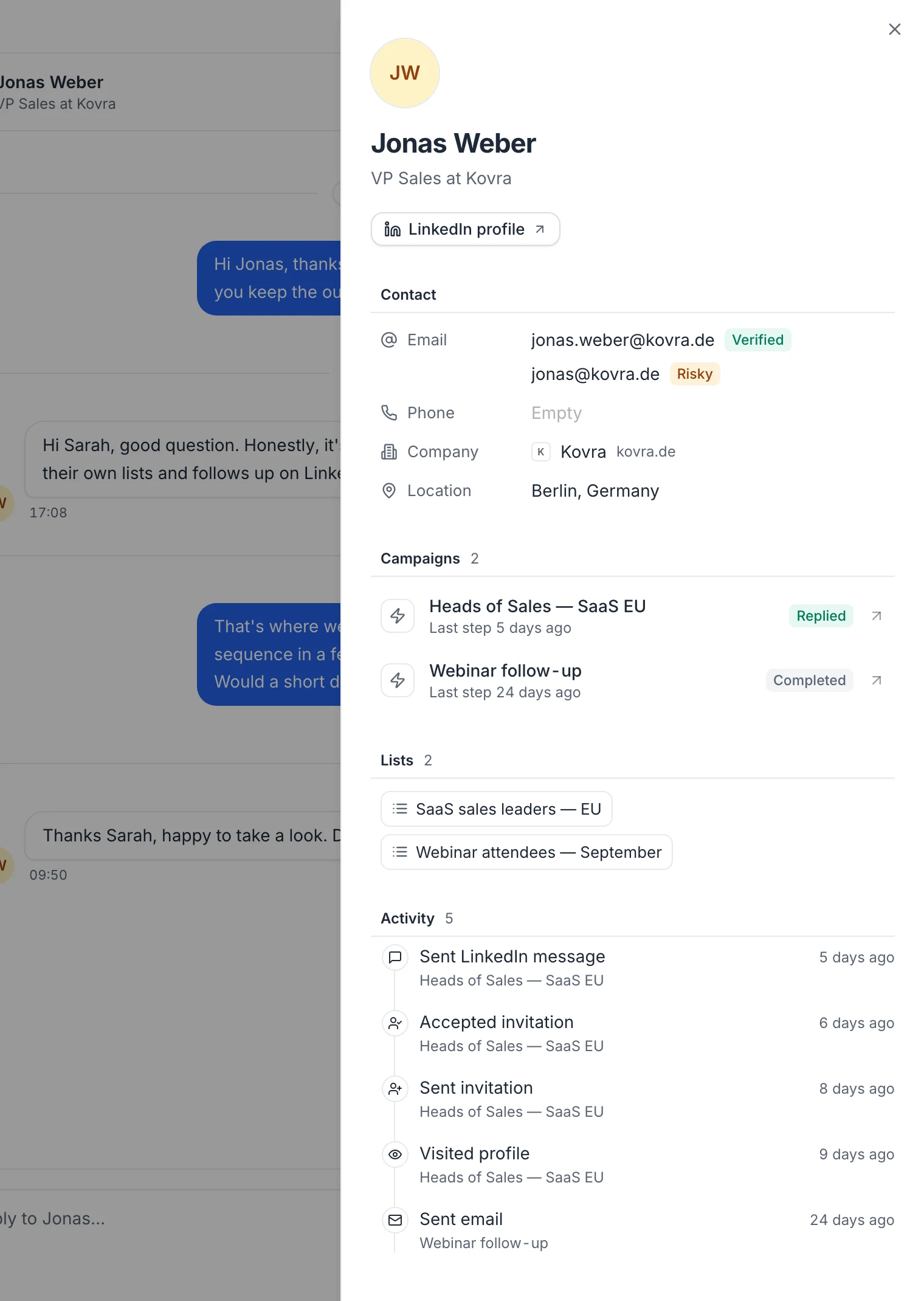
If the person isn't in any of your lists or campaigns, the panel says Not one of your leads yet and only shows their LinkedIn details. If the panel can't load, you see Couldn't load this lead's details with a Retry button.
How a reply affects your campaigns
When a lead answers on LinkedIn (on an account the campaign uses) or by email, useArtemis marks them as Replied in that campaign. What happens next depends on the campaign:
- With Stop a lead when they reply turned on (the default, in the campaign's Campaign settings), the sequence stops for that lead.
- If the next step for the lead, before any message, is built for replies (a Wait for… › Replied message step, a reply condition, AI message analysis or the AI auto-reply step), the lead continues on that path instead. A lead waiting at a Replied message step moves on right away. A reply anywhere else, for example during a delay before a follow-up, stops the lead.
Automatic email replies such as out-of-office messages don't count as replies. Messages you send yourself from the inbox don't stop or pause anything. See Manage the leads of a campaign.
FAQ
Why is my inbox empty?
No LinkedIn account is connected yet: connect one in Settings › LinkedIn accounts (LinkedIn comes with a subscription, not the free account, see Free account: what's included). AppSumo Lifetime accounts can't connect LinkedIn.
Does reading a message in useArtemis mark it as read on LinkedIn?
No. It only clears the unread badge in useArtemis.
Was this article helpful?
Related articles
Still need help?
Write to hello@useartemis.co with your account email and what you were trying to do.