Find leads with Discover
Search the Discover database by job title, company, location and industry, browse companies, and reveal the email of the people you want to reach.
Updated October 27, 2026
On this page
Discover lets you search a database of B2B people and companies without leaving useArtemis. Pick a few filters, click Search people, then reveal the emails of the people you want to contact or save them to a list. Searching is free: a credit is only used when you reveal an email and one is found.
Before you start
Discover is included in every subscription plan and in the free account. A free account gets 30 searches a day: each search, and each new page of results, counts as one, and the counter resets at midnight, Paris time. Revealing emails comes with a subscription: on a free account, Reveal opens a window to subscribe. See Free account: what's included.
Discover isn't part of AppSumo Lifetime plans: on those accounts the sidebar shows a lock next to Discover and the page says "Discover isn't available on your plan", with a View plans button. See AppSumo plans and pricing.
Search for people
- In the sidebar, under Prospecting, click Discover. The People tab opens.
- In the Filters panel, fill in one or more filters:
- Job title: the title to look for, for example "Head of Sales".
- Company: type a company name and pick it from the suggestions (logo, name and domain). You can add several companies.
- Location: type at least 2 letters, then pick a city, region or country. You can add several.
- Industry: type at least 2 letters, then pick one or more industries.
- Keyword: an extra word to look for. It's matched against job titles, like a second title.
- Click Search people at the bottom of the panel, or press Enter in a text field.
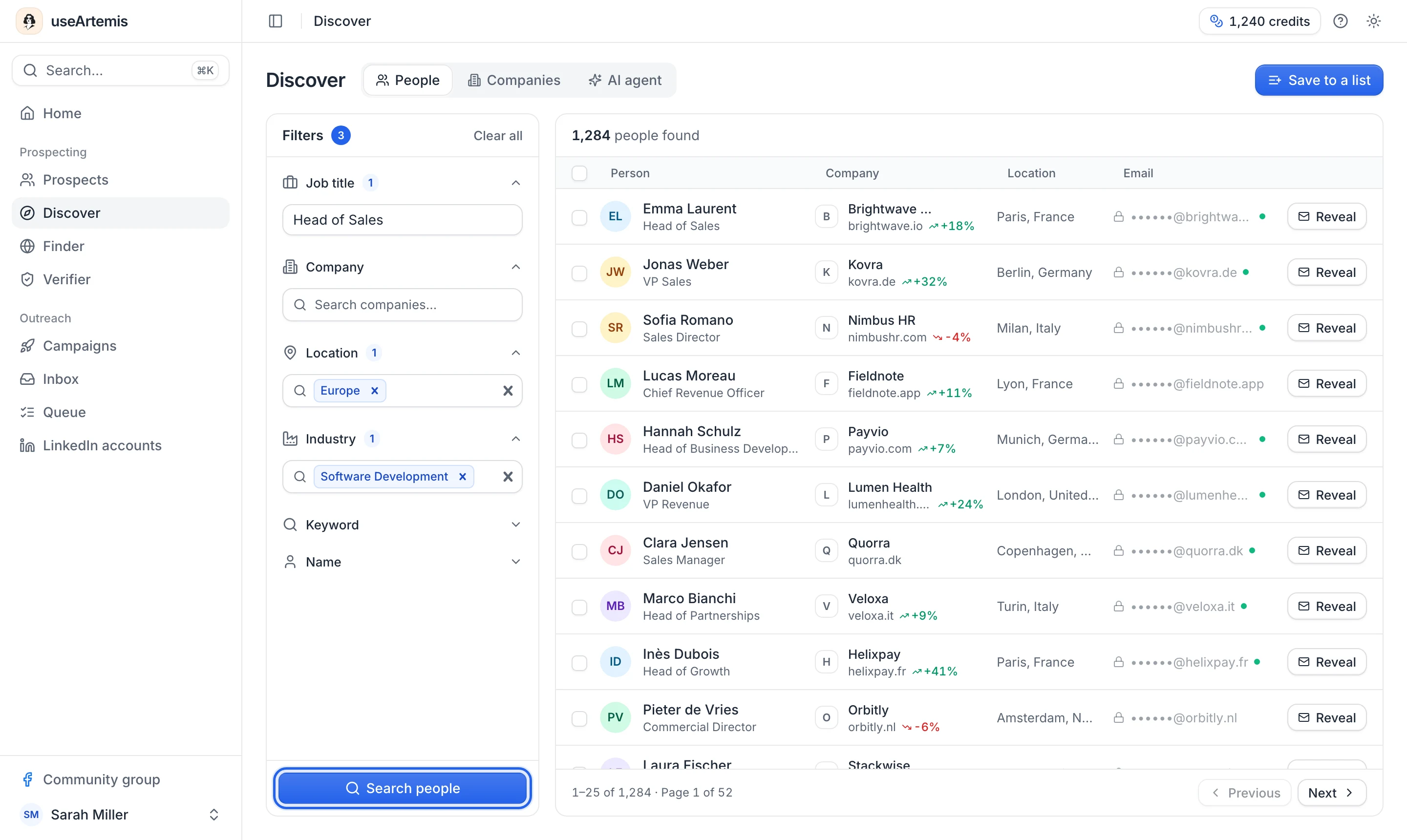
The number next to Filters shows how many filters are active. Clear all resets the filters and the results.
Tip: Start broad (a title and a country), check the number of results, then add a company, industry or city to narrow it down.
What each result shows
Results come 25 per page, with Previous and Next at the bottom and the total ("1,234 people found") at the top. For each person you see:
- Person: photo, name and job title. Hover the row to show links to their LinkedIn, Twitter or GitHub profile when available.
- Company: logo, name, domain and, when known, the change in the company's headcount over the last 12 months (green when it grew, red when it shrank). Hover to open the company's LinkedIn page or website.
- Location: where the person is based.
- Email: hidden as
••••••@company.comuntil you reveal it. A green dot next to it means Verified email available.
Reveal an email
To reveal one person's email, click Reveal on their row. useArtemis asks several email providers in turn and stops at the first verified address, so a reveal takes a few seconds (up to about 45 seconds when no provider finds the email). When an email is found, it replaces the masked address, the button turns into a Found badge and you can copy the address with the copy icon.
To reveal several people at once:
- Tick the box in front of each person, or tick the box in the table header to select the whole page.
- Click Reveal N emails at the top of the table. The button shows the progress ("Revealing 3/10").
- When it's done, a message tells you how many emails were found and how many people were checked.
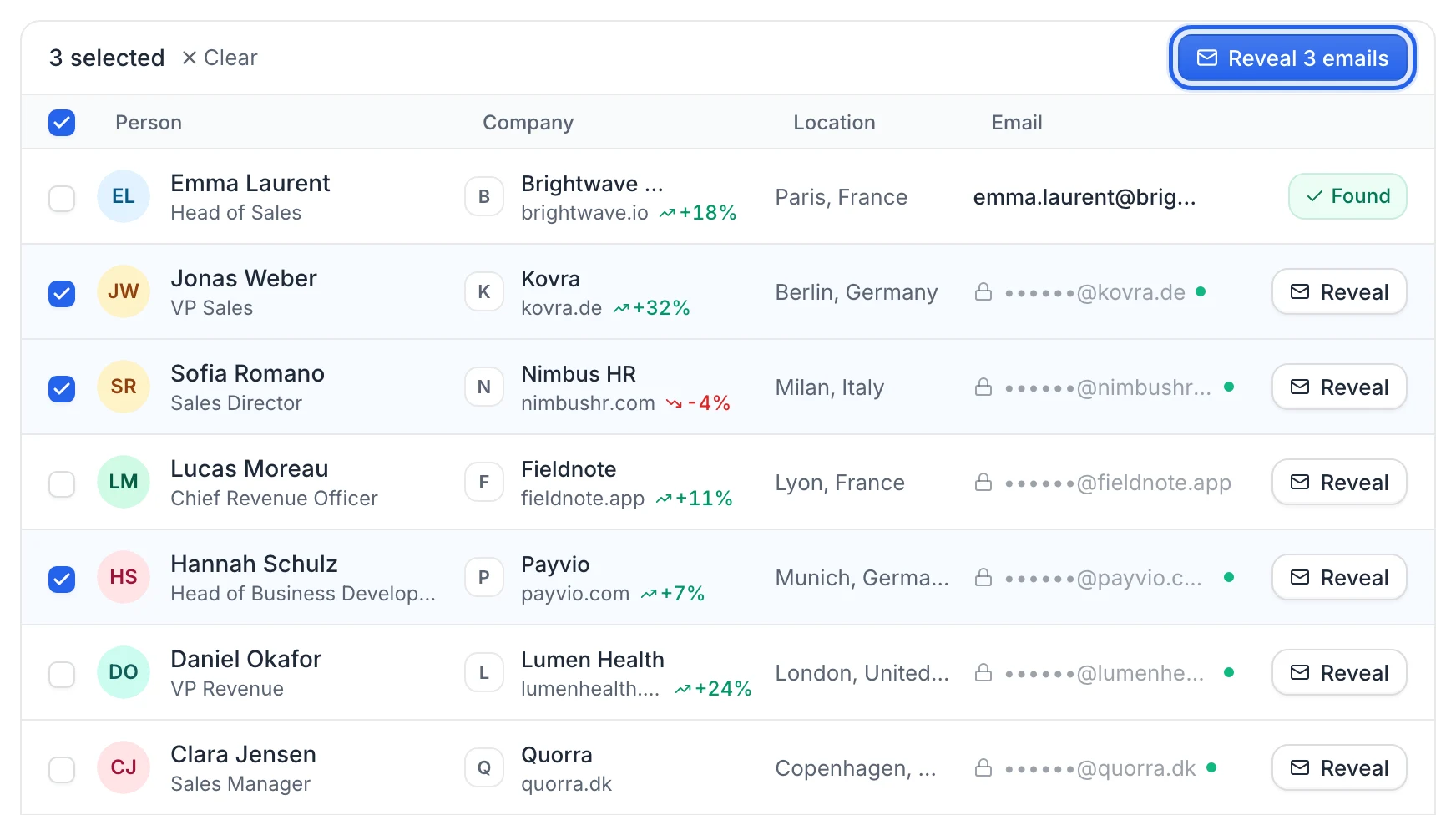
People whose email is already revealed are skipped.
Credits: each email found uses 1 credit. If no email is found, nothing is charged and you see No email found. If you see Email search unavailable, the email providers didn't answer: no credit is used, try again in a moment. During Reveal N emails, the reveal then stops and the message tells you how many people were checked. You need at least 1 credit to reveal; otherwise you see "Not enough credits. You need at least 1 credit to reveal a contact." In a team workspace, the team's credits are used. See What uses email credits.
Note: Revealed emails are kept in your workspace (your team's, in a team workspace). When the same person shows up in a later search, their email is already there and revealing it again is free. When you save the results to a list, the emails you revealed are copied to the leads.
Tip: Before a campaign, you can check revealed addresses in the Verifier.
Search for companies
- In Discover, click the Companies tab.
- Fill in the filters: Keyword (for example "SaaS", "fintech" or a company name), Location, Industry and Company size (from 1-10 to 10,001+, several sizes allowed).
- Click Search companies.
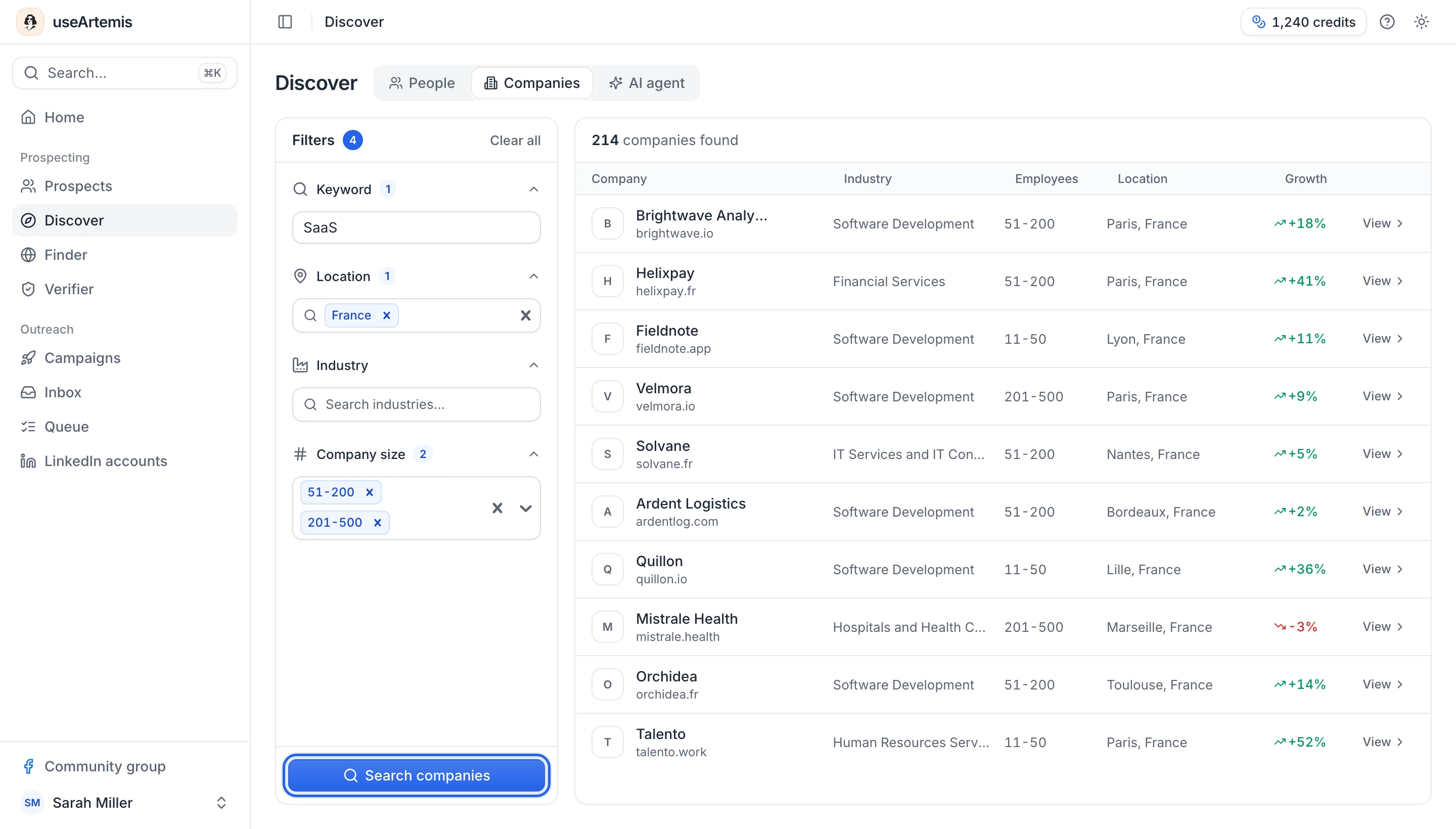
The table shows Company (logo, name, domain), Industry, Employees, Location (where the headquarters are, for example "Paris, France") and Growth (headcount change over 12 months). It lists the first 25 matching companies, so narrow your filters if the company you want isn't there.
Open a company
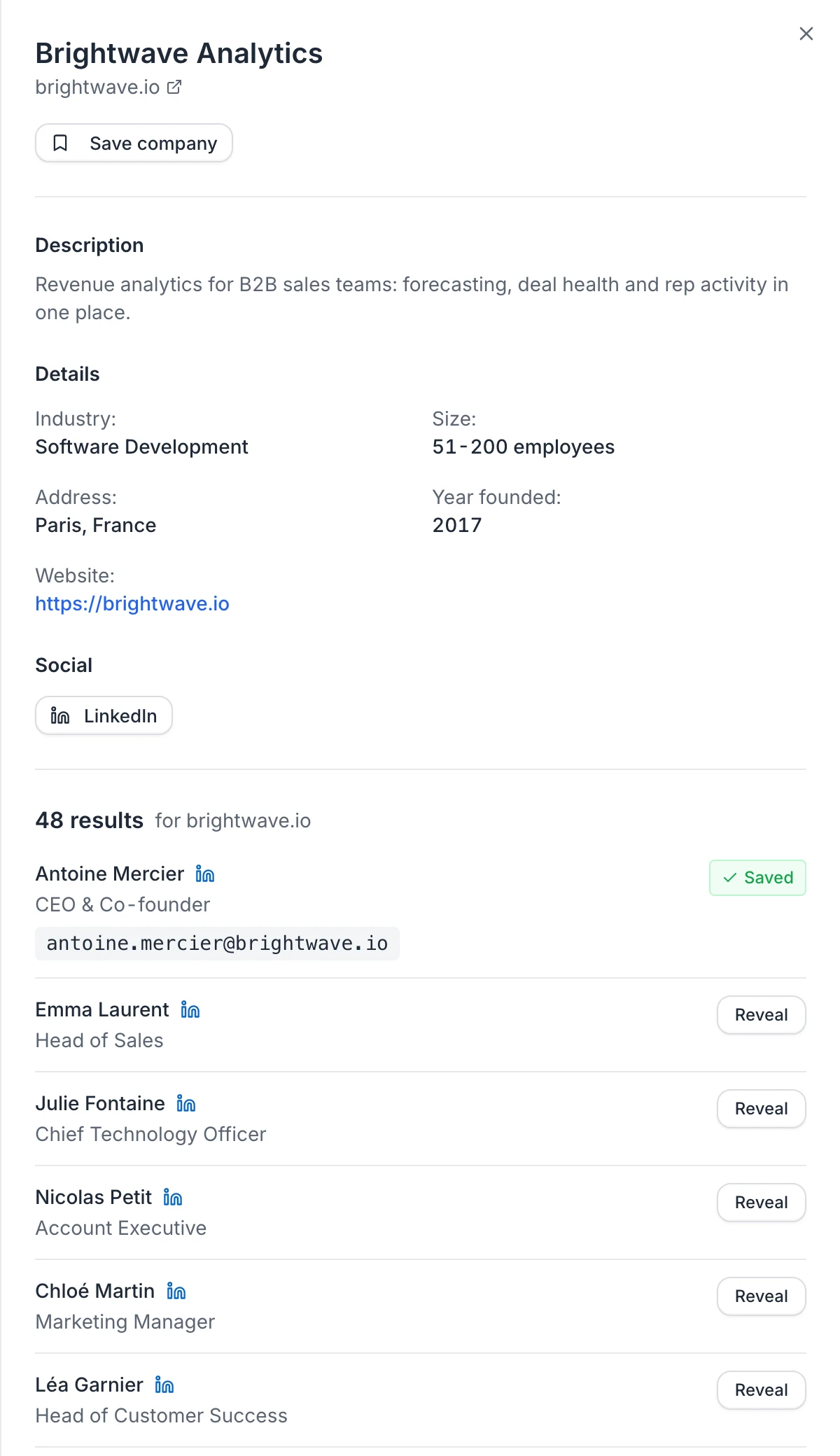
Click a company row (or View) to open its panel. You'll find its description, Details (industry, size, headquarters, year founded, website), links to its LinkedIn and Twitter pages and the people who work there, 10 per page with arrows to see more.
Click Reveal next to a person to find their email. The same rule applies: 1 credit when an email is found, nothing otherwise. The email then appears under the person's name with a Saved badge. People whose email you already revealed (here, in the People tab or with the AI agent, in the same workspace) show it straight away, at no cost.
If the panel says "Couldn't load the people at this company.", click Try again.
Tip: To build a list from one company, go back to the People tab, pick the company in the Company filter and add a job title. You can then save the results to a list.
Prefer to describe who you want?
Click Ask the AI agent at the top of Discover (or AI agent in the sidebar): describe the people you want in plain language and the agent runs the searches, shows the results in a lead table and can prepare your campaign. See Get started with the AI agent.
FAQ
Does searching in Discover use credits?
No. Searching people or companies, using the filter suggestions and opening a company are free. Only revealing an email uses a credit, and only when an email is found.
Why do I see "You've reached today's free limit"?
A free account gets 30 Discover searches a day. When they're used, this window offers to subscribe; otherwise, you can search again after midnight, Paris time. Opening a company and saving results to a list still work in the meantime. See Free account: what's included.
Why can't I open Discover?
Discover isn't available on AppSumo Lifetime plans. Upgrade to a subscription plan to use it. See AppSumo plans.
My search shows no results. What should I do?
Remove a filter or two. Combining several narrow filters (a precise title, one company and one city, for example) can leave no one. Also make sure you picked companies, locations and industries from the suggestions rather than only typing them. If you see "Failed to search people. Please try again.", run the search again after a few seconds, and contact hello@useartemis.co if it keeps failing.
Was this article helpful?
Related articles
Still need help?
Write to hello@useartemis.co with your account email and what you were trying to do.