Save Discover results to a list
Turn a Discover people search into a lead list: how many people you can save at once, what's saved with each lead, and how to get their emails.
Updated October 27, 2026
On this page
Click Save to a list above your Discover results to copy the people matching your filters into a new lead list. Saving doesn't use credits. You can then find the leads' emails and use the list in a campaign.
Save people to a list
- In Discover, on the People tab, run a search (see Find leads with Discover).
- Click Save to a list at the top right. The button appears once you have results.
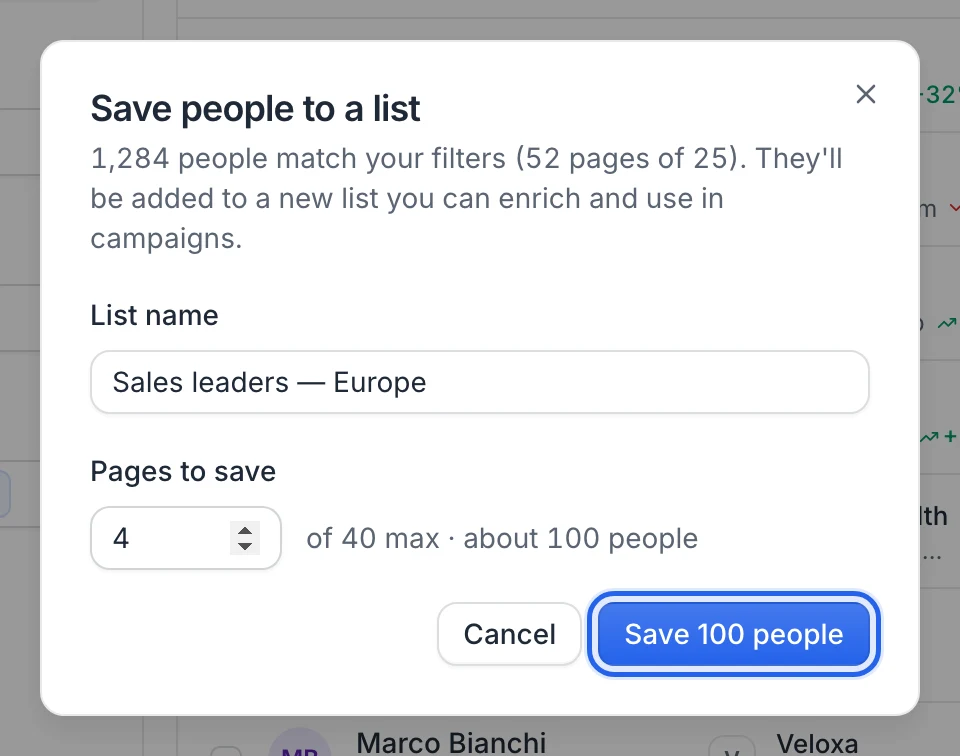
- In the Save people to a list window, type a List name. If you leave it empty, the list is called "Discover Export" followed by today's date.
- In Pages to save, choose how many pages of results to save. Each page holds 25 people, and you can save up to 40 pages (1,000 people) at a time. The window shows about how many people that represents.
- Click Save N people. Keep the window open while it shows "Saving N pages…".
When it's done, you see "Saved to list" with the number of people added. The new list is in Prospects with your other lists.
Note: The list is built from your filters, starting at the first page of results. The checkboxes in the results table are only used to reveal emails: they don't change what's saved.
Each save creates a new list. Saving again with the same filters saves the same people again, from page 1.
Tip: Need more than 1,000 people? Split your search into several smaller ones (one per country or per job title, for example) and save each of them.
What's saved with each lead
Each lead is saved with:
- full name, first name and last name
- job title
- company name, website and LinkedIn page
- location
- profile photo
- LinkedIn profile URL
The emails you already revealed in Discover or in the AI agent are copied to their leads, which count as found: Find emails skips them, so you don't pay for them twice. To get the other emails, run Find emails on the list (next section).
Find emails for the saved leads
- Open Prospects and click the list you just saved.
- Click Find emails, then Start enrichment.
Each lead whose email is found uses 1 credit; leads without a result don't. Finding emails comes with a subscription, not the free account. To start, you need more credits than there are leads in the list. Full steps: Find emails for a list. Credit rules: What uses email credits.
Tip: If you plan to save people to a list anyway, skip revealing them one by one in Discover. Run Find emails on the list instead, so you don't spend credits twice on the same person.
Use the list in a campaign
Select the list when you create a campaign. LinkedIn steps use the leads' LinkedIn profiles, which are saved with every lead. Email steps need an email address, so find the emails first. See Create a campaign.
Save leads found by the AI agent
The lead tables of the AI agent have the same Save to a list button, and the agent can save the people for you when you ask. See Go from target to LinkedIn campaign with the AI agent.
FAQ
Does saving Discover results use credits?
No. Saving people to a list is free. Credits are used later, when you find their emails (1 credit per email found).
Why are the emails I revealed missing from my list?
Saving to a list copies the people from your search, not the emails revealed on the Discover page. Run Find emails on the list to add their emails.
How many people can I save at once?
Up to 40 pages of 25 people, so 1,000 people per save. If your search has fewer results, the maximum is lower.
Can I add Discover results to an existing list?
Not directly: each save creates a new list. Open that list, select the leads and use Move to to send them to another list. See Manage your lead lists.
Was this article helpful?
Related articles
Still need help?
Write to hello@useartemis.co with your account email and what you were trying to do.