Edit your profile and account settings
Change your name and company, pick light or dark mode, include personal emails in enrichment, and find every other setting of your account.
Updated October 13, 2026
On this page
Your profile lives in Settings › Account: you can change your first name, last name and company, and choose how the app looks. Your login email can't be changed from the app. This article also covers the Enrichment setting and where to find the other settings.
Open Settings
Click your name at the bottom of the sidebar, then Settings. You can also press ⌘K (Mac) or Ctrl+K (Windows) and choose Settings, or go to https://app.useartemis.co/settings.
The tabs on the left are:
| Tab | What it's for |
|---|---|
| Account | Your name, company and the app's appearance (this article) |
| Security | Your password, see Log in, reset your password and log out |
| Enrichment | Whether personal emails are included when you enrich a list (below) |
| LinkedIn accounts | The LinkedIn accounts your campaigns send from, see LinkedIn accounts |
| Email accounts | The mailboxes your email steps send from, see Email accounts |
| Billing | Your plan, credits and invoices, see Plans & billing |
| API | Your API key, see Get your API key |
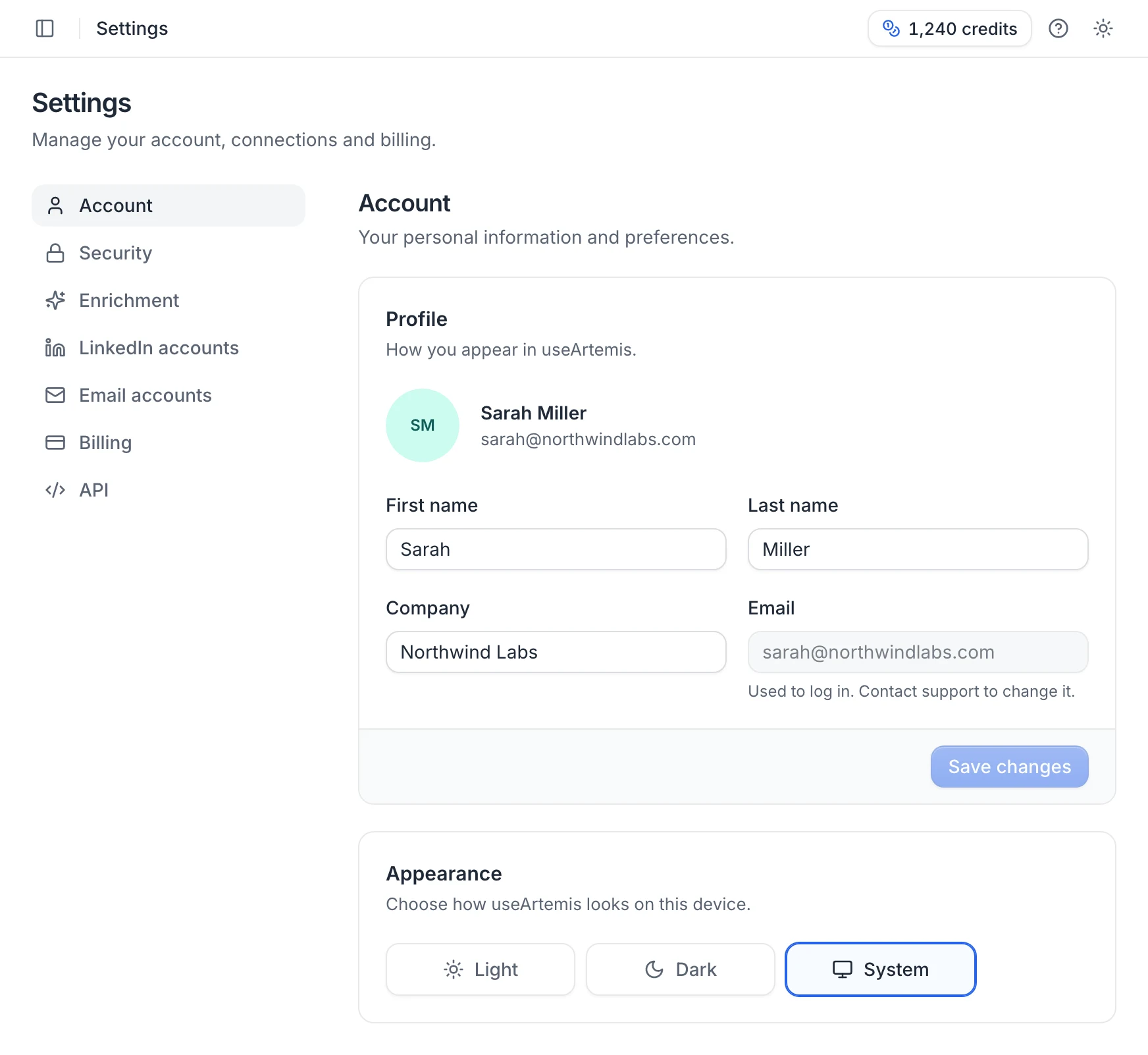
Change your name or company
- Go to Settings › Account.
- In the Profile card, edit First name, Last name or Company.
- Click Save changes. The button is disabled until you change something.
You see Profile updated when it's saved. The first name is required: if you leave it empty, you get "First name is required" and nothing is saved.
Note: If you log in with Continue with Google, your first and last name are updated from your Google account each time you log in that way. To keep a different name, change it in your Google account.
Change your email address
The Email field is read-only: it's the address you log in with. To change it, contact us at hello@useartemis.co with your current and new addresses.
Choose light or dark mode
In Settings › Account › Appearance, pick Light, Dark or System. System follows your computer's setting. The choice applies to the browser you're using, so set it again on another computer.
You can also switch quickly with the sun or moon icon in the header, the account menu, or the command menu.
Include personal emails when you enrich a list
When you look for the emails of a list, useArtemis returns professional addresses. If you also want personal addresses (Gmail, Outlook…) when no professional one is found:
- Go to Settings › Enrichment.
- Turn on Include personal emails.
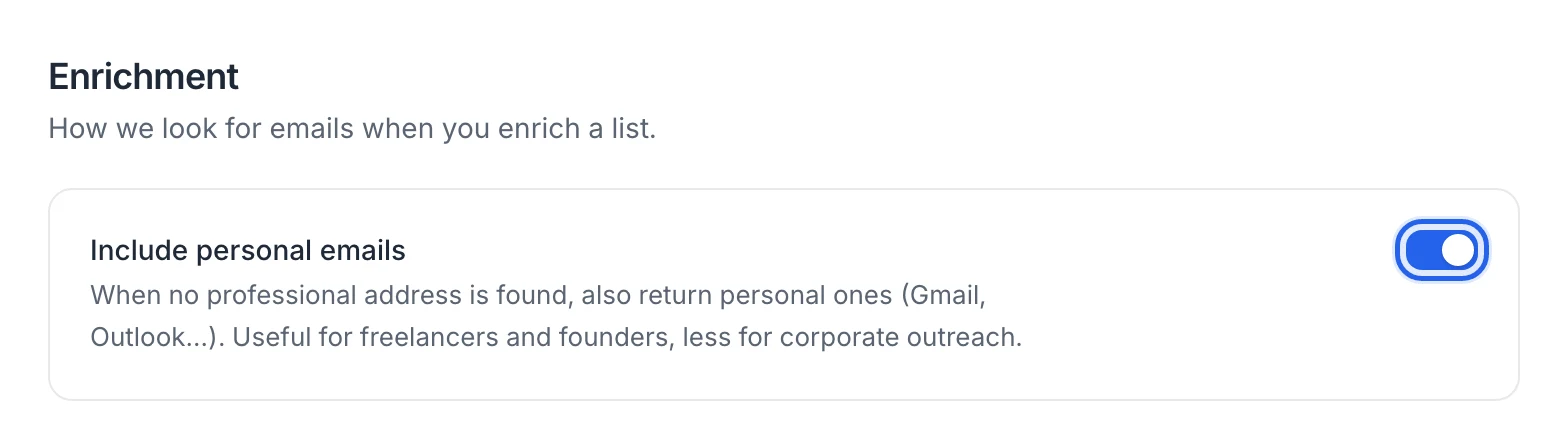
You see Personal emails turned on. Turn the switch off to go back to professional emails only. Personal emails are useful for freelancers and founders, less for corporate outreach. A personal email added to a lead uses credits like any email found. See Find emails for a list.
Delete your account
There's no delete button in Settings. To close your account, first cancel your subscription, then contact us at hello@useartemis.co to delete your account and its data.
FAQ
Why did my name change back?
You probably logged in with Google: your first and last name are refreshed from your Google account at each Google login.
Can I add a profile picture?
There's no upload in Settings. If you log in with Google, the app uses your Google profile picture; otherwise it shows your initials.
Was this article helpful?
Related articles
Still need help?
Write to hello@useartemis.co with your account email and what you were trying to do.