Manage a connected mailbox
Add an email signature, send a test email, change the sender name, reply-to address or daily limit, reconnect a mailbox that stopped working, or remove it.
Updated October 15, 2026
On this page
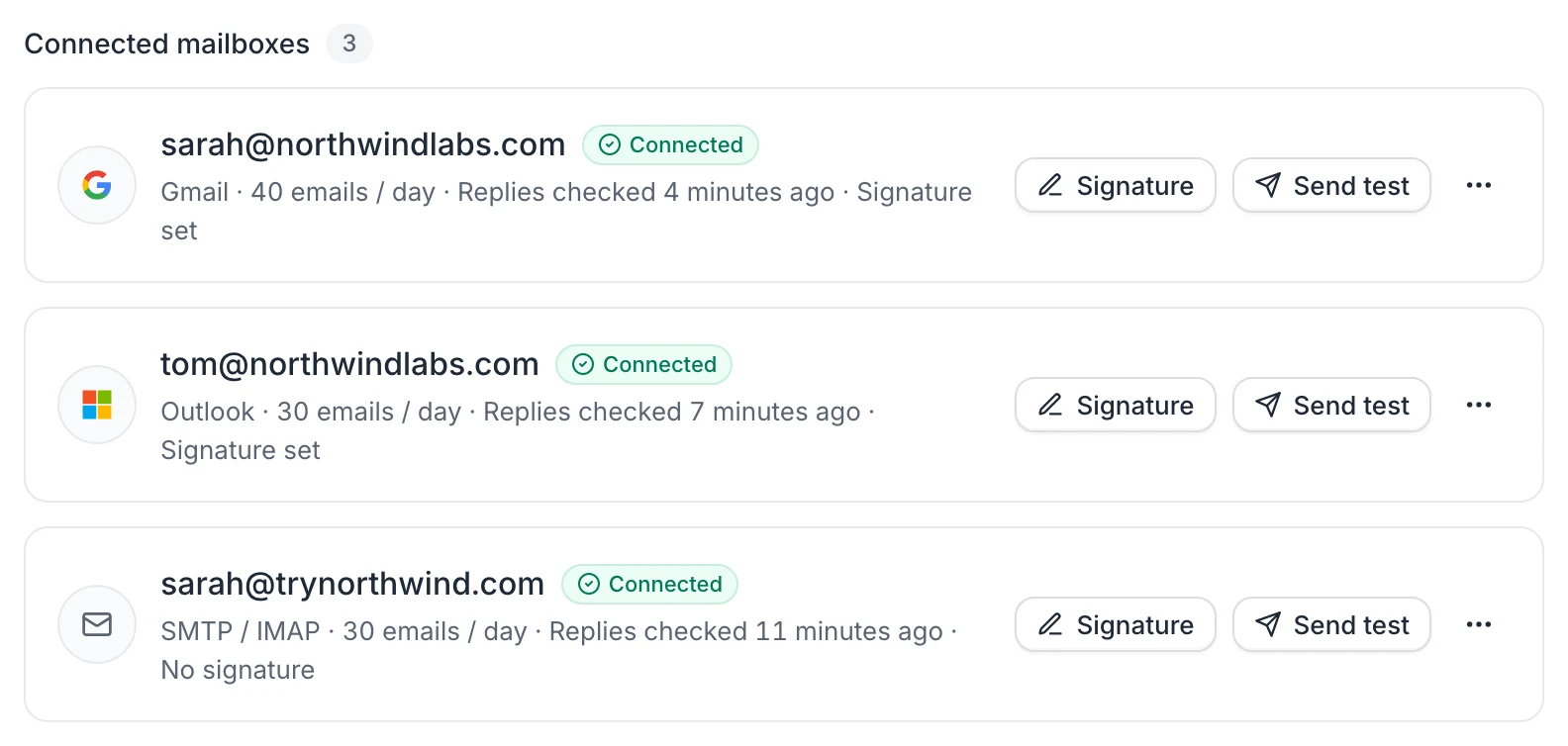
Everything about a mailbox is managed from Settings › Email accounts: each connected mailbox has a card with Signature, Send test and a ⋯ menu for Sending settings and Remove mailbox. When a mailbox stops working, the card shows Reconnect needed and a Reconnect button.
To get there, open the account menu (your name at the bottom of the sidebar), click Settings, then Email accounts.
Read the mailbox card
Under the address, the card shows:
- the provider: Gmail, Outlook or SMTP / IMAP
- the daily limit, for example 30 emails / day
- Replies checked …: the last time useArtemis read the inbox for replies and bounces
- Signature set or No signature
The badge next to the address is Connected when everything works, or Reconnect needed when the mailbox refused the login.
Add a signature
On the mailbox card, click Signature.
Write your signature in the Editor tab, or paste HTML in the HTML tab. The Preview shows how it will look.
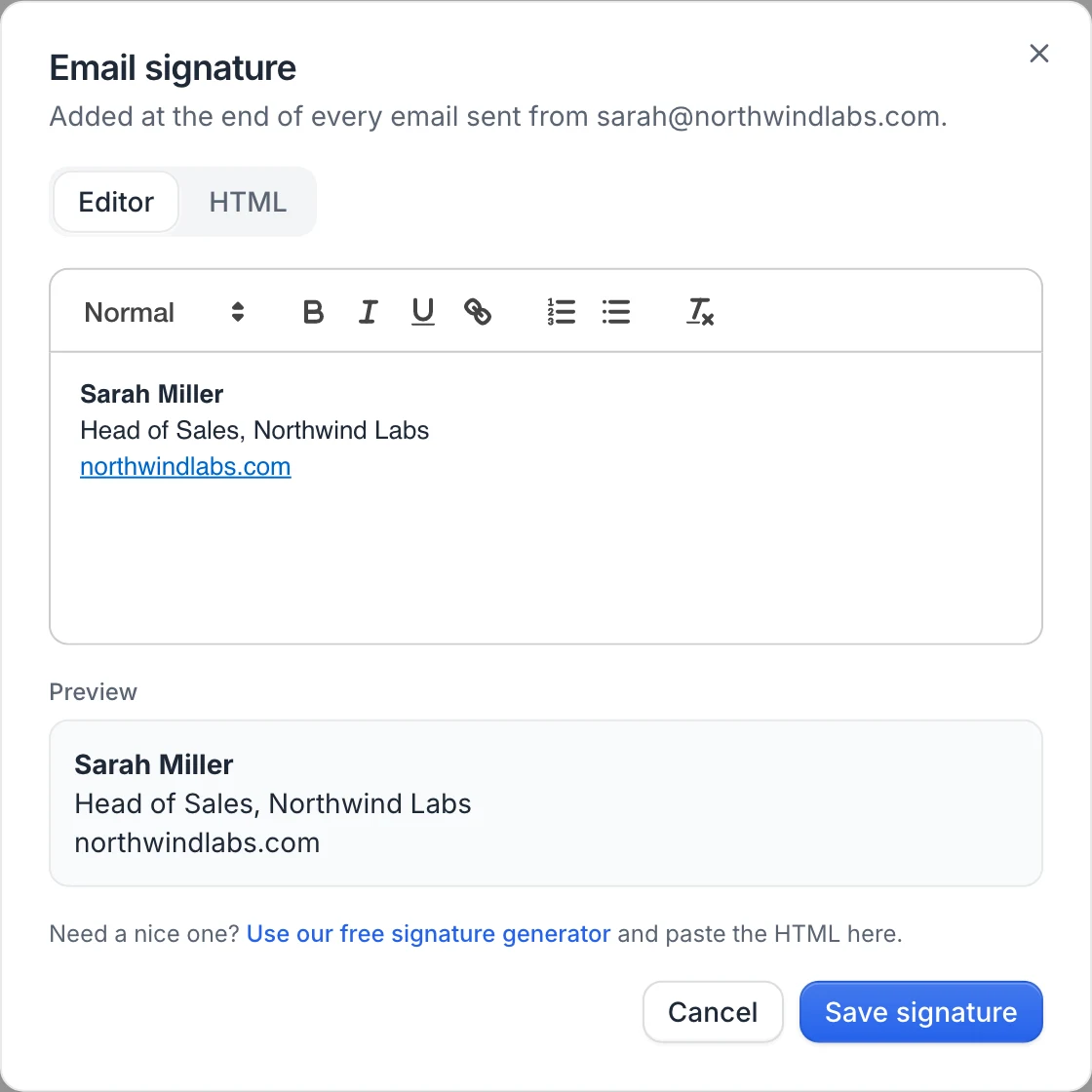
Click Save signature.
The signature is added at the end of every email sent from this mailbox. In a campaign's Send an email step, the Add my signature switch lets you leave it out for that step. Need a signature? The dialog links to our free signature generator: build one there and paste the HTML.
Send a test email
Click Send test on the card. useArtemis sends an email titled Test email from useArtemis from this mailbox to the address you log in with, including your signature. A Test email sent message tells you which inbox to check.
If the test fails, the message explains why. A login error also switches the mailbox to Reconnect needed.
Change the sender name, reply-to or daily limit
On the card, open the ⋯ menu and click Sending settings.
Edit:
- Sender name: the name shown next to your address in your leads' inbox.
- Reply-to address (optional): where replies go, if not to the sending address. Leave empty to receive replies in the mailbox itself.
- Emails per day: the most this mailbox sends per day, across all your campaigns. Between 1 and 500. We recommend around 30 to 50 a day per mailbox.
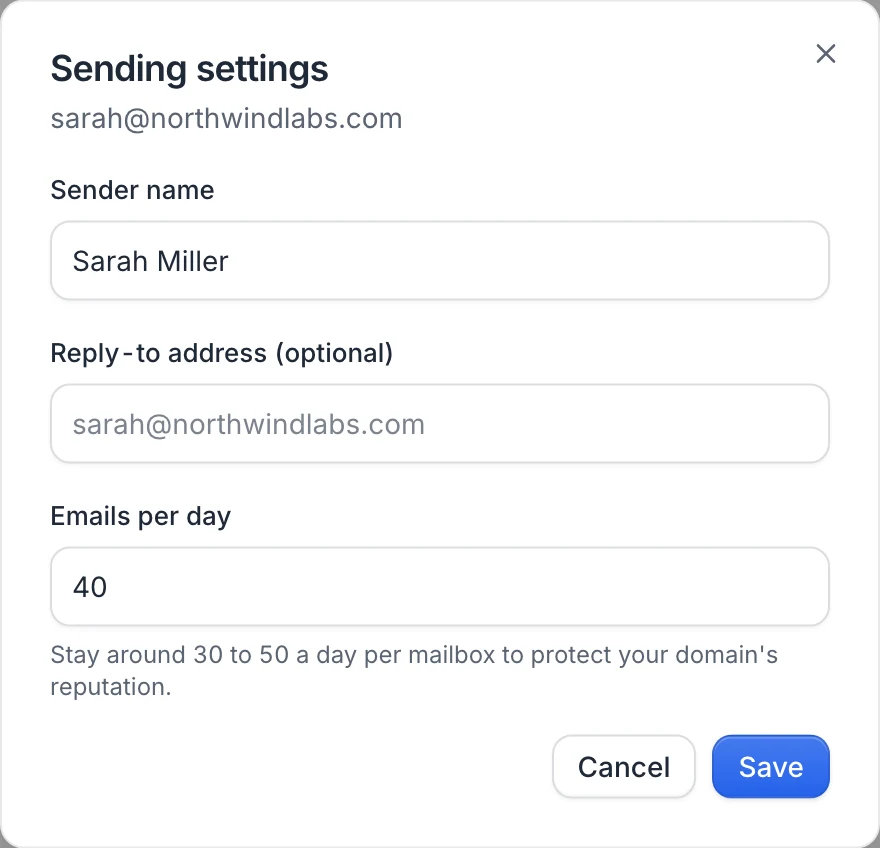
Click Save.
Warning: Replies are detected by reading the inboxes of your connected mailboxes. If your reply-to address belongs to a mailbox that isn't connected to useArtemis, replies sent there won't stop your sequences.
Daily limits are explained in Email sending limits and deliverability.
Reconnect a mailbox
A mailbox needs to be reconnected when it refuses the login: you changed its password, revoked the app password, or Microsoft ended the session. The card shows Reconnect needed and the reason in red, for example The mailbox refused the login. Reconnect it to resume sending.

- Click Reconnect on the card. The connection window opens with the address already filled in.
- Choose the same provider as before (gmail.com addresses go straight to the Gmail form).
- Enter the new password or app password, or sign in with Microsoft again.
- Click Test & connect (or finish the Microsoft sign-in).
The existing mailbox is updated, so every campaign step that uses it keeps working.
Mailboxes connected with our previous email system may show We changed how mailboxes are connected. Reconnect this one to keep sending email steps from it. Reconnect them the same way. Until then, they can't be selected in email steps.
What happens to campaigns in the meantime
The email steps that use the mailbox wait, nothing is lost. The campaign shows a red banner such as Mailbox you@company.com needs attention: …. Waiting emails are retried every two hours, so they go out at the next retry once the mailbox is reconnected. Other steps keep running.
Remove a mailbox
- Open the ⋯ menu on the card and click Remove mailbox.
- Confirm with Remove mailbox.
Email steps that use this mailbox stop sending until you pick another mailbox in the campaign. A campaign that still points to a removed mailbox can't be launched: it lists A mailbox used by the sequence no longer exists. among the things to fix.
FAQ
Do replies show up in useArtemis?
The reply itself stays in your mailbox: read and answer it from your usual email app. useArtemis marks the lead as replied and stops their sequence (if Stop a lead when they reply is on in the campaign settings). The useArtemis Inbox shows LinkedIn conversations.
Was this article helpful?
Related articles
Still need help?
Write to hello@useartemis.co with your account email and what you were trying to do.