Find leads with the Discover AI agent
Describe your ideal customer in plain English: the Discover AI agent searches people and companies for you, then saves the leads it found to a list.
Updated October 13, 2026
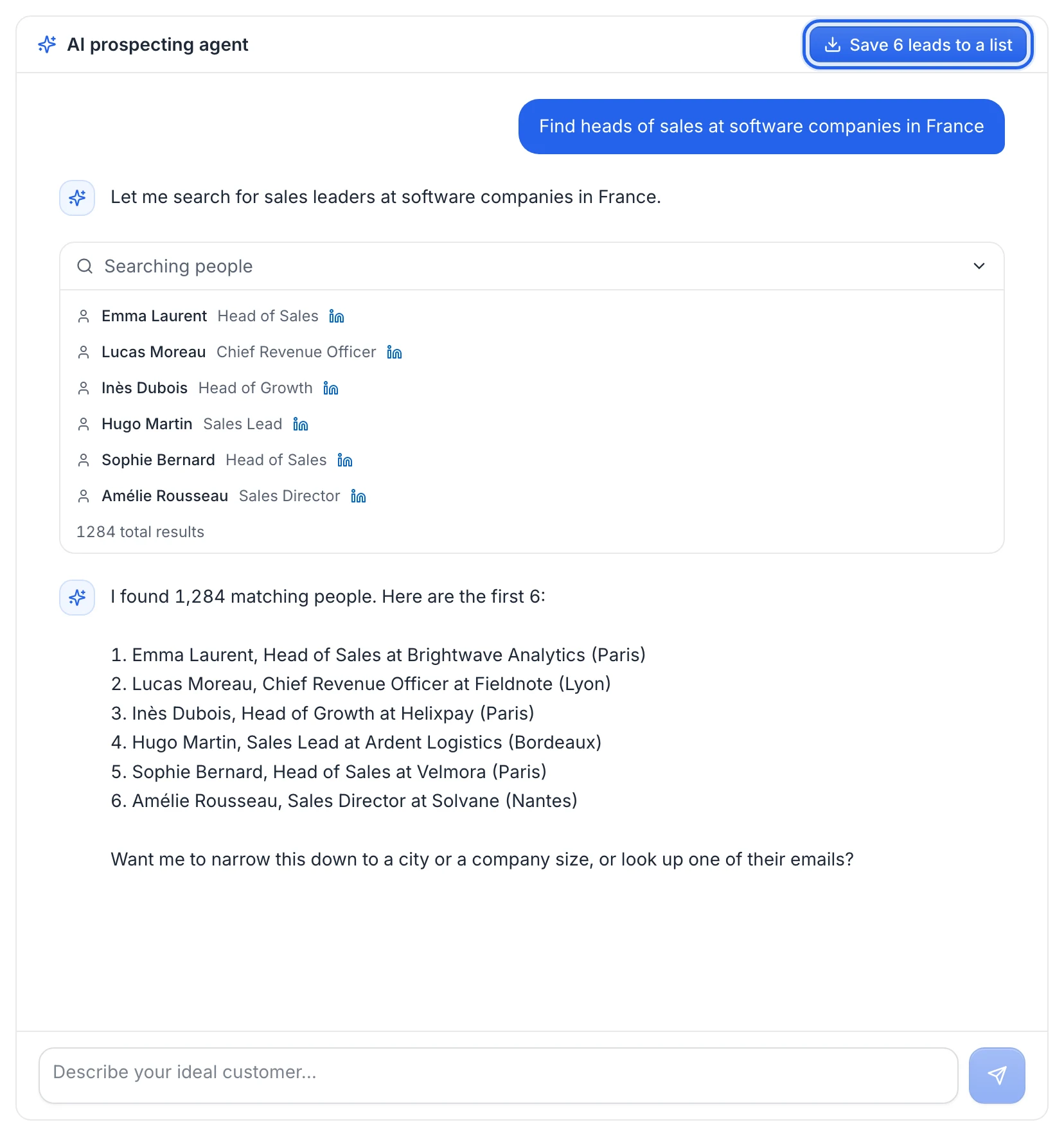
The AI agent tab in Discover is a chat assistant for prospecting. Describe the people you want to reach in plain English, and the agent runs the searches for you, sums up what it found and lets you save those people to a lead list.
Start a conversation
- In the sidebar, click Discover, then the AI agent tab.
- In the box at the bottom ("Describe your ideal customer…"), describe who you're looking for. You can also click one of the suggestions, such as "Find me sales managers at SaaS companies in Paris".
- Press Enter or click the send button. Use Shift + Enter for a new line.
While the agent works, you see "Thinking…" and then one line per step it takes:
- Searching people
- Searching companies
- Getting company info
- Finding email
Once a step is finished, click it to see its raw results: the people (with a link to their LinkedIn profile), the companies, or the email found, plus the total number of matches.
What you can ask
The agent can:
- search people by job title, keyword, location, company, industry and seniority (for example "directors", "founders" or "C-level")
- search companies by keyword, location, industry and size
- get details about a specific company (description, industry, size, location, website)
- look up the professional email of a specific person when you give their name and company
Each search returns a short list of results (up to 25 at a time). To see different people, refine the request in the same conversation: "only in Lyon", "same thing but VP level", "companies with 50 to 200 employees". The agent keeps the context of the conversation.
Tip: Be specific about the job title, the location and the type of company. "Heads of growth at B2B SaaS companies in Germany" gives better results than "marketing people".
Save the leads to a list
When the agent has finished answering and found people, a Save N leads to a list button appears at the top of the chat.
- Click Save N leads to a list.
- In Export leads, type a list name. If you leave it empty, the list is called "AI Agent Leads".
- Click Export N leads.
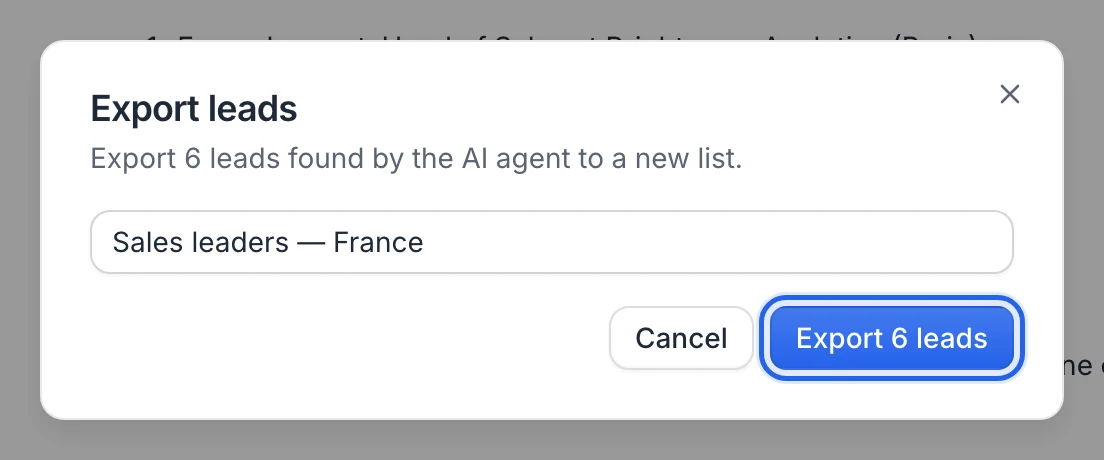
You see "Exported!" with the number of leads added, and the new list is in Prospects.
The list includes every person returned by the people searches of the conversation, once each. Each lead is saved with their name, job title, location and LinkedIn profile URL. Company names and the emails shown in the chat aren't added to the list: run Find emails on the list to get the emails (1 credit per email found). See Find emails for a list.
Good to know
- The conversation isn't kept. Leaving or reloading Discover clears the chat. Save the leads you want before you leave.
- For bigger lists, use the filters. The agent works with short result lists. To save up to 1,000 people in one go, use the People tab and Save to a list. See Save Discover results to a list.
- Same availability as Discover. The AI agent is part of Discover, which isn't included with AppSumo Lifetime plans.
FAQ
The agent shows an error. What should I do?
If you see "Agent Error" or "Failed to chat with agent", send your message again. If it keeps happening, start a new conversation by reloading the page (save your leads first) or contact hello@useartemis.co.
Why does the save button show fewer leads than the agent mentioned?
The button counts the people returned by the agent's people searches. Companies, company details and emails aren't counted. The total number of matches shown in a search step is the size of the whole database match, not the number of people the agent retrieved.
Was this article helpful?
Related articles
Still need help?
Write to hello@useartemis.co with your account email and what you were trying to do.